



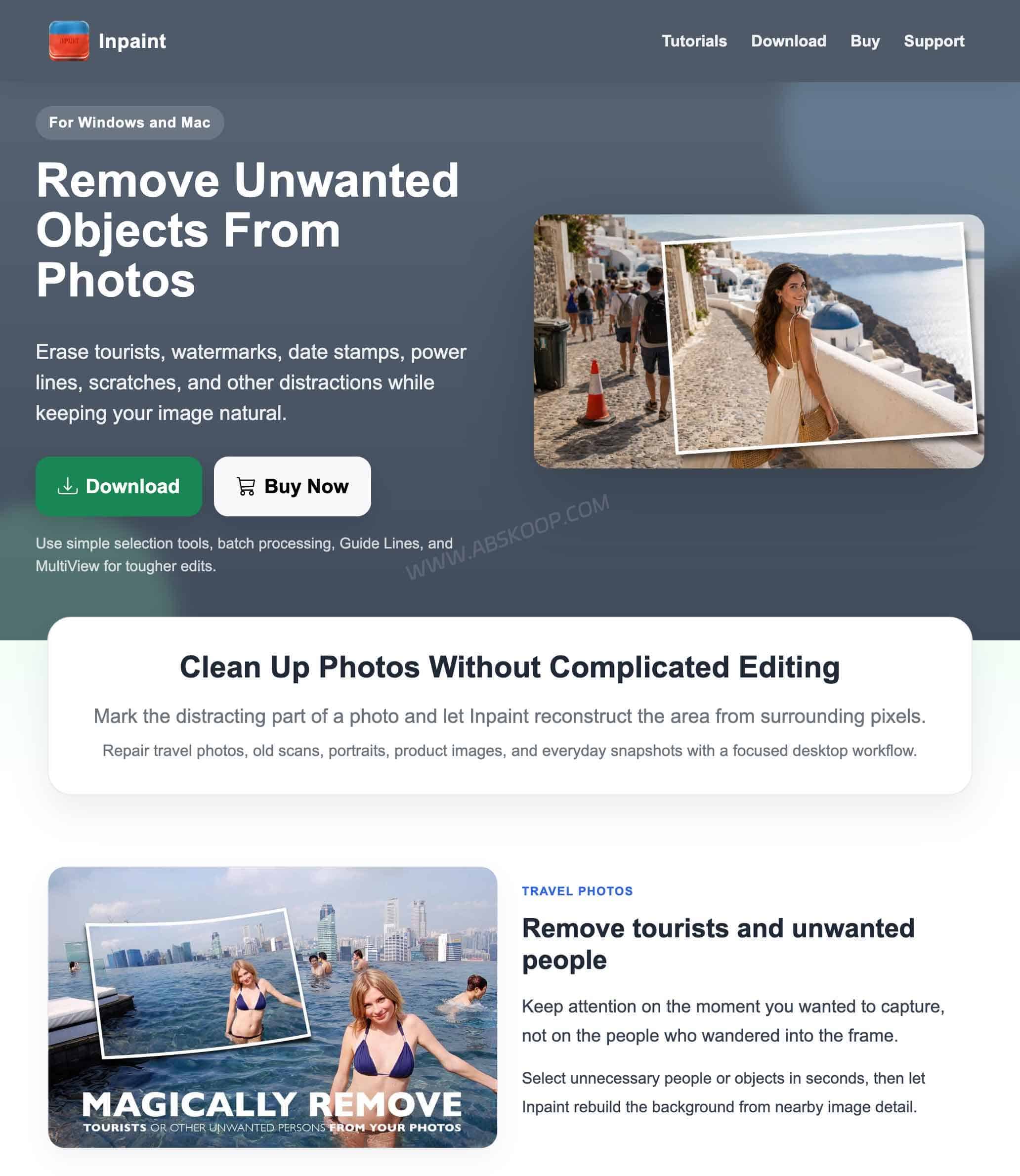
Inpaint is a photo restoration and object removal tool from Teorex. It is built for one main job: removing unwanted parts of a photo, such as watermarks, text, people, wires, signs, dates, or other distracting objects.
You select the area you want to remove, and Inpaint rebuilds that part of the image using surrounding visual information. The desktop app is available for Windows and macOS, with separate versions for iPhone and iPad.
What Is Inpaint?
Inpaint is designed for local photo repair and object removal rather than full-scale image editing. It works well when you want to clean up a specific part of a photo without dealing with layers, masks, or a long list of editing tools.
Common uses include removing:
- people and tourists from photos
- watermarks and logos from images you own or are authorized to edit
- text, dates, and timestamps
- wires, signs, and small background distractions
- scratches and spots from old photos
- minor skin blemishes
Inpaint does not simply blur the selected area. It reconstructs the missing region from nearby image content, so results are usually better when the surrounding background contains enough useful detail.
How to Remove Objects and Watermarks with Inpaint
The basic Inpaint workflow is simple: open an image, select the unwanted area, and run the removal tool.
If you prefer a browser-based AI workflow that rebuilds the area after an object is erased, see Magic Eraser by Magic Studio. It is designed for quickly removing people, text and unwanted objects from photos without installing a full image editor.
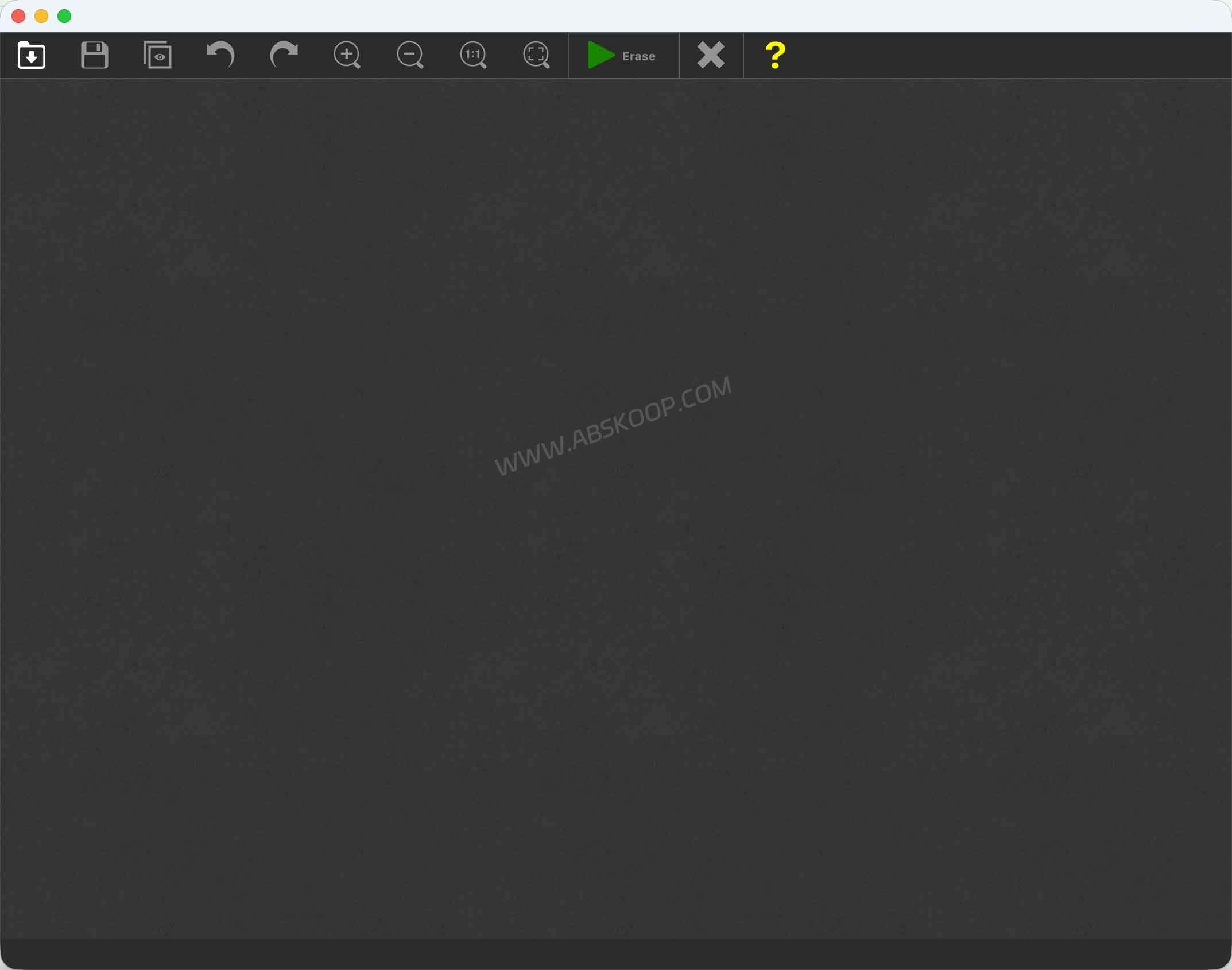
1. Open the image
Import the photo you want to edit and identify the object, text, watermark, or person you want to remove.
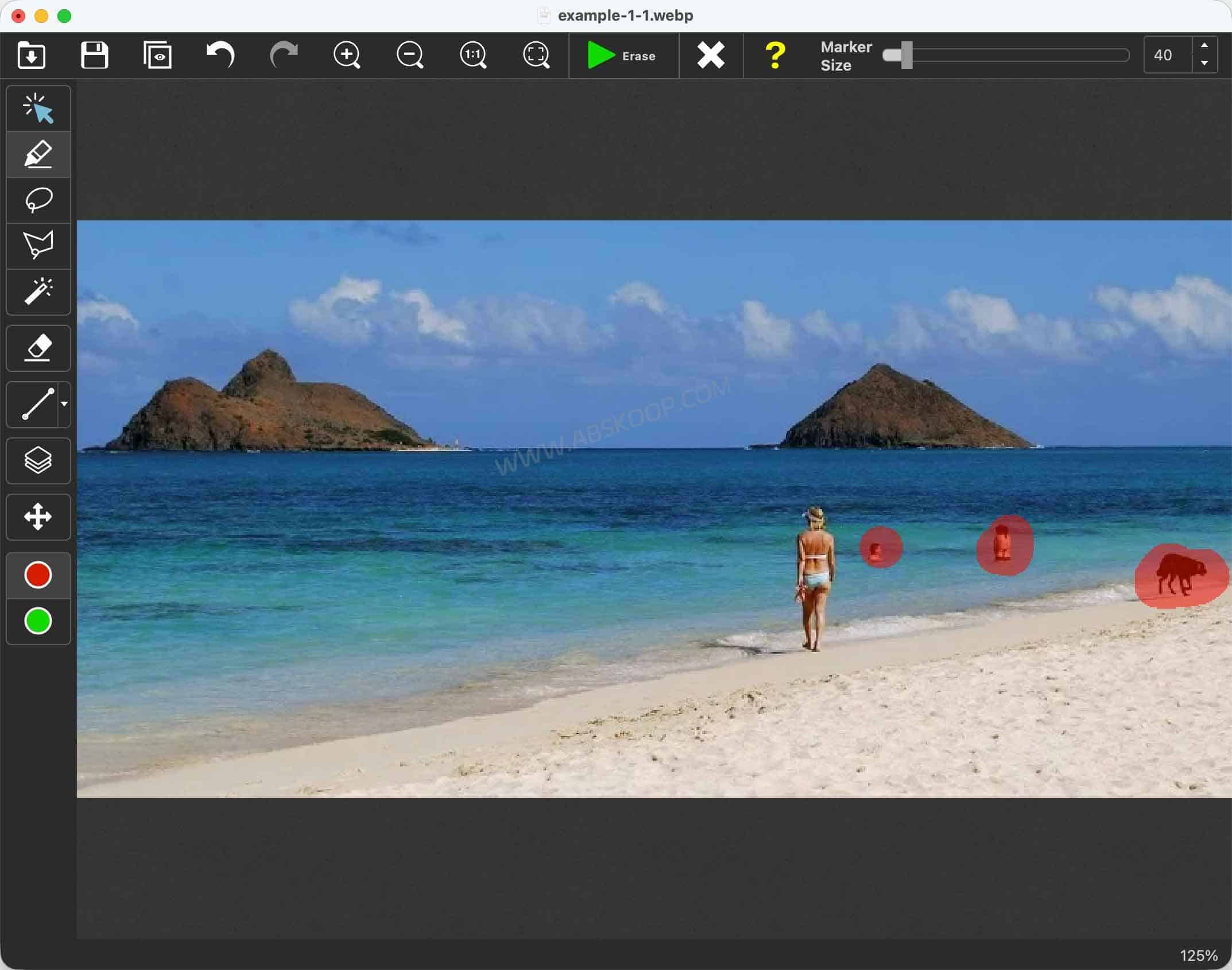
2. Select the area to remove
The Marker tool is the quickest option for most edits. Inpaint also includes Magic Wand, Lasso, and Polygonal Lasso tools for more controlled selections.
Magic Wand can be useful when the unwanted area has a fairly consistent color. For people, logos, and irregular shapes, Marker or Lasso usually gives you more control over the selection.
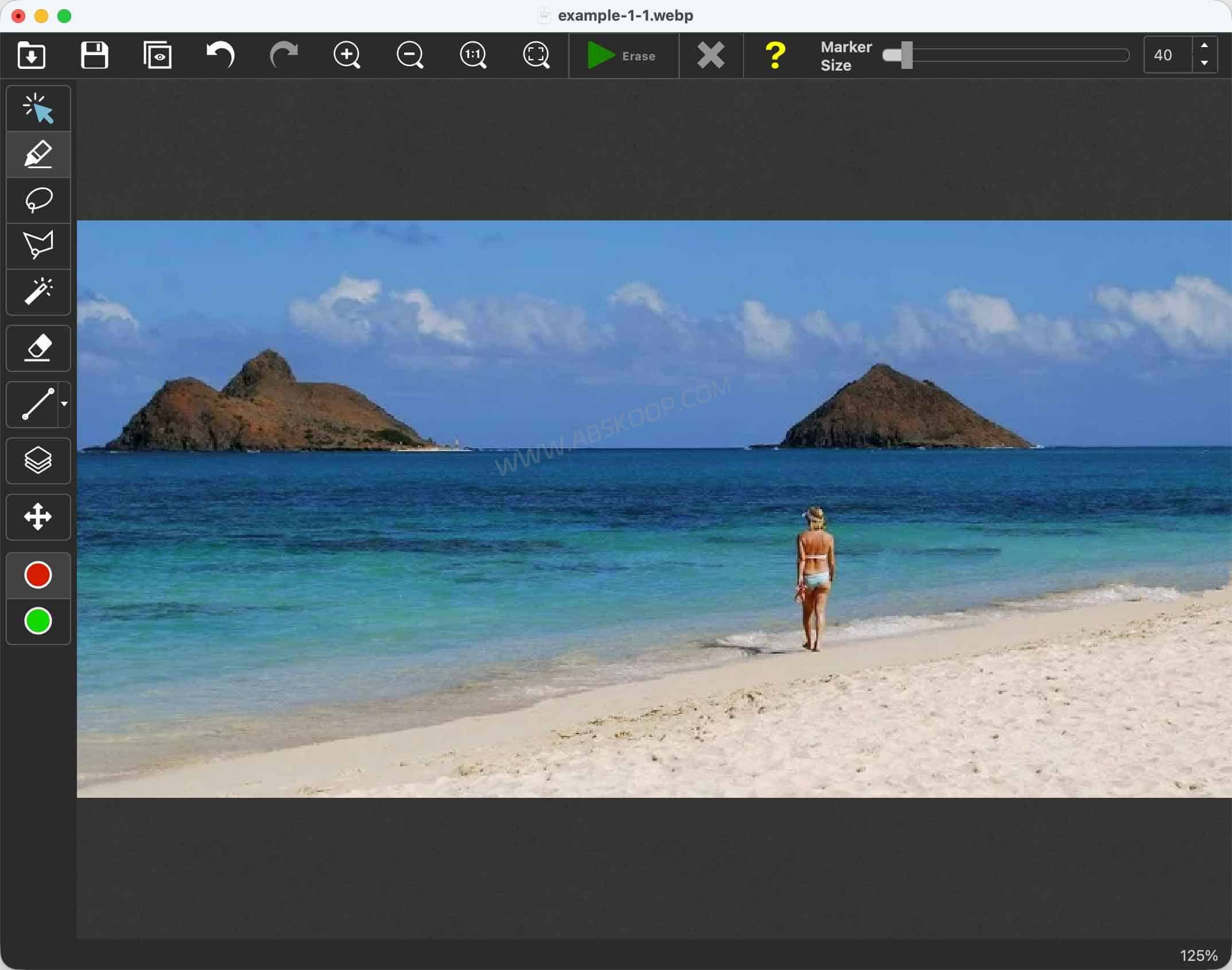
3. Click Erase
Once the unwanted area is selected, click Erase. Inpaint analyzes nearby pixels and uses them to rebuild the selected part of the image.
Simple backgrounds such as sky, grass, walls, or water are usually easier to repair. Faces, building edges, repeating patterns, and larger blocked areas may need more manual control. That is where Donor Area and Guide Lines become useful.
Use Donor Area to Control Where Inpaint Samples From
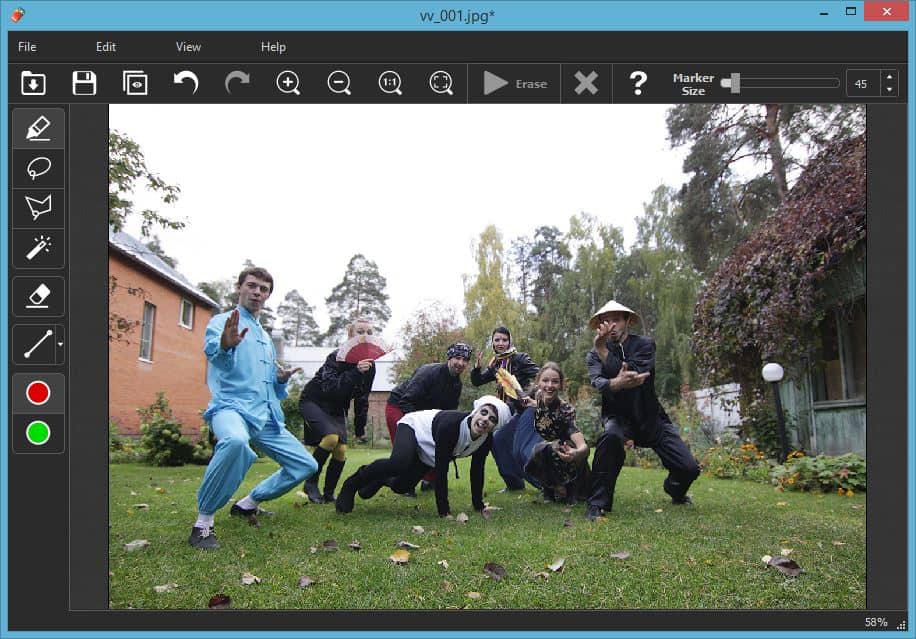
By default, Inpaint decides which nearby pixels should be used to rebuild the selected area. If the automatic result pulls in the wrong texture or background, you can adjust the Donor Area.
For example, if you are removing a person standing on grass, you can keep the clean grass around the subject available as a source while excluding areas with different colors or textures.
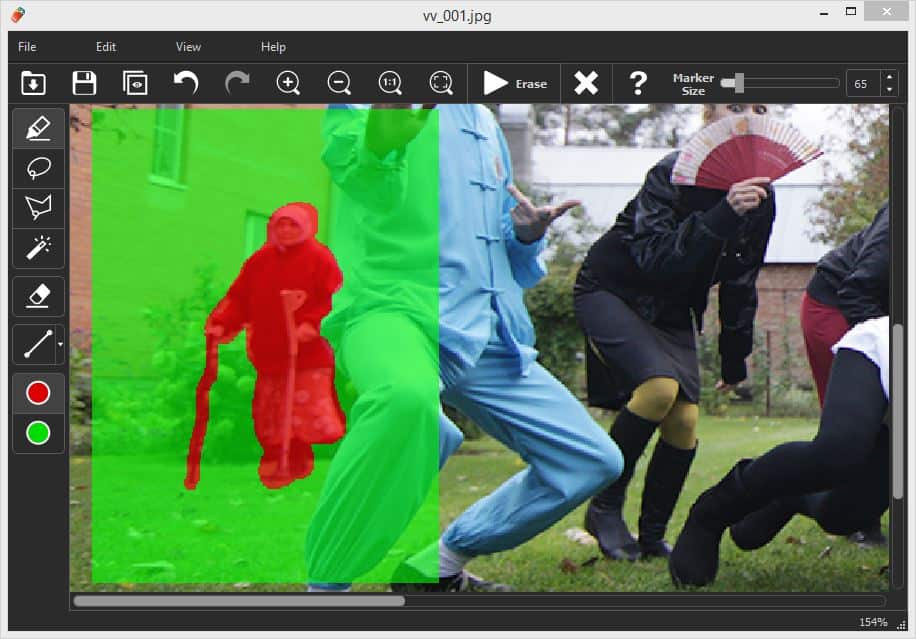
Donor Area does not remove the object itself. It controls which parts of the image Inpaint can use as reference material for the repair. This gives you more control when automatic sampling produces an unnatural result.
Guide Lines Help Preserve Edges and Structured Backgrounds
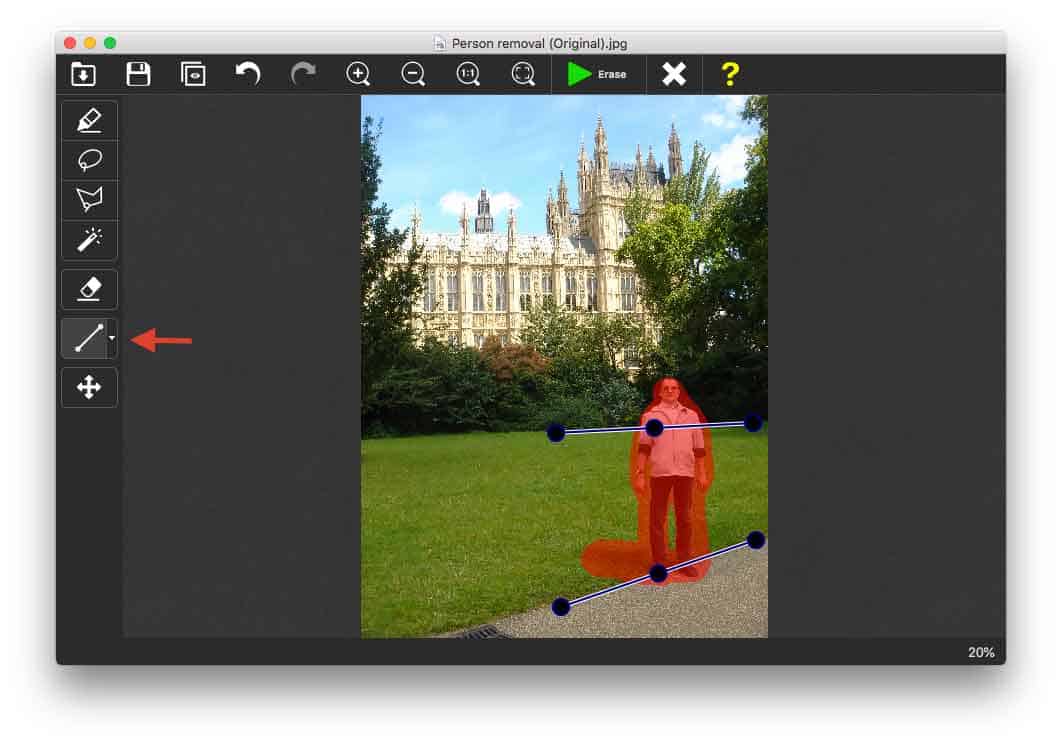
Automatic object removal becomes harder when the unwanted object overlaps a wall edge, road, doorway, table, or another strong line in the image.
Guide Lines let you mark those structural edges before processing the photo. Inpaint can then use the lines as a reference while rebuilding the missing area instead of breaking or bending the original structure.
This is especially useful for architecture, furniture, roads, doors, windows, and other photos with obvious geometric patterns.
What Are Smart Selection and MultiView?
The current desktop release is Inpaint 11.0, which includes improvements to Smart Selection, object removal, and MultiView.
Smart Selection helps select objects more quickly, so you do not always have to paint over every part of an object manually. It is most useful when the target has a reasonably clear boundary.
MultiView solves a different problem. If you took several photos of the same scene and moving objects appear in different places, Inpaint can use another photo as a source for background details that are hidden in the current image.
A common example is a tourist attraction photographed several times in a row. If people are standing in different positions in each shot, MultiView can use the unobstructed parts of one image to help repair another.
Batch Processing in Inpaint
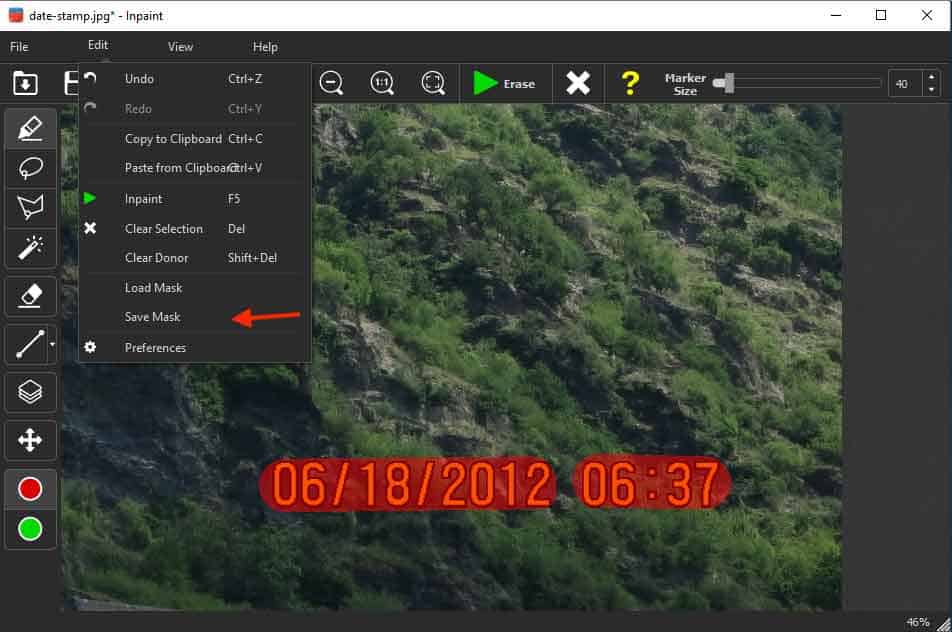
If many photos contain a watermark, timestamp, or fixed mark in the same position, Batch Processing can save a lot of repetitive work.
Create the removal mask once, save it, and apply the same mask to a group of images instead of drawing the selection again for every file.
There is one important limitation: images using the same mask should have the same dimensions and orientation. If portrait and landscape images are mixed together, or the dimensions are different, it is better to process them in separate groups.
What Image Formats Does Inpaint Support?
According to the current batch processing documentation, Inpaint can work with these common image formats:
- JPG
- PNG
- BMP
- TIF
- WebP
That covers most photos, website images, screenshots, and product images people are likely to edit.
Inpaint System Requirements
| Platform | Requirement |
|---|---|
| Windows | Windows 8 or later |
| macOS | macOS 10.14 or later |
| iPhone / iPad | Available through the App Store |
The desktop version also requires an internet connection. The Windows and macOS license supports original-resolution images and does not limit the number of images you can process during the license period.
Is Inpaint Free? How Much Does It Cost?
Inpaint can be downloaded and tried before purchase, but the full desktop version requires a license.
At the time of this update, the Windows and macOS version costs $29.99 for a one-year license. The license includes one year of updates, unlimited image processing, and original-resolution output.
This is a one-year license rather than a traditional lifetime purchase with permanent updates. Teorex also recommends trying the software before buying, as digital license purchases are not refundable.
The iPhone and iPad version uses separate App Store subscriptions. In the US App Store, the current options are $2.99 per month or $19.99 per year. Without a subscription, you can process and preview an image, but saving is disabled. App Store pricing may differ by country or region.
When Does Inpaint Work Best?
Inpaint makes the most sense when you have a very specific editing job: remove one unwanted object, clean up a small part of a photo, or process the same fixed mark across a batch of images.
It is a good fit for travel photos with unwanted people, product images with small labels, timestamps, text, or other distracting elements.
If you need advanced color grading, multi-layer compositing, large-scale image generation, or prompt-based editing, Inpaint is not designed for that kind of workflow. A full image editor such as Photoshop will be more appropriate.
What Are the Limitations of Inpaint?
Inpaint cannot perfectly recover information that does not exist anywhere else in the image.
The larger the missing area and the more complex the background, the harder the repair becomes. A watermark covering a face, for example, is much more difficult than a small mark sitting on a plain wall or sky.
You may also see repeated textures or unnatural edges when there is not enough clean background available. Donor Area, Guide Lines, and MultiView can help because they give Inpaint better reference material, but they do not guarantee a perfect reconstruction.
Watermark removal should be used for images you own, images you are authorized to edit, or marks you added yourself. It should not be used to remove copyright information from someone else’s work.
For a broader AI editing workflow, Kaze AI adds image and video generation, Chat Edit and API-based tools, including watermark removal workflows.
Is Inpaint an AI Photo Editor?
Inpaint is not the same kind of tool as Photoshop Generative Fill or other prompt-based generative image editors.
Its normal workflow is still selection-based: choose the unwanted area and let the software rebuild it from image information already available around the selection. Teorex’s release history also notes that newer Inpaint algorithms have used neural-network technology.
A more accurate description is that Inpaint is a specialized photo restoration and object removal tool, rather than a prompt-driven generative AI image editor.
If watermark removal is the main job, WatermarkRemover.io is a more dedicated option for images, PDFs and video. Inpaint is better suited to manually selecting and repairing unwanted areas inside a photo.
Inpaint FAQ
Is Inpaint Online still available?
The old online.theinpaint.com address now redirects to the main Inpaint website. The current product is primarily offered as a Windows or macOS desktop app, with separate iPhone and iPad versions also available.
Can I save images with the Inpaint trial?
Teorex provides a desktop trial, but its public download page does not currently spell out every export restriction for the trial version. The iPhone and iPad version is more explicit: you can process and preview images without a subscription, but saving is disabled.
Is Inpaint a lifetime license?
No. The current desktop offer is $29.99 for a one-year license. It includes one year of updates, unlimited image processing, and original-resolution output during the license period.
Inpaint Official Website
Official website: https://theinpaint.com/
Windows and macOS download: https://theinpaint.com/download


Comments (0)