



Managing a few Linux servers with separate SSH clients is straightforward. Things get more complicated as the number of servers and people grows. Credentials end up scattered across different tools, access permissions become harder to manage, and it is not always easy to tell who connected to which machine or what happened during a session.
Casvisor is an open-source bastion host (also known as a jump server) built with Go. It provides a central web interface for managing SSH, RDP, VNC and Telnet connections. Its features include user permissions, command rules, session recording, credential storage and an SSH Gateway that works with existing clients such as Xshell, SCP, SFTP and VS Code Remote.
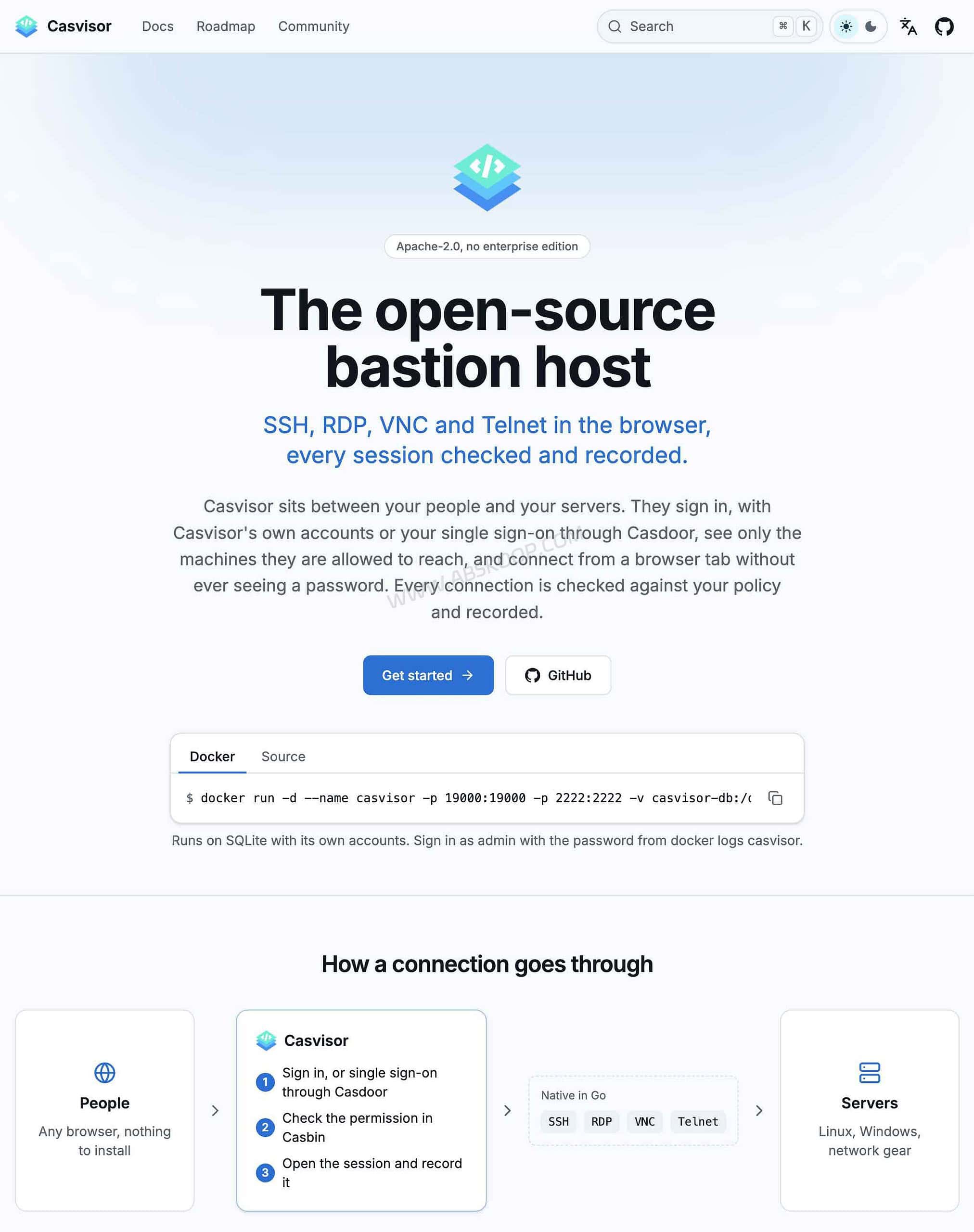
You can self-host Casvisor on your own server using Docker or run it as a standalone binary. It uses SQLite by default and does not require a separate database server for a basic installation.
Casvisor is worth considering if you want a lightweight way to manage access to several servers without setting up a large PAM platform. It does have limitations, though: it lacks native database auditing, Kubernetes management, automatic password rotation and several other features that larger IT environments may require.
Casvisor at a Glance
| Item | Details |
|---|---|
| Product | Casvisor |
| Category | Open-source bastion host / jump server |
| Backend | Go |
| Frontend | React |
| Protocols | SSH, RDP, VNC and Telnet |
| Database | SQLite by default; MySQL is also supported |
| Deployment | Docker or standalone binary |
| License | Apache-2.0 |
| SSH Gateway Port | 2222 by default |
| Official Website | casvisor.org |
| GitHub | github.com/casvisor/casvisor |
| Live Demo | demo.casvisor.com |
What Is Casvisor and How Does It Work?
A bastion host, often called a jump server, provides a controlled entry point between users and the servers they need to access. Instead of connecting to every machine directly, users go through a central system where administrators can manage permissions and monitor remote sessions.
Casvisor follows this approach. It sits between users and managed assets, providing one place to organize server connections and control access.
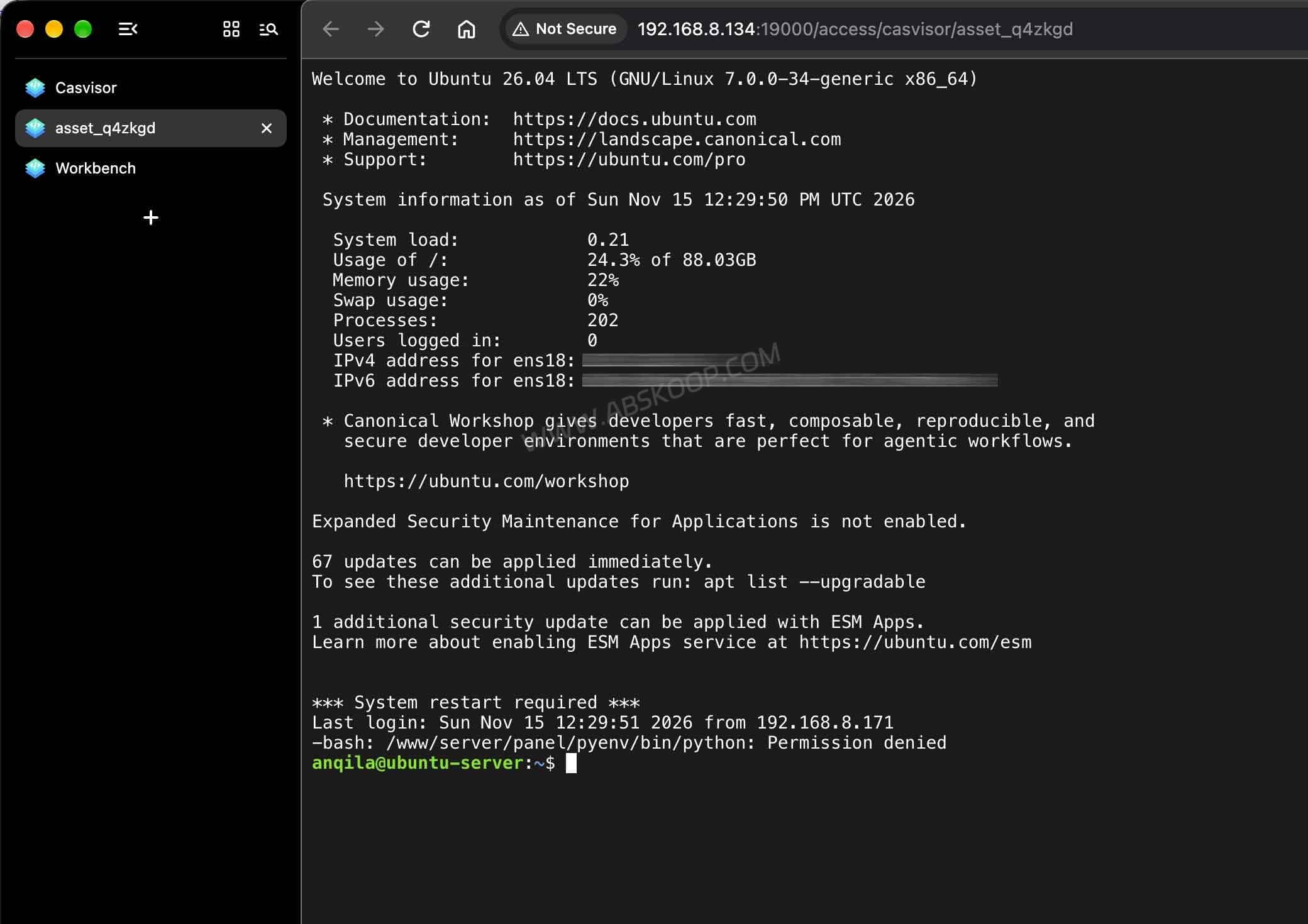
A typical setup works like this:
- The administrator signs in to Casvisor and adds the servers that need to be managed.
- Users and groups are created, and access permissions are assigned to specific assets.
- Authorized users connect through a browser or an SSH client.
- Administrators can review active sessions, recordings and operation logs.
Casvisor handles SSH, RDP, VNC and Telnet connections through its Go backend. For assets that are directly reachable over the network, a Casvisor Agent is not required on every target server.
If a server is inside a private network that Casvisor cannot reach directly, you can use a network gateway or deploy an Agent to establish the connection.
The project uses Go for its backend and React for its web interface. It can run as a standalone binary or inside Docker.
Supported Remote Access Protocols
Casvisor brings four common remote access protocols into one management interface. This makes it possible to handle Linux servers, Windows machines and some network devices without switching between multiple applications.
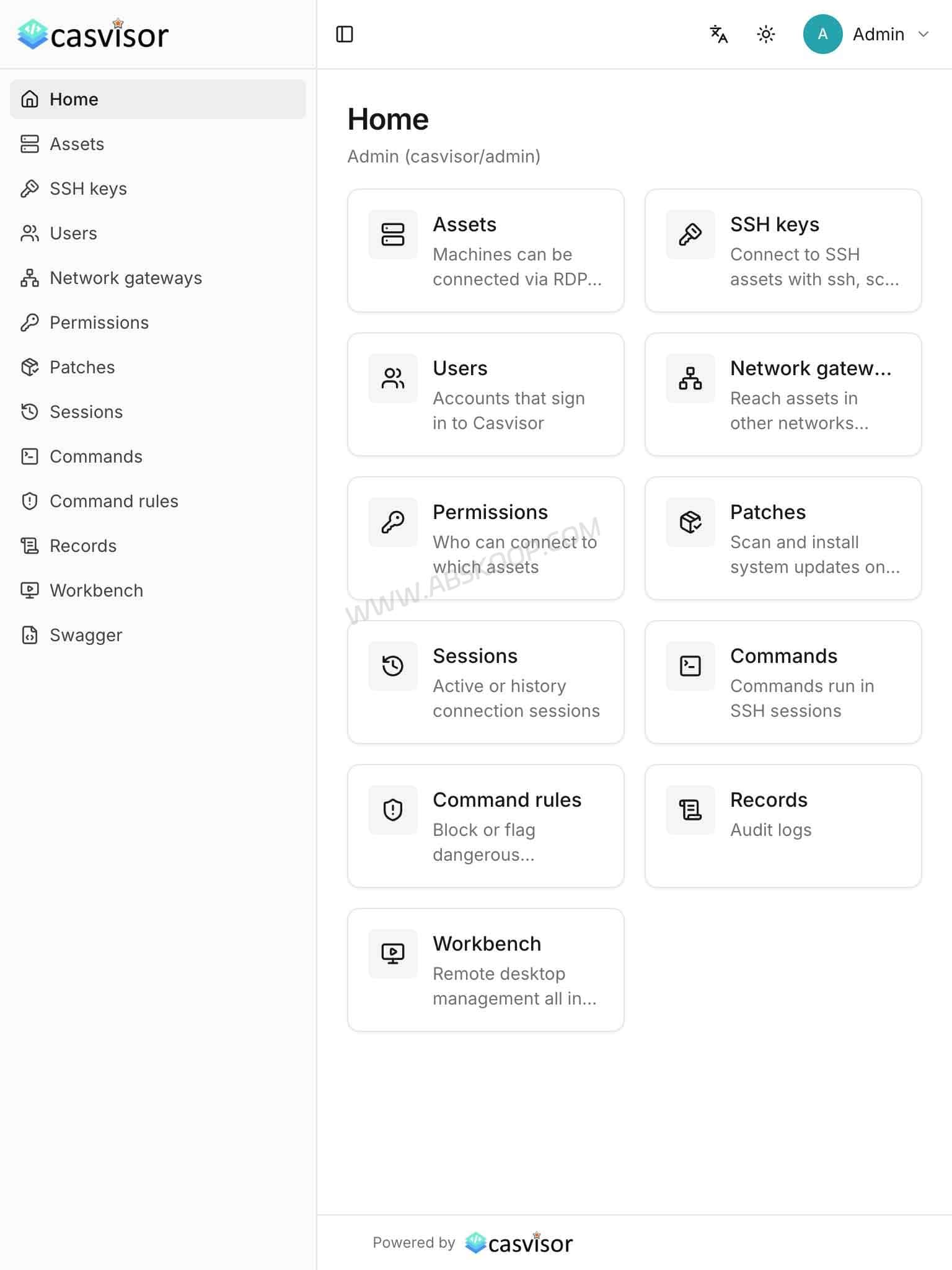
| Protocol | Typical Use | Supported Features |
|---|---|---|
| SSH | Linux and Unix servers | Browser terminal, SFTP file transfer and SSH Gateway |
| RDP | Windows remote desktops | Browser-based desktop access, clipboard and file transfer |
| VNC | Remote desktop environments | Browser-based remote control |
| Telnet | Network equipment and legacy systems | Browser terminal connections |
SSH: Browser Terminal and SFTP File Management
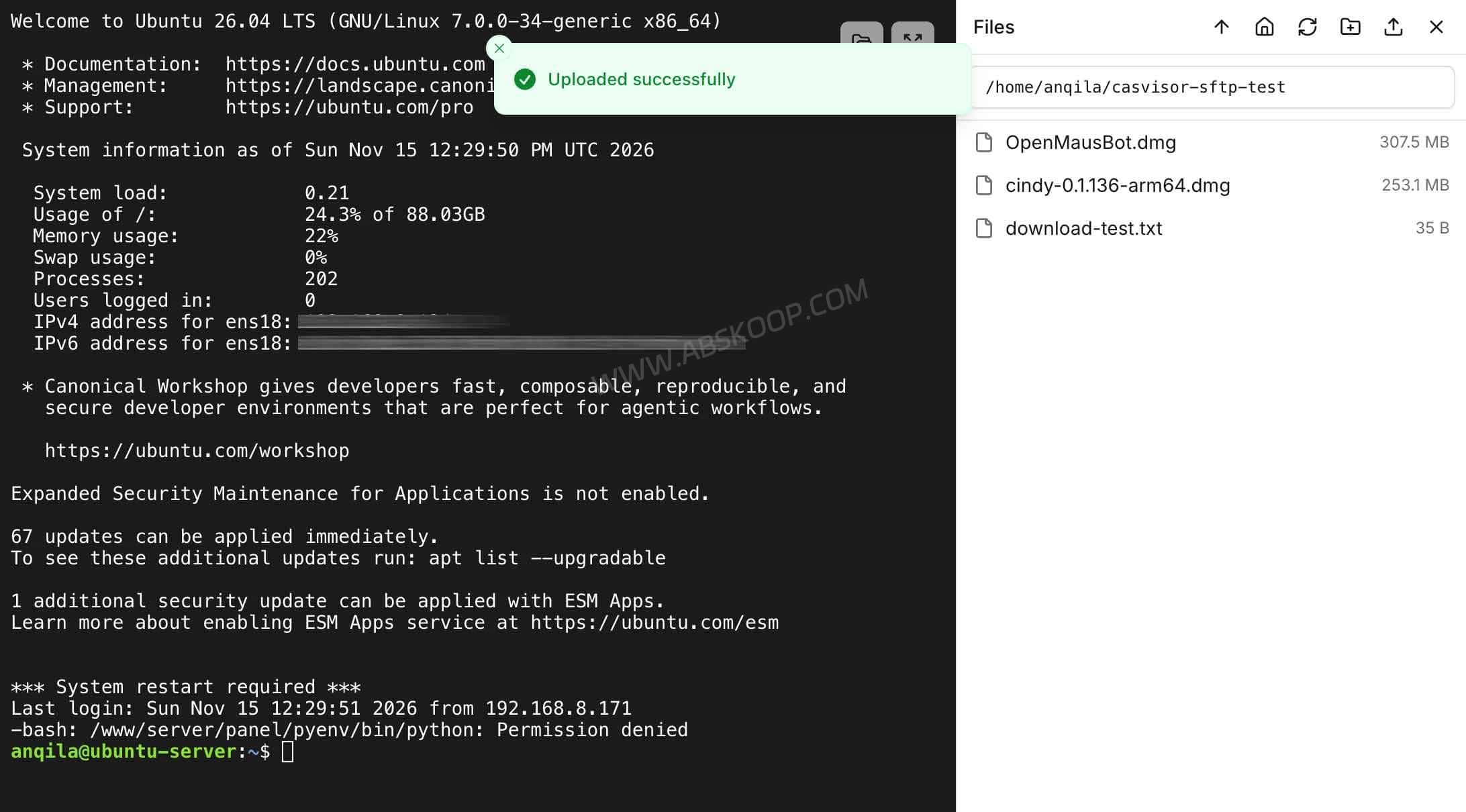
SSH is the protocol most administrators use to manage Linux servers. Casvisor provides a browser-based SSH terminal, so you can connect to a Linux machine and run commands without opening a separate SSH application.
There is also a file management panel alongside the terminal. It supports SFTP uploads and downloads, making it possible to transfer files without leaving the web interface.
If you prefer a local SSH client, you do not have to change your existing workflow.
Casvisor provides a separate SSH Gateway on port 2222 by default. It supports:
- SSH
- SCP
- SFTP
- Rsync
- Xshell
- VS Code Remote
Users first add their SSH public keys to Casvisor. They can then connect to authorized assets through the gateway, while access permissions remain under Casvisor’s control.
The SSH Gateway also supports local port forwarding. For example, you can forward an RDP or VNC port from a remote asset to your local machine and then connect with a client such as Windows Remote Desktop (mstsc) or VNC Viewer.
There is an important limitation here: TCP port forwarding only forwards network traffic. It does not provide the same session recording as a remote desktop or browser-based SSH session. Forwarding a database connection through an SSH tunnel also does not turn Casvisor into a database auditing tool.
RDP: Manage Windows Servers in a Browser
When managing Windows machines, you do not necessarily need to open a separate Remote Desktop client. Casvisor can connect to Windows Server and Windows 10/11 machines with Remote Desktop enabled, allowing you to work from its web interface.
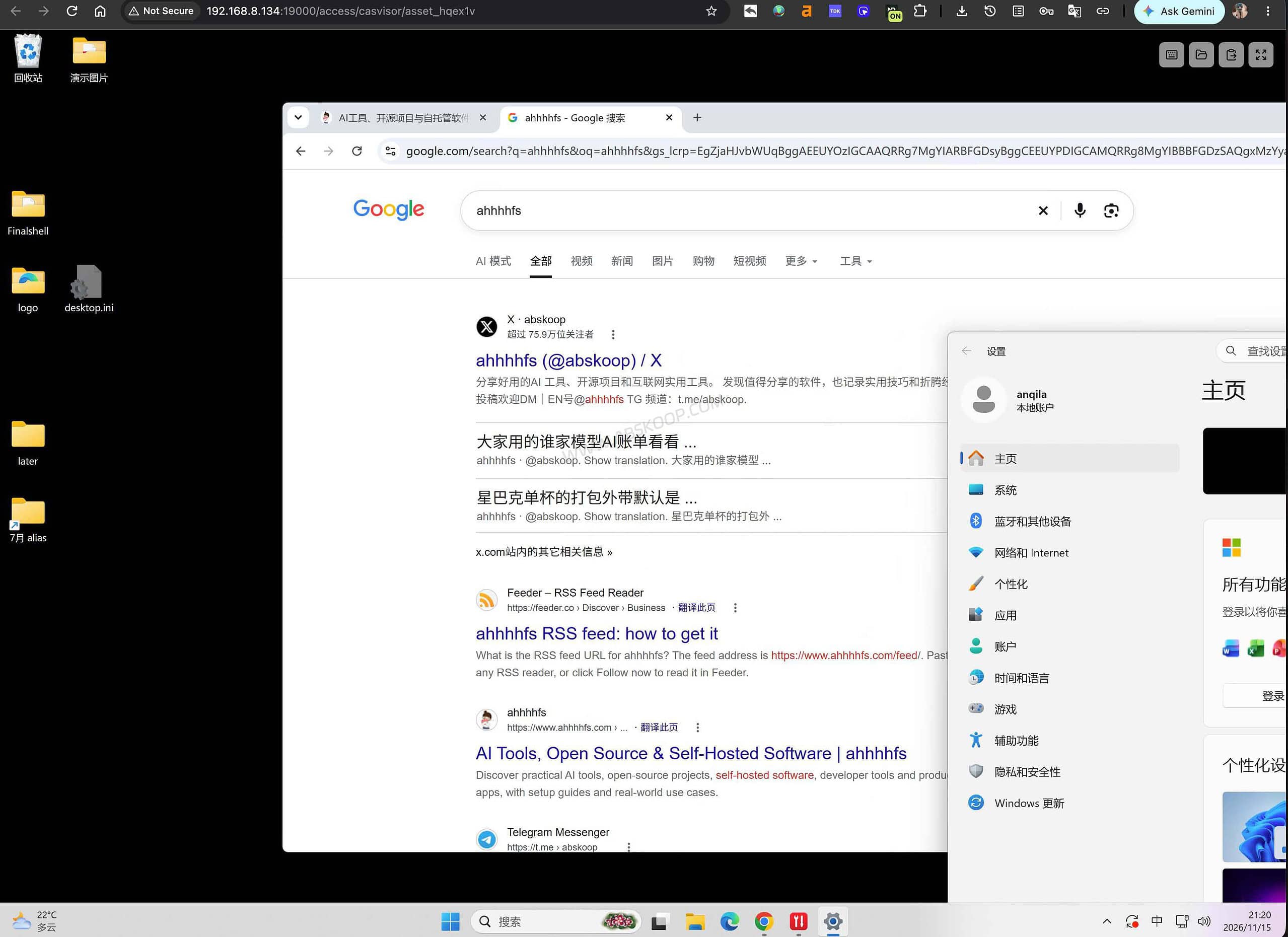
Casvisor uses the Go-based gordp implementation to handle RDP connections. Supported features include Network Level Authentication (NLA), clipboard support and file transfer.
High-resolution displays are supported, and the remote desktop window can be resized as needed. Some Linux desktop environments based on FreeRDP can also be accessed through RDP.
For administrators who regularly maintain both Linux and Windows servers, having SSH and RDP in one interface can reduce the need to switch between different remote access tools.
VNC and Telnet
VNC connections are also available through the browser. Casvisor uses noVNC for the frontend interaction, while authentication is handled by the backend. The VNC password is not exposed directly to the browser.
Telnet support is mainly intended for network equipment and older systems that still rely on the protocol. You can connect to these devices from the management interface.
Keep in mind that Telnet does not encrypt traffic. Running a Telnet connection through a bastion host does not automatically make the communication secure. For public or untrusted networks, use SSH or another encrypted protocol whenever possible.
User Permissions and Session Auditing
Centralizing server connections is only part of the problem in a shared environment. Administrators also need to decide who can access each machine, whether users can upload or download files, and how to investigate an operation when something goes wrong.
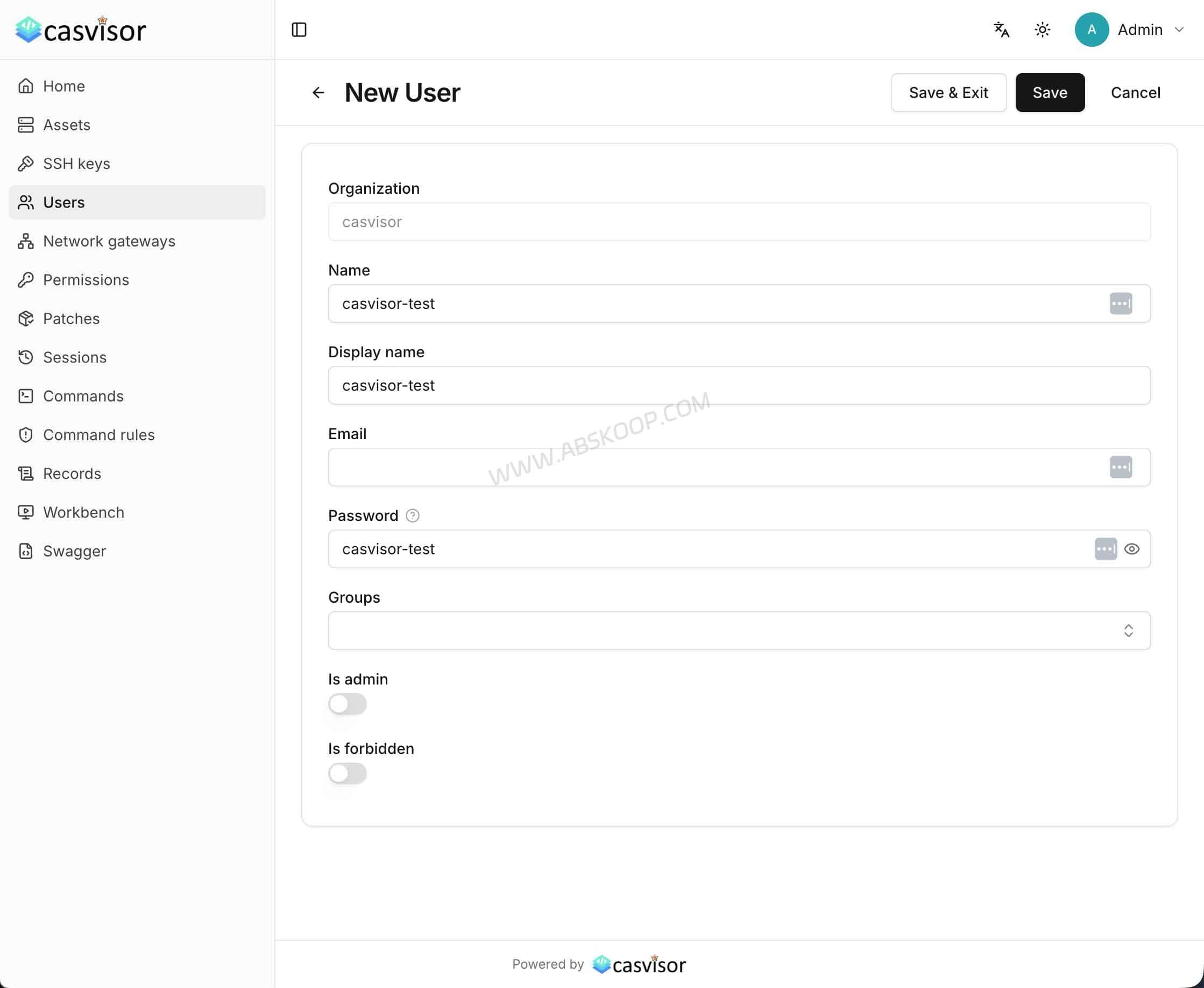
Casvisor uses Casbin to manage permission policies. Rules can be assigned based on users, user groups, assets and asset tags.
The available permission controls include:
| Permission | What It Controls |
|---|---|
| Connect | Whether a user can connect to an asset |
| Copy | Whether copying is allowed |
| Paste | Whether pasting is allowed |
| Upload | Whether files can be uploaded |
| Download | Whether files can be downloaded |
| Forward | Whether port forwarding is allowed |
You can also restrict access by client IP range and set permission expiration times.
For example, a regular operations user could be allowed to access a specific group of Linux servers but blocked from other assets. You can also disable file downloads or port forwarding for selected users.
When a permission is changed, deleted or expires, existing sessions are disconnected as well. Administrators do not have to wait for the user to log out manually.
Command Rules
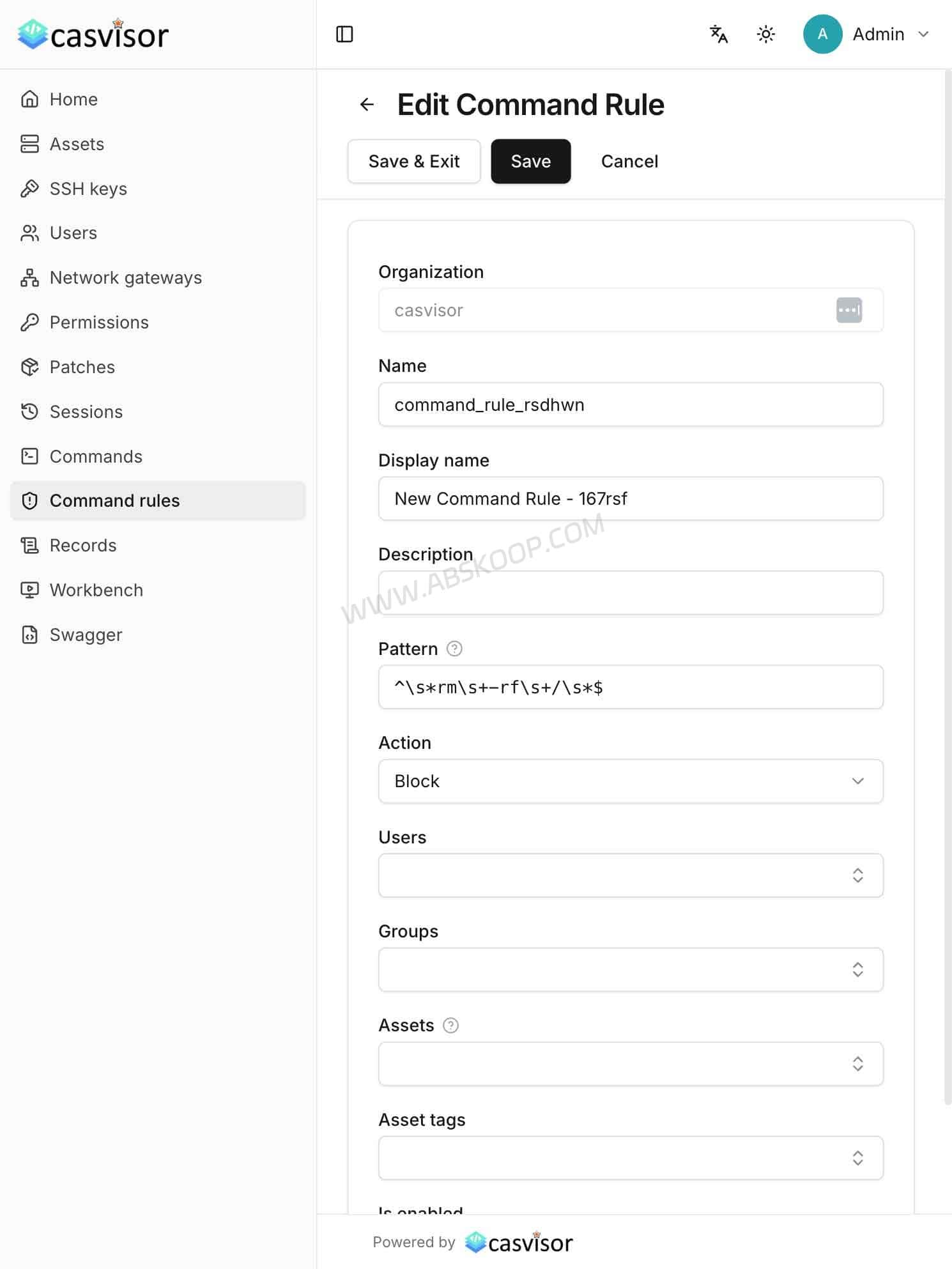
Casvisor supports command rules based on regular expressions. Matching commands can trigger an alert or be blocked.
These rules apply to both the browser-based SSH terminal and the SSH Gateway. This can be useful in shared operations environments where administrators want to prevent common mistakes or restrict potentially dangerous commands.
Command rules should not be treated as a replacement for operating system security controls. Linux user permissions, sudo policies and system logs are still necessary, especially when several people have access to the same machines.
Remote Session Recording and Playback
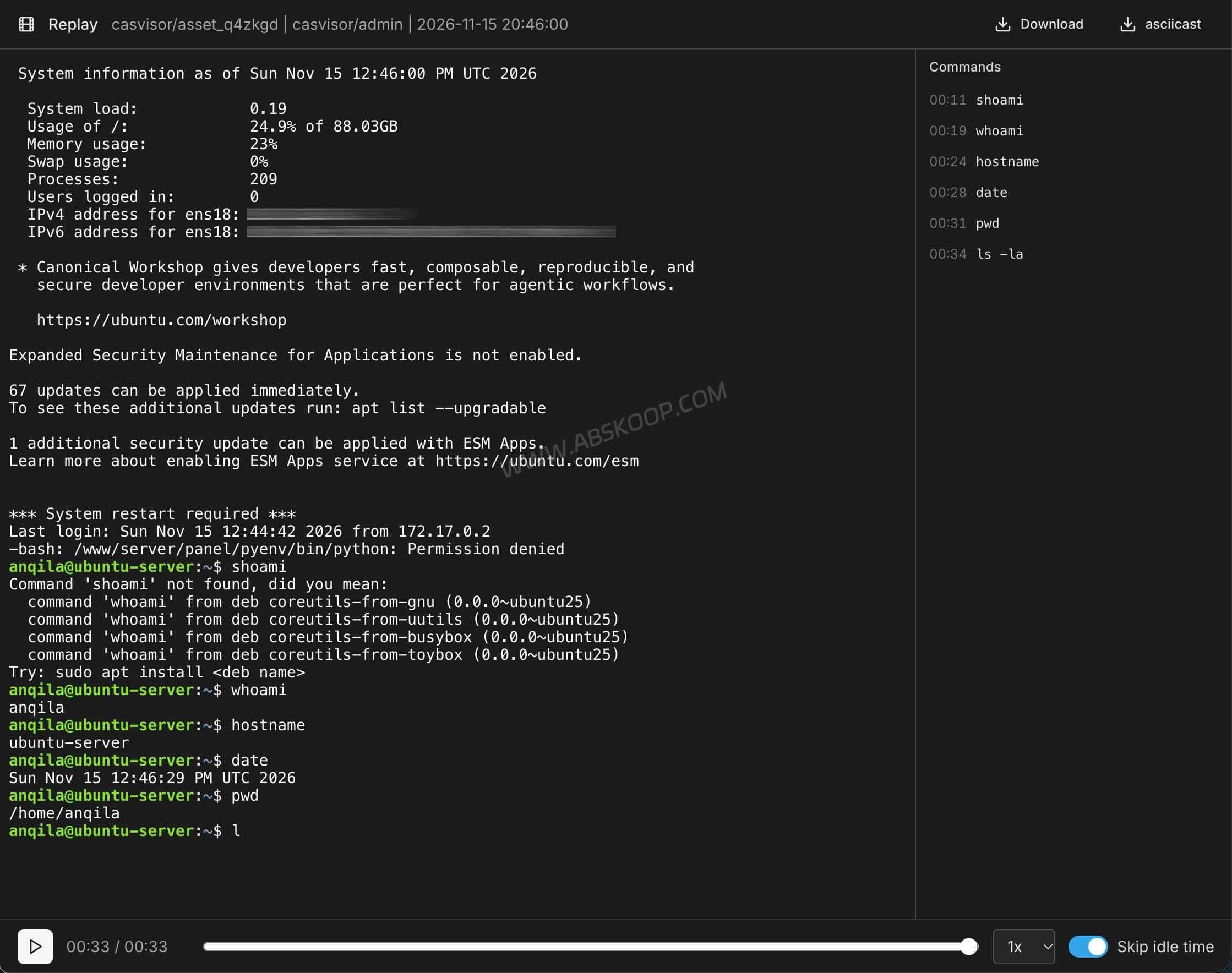
Casvisor supports session recording for SSH, RDP, VNC and Telnet connections. Administrators can review remote operations in a browser rather than relying only on server logs.
The session management interface allows administrators to:
- View active remote sessions.
- Watch an ongoing connection in real time.
- Terminate a session when necessary.
- Replay completed sessions.
- Download asciicast recordings for SSH and Telnet sessions.
SSH and Telnet command recording is based on the virtual terminal screen, rather than simply saving every keyboard input. This means tab completion, command history and inline editing can be captured, but actions inside full-screen interactive programs such as vi and top cannot be recorded completely.
File transfers and changes made through API operations are also included in the operation logs.
Session recording is configurable, not something you should assume is enabled for every connection. Casvisor supports recording retention settings, and recording can be disabled through disableRecording.
There is another distinction worth remembering: ordinary TCP port forwarding through the SSH Gateway produces session and log records, but it does not create a video-style session recording.
Connecting Private Network Servers Through Gateways
Some servers are located in different data centers or sit behind a company NAT. In these cases, Casvisor provides network gateway options to bring remote assets into the same management interface.
There are two main approaches.
SSH Jump Host
If the target network contains a server that Casvisor can reach over SSH, that machine can act as a jump host.
You do not need to install the Casvisor Agent on this jump host. However, its SSH server must allow TCP forwarding. Make sure the following setting is enabled in its SSH configuration:
AllowTcpForwarding yes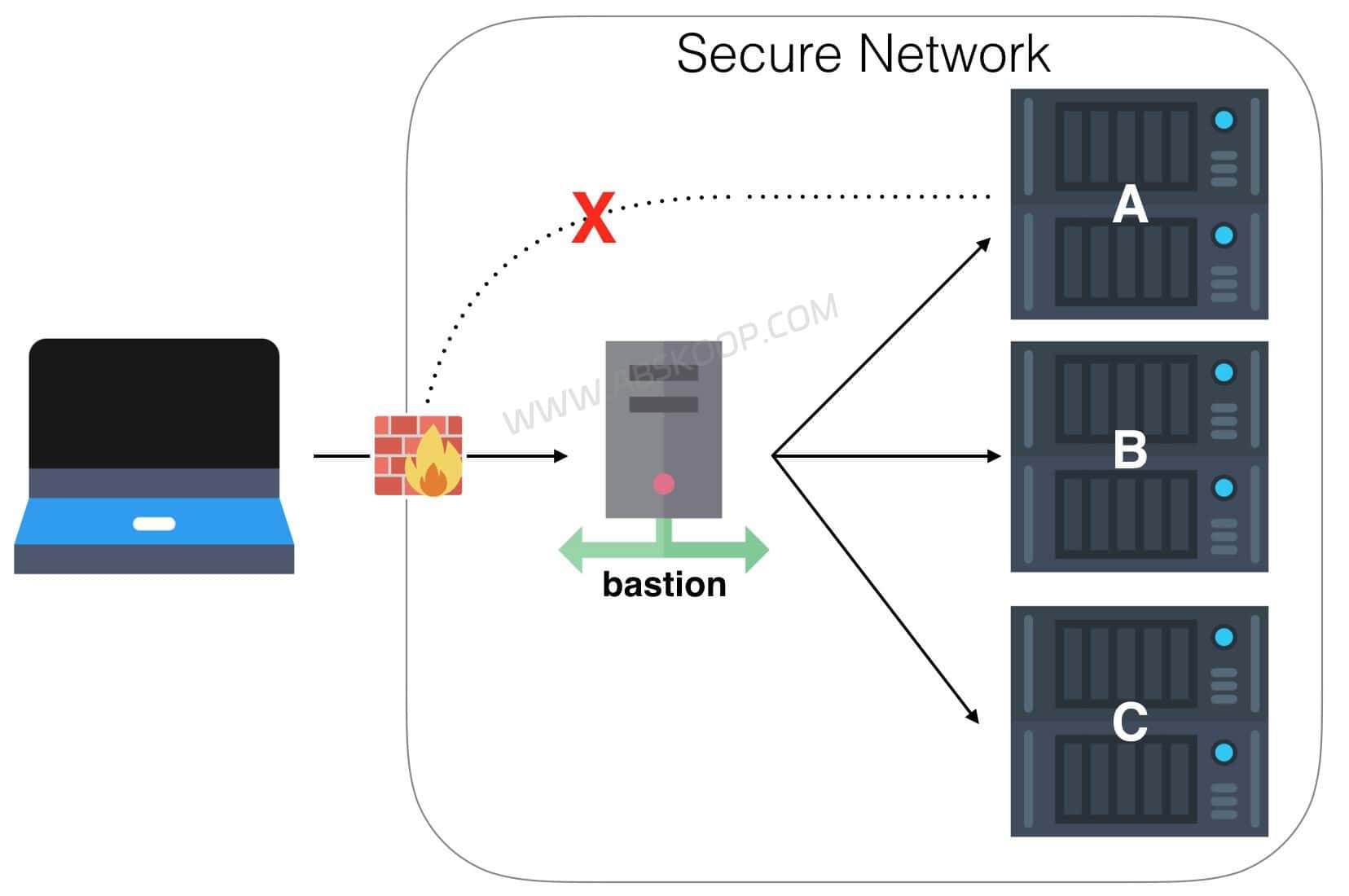
Casvisor Agent
If Casvisor cannot reach the target network directly and there is no suitable SSH jump host, you can run a Casvisor Agent on a machine inside that network.
The Agent initiates a WebSocket connection to the external Casvisor service. It does not require you to expose a new inbound listening port to the public internet on the private network side.
Administrators can configure Allowed Networks for each gateway to restrict which internal IP ranges the Agent is permitted to access.
This setup is useful when servers are spread across different offices, private data centers and cloud networks but need to be managed through one central interface.
Additional Server Management Features
Beyond remote access and session auditing, Casvisor includes credential storage and host patch management. These features cover some routine server maintenance tasks without requiring a separate tool for every operation.
Credential Storage
When managing multiple servers, passwords and SSH private keys often end up stored in different clients or configuration files. Casvisor provides credential storage that encrypts server passwords and SSH private keys in its database.
When a user connects to an asset, Casvisor can use the stored credentials automatically. Users do not need to enter the server password every time, and administrators do not have to distribute the underlying credentials to everyone who needs access.
Casvisor also supports SSH host key and RDP certificate verification. It records the corresponding key or certificate when a connection is first established. If the information changes later, Casvisor can refuse the connection.
This helps detect unexpected changes in server identity, but the first connection still matters. Verify that you are connecting to the correct machine before trusting its host key or certificate.
One limitation: credential storage is not automatic password rotation. Casvisor can store and use server credentials, but it does not currently change passwords on target servers automatically.
Host Patch Management
Casvisor can also manage system updates on supported assets.
It can scan for available updates and initiate installation or reboot operations. The update methods listed by the project include:
| Operating System | Update Method |
|---|---|
| Linux | apt, dnf and yum |
| Windows | Windows Update |
For administrators maintaining several machines, this can reduce repetitive update work. The exact coverage depends on the operating system, asset configuration and Casvisor version.
How to Deploy Casvisor with Docker
Casvisor provides an official Docker image. A basic installation can run in a single container, so you do not need to install a separate database service first.
On a Linux server with Docker installed, run:
docker run -d --name casvisor \
  -p 19000:19000 \
  -p 2222:2222 \
  -e adminPassword='replace-with-a-strong-password' \
  -v casvisor-db:/db \
  -v casvisor-recordings:/recordings \
  casbin/casvisor
This command maps two ports and creates two persistent Docker volumes.
| Configuration | Purpose |
|---|---|
| 19000 | Web management interface and API |
| 2222 | SSH Gateway |
| /db | Database files |
| /recordings | Remote session recordings |
If you only need browser-based server management and do not plan to use the SSH Gateway, you can remove the following port mapping:
-p 2222:2222The adminPassword environment variable sets the initial administrator password when the admin account is first created.
If you leave it unset, Casvisor generates a random initial password during the first startup and writes it to the container logs.
First Login
After the container starts, check the logs if you did not specify an administrator password:
docker logs casvisorFind the generated initial password in the output.
Then open the following address in your browser:
http://SERVER_IP:19000Sign in with the admin account and go to My Account to change the initial password.
Adding a Server Asset
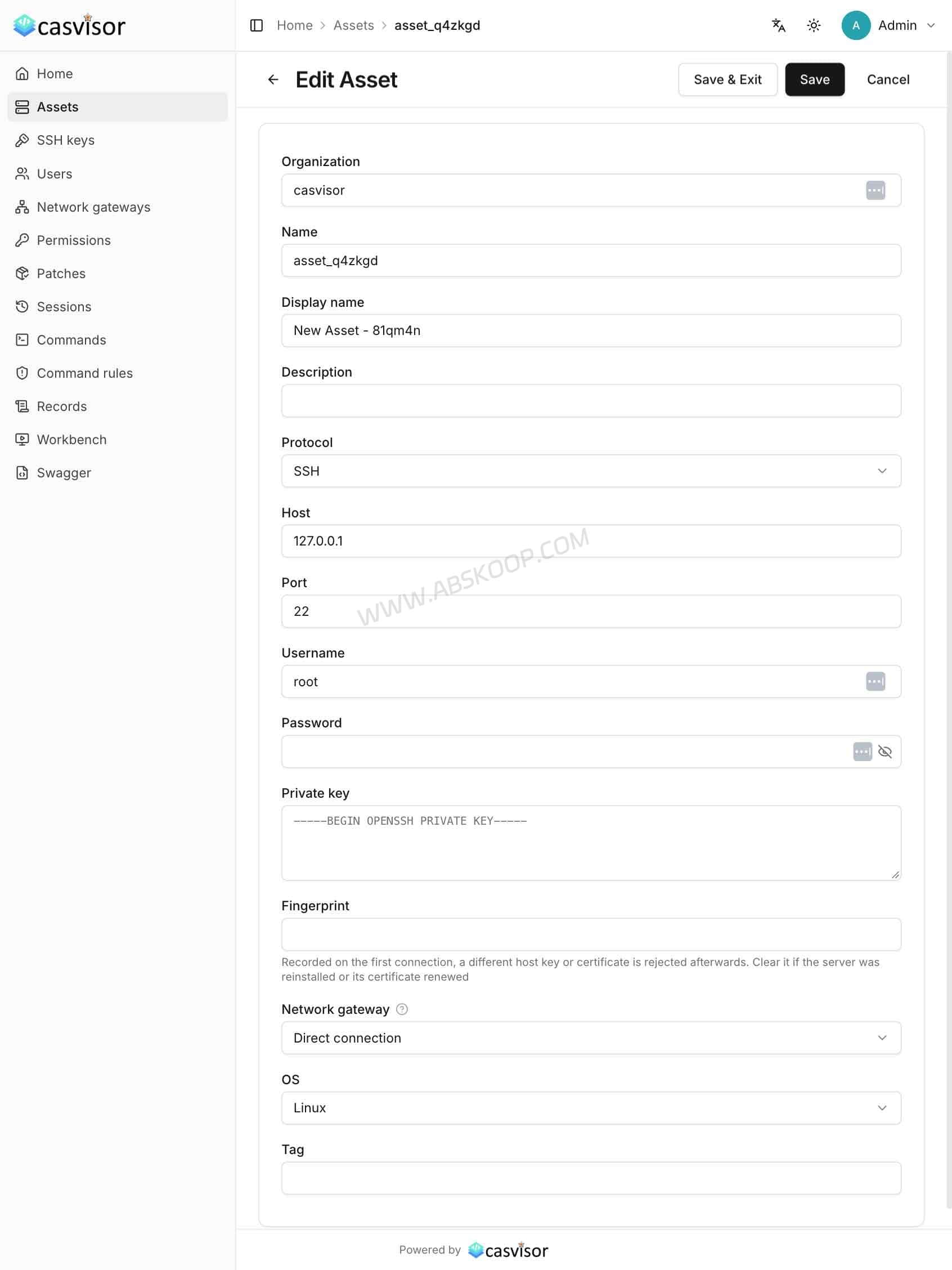
Once you are in the management interface, adding a server is straightforward:
- Open the Assets page.
- Click Add to create a new asset.
- Choose the connection protocol, such as SSH or RDP.
- Enter the server address, port and account credentials.
- Save the asset and click Connect to test the connection.
Administrators can access all assets by default. To let other people use the system, create their accounts under Users and assign the appropriate access scope under Permission.
This lets you assign different servers to different team members without handing out the credentials for every machine.
Docker Compose: Make Sure Recordings Are Persistent
If you use Docker Compose instead of the standalone Docker command, check the volume configuration carefully.
At the time this article was checked, the official Docker quick-start command mounted both the database and recording directories, while the Compose example in the GitHub repository explicitly mounted the database volume but did not clearly include a separate recordings volume.
To keep session recordings when the container is replaced or recreated, add a persistent volume for /recordings:
services:
  casvisor:
    volumes:
      - casvisor-db:/db
      - casvisor-recordings:/recordings

volumes:
  casvisor-db:
  casvisor-recordings:
Without a persistent recording volume, you could lose session recordings when the container is removed or its writable layer is discarded.
There is also a basic security consideration: port 19000 exposes the management interface and API. Do not leave it publicly accessible without protection. For a production installation, configure HTTPS, restrict access to trusted IP addresses or a private network, and back up both the database and recording files.
Is Casvisor Free? What Does It Require?
Casvisor is released under the Apache-2.0 license. According to the project, there is no separate paid enterprise edition at present, and the public repository provides the features users can deploy themselves.
Its default database is SQLite, so a basic installation does not require a dedicated database server. If you already use MySQL, you can configure Casvisor to use it instead.
Account management is also built in. Casvisor has a local account system for creating users and assigning server permissions. If your team needs centralized identity features such as SSO, MFA or LDAP integration, you can connect it to Casdoor.
For individuals and small teams, the default setup may be enough to get started. Still, open source does not mean zero operating cost. You remain responsible for the server, recording storage, backups, updates and ongoing maintenance.
Casvisor vs. JumpServer: Which One Should You Choose?
If you are looking for an open-source bastion host, Casvisor and JumpServer are two projects worth comparing. Both provide centralized access to remote systems and tools for managing operations, but they differ in scope and architecture.
Casvisor focuses on a relatively lightweight deployment. It is written in Go, uses SQLite by default and includes a built-in account system. It is a practical option if you mainly need a central access point for common remote server protocols.
JumpServer is a broader open-source Privileged Access Management (PAM) platform. In addition to SSH and remote desktop access, it covers asset types such as Kubernetes, databases and web applications, with a wider set of enterprise-oriented access management features.
| Comparison | Casvisor | JumpServer |
|---|---|---|
| Positioning | Lightweight open-source bastion host | Fuller-featured PAM platform |
| Technology | Go + React | Multi-component architecture |
| Default Database | SQLite | PostgreSQL and other supported components |
| Remote Protocols | SSH, RDP, VNC and Telnet | SSH, RDP, VNC, Telnet and more |
| Kubernetes | Not supported | Supported |
| Database Access | No native database proxy | Web-based database access is available |
| Advanced Database Proxy | Not supported | Magnus is an Enterprise component |
| Private Network Access | SSH Jump Host and Agent | Multiple gateway and regional deployment options |
| License | Apache-2.0 | Community edition: GPL-3.0 |
| Deployment | Single application, Docker or binary | Multiple components, single-node or distributed deployment |
One distinction is important: JumpServer Community does include web-based database access. However, some desktop-client connection methods and the Magnus database protocol proxy are Enterprise features. RDP and VNC capabilities should also be compared by connection method and edition rather than treated as identical across all deployments.
For a small setup that mainly needs common remote protocols, Casvisor is the simpler option to evaluate. If you need Kubernetes access, database assets, a broader range of managed resources or more extensive enterprise PAM controls, JumpServer covers more ground.
They are not direct equivalents. The right choice depends on the protocols, access policies, audit requirements and deployment scale you actually need.
Casvisor Limitations to Know Before Deploying
Casvisor already covers many routine server access tasks, but it does not offer every feature found in larger privileged access management platforms. If you plan to use it in a larger organization, check the following gaps before making it part of your infrastructure.
| Feature | Current Status |
|---|---|
| Database proxy and SQL auditing | No native support |
| Kubernetes management | Not supported |
| Multiple credentials per asset | Currently one system account set per asset |
| Automatic password rotation | Not supported |
| Access request and approval workflows | Not supported |
| Asset tree and bulk import | Not supported |
| S3 / OSS recording storage | Recordings are primarily stored in a local directory |
| MFA for local accounts | Requires integration with Casdoor |
| Full-screen terminal auditing | Cannot fully capture operations inside full-screen programs |
Two limitations deserve particular attention.
SSH port forwarding is not database auditing. Casvisor can create an SSH tunnel that lets a local database client reach a database on a remote server. But it only forwards network traffic. It does not parse SQL statements or provide a complete record of database operations.
Recording files need their own backup plan. Casvisor primarily stores recordings in a local directory. If the server disk fails or a Docker volume is lost, those recordings may be unrecoverable without a separate backup.
SSH command auditing also has limits. Full-screen interactive applications such as vi and top cannot be captured completely, so Casvisor should not be treated as a complete terminal behavior auditing system.
These gaps may not matter if you manage a few VPS instances or run a small operations team. They become more important if your daily work depends on SQL auditing, Kubernetes management, automatic credential rotation, approval workflows or large-scale asset management.
Who Should Use Casvisor?
Casvisor makes sense if you maintain several VPS instances, Linux servers or Windows machines and want more than a collection of saved SSH connections. It is particularly useful when multiple people need access to shared infrastructure and administrators want to assign permissions and review remote sessions.
Its main advantage is that browser-based access, the SSH Gateway, permission management and session recording are available in one self-hosted application. You do not need to assemble several separate tools just to get a central access point for common server protocols.
For individuals and small teams that want to run their own bastion host without introducing too many components, Casvisor is worth testing.
It is a weaker fit for environments that depend on database auditing, Kubernetes access, automated password rotation, approval workflows or advanced enterprise PAM features. In those cases, a broader platform such as JumpServer may be a better choice.
There is also no reason to deploy a bastion host just to manage a few personal SSH connections. If you only need to organize SSH sessions and transfer files over SFTP, the previously covered SSHYard is a simpler option.
Frequently Asked Questions
What is Casvisor?
Casvisor is an open-source bastion host written in Go. It centralizes SSH, RDP, VNC and Telnet access, with user permissions, session recording, command rules and an SSH Gateway.
Is Casvisor free and open source?
Yes. Casvisor uses the Apache-2.0 license. The project currently states that it does not offer a separate paid enterprise edition. You still need to provide the server, storage, backups and maintenance.
Does Casvisor require an Agent on every server?
No. Servers that Casvisor can reach directly do not need a Casvisor Agent. For private networks that cannot be reached directly, you can use an SSH jump host or deploy a Casvisor Agent inside the network.
Does Casvisor support Windows remote desktop?
Yes. Casvisor supports browser-based RDP connections to Windows Server and Windows 10/11 machines with Remote Desktop enabled. It also supports VNC connections.
Can Casvisor record SSH sessions?
Casvisor supports SSH session recording and playback. However, ordinary TCP port forwarding through the SSH Gateway is not recorded as a video session, and operations inside full-screen terminal applications cannot be captured completely.
Does Casvisor support SQL auditing or automatic password rotation?
No. Casvisor does not provide a native database proxy or SQL auditing, and it cannot automatically rotate passwords on target servers. Its credential storage feature saves and uses existing credentials rather than changing them.
What port does the Casvisor SSH Gateway use?
The SSH Gateway uses port 2222 by default. The web management interface and API use port 19000 in the Docker example.
Casvisor or JumpServer: Which is better?
Casvisor is a lighter option for managing common SSH, RDP, VNC and Telnet connections. JumpServer provides broader PAM capabilities, including Kubernetes and database access features. Choose based on the assets and auditing requirements you need to support.
Project Links
- Official Website: https://casvisor.org/
- GitHub Repository: https://github.com/casvisor/casvisor
- Online Demo: https://demo.casvisor.com/
References
- Casvisor official GitHub repository
- Casvisor Docker Compose configuration
- Casvisor introduction by the project author on V2EX
- JumpServer official documentation
- JumpServer Community and Enterprise edition comparison
“`


Comments (0)