



Covering text with a black rectangle is not always enough. Some PDF editors leave the original text underneath, where it can still be selected, copied or extracted. That can be a problem when you need to share a bank statement, contract or résumé without exposing personal details.
AnyRedact is an online PDF redaction tool that uses AI to find names, phone numbers, ID numbers, bank details and other sensitive information. You review the matches, add anything it misses, and download a redacted PDF. You can also mark areas manually without using AI.
There is one important detail: manual editing happens in your browser, but AI detection uses a cloud service. When you click Upload, the extracted text is sent to Cloudflare Workers AI for analysis. If you are handling confidential documents, understand this difference before using the automatic detection feature.
Why a Black Box Is Not the Same as PDF Redaction
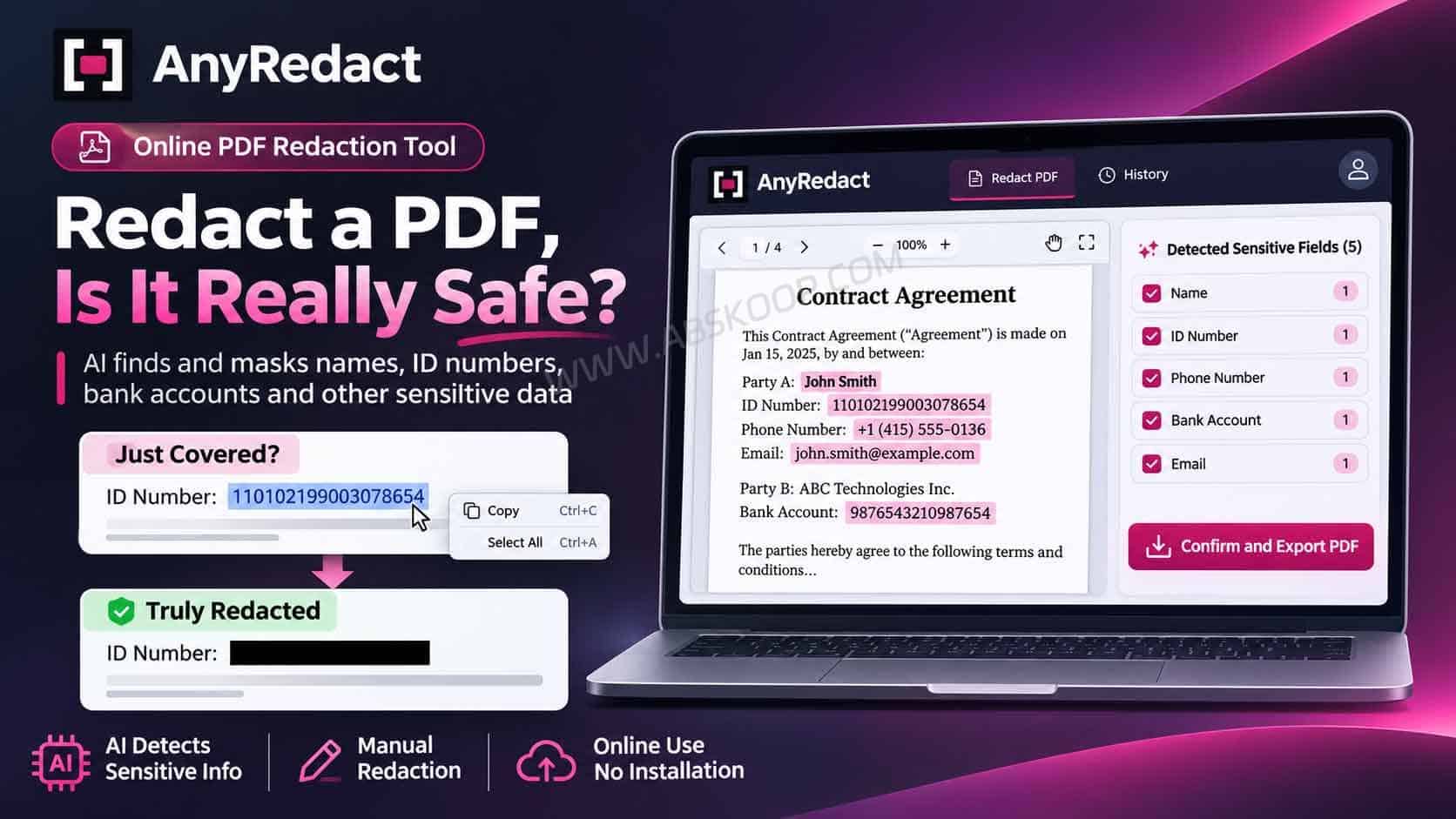
Drawing a black rectangle over text does not always remove it. In some PDF editors, the rectangle is simply another object placed on top of the page. The original text can remain underneath, which means someone may still be able to select, copy or extract it.
Proper PDF redaction removes the selected content from the exported document rather than just hiding it on screen. This matters when sharing contracts, financial statements, identity documents or other files containing private information.
Here is the difference between covering text and permanently removing the underlying content:
What Can AnyRedact Do as a PDF Redaction Tool?
Imagine preparing a contract for a client. It contains contact names, phone numbers and bank details scattered across several pages. Finding every occurrence by hand takes time, and it is easy to miss something.
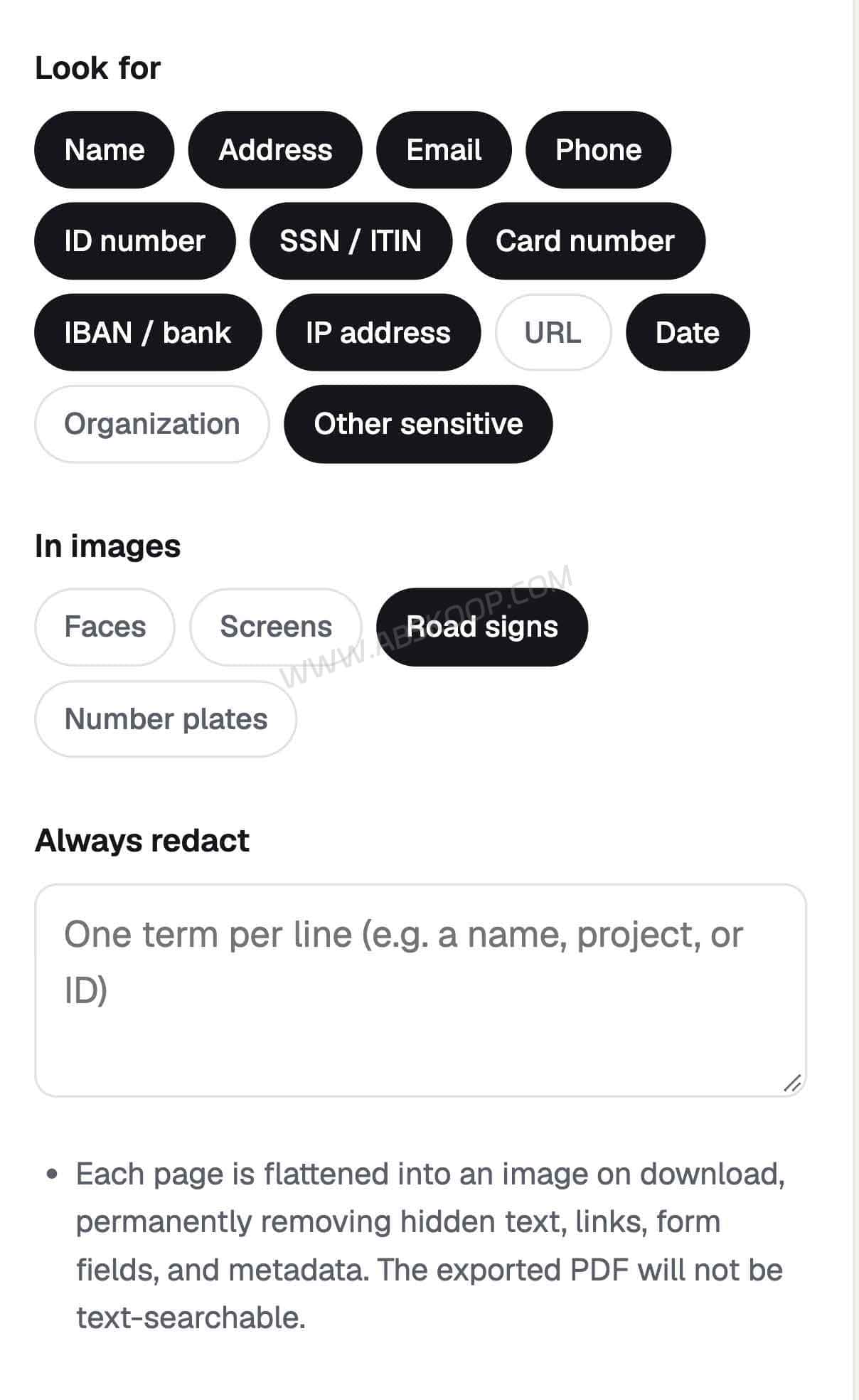
AnyRedact can scan the document with AI and highlight information that may need to be removed. Its detection covers several types of sensitive data:
- Personal information: Names, addresses, email addresses, phone numbers and dates of birth.
- Identity numbers: Social Security numbers, passport numbers, driver’s license numbers, national ID numbers and tax IDs.
- Financial information: Payment card numbers, IBANs, sort codes and bank account numbers.
- Technical information: IP addresses, private URLs, API keys, passwords and access tokens.
You do not have to accept every match. AnyRedact displays the findings in a review list, where you can uncheck information that should remain visible. You can also drag a box over signatures, stamps, photos or QR codes that the AI does not identify correctly.
If a customer name, case number or internal project ID appears throughout a document, add it under Always redact. The tool can then look for that term across the file. There is also an optional AI check before downloading to look for details that may have been missed.
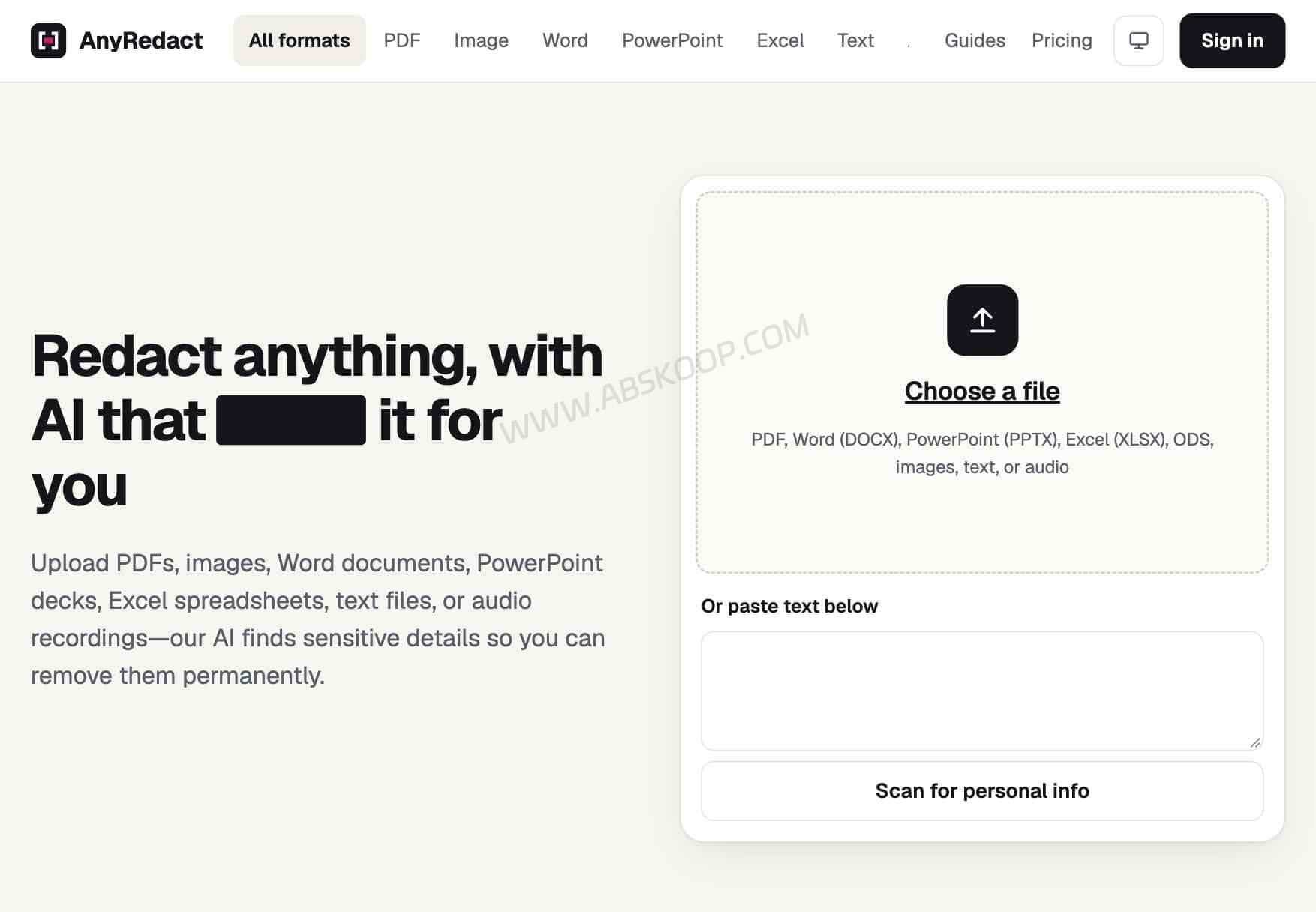
PDF is not the only supported format. AnyRedact also handles images, Word, PowerPoint, Excel, text files and audio recordings. The processing and export methods vary by format, so the PDF workflow described here should not be assumed to apply to every file type.
How to Redact a PDF with AnyRedact
You can use AnyRedact directly in a browser. There is no desktop application to install, and the PDF workflow takes four main steps.
Step 1: Open the PDF You Want to Redact
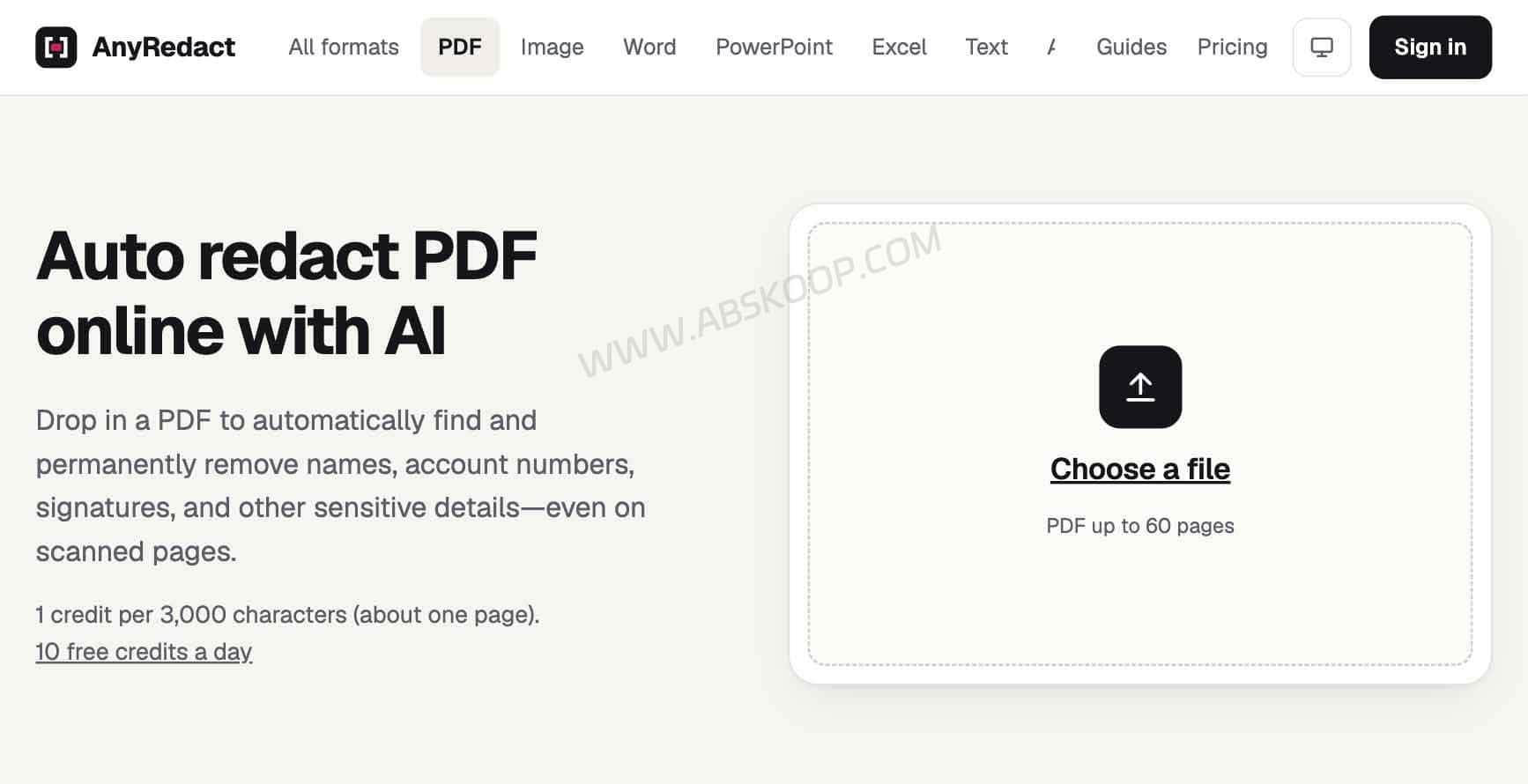
Go to the AnyRedact PDF redaction tool. Choose a PDF from your device or drag it into the upload area. The document opens in the browser with a page preview.
AnyRedact supports digital PDFs and scanned documents, with a limit of 60 pages per file. Scanned pages are read using Tesseract OCR in the browser, so the tool can work with pages that do not have selectable text.
We also tested Chinese text recognition, and it was able to identify Chinese content. That is useful for multilingual documents, but it does not guarantee that every ID number, handwritten note or low-quality scan will be detected correctly.
Step 2: Choose AI Detection or Manual Redaction
If you want AI to find names, phone numbers, bank details and other sensitive information, click Upload and confirm the request. AnyRedact sends the extracted text to its cloud AI service for detection.
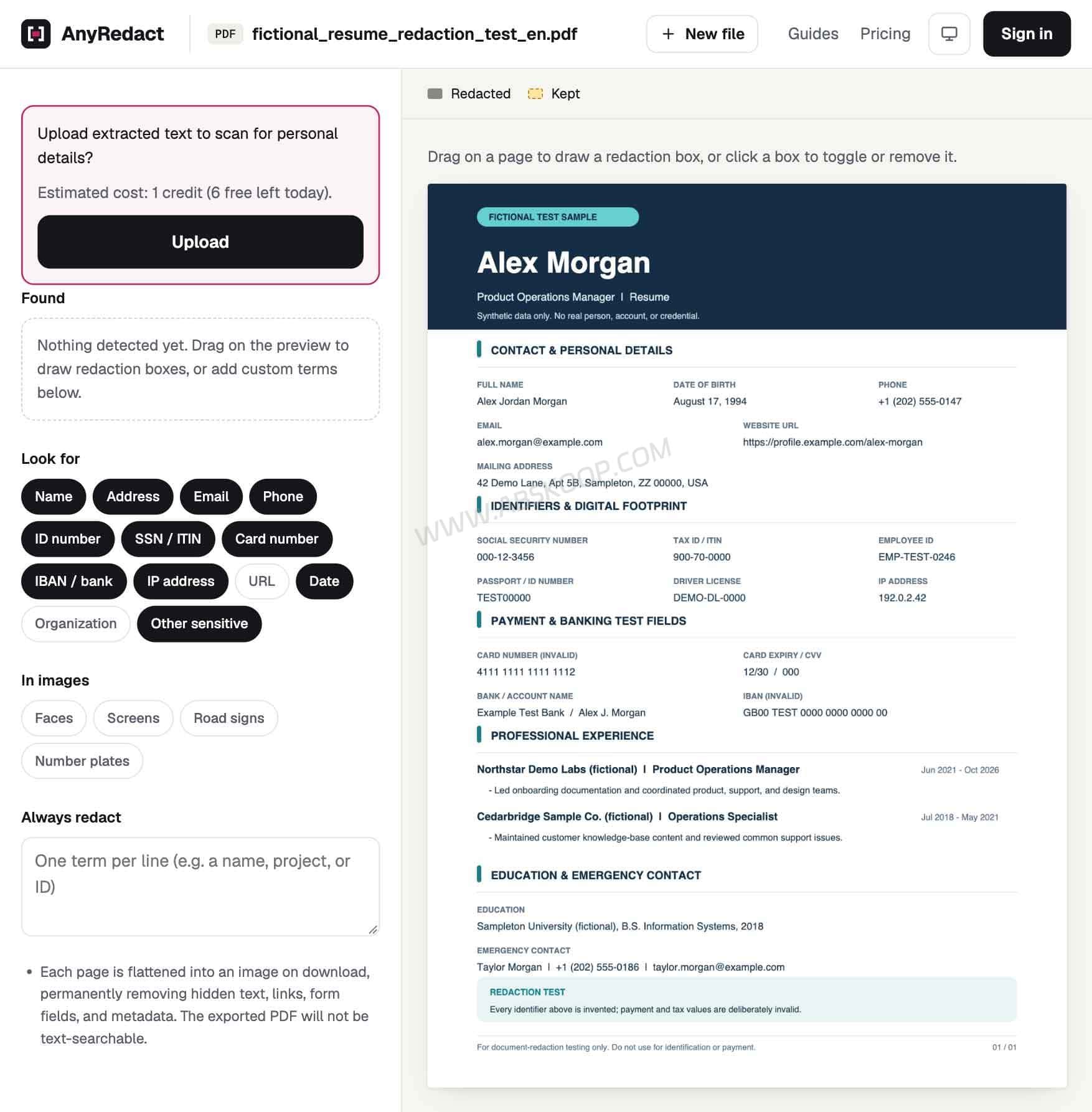
If you do not want document text sent to an AI service, skip this step. You can still select text or draw boxes over the areas you want to hide directly in the browser.
Step 3: Review the Detected Information
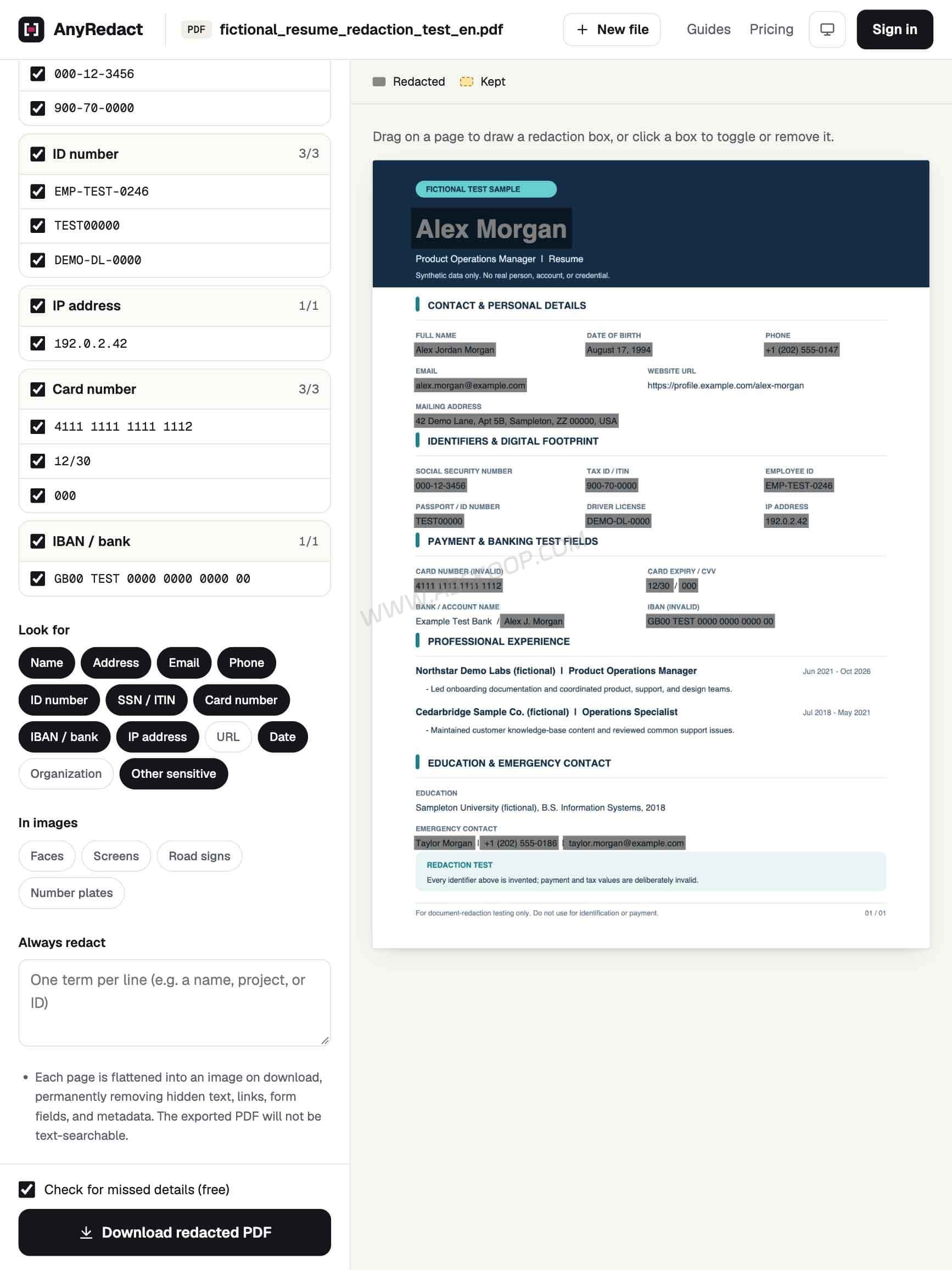
After detection, AnyRedact displays the matches in its Found list and highlights their locations in the PDF.
Go through the results rather than accepting everything automatically. For example, a bank statement may need to show your bank name and certain transaction details to prove income. You may want to remove the account number while keeping the information relevant to the recipient.
Check signatures, photos, QR codes, page edges and blurry scanned areas as well. If a customer name or internal reference appears repeatedly, add it to Always redact instead of searching for each occurrence manually.
Step 4: Download and Check the Redacted PDF
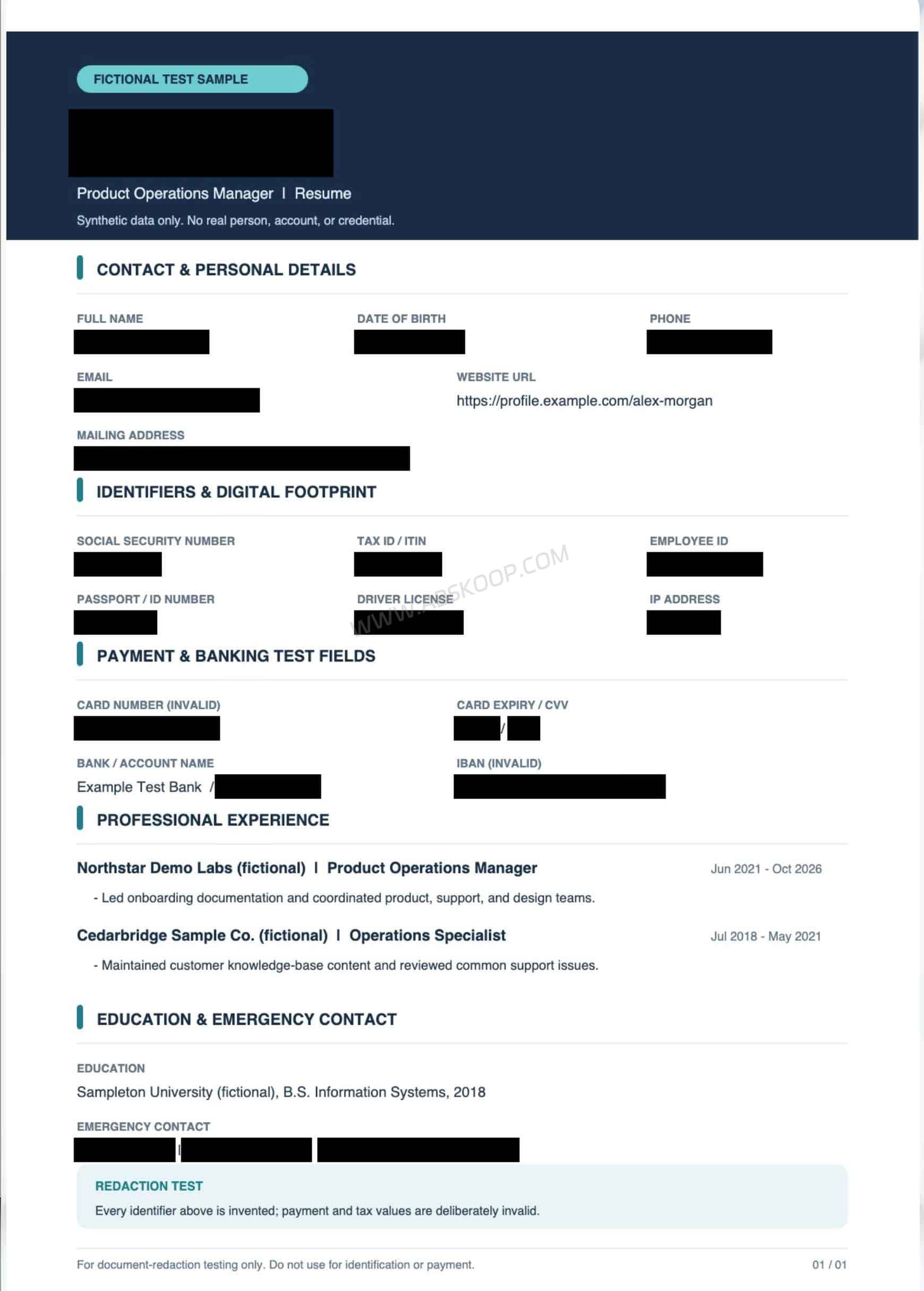
Once you are happy with the selected areas, download the processed PDF. Open the saved file again and check each page, especially names, account numbers, signatures and QR codes that could have been missed.
Keep the original document separately. The exported PDF is designed for sharing, not for continuing to edit the original document.
Does AnyRedact Upload Your PDF?
The PDF is opened, previewed and edited in your browser. The final redacted file is also generated on your device. Manual redaction does not require sending the document content to the AI service.
AI detection works differently. When you click Upload, the extracted text is sent over HTTPS to a Cloudflare Worker and analyzed by Cloudflare Workers AI. The optional final check sends the extracted text again, with the redactions you have already selected masked, to look for possible omissions.
Scanned-page OCR runs locally in the browser using Tesseract. If you enable road sign or number plate detection, downscaled page or embedded images may also be sent for analysis. Audio transcription uses Microsoft Azure AI Speech, with Cloudflare Workers AI as a fallback.
AnyRedact says file contents and detection results are processed in memory, not stored, not written to logs and not used to train AI models. The privacy policy also describes other service data it does store, such as account details, usage records, payment information and security logs. Its file-handling statement should not be read as a promise that the entire service collects no data.
If a document contains client information, financial records or confidential business material, check your organization’s data-handling rules before enabling AI detection. Manual mode is available when you want to avoid sending extracted text to the AI service.
Read the AnyRedact Privacy Policy for the full data-handling details.
Can Someone Recover Text from a Redacted PDF?
For content that has been correctly marked, AnyRedact does more than place a black rectangle over the original text. It rebuilds every PDF page as a new image and burns the redaction marks into the pixels. The original text layer, form fields, hyperlinks, bookmarks, embedded attachments and document metadata are removed from the exported file.
That means the original text is no longer sitting underneath a movable black shape, waiting to be copied or extracted.
There is a trade-off: the downloaded PDF is no longer directly searchable or selectable. If you need searchable text, you can run OCR on the exported file afterward. The OCR process will only see the content that remains visible.
One limitation remains: if a name, account number or signature was never marked for redaction, it will still appear in the output. AI detection is not guaranteed to catch everything, so review the saved document before sharing it.
Is AnyRedact Free? Pricing and Limits
AnyRedact has a free allowance and does not require an account for basic daily use. You can process a small number of documents without subscribing.
| Plan | Price | Allowance |
|---|---|---|
| Free | $0 | 10 credits per day |
| Plus | $9/month | 600 credits per month |
| Pro | $24/month | 3,000 credits per month |
| Pay as you go | $5 | 100 credits |
| Pay as you go | $15 | 500 credits |
| Pay as you go | $39 | 2,000 credits |
For ordinary documents, images and scanned pages, one credit covers about 3,000 characters of text, roughly one page. The actual number of pages you can process depends on how much text each page contains.
Other features have their own usage rules:
- Road sign and number plate detection costs one credit per image or page when enabled.
- Audio transcription uses three credits per started minute.
- The first final check for missed details on each file is free. Later checks cost one credit.
- Face and screen detection run locally and are free.
The free allowance resets daily and unused daily credits do not roll over. Monthly plan credits reset with each billing cycle, while one-time credit packs do not expire.
Each PDF can contain up to 60 pages. Longer documents need to be split into smaller files before processing.
For occasional work such as redacting a résumé, statement or short contract, the free allowance may be enough. If you process PDFs regularly, check how many credits your typical documents use before choosing a subscription.
AnyRedact does not currently list a public open-source license or a self-hosted deployment option. If you need to run the tool on your own server or inside a private network, it is not a documented deployment choice.
Check the AnyRedact pricing page for current plans and credit rules.
AnyRedact vs. Secure PDF Editor: Which One Should You Use?
AnyRedact is useful when a PDF contains names, phone numbers or bank details scattered across multiple pages. Instead of searching for every occurrence yourself, you can let AI find possible matches and review them before exporting the file. It is a convenient option for contracts, bank statements and other documents that need more than a few manual edits.
If you only need to hide a few names, signatures or account numbers, AI detection may be unnecessary. In that case, take a look at Secure PDF Editor: A Local PDF Redaction Tool. It focuses on manual redaction, local processing and self-hosting, making it a better fit for users who want more control over their files.
The main difference is how the two tools handle redaction. AnyRedact is more convenient when you want AI to find sensitive information across a document. Secure PDF Editor makes more sense when you prefer to select redaction areas yourself and keep processing local.
Try AnyRedact
AnyRedact combines AI-assisted detection, manual redaction and flattened PDF exports in one browser-based workflow. The free daily allowance makes it easy to try without installing software or creating an account.
It is not a fully offline AI tool, and its automatic detection still needs human review. For ordinary documents, it offers a convenient way to find and remove sensitive details before sharing a PDF. For confidential files, check the cloud-processing rules first.
Visit the AnyRedact Official Website
PDF guide: How to Redact a PDF
Product features, pricing and usage limits checked on November 6, 2026. We tested Chinese text recognition on a sample document, but this was not a formal accuracy benchmark. We have not independently audited AnyRedact’s security or redaction accuracy. Always review the exported file before sharing it.


Comments (0)