



Kaze AI is an AI image and video creation platform built around several different ways of working. You can upload an existing image and keep editing it through Chat Edit, generate new images or videos from a prompt, or jump straight into a single-purpose tool for jobs such as photo restoration, image expansion, upscaling, text removal, or watermark cleanup.
The useful distinction is not simply “generator versus editor.” If one image needs several rounds of changes, Chat Edit makes more sense. If the job is already obvious — extend the canvas, restore an old photo, remove a person, or upscale a low-resolution image — the dedicated tool is usually faster.
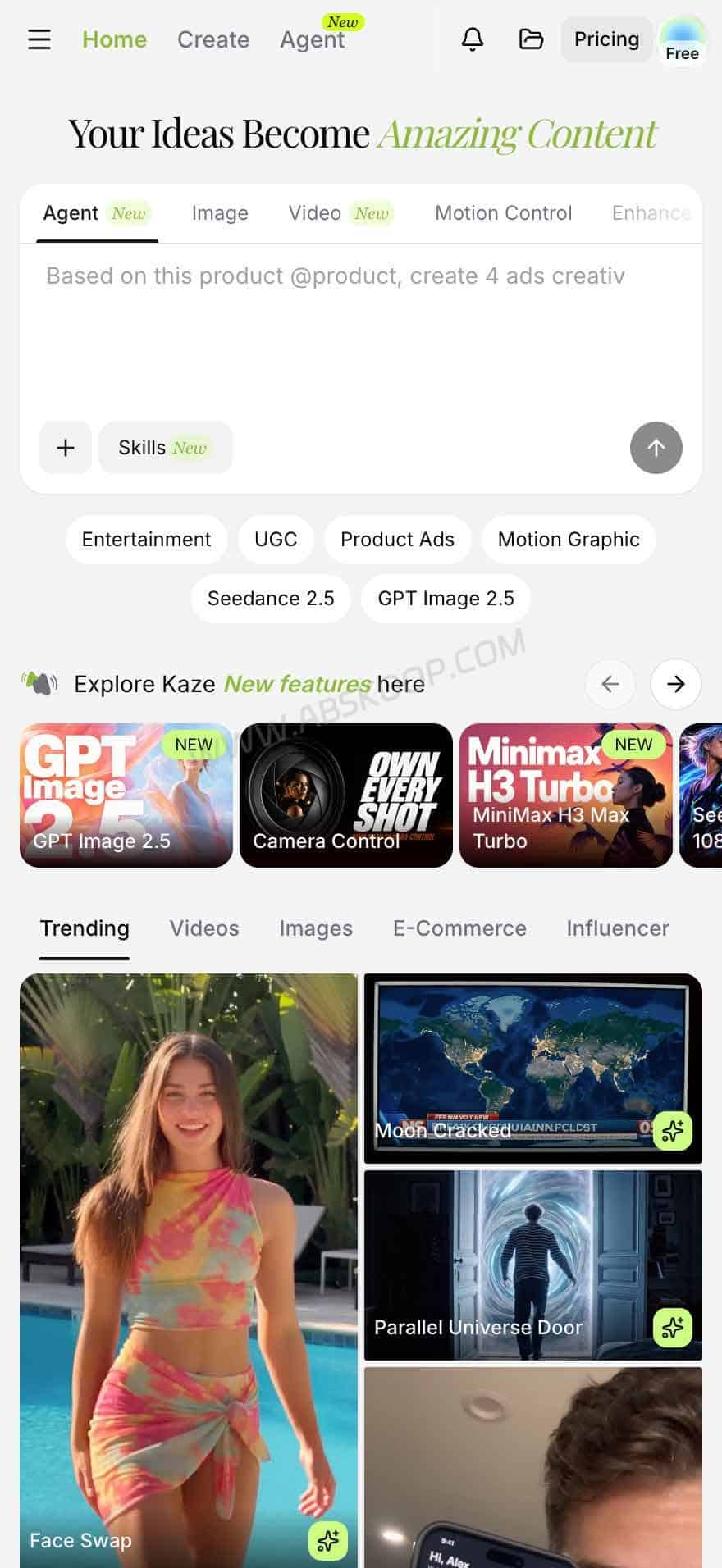
Developers also get a separate API layer. Kaze currently exposes image APIs for Watermark Removal and Image Expand, while video generation has its own Seedance APIs. Web credits and API Balance are separate, so buying credits for the browser product does not automatically fund API usage.
Features, models, limits, and pricing below were checked against Kaze AI’s website and API documentation in September 2026 and may change over time.
How Kaze AI is organized
You do not need to learn every tool on the site before using Kaze AI. Most jobs fall into three paths.
Chat Edit is for working on the same image over several turns. You can change a background, remove an object, adjust the look, and continue refining the same image with natural-language instructions.
Image and Video generation starts from a prompt, an image, or reference material. On the video side, Kaze offers access to multiple models rather than a single in-house video model.
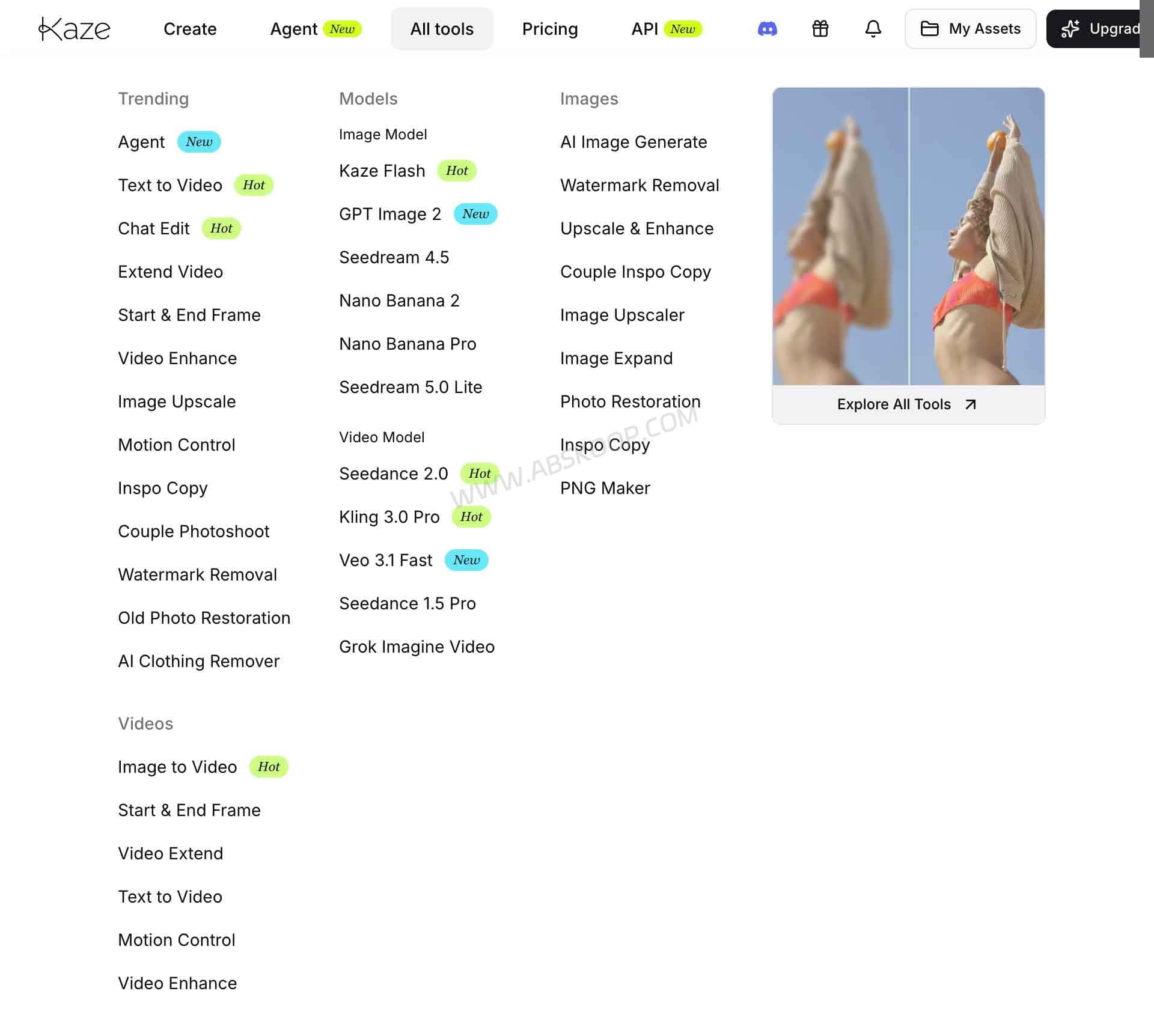
Single-purpose image tools handle narrower jobs. Use Upscale for resolution, Image Expander when the canvas is too tight, Photo Restoration for damaged photos, or one of the removal tools when there is a specific object, person, logo, or text you want cleaned up.
That split matters more than the number of tools Kaze lists. Multi-step edits belong in Chat Edit. Clear one-off jobs are usually quicker in the dedicated tools. New content starts in the image or video generator.
Chat Edit works best when one image needs several changes
Chat Edit lets you describe what should change instead of choosing a new tool for every step.
With a product image, for example, you could replace the background, remove an object from the table, and adjust the overall lighting without starting over after each edit. A portrait can go through the same kind of sequence: clean up the background, remove distracting elements, then shift the visual style.
This is where conversational editing is genuinely useful. It keeps several related changes attached to the same image rather than treating every edit as a separate job.
It is still generative editing, not pixel-level retouching. Brand typography, product edges, faces, small hardware details, and precise layouts deserve a closer look before the result is used in production.
Kaze AI image generation and editing tools
Kaze separates image generation from more focused image-processing tasks, but the two can be used together.
You can start with a prompt to create a concept image, social graphic, ad draft, or visual reference, then move the result into Chat Edit or a dedicated image tool for cleanup.
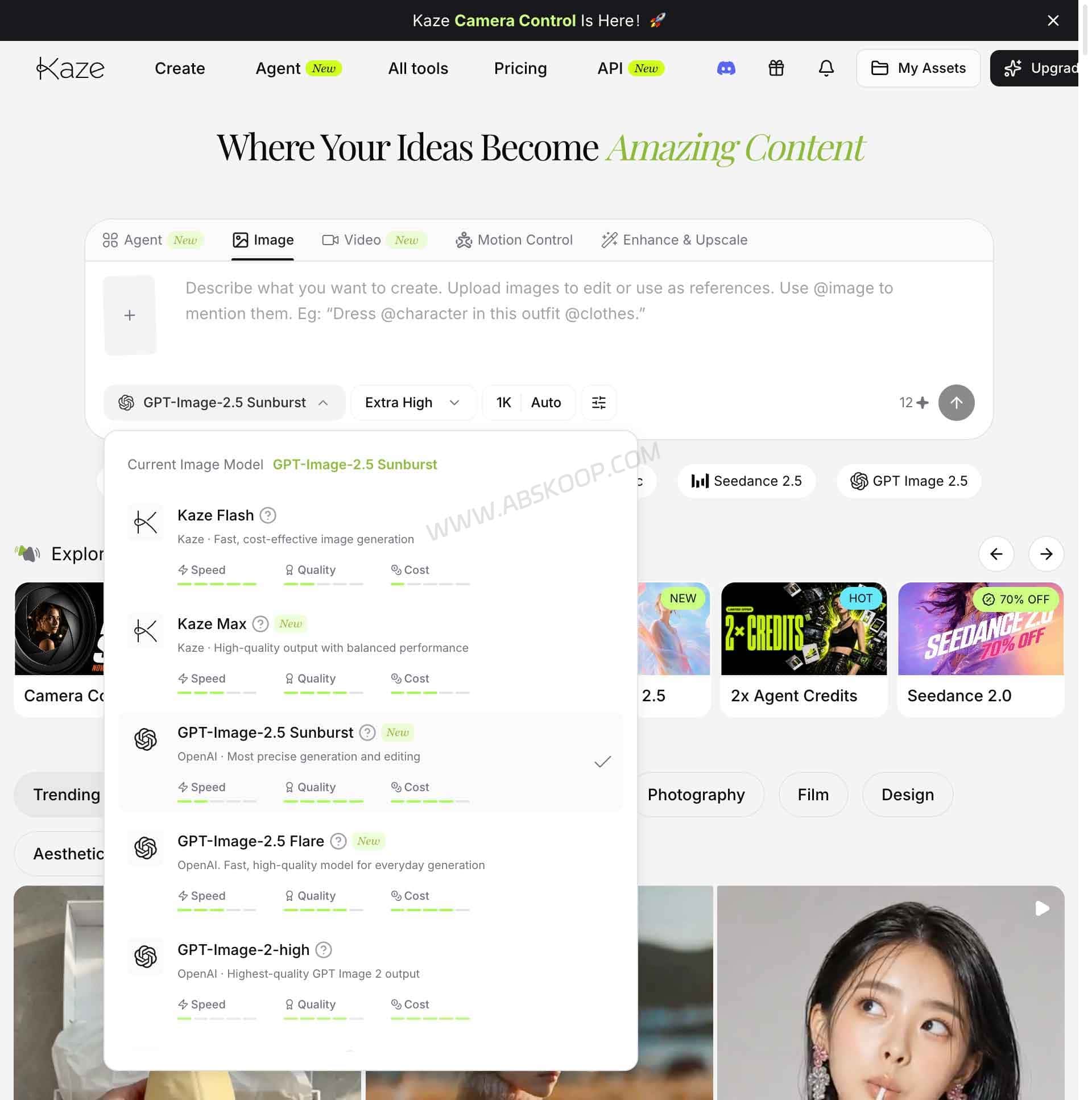
Some of the more practical image tools include:
- Photo Restoration: repairs old or damaged photos.
- Enhance & Upscale: increases image size and improves visible detail.
- AI Image Expander: generates new content beyond the existing image boundaries.
- Remove People: removes people and rebuilds the surrounding area.
- Remove Text: cleans unwanted text from an image.
- Logo Remover: removes a logo or similar visual element.
- Watermark Removal: removes watermarks and other overlays.
These are separate tasks, not one combined “enhance everything” button. Running an image through Watermark Removal does not mean it has also been upscaled, and using Image Expander does not automatically repair low-resolution details.
AI video generation with Seedance and MiniMax
Kaze also acts as a front end for several AI video models. As of September 2026, its model lineup includes options such as Seedance 2.0, Seedance 2.5, and MiniMax H3.
Those models come from different providers. Kaze is the platform layer that gives you access to them; it should not be read as the developer of every video model available in the interface.
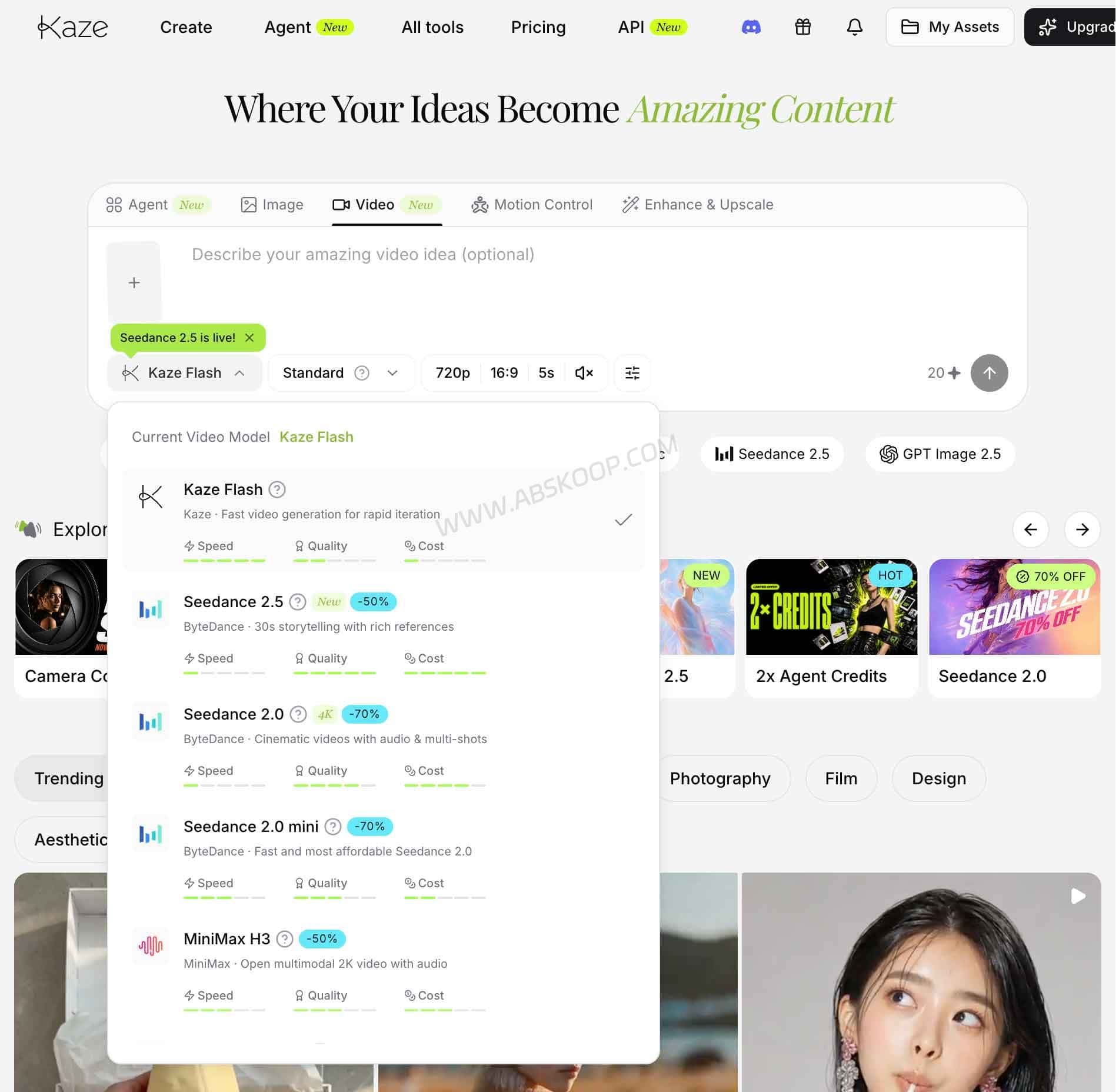
The current Seedance 2.5 API supports clips up to 30 seconds and can work with text and reference assets. Seedance 2.0 also has its own asynchronous video API. Exact resolutions, duration limits, and reference options depend on the model you choose.
For a quick product animation, concept clip, or short visual test, the browser interface is easier. The API becomes useful when video generation needs to sit inside your own product, backend, or automated pipeline.
Chat Edit, image tools, generators, or API?
| What you need to do | Best place to start |
|---|---|
| Keep changing the same image over several turns | Chat Edit |
| Restore, expand, upscale, or clean up one image | Single-purpose image tool |
| Create a new image from a prompt | Image Generator |
| Create video from text or an image | Video Generator |
| Run image or video processing from your own app | API |
The browser/API split is not really about “small jobs versus batch jobs.” Some browser tools already support multiple files. The API matters when a program needs to submit the job, read the result, and continue the workflow without a person clicking through the website.
Kaze AI Watermark Removal supports up to 20 images
The browser-based Watermark Removal tool accepts images by upload, drag-and-drop, or paste, with up to 20 images in one batch.
That means a small batch does not automatically require the API. If you have a dozen images to clean up manually, the web interface can already handle that kind of workload.
Watermark Removal:
https://kaze.ai/watermark-removal
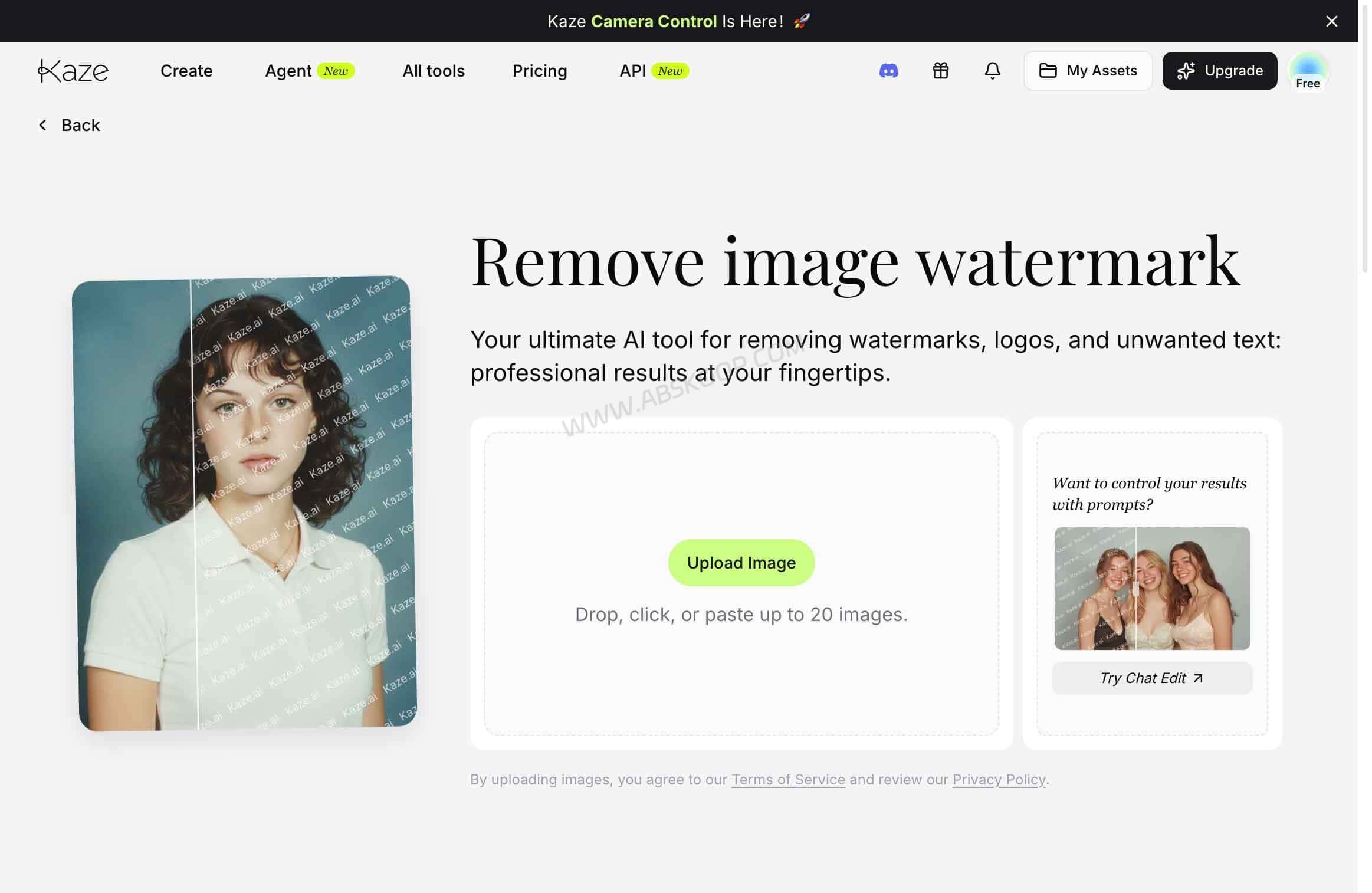
There is one important limit to keep in mind: AI watermark removal does not recover hidden original pixels. The model has to generate replacement content from the visible image and surrounding context.
A mark over a plain wall, sky, or simple surface is easier to reconstruct. A watermark covering hair, a face, product details, text, window frames, or repeating patterns gives the model much less room for error.
Does Kaze AI watermark removal restore the original image?
No, not in the literal sense.
If a watermark has already covered part of an image, those original pixels are not suddenly revealed by an AI model. The tool generates a plausible replacement for the covered area.
After processing, zoom in on faces, hair edges, small product components, straight architectural lines, text, and repeating textures. A result that looks clean at thumbnail size can still contain invented details or broken patterns when viewed closely.
Kaze AI Watermark Removal API
The Watermark Removal API is the more useful route when cleanup needs to happen inside a website, backend, script, or automation workflow.
It is asynchronous. Submit the image first, save the returned task_id, then query the task endpoint until the result is ready.
API base URL:
https://api-srv.kaze.aiSubmit a job:
POST /api/ext/v1/submit_watermark_removalGet the result:
POST /api/ext/v1/get_task_resultRequests use a Bearer API key:
Authorization: Bearer <API_KEY>Submit an image URL
curl --location --request POST \
'https://api-srv.kaze.ai/api/ext/v1/submit_watermark_removal' \
--header 'Authorization: Bearer <API_KEY>' \
--header 'Content-Type: application/json' \
--data-raw '{
  "image_url": "https://example.com/image.png"
}'
A successful submission returns a task ID:
{
  "code": 0,
  "message": "success",
  "data": {
    "task_id": "xxxxxxxx"
  }
}
The API also accepts image_base64. When using Base64, send the raw Base64 payload rather than including a Data URI prefix such as:
data:image/png;base64,What is a smear mask?
If you only want the model to touch a specific part of the image, the Watermark Removal API accepts smear_url or smear_base64.
The mask needs to match the source image dimensions. Areas marked with a color other than pure black or pure white are treated as editable, while pure black and pure white regions are left unchanged.
This is especially useful when a logo sits close to a product edge, or unwanted text overlaps a person. Restricting the editable area gives you more control than asking the model to decide what to change across the entire image.
Image Expand has its own Kaze AI API
Watermark Removal is not the only image API Kaze exposes.
The Image Expand API handles outpainting. It adds generated content around the original canvas and uses paste_position to control how much space is added around each side.
Submit endpoint:
POST /api/ext/v1/submit_expansionFor example:
{
  "image_url": "https://example.com/image.png",
  "paste_position": [100, 100, 100, 100]
}
Image Expand is also asynchronous, so the flow is the same basic pattern: submit the image, save the task ID, then poll for the completed result.
Kaze AI API pricing
As of September 2026, both the Watermark Removal API and Image Expand API are listed at $0.10 per processed image.
Video is priced differently because it is billed by output duration. Current Starter API pricing lists Seedance 2.0 from about $0.14 per second and Seedance 2.5 from about $0.22 per second. Model, resolution, duration, and plan can affect the final cost.
At the current Watermark Removal rate, processing 100 images would cost about $10 in API usage.
These are the kinds of prices that can change quickly, so production integrations should always check the current API documentation before estimating long-term costs.
Are web credits and API Balance the same thing?
No.
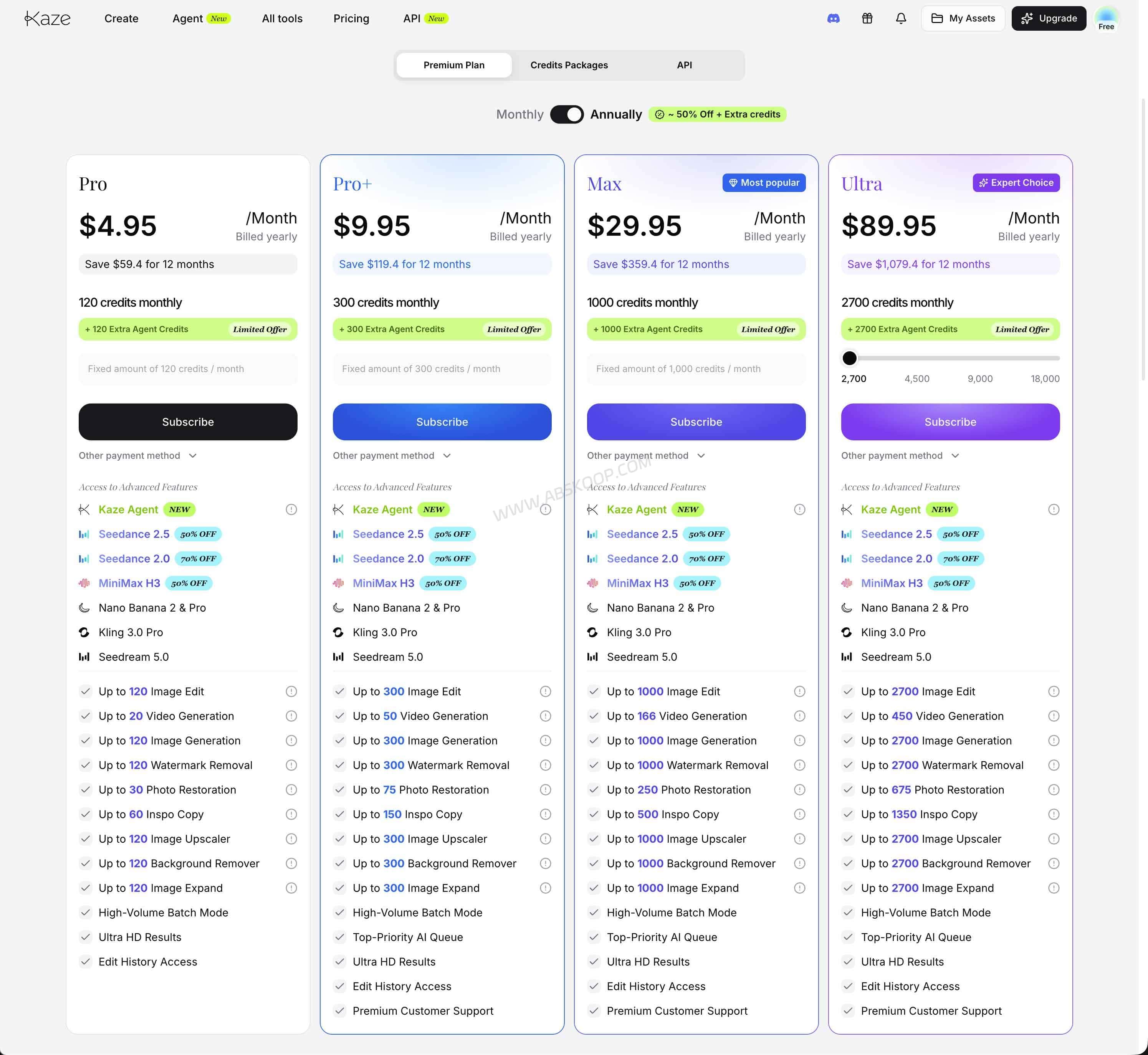
The Kaze web product uses its own credits and subscription system. Developer APIs draw from a separate API Balance.
Buying credits for image or video generation on the website does not automatically add money to the API balance.
A practical way to approach Kaze is to test your own images or video ideas in the browser first. If the output is good enough and the same task needs to run automatically inside another product, that is the point where creating an API key and funding the API Balance makes sense.
Pricing:https://kaze.ai/pricing
Where Kaze AI fits well — and where it does not
Kaze AI makes the most sense when visual work needs to move quickly and exact pixel control is not the main requirement.
Social graphics, product concepts, blog illustrations, ad drafts, image cleanup, quick video concepts, and early-stage creative work all fit that model well.
It is less convincing as a full replacement for professional image software when the job depends on exact typography, complex layouts, precise masks, color-managed retouching, or strict brand specifications. In those cases, AI output is often better used as working material rather than the final master file.
Check the data terms before uploading private material
Kaze AI is an online service, so uploaded images, prompts, and generated results have to pass through its processing infrastructure.
Under the terms available in September 2026, private content created by registered users can remain stored until the user deletes it or closes the account.
The terms also state that Kaze works with third-party AI technology partners and may share prompts, reference images, and related outputs with those partners for the purposes described in its service terms.
Its user-content license also covers uses required to operate the service, classify or moderate content, and, within the terms it sets out, improve and train AI systems.
That makes the data policy relevant for client assets, contracts, identity documents, unreleased product images, or internal design work. If a team has strict rules about where files may be processed, those rules should be checked before uploading sensitive material.
AI editing does not change the original copyright
Editing an image with AI does not automatically change who owns the source material or what you are allowed to do with it.
Your own photography, your own designs, and assets you have permission to edit are the straightforward cases.
Images from photographers, stock libraries, designers, publishers, or brands remain subject to their original license and copyright terms even after an AI tool changes the pixels.
Kaze AI links and developer documentation
Kaze AI: https://kaze.ai/
Watermark Removal: https://kaze.ai/watermark-removal
API: https://kaze.ai/api
Watermark Removal API: https://kaze.ai/api-docs/removal-watermark-api
Image Expand API: https://kaze.ai/api-docs/image-expand-api
Pricing: https://kaze.ai/pricing
Kaze AI FAQ
Are Kaze AI web credits and API Balance interchangeable?
No. The browser product uses web credits, while developer APIs use a separate API Balance. Buying web credits does not automatically fund API requests.
Does Kaze AI watermark removal recover the real pixels under a watermark?
No. The model generates replacement content based on the visible image and surrounding context. Faces, text, product details, and repeating patterns should still be checked carefully after processing.
Does Kaze AI have an Image Expander API?
Yes. The Image Expand API accepts an image URL or Base64 image and uses paste_position to define the area added around the source image. The listed price is currently $0.10 per image.
Are Seedance and MiniMax Kaze AI’s own video models?
No. Kaze acts as a platform for multiple video models, including Seedance and MiniMax options. The available model list can change as the platform is updated.
Can I upload sensitive images to Kaze AI?
Kaze AI is a cloud service, and its current terms describe storage of registered users’ private content as well as processing involving third-party AI technology partners. Client files, identity documents, confidential designs, and unreleased product assets should be checked against your own data-handling requirements before upload.


Comments (0)