



MediaGo: Open-Source M3U8 Downloader with Docker & API
There are plenty of tools that can take an M3U8 URL and download an HLS stream. MediaGo goes a bit further. It combines M3U8/HLS downloading, web resource extraction, yt-dlp support, Docker, a web UI, and an HTTP API in one interface.
MediaGo is a cross-platform open-source M3U8 downloader for Windows, macOS, Linux, and Docker. Under the hood, it works with tools such as yt-dlp, N_m3u8DL-RE, BBDown, and aria2, so it is better thought of as a unified front end and task manager than a completely new download engine.
The source code, issues, and project updates are available in the MediaGo GitHub repository.
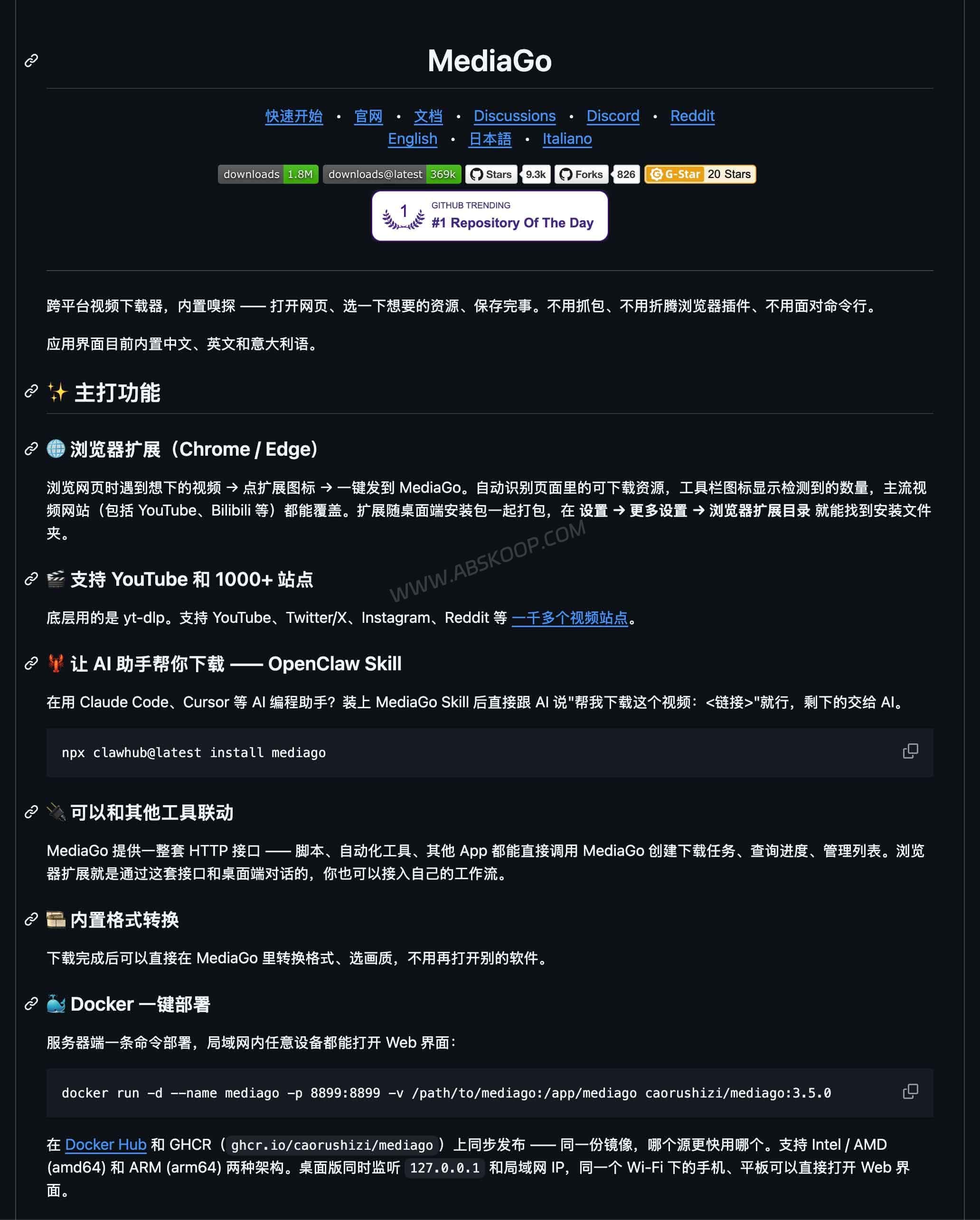
MediaGo is mainly useful for working with M3U8/HLS streams and other media resources. Use it with content you own, have permission to save, or that the content provider explicitly allows you to download.
| Item | MediaGo |
|---|---|
| Type | Cross-platform M3U8 / HLS video downloader |
| Platforms | Windows, macOS, Linux |
| Core features | M3U8 / HLS downloads, resource extraction, format conversion |
| Browser extension | Chrome and Edge |
| Self-hosting | Docker, amd64 / arm64 images, web UI |
| Automation | HTTP API and OpenClaw Skill |
| Stable release | v3.5.0 |
| License | MIT License, with an additional non-commercial-use statement in the README |
What makes MediaGo different from a typical M3U8 downloader?
A basic M3U8 downloader usually does one job: you paste an .m3u8 playlist URL, it downloads the HLS segments, and then merges them into a local video file.
MediaGo covers that workflow, but it is not limited to it.
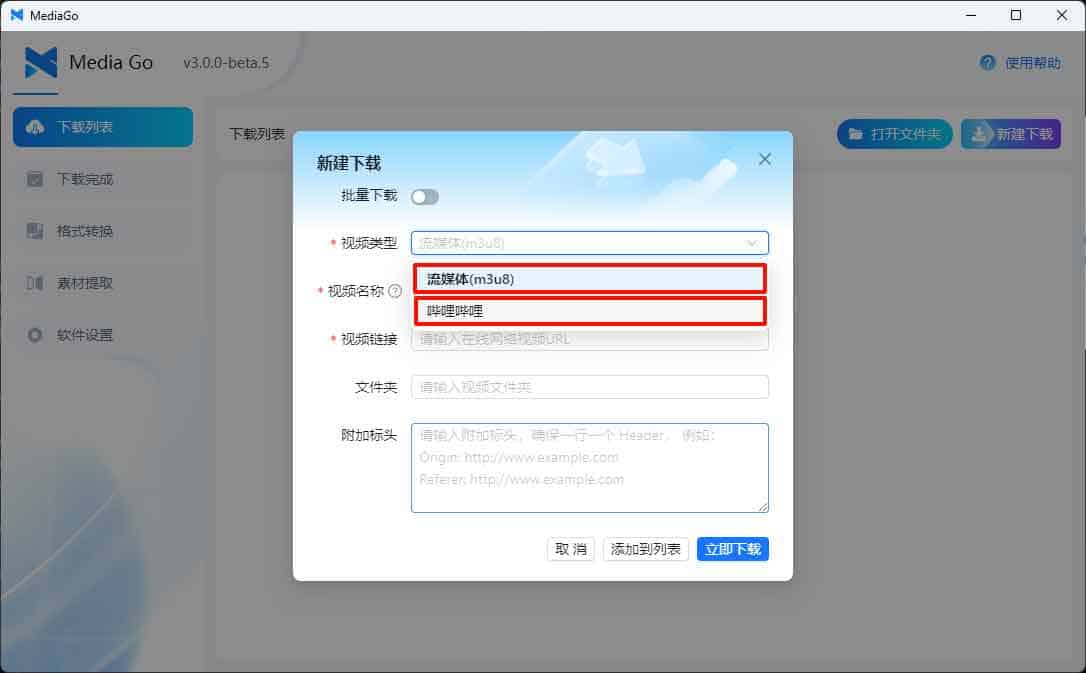
If you already have an M3U8 or HLS URL, you can create a task directly. If you do not know the underlying media URL, MediaGo can inspect the page and surface the media resources it finds.
The Chrome and Edge extension makes this easier again. Instead of opening browser developer tools and digging through network requests, detected resources can be sent straight to MediaGo.
MediaGo also integrates yt-dlp, which extends its usefulness beyond HLS and gives it access to yt-dlp’s much broader site parsing support.
The bigger difference, though, is that MediaGo is not tied to a single desktop session. You can run it through Docker, open the web UI from another device, and submit tasks through an HTTP API.
How MediaGo handles M3U8 and HLS streams
M3U8 is a playlist format commonly used by HLS, or HTTP Live Streaming. Instead of pointing to one large video file, an M3U8 playlist usually references a series of smaller media segments.
If you already have the playlist URL, MediaGo can create a download task from it directly.
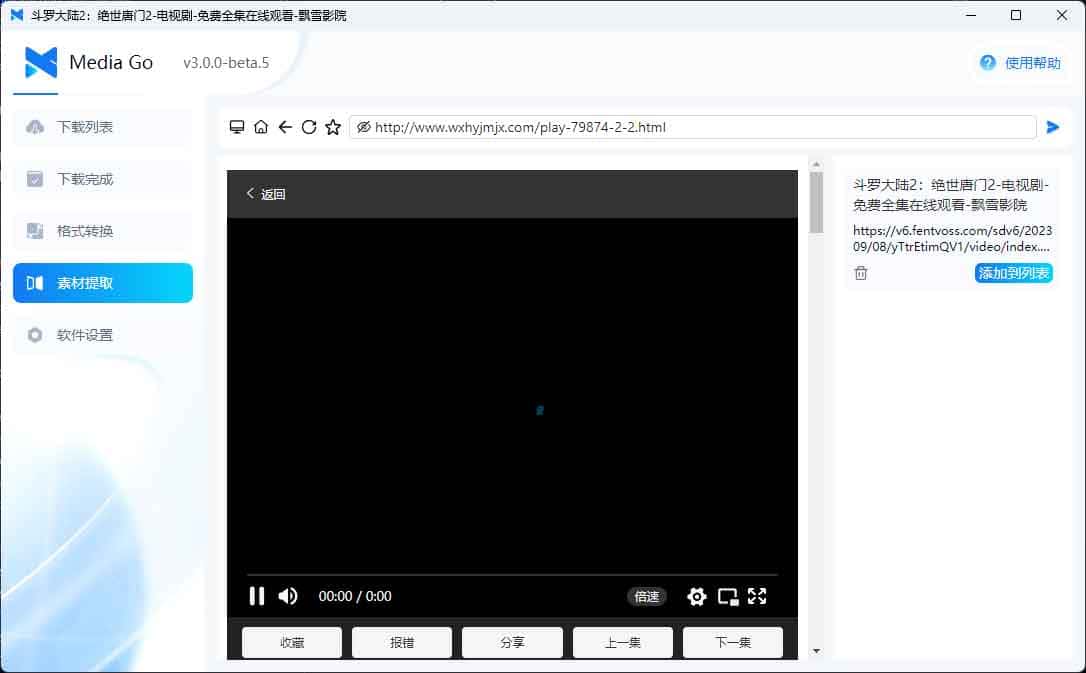
When the actual stream URL is hidden behind a web page, the Resource Extraction view can inspect the page as it loads and show the media resources it detects. You can then choose the relevant stream and create a task without manually copying network requests.
The browser extension offers another route: detect the media in Chrome or Edge and send it to the MediaGo instance that is already running.
MediaGo also supports format conversion after a download, which is useful when you want a more convenient local output format instead of keeping the original segmented stream.
One distinction still matters: being able to detect a stream does not mean the provider allows it to be downloaded. DRM-protected media, restricted content, or services that explicitly prohibit downloading should not be treated as something to bypass with MediaGo.
Installing MediaGo on Windows, macOS, and Linux
MediaGo provides Windows installer and portable builds, separate macOS packages for Apple Silicon and Intel Macs, and a DEB package for Linux.
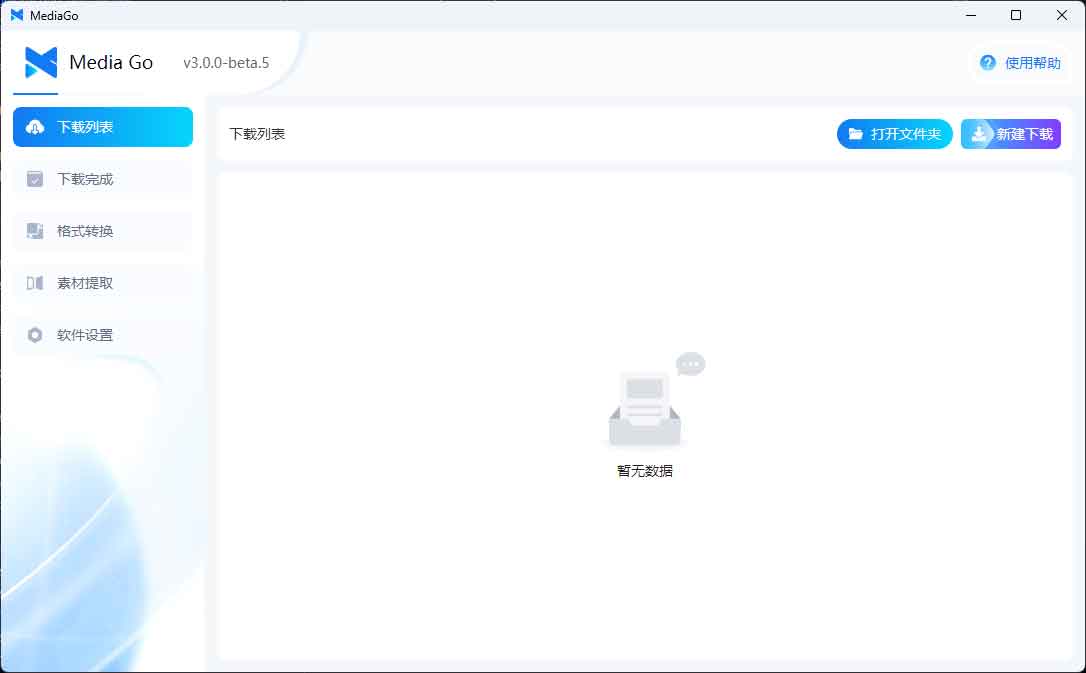
The safest place to get the desktop builds is the MediaGo GitHub Releases page.
Windows is fairly straightforward, although current releases may still trigger SmartScreen or other security warnings because code signing is not fully in place.
macOS takes one extra step. On Apple Silicon, if the app is blocked after installation, the current MediaGo instructions use:
sudo xattr -dr com.apple.quarantine /Applications/mediago-community.appThis removes the quarantine attribute added by macOS. Intel Macs use the x64 build and may also require manual approval under Privacy & Security.
MediaGo no longer supports Windows 7, and 32-bit Windows is not a primary supported target.
Running MediaGo with Docker on a NAS or server
Docker is where MediaGo becomes more interesting for self-hosted setups.
If you already have a NAS, home server, or small always-on machine, you can keep MediaGo running there instead of leaving your main computer on. The web UI can then be opened from other devices on the same network.
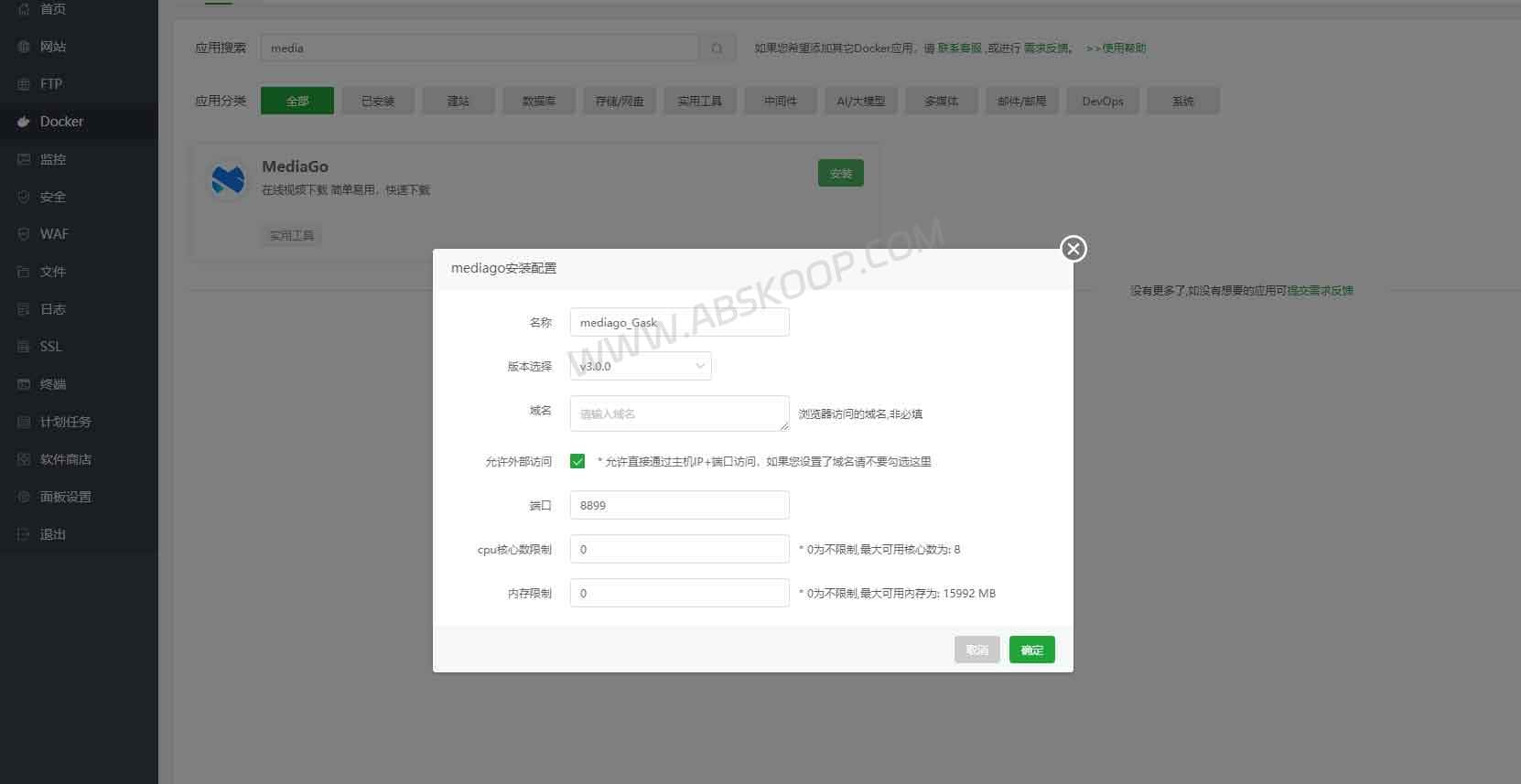
MediaGo provides amd64 and arm64 images, so it can run on common x86 servers as well as many ARM-based devices.
A basic Docker deployment looks like this:
docker run -d \
  --name mediago \
  -p 8899:8899 \
  -v /path/to/mediago:/app/mediago \
  caorushizi/mediago:3.5.0
Replace /path/to/mediago with the directory you want to use for MediaGo data.
A GHCR image is also available:
ghcr.io/caorushizi/mediago:3.5.0Some first-time setups ask for an initialization token. You can read it from the container with:
docker exec mediago cat /app/mediago/data/setup-tokenOnce setup is complete, normal access goes through the MediaGo web interface.
Why do MediaGo docs mention both ports 8899 and 9900?
This is one of the easier details to get confused by.
The current Docker quick-start command maps the web interface on 8899:8899, while the HTTP API documentation also shows Docker API examples using port 9900.
For a normal web deployment, follow the Docker command you actually started with. If you are connecting to the HTTP API, use the port exposed by your own container configuration rather than assuming that 9900 applies to every setup.
Using MediaGo in automation and AI workflows
MediaGo does not have to be controlled entirely through the web or desktop interface.
It exposes an HTTP API that can create download tasks, query progress, and manage the queue. This makes a self-hosted MediaGo instance much easier to plug into scripts and automation.
For example, another application can submit an approved media URL to MediaGo, wait for the task to finish, and then let a separate script move, rename, or archive the resulting file.
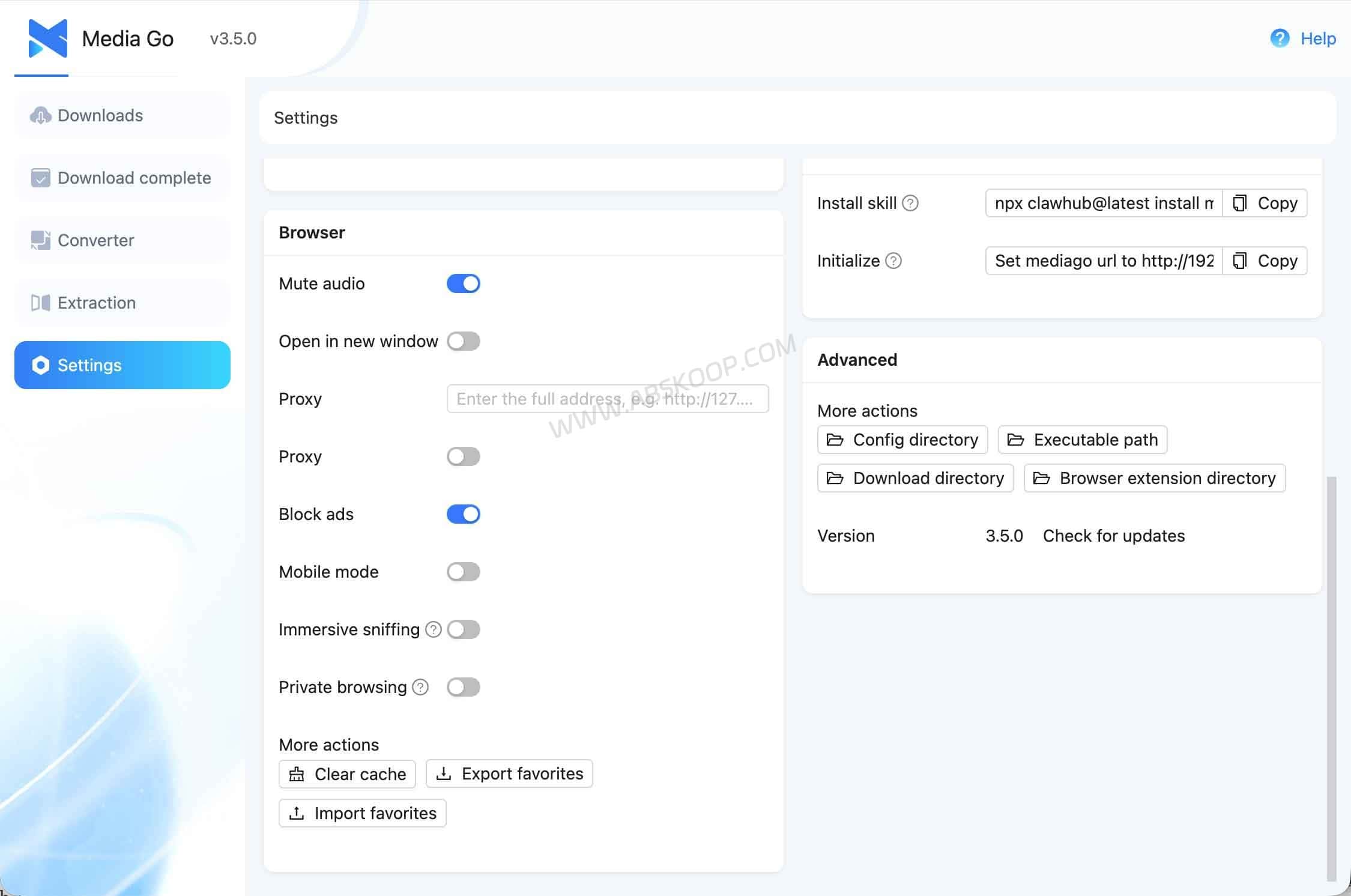
MediaGo also ships an OpenClaw Skill for AI coding tools such as Claude Code and Cursor:
npx clawhub@latest install mediagoAfter configuring the MediaGo address and API key where required, an agent can hand tasks off to MediaGo instead of trying to implement the download workflow itself.
That is more useful than the simple pitch of “AI downloads videos for you.” The real benefit is that MediaGo exposes its download engine as a service that scripts and agents can call.
The project also has a dedicated OpenClaw Skill guide.
MediaGo vs yt-dlp vs N_m3u8DL-RE
MediaGo is not really a replacement for yt-dlp or N_m3u8DL-RE. It sits on top of tools like these and makes their capabilities easier to use from a GUI, web interface, or API.
yt-dlp is the better fit when you already like working in a terminal, need a lot of flags, or want to build highly customized scripts.
N_m3u8DL-RE is more focused on HLS, DASH, and MSS workflows where detailed control over streams, tracks, segments, and download parameters matters.
MediaGo takes the opposite approach: fewer commands to remember, with resource extraction, task management, Docker, a web UI, and automation in one place.
| Tool | Main strengths | Best fit |
|---|---|---|
| MediaGo | GUI, resource extraction, Docker, web UI, API | Desktop users, NAS setups, and self-hosted workflows |
| yt-dlp | Broad site support, extensive options, strong scripting support | Command-line users, developers, automation scripts |
| N_m3u8DL-RE | Detailed HLS, DASH, and MSS handling | Users who need deeper control over streaming media |
If you already know yt-dlp or N_m3u8DL-RE well, the command line may still be faster. If you would rather manage tasks from a GUI, access the same downloader from multiple devices, or keep it running on a NAS, MediaGo is easier to live with.
Common issues with MediaGo on desktop and Docker
macOS needs an extra setup step
Apple Silicon builds may still need the quarantine attribute removed before macOS will open the app. Intel Macs can also require manual approval in system security settings.
MediaGo works on macOS, but it is not quite a download-and-double-click experience yet.
Windows may show a security warning
Current Windows releases may still be unsigned, so SmartScreen can appear on first launch. If that happens, make sure the installer came from the official MediaGo Releases page.
Live-stream detection is not always automatic
MediaGo can work with live streams, but pages often load several media resources at the same time. It may not always identify the live source for you, so some cases still require choosing the correct stream manually.
Do not expose the Docker web UI directly to the internet
The web interface is useful on a home or office network, but that does not mean the service should be opened directly to the public internet.
For remote access, use proper access controls such as a VPN, Tailscale, HTTPS behind a reverse proxy, firewall rules, or another protected access layer instead of simply forwarding the MediaGo port.
FAQ
Is MediaGo free?
Yes. The MediaGo repository is public, and Windows, macOS, Linux, and Docker builds are available from the project’s official pages.
Can MediaGo be used commercially?
The repository includes a standard MIT License, which by itself allows commercial use of the code.
The README, however, also says that the project is for educational and research purposes only and should not be used commercially. Those two statements conflict.
That means MediaGo should not be treated as a project with completely unambiguous commercial-use terms. Personal use, testing, and learning are much less controversial; commercial products, paid services, enterprise integration, or redistribution need more careful consideration.
The software license and the copyright status of downloaded media are also separate issues. Permission to use the software does not automatically grant rights to redistribute or commercially use the content you download.
Does MediaGo support Apple Silicon?
Yes. MediaGo provides an arm64 macOS build for Apple Silicon as well as a separate x64 build for Intel Macs. The Apple Silicon version may still require the quarantine-removal step described above.
Can MediaGo run on a NAS or ARM server?
Yes, as long as the device provides a compatible Docker environment. MediaGo publishes both amd64 and arm64 container images, which covers many NAS systems, x86 mini PCs, and ARM servers.
Can MediaGo v3.6.0 Beta replace v3.5.0?
Not if stability is the priority. As of October 2026, v3.6.0-beta.1 is still a prerelease, while v3.5.0 remains the stable release.
For everyday use, v3.5.0 is the safer choice. The beta makes more sense if you specifically want to test the newer build and are comfortable with prerelease software.


Comments (0)