


Using Claude Code, Codex or another AI coding assistant is straightforward when each tool has its own task. The trouble starts when the work overlaps. One agent researches a project, another reviews the code, and a third drafts the documentation. You end up copying context between chats and keeping track of the handoffs yourself.
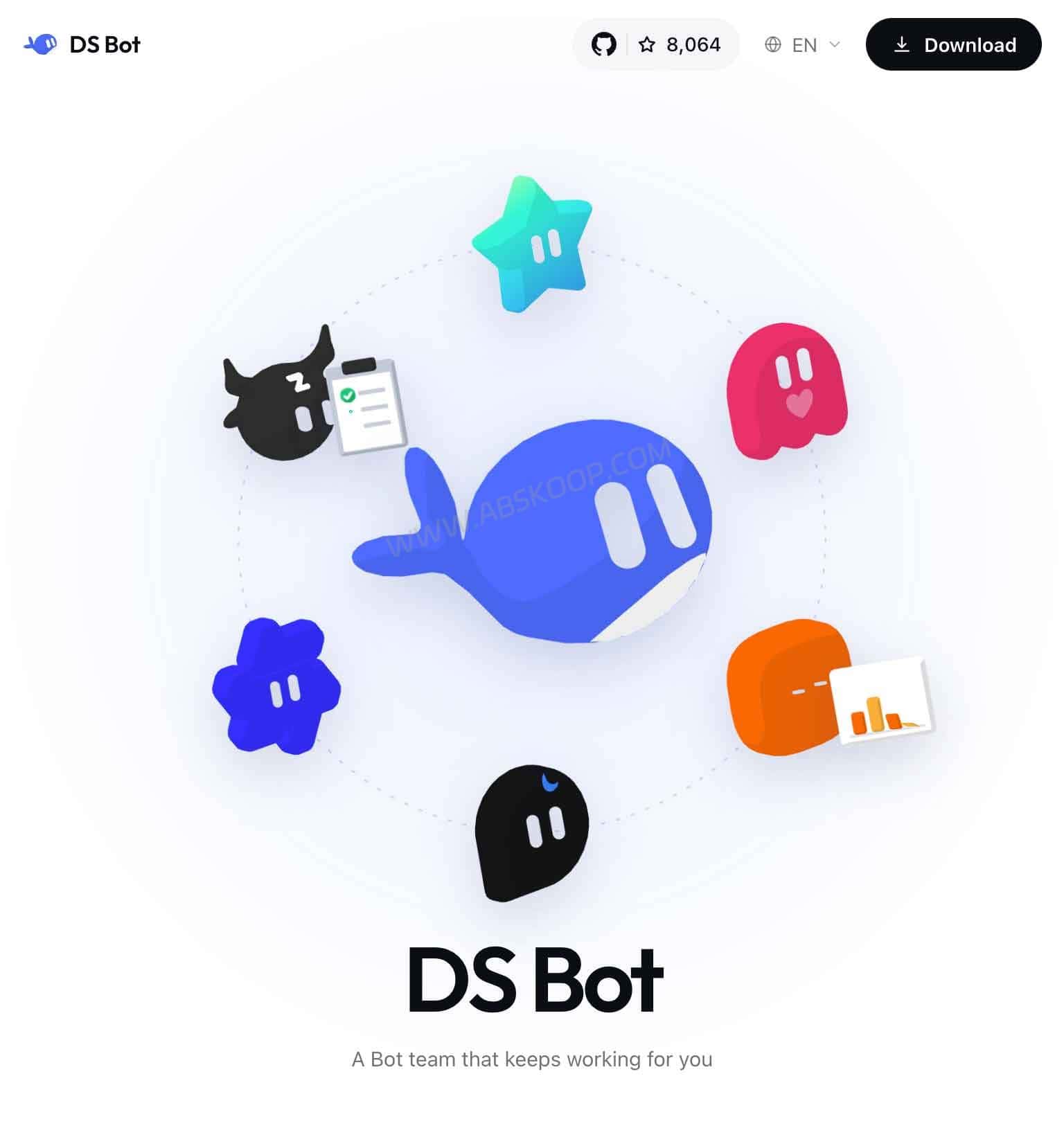
DS Bot is an open-source multi-agent AI application built on DeepSeek Harness (DSH). It lets you give separate AI assistants their own roles, models, memory and working folders, then coordinate their work through a main bot called Chief. It also supports group chats, task delegation and locally installed coding agents such as Claude Code, Codex CLI and Cursor CLI.
It is available as a desktop application for Windows, macOS and Linux, a DSH plugin, and a Docker-based web deployment. DS Bot is a community project, not an official DeepSeek product. The software is open source, but the models and external coding-agent services you connect to it may still cost money.
What Is DS Bot, and How Is It Different From DeepSeek Harness?
DeepSeek Harness provides the environment in which agents use models, tools and project files. DS Bot adds a way to manage several long-lived assistants inside that environment. Rather than starting a separate conversation for every step, you can maintain a team, assign work and bring the results back into one group chat.
Developer Fei2411 publishes DS Bot under the Apache-2.0 license. You do not have to install DeepSeek Harness separately if you choose the standalone desktop application, as it includes its own DSH runtime. If you already use DSH Desktop or DSH Web, you can install DS Bot as a plugin instead.
Not sure how the different Harness desktop apps compare? Our DeepSeek Harness Desktop comparison explains the differences between the official DeepSeek desktop app and the community-maintained DSH Desktop.
The important distinction is what DS Bot manages. It does not replace the underlying AI models or automatically improve their answers. It gives you a place to organize who does what, which tools they can use, and how one piece of work reaches the next agent.
How Multi-Agent Collaboration Works in DS Bot
Chief: One Bot to Coordinate the Team
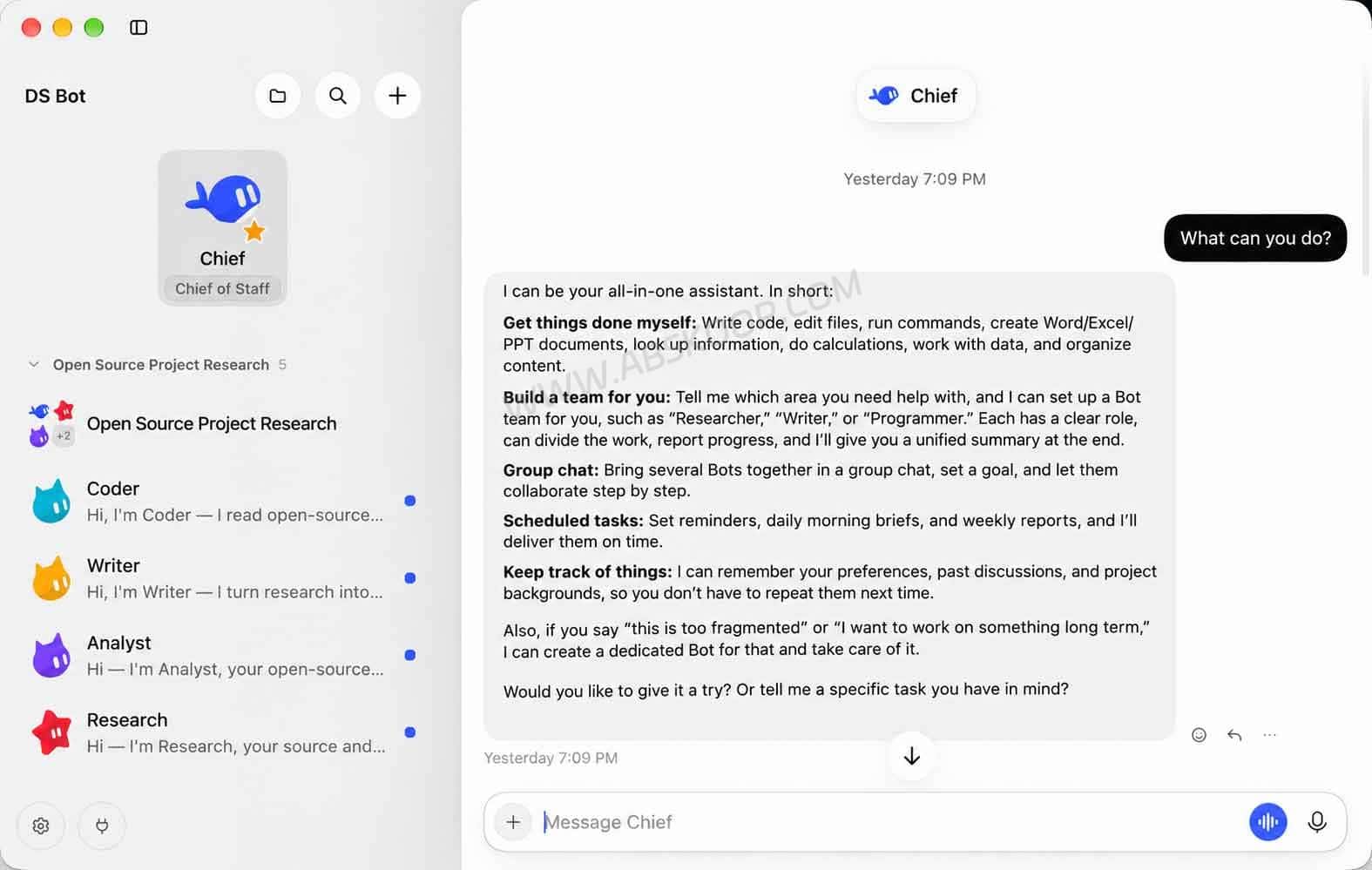
On the first launch, DS Bot starts with one main bot named Chief. You can ask Chief to create other bots, give them responsibilities and bring them into a shared conversation. You don’t need to create a complete team just to ask a question.
For example, suppose you’re reviewing an unfamiliar GitHub project. You could split the work into four roles:
- Research: Find the official website, repository, documentation and release notes.
- Analyst: Examine the features, license, supported platforms and important limitations.
- Coder: Read the code and explain the project structure or deployment requirements.
- Writer: Turn verified findings into a readable project overview.
Chief can coordinate that sequence and collect the results. The bots can use different models, and each has its own memory and working folder. You can also work directly with an individual bot when the task doesn’t need a group.
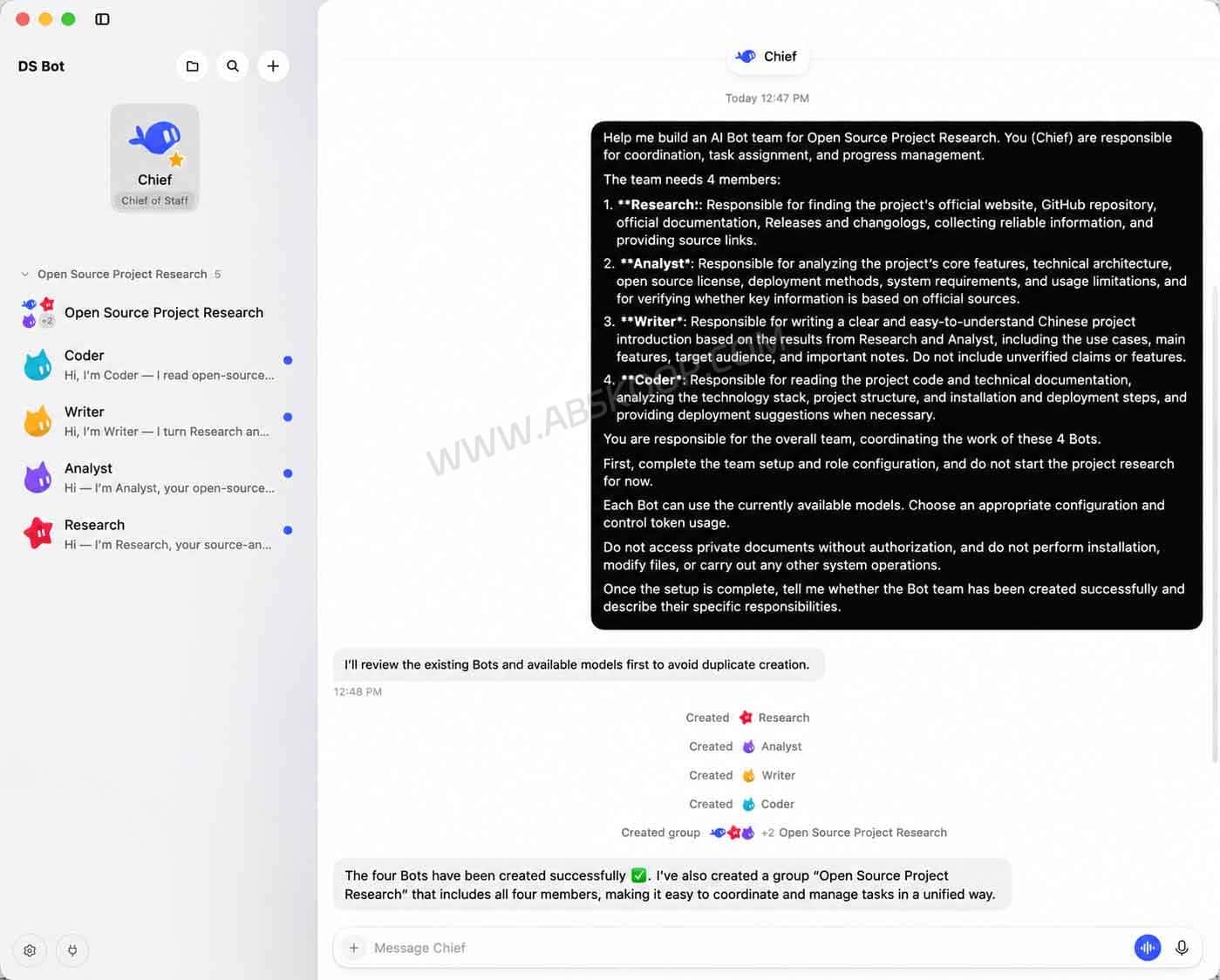
New installations begin with Chief, not a ready-made roster of specialist bots. The user remains responsible for each bot’s file-access and command-execution permissions. Chief cannot simply grant itself or other bots broader access.
Group Chats, @Mentions and Multi-Step Goals
A DS Bot group chat isn’t just several models responding to the same prompt. Each group has an administrator. The admin normally responds first, then calls other members when their help is useful. You can also @mention a specific bot to give it work directly.
Bots can hand tasks to one another and report their findings back to the group. For longer projects, the Goal feature lets the administrator agree on a definition of “done,” divide the work into stages and review each stage before continuing.
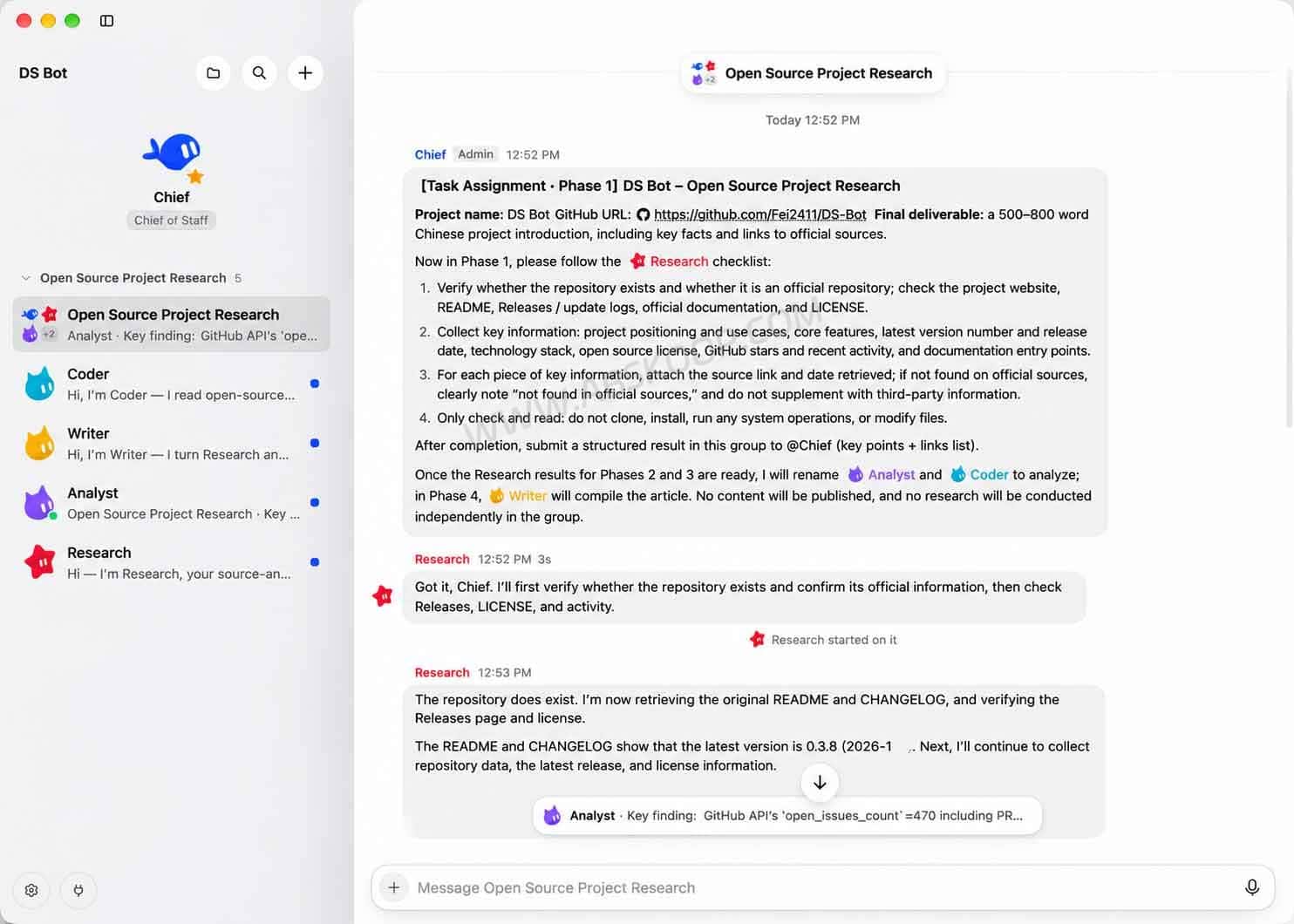
In v0.3.8, the project also added a group task board, a shared to-do list, message search and inline file-diff reviews. These are useful changes for teams working on code or documents: you can inspect what was assigned and what changed, rather than relying on a long chat transcript alone.
There is a cost trade-off. Each handoff or group discussion may trigger another model request. A group is worth using when it reduces genuine coordination work, not for a simple question that one assistant could answer.
Separate Memory, Working Folders and Private Bots
Each bot can have its own instructions, model, memory and working directory. Groups also maintain their own context and working folders, making it easier to return to a recurring project without starting from scratch.
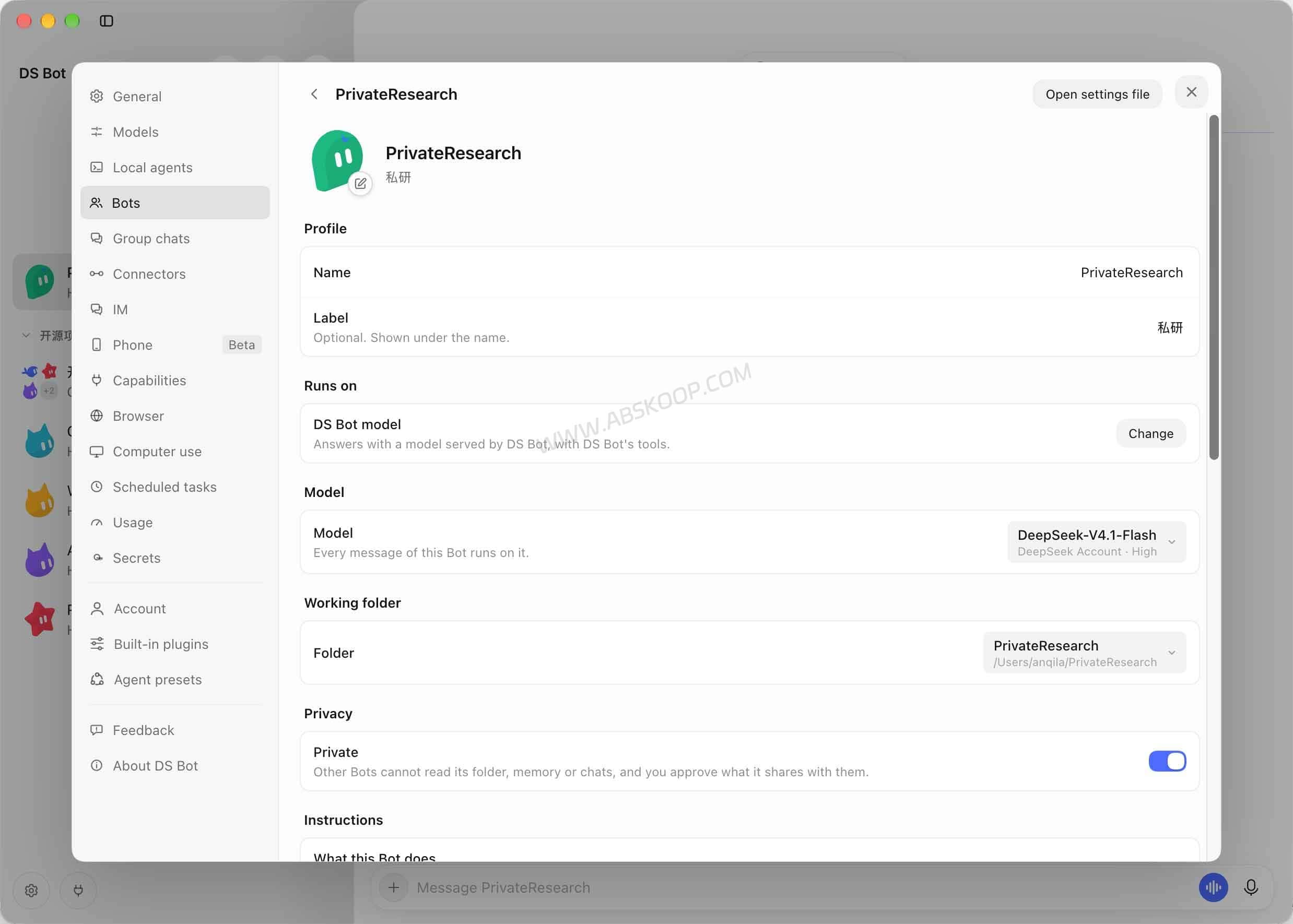
Private Bot is intended for work that should not be shared with the rest of the bot team. Other bots are blocked from reading its folder, memory and conversation history, and sharing outside its boundary requires approval. A Private Bot cannot serve as the main bot or join a group chat.
That boundary is not an operating-system sandbox. If you give a bot shell or network access, commands may still reach resources available to that process. Cloud model providers also receive the conversation content needed to process requests.
Use Claude Code, Codex CLI and Cursor CLI as Team Members
You can bring existing coding agents into DS Bot instead of replacing them. The official project supports local CLI integrations including Claude Code, Codex CLI, Cursor CLI, Gemini CLI, OpenCode and other supported tools. Choose Local agent when creating a bot, then connect the CLI you already use.
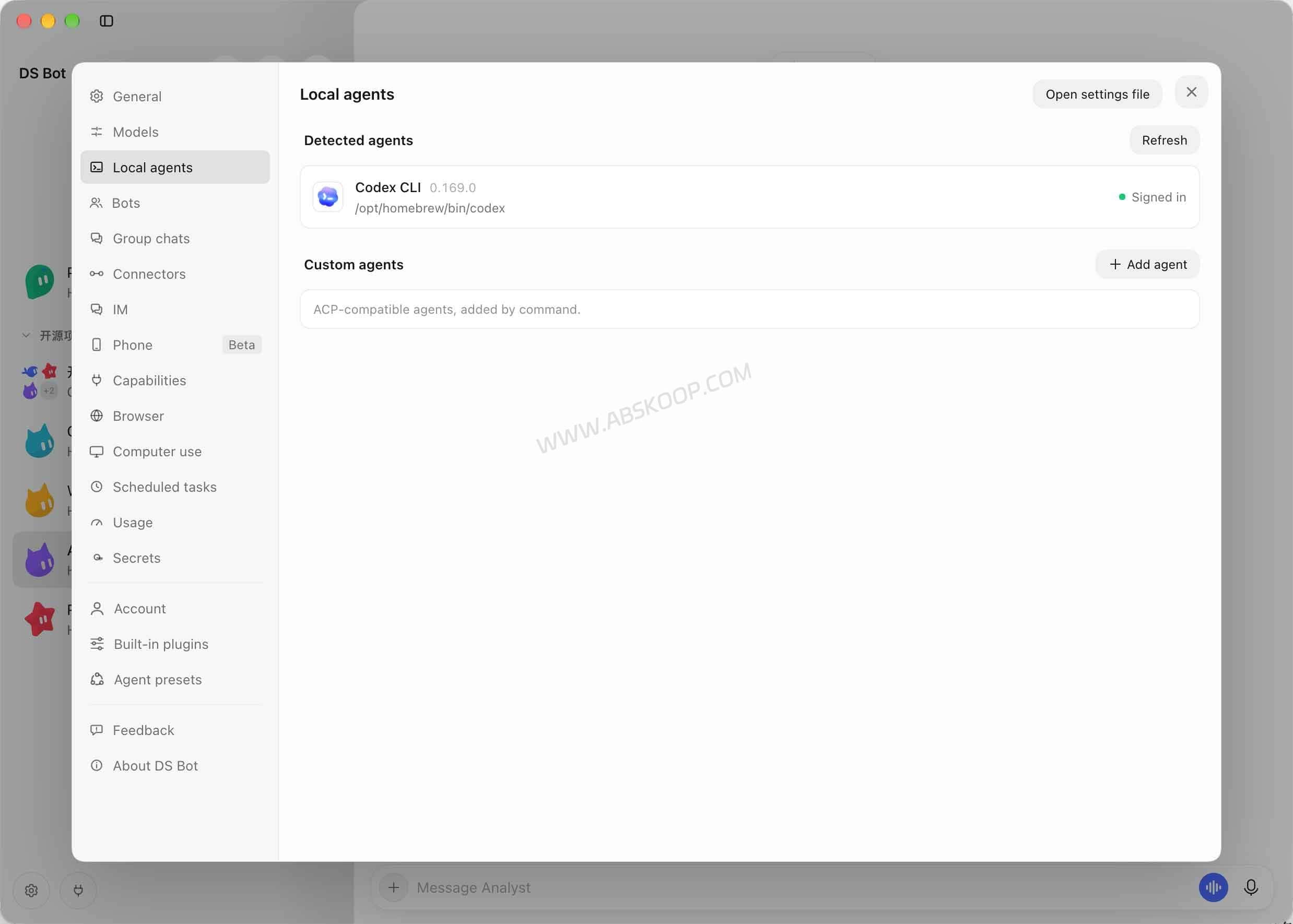
There is an important distinction between a regular DS Bot agent and a local CLI agent. A regular bot uses a model configured through DSH. A local CLI agent uses its own sign-in, subscription or API billing, tools and context. DS Bot connectors are not automatically passed to that CLI. Some custom CLIs without the required team-tool support also cannot create or delegate to other bots.
If you connect Cursor CLI, be careful when selecting a specific model in DS Bot: this can affect Cursor’s saved default CLI model. Keeping the CLI default is safer if you use Cursor in separate terminal sessions.
Related reading: sharing project memory between Claude Code and Codex.
Tools and Integrations: Browser, Desktop, Messaging and Files
DS Bot can do more than exchange messages between agents, although the available tools depend on where it runs and which permissions you allow.
Browser and Computer Use
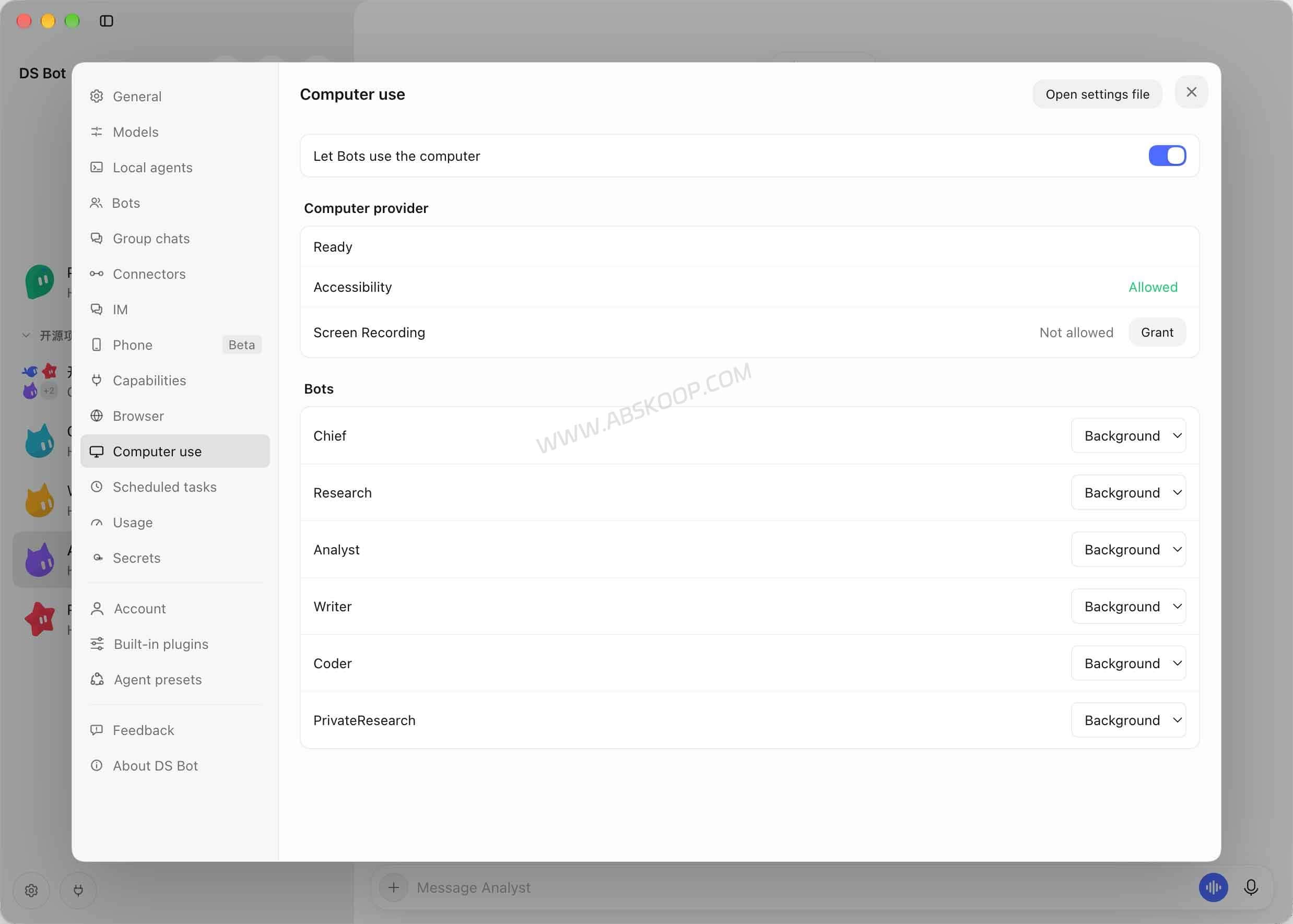
On the standalone desktop app or DSH Desktop, bots can work with browser sessions. Actions such as posting, uploading or deleting content may require your approval; sign-ins, verification codes and payment steps can be handed back to you. The same browser-control capability is not available in DSH Web or the Docker-based web setup.
Computer use offers View Only, Background and Foreground permission levels, with access restricted to selected applications. On macOS it requires macOS 14 or later plus the relevant accessibility and screen-recording permissions. Linux support centers on X11, with limited Wayland support. Bots share the same desktop, so two agents cannot independently control the same foreground mouse and application at once.
Chat Platforms and Connectors
The project includes integrations for messaging services such as Telegram, Discord, Slack, WeChat, Feishu and DingTalk, with capabilities varying by platform. For example, the documented WeChat connection is limited to private chats with the paired account rather than WeChat group conversations. The host computer must remain awake with DS Bot running for message handling to continue.
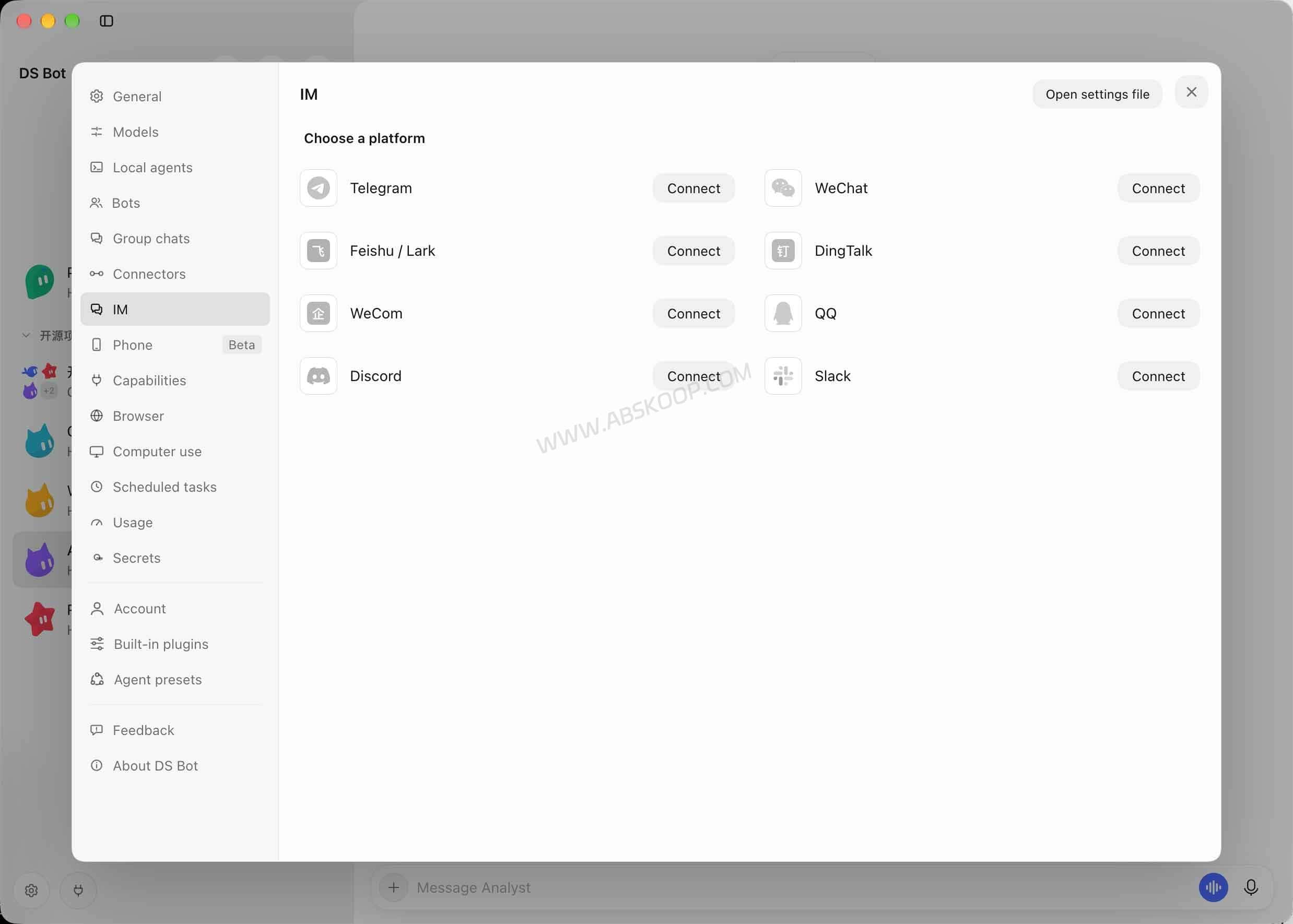
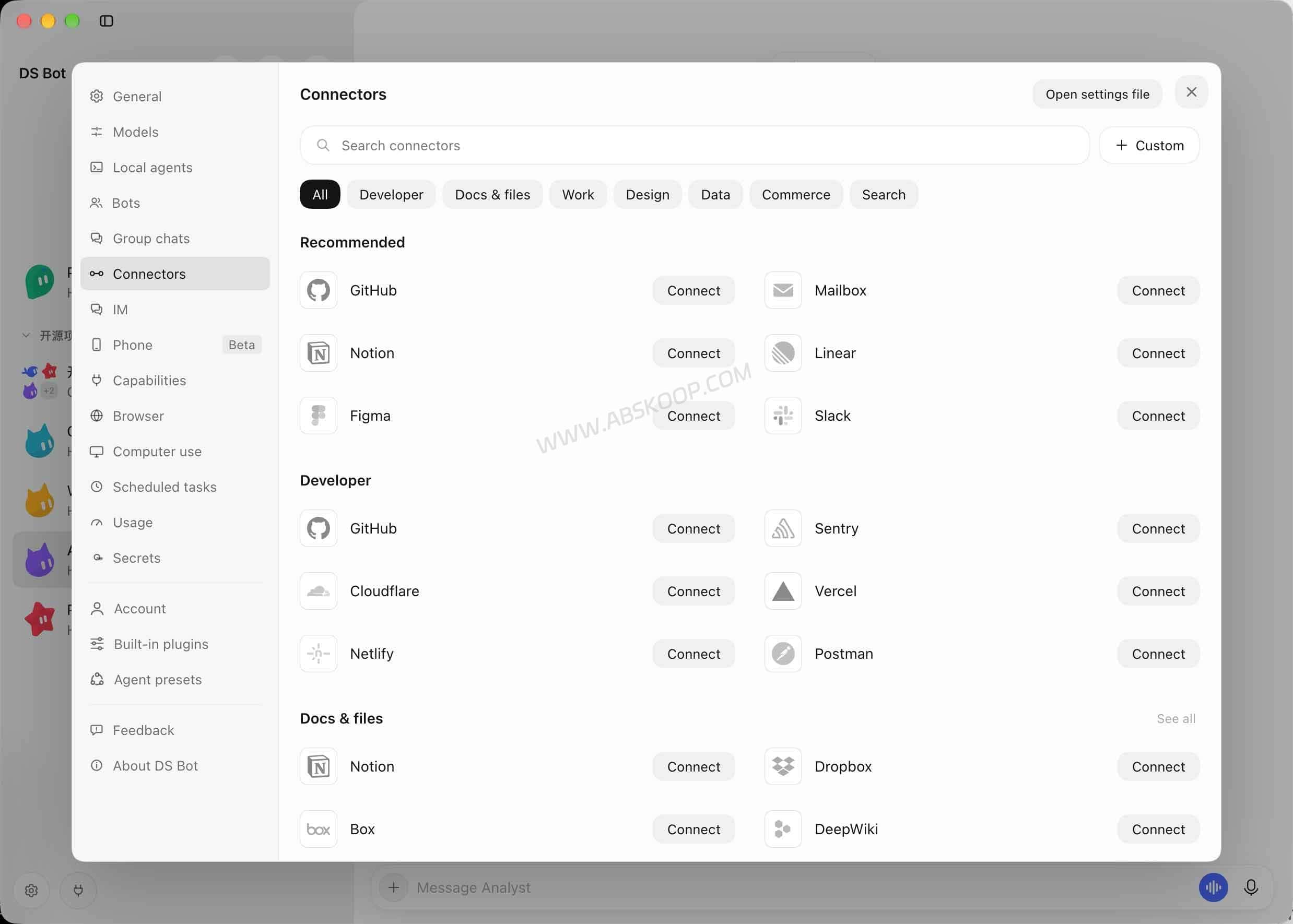
DS Bot also provides connectors for services such as GitHub and Gmail, remote MCP servers and imported configurations from supported desktop development tools. Email sending normally goes through user confirmation. Bots can help create and edit Word, Excel and PowerPoint files, although the available document-creation and rendering features differ between the desktop and web environments.
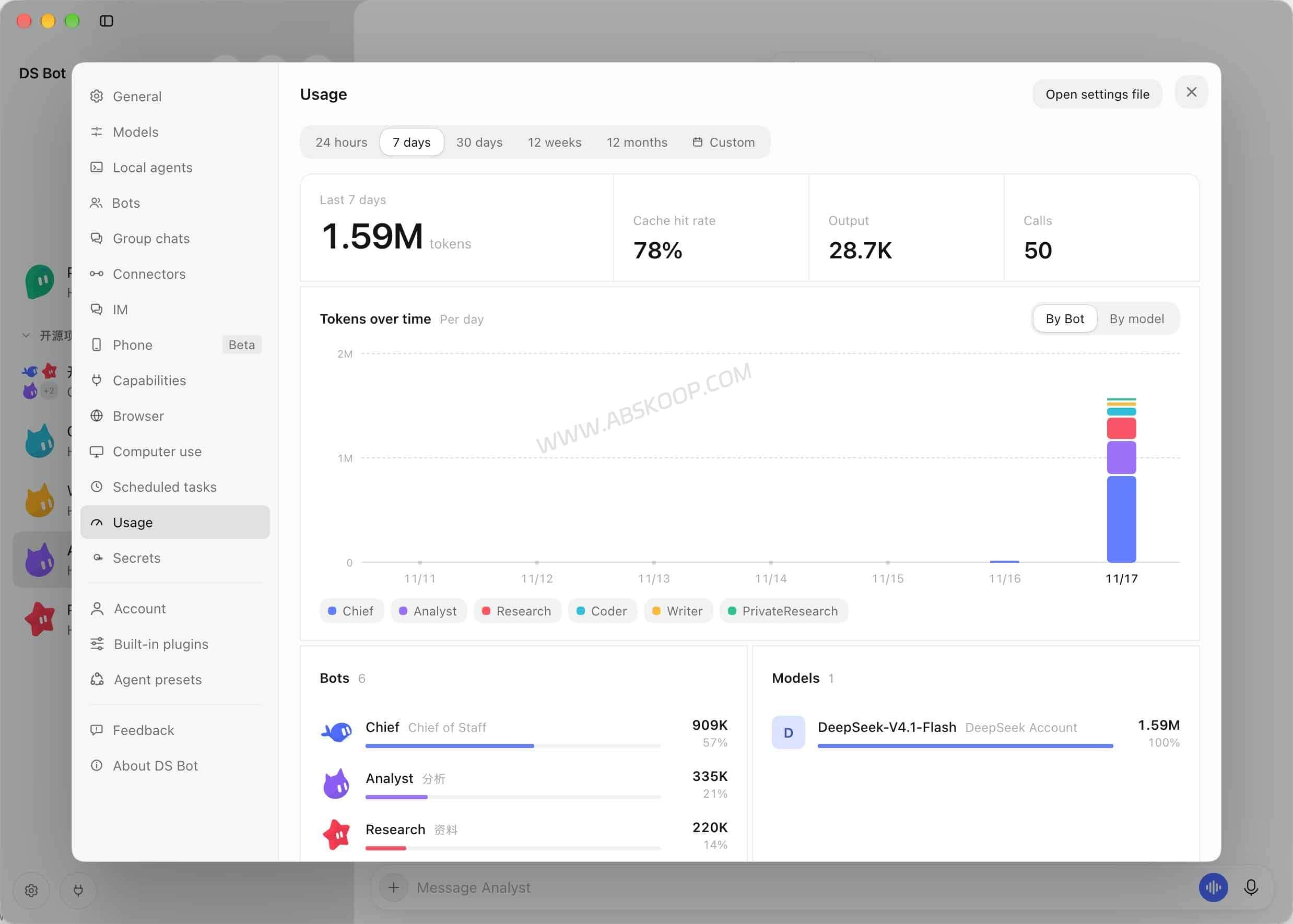
Scheduled tasks are supported, and the Usage screen helps you review token consumption by bot, model and time period.
How to Install DS Bot on Windows, macOS, Linux or Docker
There are several ways to run DS Bot. The desktop app is the easiest starting point; Docker makes more sense when you already have a NAS or an always-on Linux machine.
| Installation | Best for | What to know |
|---|---|---|
| Standalone desktop app | Windows, macOS and Linux users | Includes DSH; add a model in Settings |
| DSH Desktop plugin | Existing DSH Desktop users | Requires a configured DSH model |
| DSH Web plugin | Existing DSH Web installations | Requires Node.js 22.19+ and pnpm; no desktop browser control |
| Docker | NAS and always-on Linux servers | Docker 24+, Compose v2.24+; Full Access only |
Desktop App: The Simplest Way to Start
- Open the official DS Bot Releases page.
- Download the installer for your operating system and processor architecture.
- Launch the application, open Settings and configure a model provider.
- Start with Chief, then add one or two specialist bots only when you have a task that needs them.
Windows and macOS may show a warning for an unsigned application. Check the release source and available SHA-256 checksums before deciding whether to allow it. The current release page provides Windows x64, Apple Silicon Mac, Intel Mac and Linux packages.
Already Using DSH? Install the Plugin
For DSH Desktop, open Plugins → Add plugin, enter ds-bot, then install and enable it. At least one model must already be configured.
For DSH Web, the project’s documented commands are:
npx @deepseek-ai/[email protected] plugin --profile web add ds-bot
npx @deepseek-ai/[email protected] web
These commands use the DSH release pinned in the project’s documentation, not necessarily the newest independent DSH version. Check the official installation instructions before changing the runtime version.
Docker Setup for NAS and Linux Servers
The Docker setup runs DSH Web and the DS Bot plugin together in a container. According to the official deployment guide, it requires Docker 24 or later, Docker Compose v2.24 or later, and a Linux x86-64 environment. ARM64 may work, but the project’s documented build has not been tested on that architecture.
Start by downloading the source:
git clone https://github.com/Fei2411/DS-Bot.git
cd DS-Bot
Edit the repository’s root docker-compose.yml to configure your model API credentials, DSH_TRUSTED_HOST and the appropriate PUID/PGID. Do not commit real API keys to a repository. Then run:
docker compose up -d --build
docker compose logs ds-bot
Take the initial login token from the logs and open the service using the NAS or server IP and the host port configured in Compose:
http://NAS_IP:13080/?token=YOUR_LOGIN_TOKENThat 13080 port is the default for the root Compose file. There is a second configuration at docker/compose.yml which uses 3080 by default. Choose one setup; do not point two deployments at the same data directory.
If the interface returns 403, check DSH_TRUSTED_HOST. It should list the hostname or IP you actually use, without the port number. For regular remote access, put the service behind an HTTPS reverse proxy and restrict network exposure.
Docker security warning: The Docker version currently offers only Full Access. Bot commands run without desktop-style approval prompts, and the container is the main isolation boundary. Mount only the directories the bots genuinely need. Do not mount your entire NAS filesystem, SSH keys or backup directories into the container.
For full configuration details and updates, read the official DS Bot Docker guide.
Is DS Bot Free? How Much Do Multiple AI Agents Cost?
DS Bot itself is free and open source under Apache-2.0. Running the AI models is a separate expense. If you connect a paid model API, the provider charges for the requests made. If you use Claude Code, Codex CLI or another local coding agent, that CLI follows its own account, subscription and billing rules.
Four agents do not automatically cost four times as much as one. It depends on how often they run, which models they use and how much context they exchange. But every additional model call can add tokens and expense. A Chief-to-Research-to-Writer workflow, for instance, may send the same background information through more than one model.
The Usage screen shows token consumption by bot, model and time. Treat it as a way to understand activity, not a final invoice: check the model provider’s own usage and billing dashboard for actual charges.
A practical starting point is Chief plus one or two specialist bots. Add more only when the extra handoff saves enough work to justify its cost.
Privacy and Security: What Stays Local, and What Doesn’t?
DS Bot stores bot memories, conversations and work files on your computer or server. That gives you control over where those files live, but it does not mean every conversation stays offline. If you configure a cloud model, prompts and task context still go to that model provider.
Default storage locations also vary by installation:
- Standalone desktop app:
~/.ds-bot. - DSH plugin: Bot data and sessions under
~/.dsh. - Docker: The host directories mounted for data and workspace storage.
Removing the app or plugin does not necessarily delete those directories. Back up the relevant folders before moving to another machine, and review them before discarding a device.
For ordinary desktop bots, grant the narrowest useful working-directory and command permissions. Keep human confirmation enabled for sensitive tasks such as sending emails, deleting files and publishing content. Review the credentials available to connectors and MCP tools.
The project also documents scoped secrets and, in v0.3.8, optional passphrase encryption at rest for stored secrets. That is useful, but it does not remove risks from prompt injection, overly broad tool permissions or untrusted web content. See the project’s security model for the actual trust boundaries.
Can You Manage DS Bot Remotely from Android?
DS Bot offers an Android companion app in beta. After pairing, you can chat with bots, check group conversations, review tasks and schedules, and handle certain questions or approvals from your phone.
To pair it, open Settings → Phone on the desktop application and scan the QR code with the Android app. The documented connection uses end-to-end encryption through a relay server, so you do not need to open a public inbound port on the computer just for phone pairing.
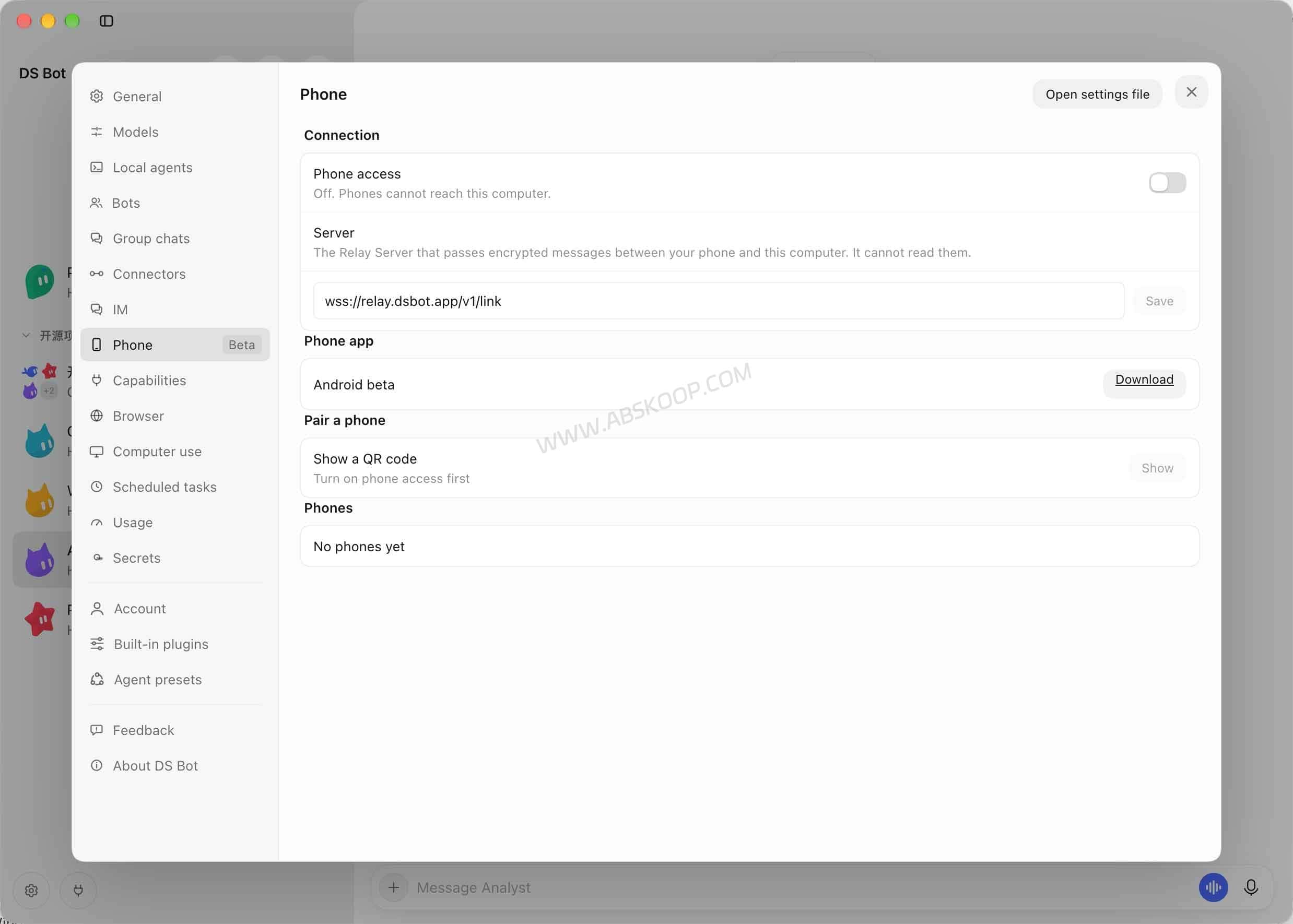
The phone is a remote control, not a separate cloud host. The computer running DS Bot must remain powered on, awake and connected. The Android APK is available on the official release page; check the release notes before installing a beta build.
DS Bot vs. Other AI Agent Tools
DS Bot sits between a standalone AI coding assistant and a broader agent-management platform. The main differences are how each tool organizes work, where it runs, and what you pay for.
| Tool | Main focus | Cost model | When it makes sense |
|---|---|---|---|
| DS Bot | Multi-agent teams, group chats, task delegation, and local coding-agent integration | Free and open source (Apache-2.0). Model APIs, connected CLI services, and hosting may cost extra. | You want to coordinate multiple AI assistants across related tasks. |
| Claude Code / Codex CLI | Direct AI-assisted coding and terminal workflows | Usage may be covered by eligible subscriptions or billed through model APIs, depending on the provider and configuration. | You need an AI coding assistant without setting up a separate agent team. |
| OpenClaw | Self-hosted AI assistant, messaging channels, tools, and automation | Free and open source. Model usage, hosting, and optional external services may incur costs. | You want an assistant connected to messaging apps and external tools, with control over its deployment. |
| Hermes Agent | Persistent memory, reusable skills, and ongoing agent workflows | Free and open source. Model API usage or an optional Nous Portal subscription may incur costs. | You want an agent that retains useful knowledge and develops reusable workflows over time. |
Cost note: These are billing models rather than fixed monthly prices. Actual costs depend on model selection, usage, subscription allowances, hosting, and connected services. Check each provider’s current pricing before committing to a setup.
These tools are not mutually exclusive. Claude Code and Codex CLI are useful as standalone coding assistants, while DS Bot can coordinate supported local CLI agents as part of a larger team. However, connecting a CLI agent does not automatically merge its conversation history or tool context with other agents.
OpenClaw and Hermes Agent also support multi-agent or delegated workflows. Their emphasis differs: OpenClaw focuses on self-hosted assistant infrastructure and integrations, while Hermes Agent emphasizes persistent memory, reusable skills, and ongoing agent tasks.
Choose DS Bot when coordination is the main problem. If you regularly move work between AI coding assistants, DS Bot provides a way to organize roles, delegate tasks, and review handoffs. If you only need one assistant for coding or everyday automation, a simpler setup may be sufficient.
Who Should Use DS Bot?
DS Bot is worth considering if you regularly split a larger task into research, analysis, coding and writing, or if you already use several AI coding CLIs and want a common place to manage their work. The desktop app is also a less complicated starting point than immediately maintaining a server deployment.
It is harder to justify if you mostly ask one assistant short questions. More agents mean more configuration, permission decisions and potential model requests. They do not make a weak model smarter simply by taking turns.
For a first trial, install the desktop app, configure one model, and create just one specialist bot alongside Chief. Give the pair a real task with a clear outcome. If the handoff actually saves time, expand the team. If it doesn’t, keep the setup simple.
Frequently Asked Questions
Is DS Bot an official DeepSeek application?
No. DS Bot is a community-maintained Apache-2.0 project built on DeepSeek Harness. It is not an official DeepSeek product.
Can DS Bot run entirely offline?
Its application and local work files can run on your computer or server, but a cloud model still requires an external API connection. Offline use depends on the models and tools you configure; local storage alone does not mean offline AI inference.
Does the Android app keep Bots running when the computer is off?
No. The companion app connects to the DS Bot instance running on your computer. If that instance is shut down or asleep, it cannot keep executing tasks from the phone.
Official Links and Latest Release
As of November 16, 2026, the latest release listed by the project’s GitHub is v0.3.8, published on November 16. It adds new local CLI integrations, group-chat task tracking, inline diff reviews and optional secret encryption. DS Bot is still a 0.x project, so check the release notes for compatibility changes before updating.
- Official DS Bot website
- Source code and English README
- Latest release and installer downloads
- Docker deployment documentation
- Security model
- Changelog
The appeal of DS Bot isn’t having the largest possible roster of AI assistants. It’s being able to give each assistant a clear job, keep their work organized and see what happens at each handoff. Start small, measure the usefulness of the workflow, and expand only when the extra coordination earns its place.


Comments (0)