



Software demos rarely come out publish-ready on the first take. Clicks need emphasis, cursor movement may need cleaning up, pauses have to be trimmed, and captions still need to be added.
Caplo is a native macOS screen recorder that keeps recording and post-production in the same app. It captures click positions and pointer movement while you record, then uses that data to generate zooms and follow shots. From there, you can adjust the cursor, captions, audio, camera, and timeline without moving the project into a separate video editor.
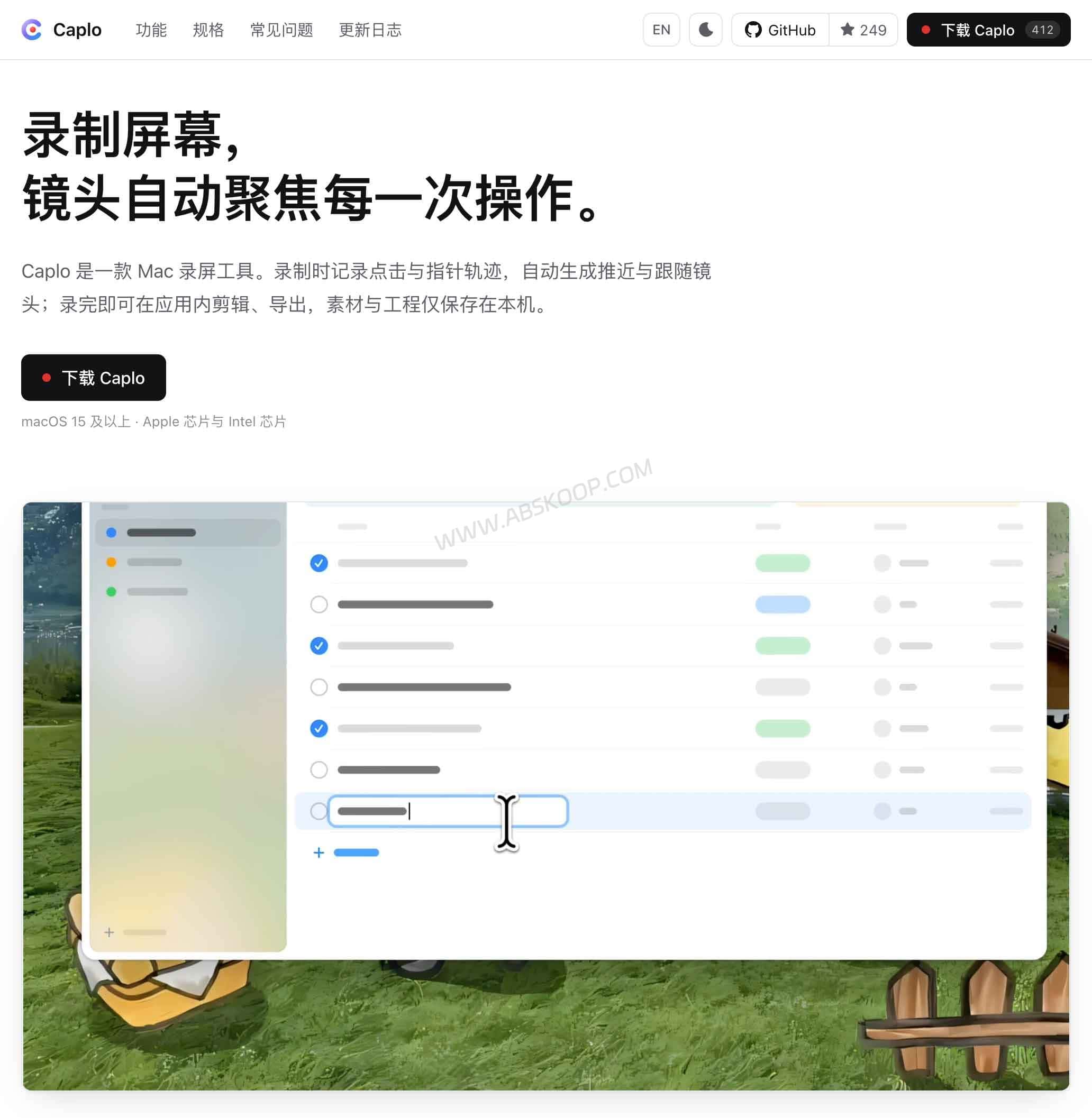
For a quick thirty-second capture, the built-in macOS recorder is simpler. Caplo starts to make more sense when the recording needs to become a polished walkthrough, tutorial, or product demo.
Caplo at a glance
- Platform: macOS 15 or later
- Mac support: Apple Silicon and Intel
- Core features: screen recording, auto zoom, cursor effects, built-in video editing
- Audio and camera: system audio, microphone, and camera recording
- Captions: local transcription using macOS speech recognition
- Export: H.264, HEVC, ProRes 422, and GIF, up to 4K
- License: PolyForm Noncommercial 1.0.0; commercial use requires separate licensing
What kind of macOS screen recorder is Caplo?
Caplo is built around more than basic screen capture.
While recording, it tracks where you click and how the pointer moves. Once you open the editor, that data can be turned into zooms and camera-like movements. A click can trigger a closer view of one part of the screen, followed by a smooth move toward the next action.
Most basic screen recorders leave you with a raw video file. If you want zooms or movement, you have to create them later with keyframes. Caplo generates a first pass from the actions that happened during the recording, and those shots remain editable on the timeline.
Auto zoom and cursor polish are where Caplo stands out
If you are specifically looking for a screen recorder with auto zoom, this is the part of Caplo that matters most.
Caplo can generate zooms from clicks and pointer movement, but the result is not locked in. Shots can still be added, removed, repositioned, or adjusted on the timeline.
The cursor gets similar treatment. Caplo supports smoother pointer movement, click effects, and different cursor styles, which can make software walkthroughs easier to follow than a raw recording of the system pointer.
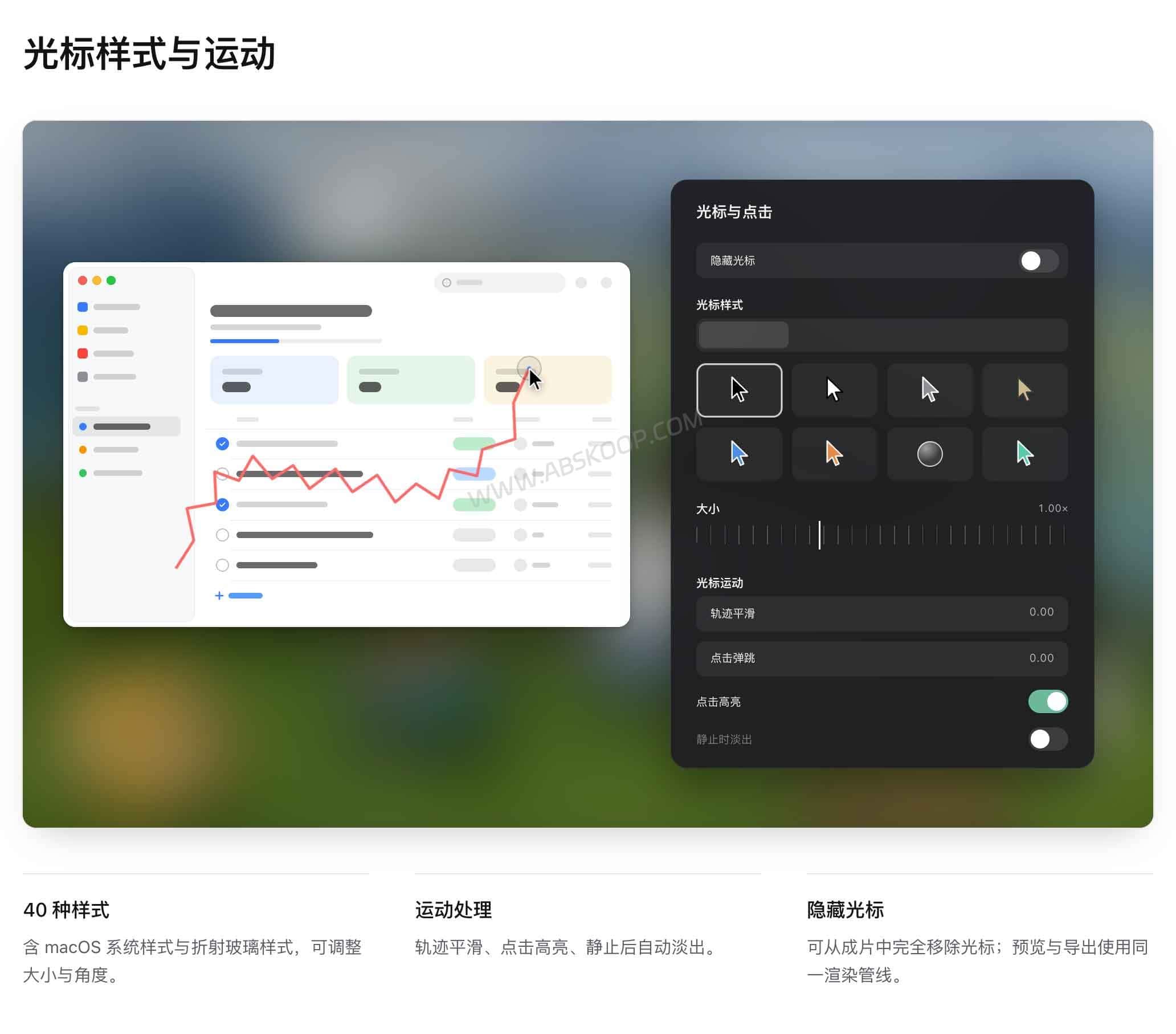
The canvas can also be adjusted with different aspect ratios, backgrounds, margins, rounded corners, shadows, and cropping. That puts Caplo somewhere between a traditional screen recorder and a lightweight editor made specifically for software demos.
Finish the video without leaving Caplo
Once the recording stops, Caplo opens the project directly in its editor. There is no need to export a video first and immediately drag it into another app.
The screen recording, camera, system audio, microphone, and generated zooms remain editable. If a zoom starts too early, follows the wrong area, or simply is not needed, you can change it before export.
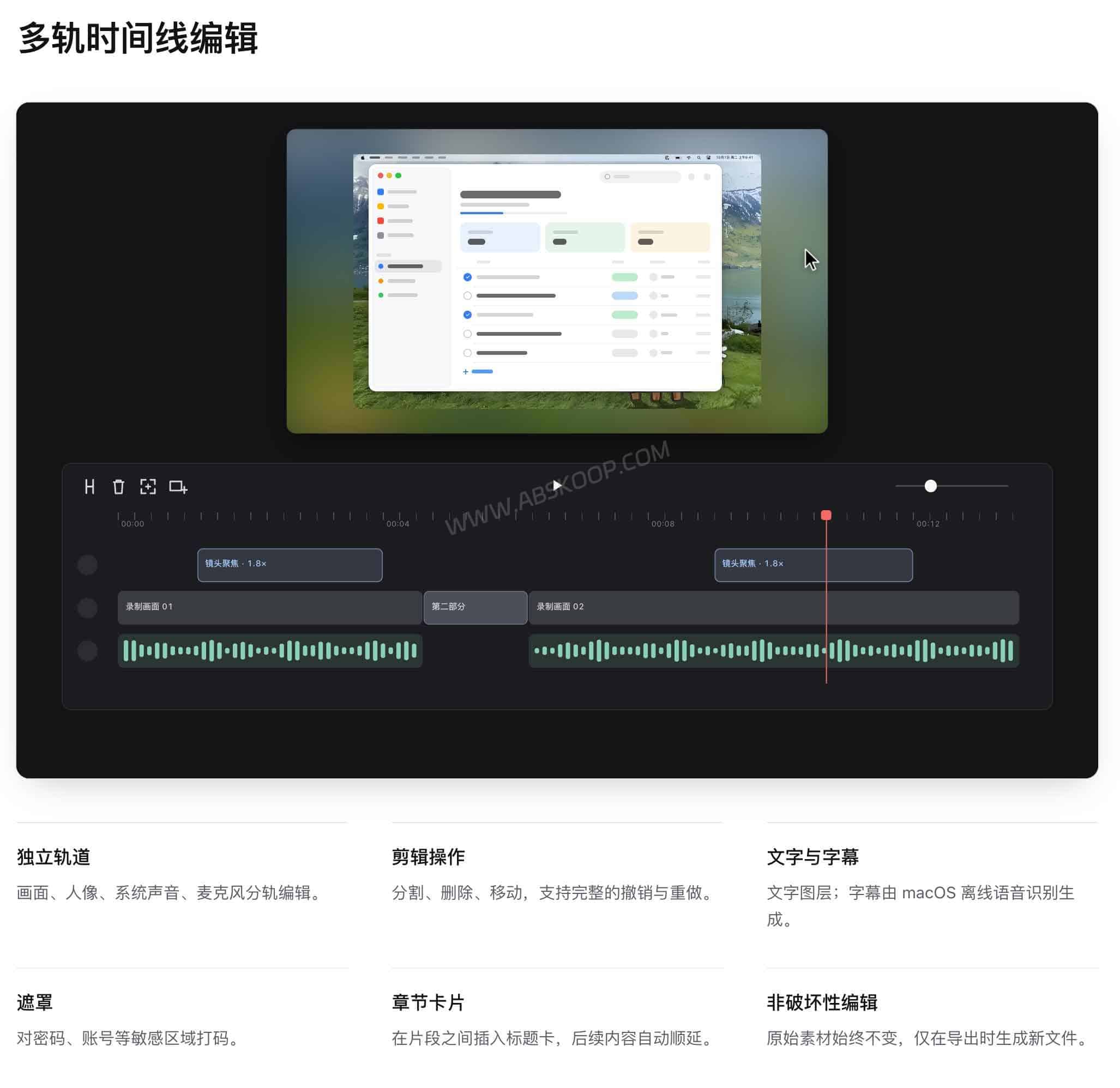
The useful part here is not a huge collection of cinematic effects. It is the smaller cleanup work that screen recordings usually need before they are ready to publish.
- Shots: adjust automatically generated zooms or add your own.
- Cursor: smooth pointer movement, show click feedback, and change cursor styles.
- Canvas: change the aspect ratio, background, margins, corners, and crop.
- Captions and audio: transcribe speech locally, adjust volume, reduce noise, and remove silent sections.
- Camera: reposition the camera layer, with newer versions also supporting background blur and removal.
Caplo can export H.264, HEVC, ProRes 422, or GIF files at resolutions up to 4K. The point is not to replace a full editor such as Final Cut Pro. It is to keep the common cleanup work for a screen recording inside one app.
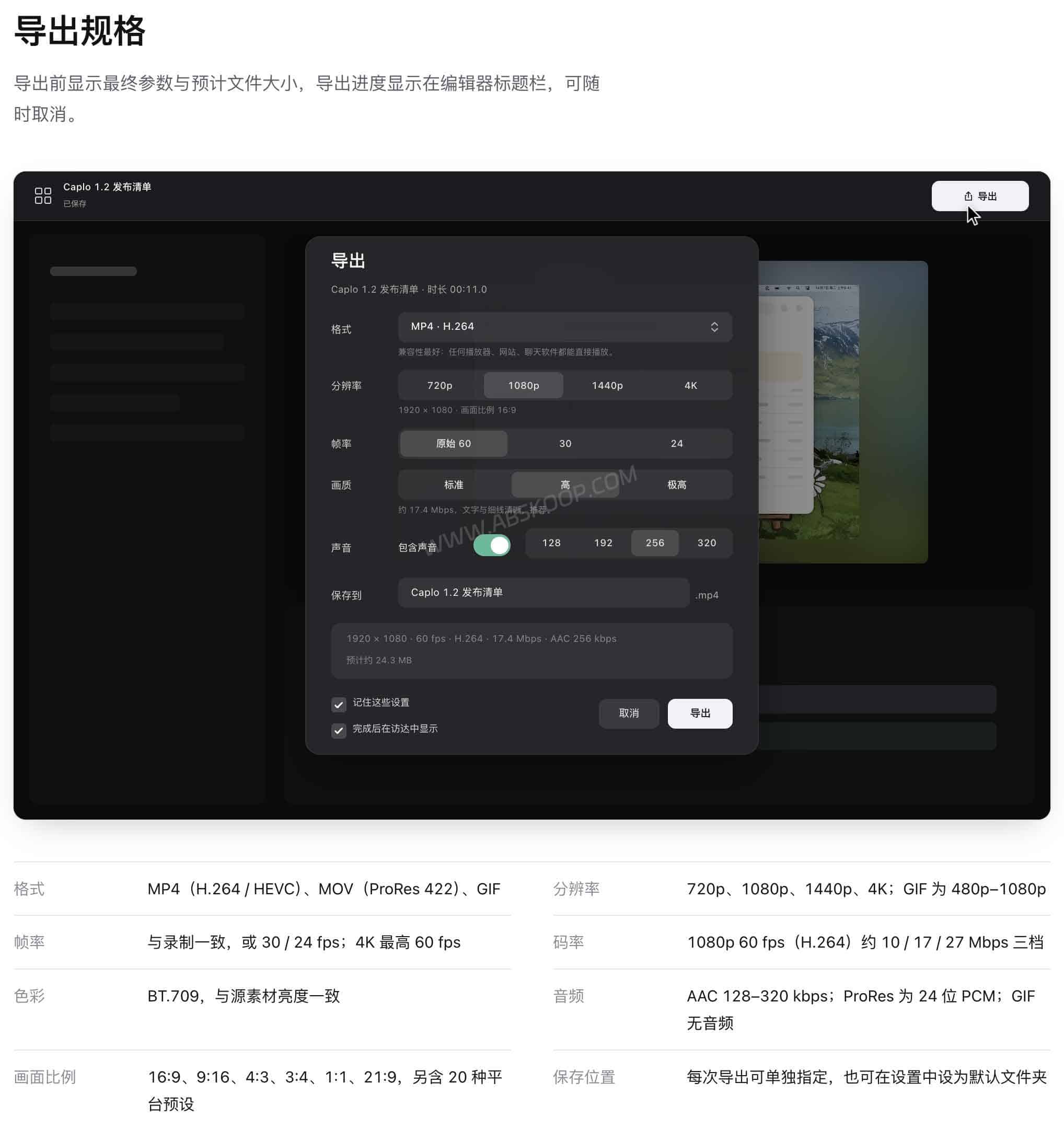
Caplo 0.3.0 also added video importing and a background music track, along with camera background blur and removal. The project is still relatively young, and features are moving quickly.
Is Caplo free? The source is public, but commercial use is restricted
Caplo’s source code is available on GitHub, but the project does not use a common open-source license such as MIT, Apache, or GPL. It is licensed under PolyForm Noncommercial 1.0.0.
The license allows use, modification, and distribution for personal study, research, hobby projects, and qualifying nonprofit use. Using Caplo for company work, client projects, other for-profit work, or as part of a commercial product or service requires separate commercial licensing from the developer.
In practical terms, Caplo is source-available software with a non-commercial license, not a freely commercial open-source screen recorder.
Caplo vs. the built-in macOS recorder and Screen Studio
If you only need a quick screen capture, Shift + Command + 5 already covers the basics on a Mac. Caplo becomes more useful when you want the recording to include automatic zooms, cursor cleanup, and editing afterward.
| Feature | Caplo | Built-in macOS recorder |
|---|---|---|
| Full-screen / area recording | Yes | Yes |
| Automatic zoom | Yes | No |
| Cursor smoothing | Yes | No |
| Editable click effects | Yes | No comparable post-recording workflow |
| Timeline editing | Yes | No comparable built-in workflow |
| Local caption transcription | Yes | Not part of the screen recorder |
| Camera overlay | Yes | No integrated workflow |
| Direct GIF export | Yes | No |
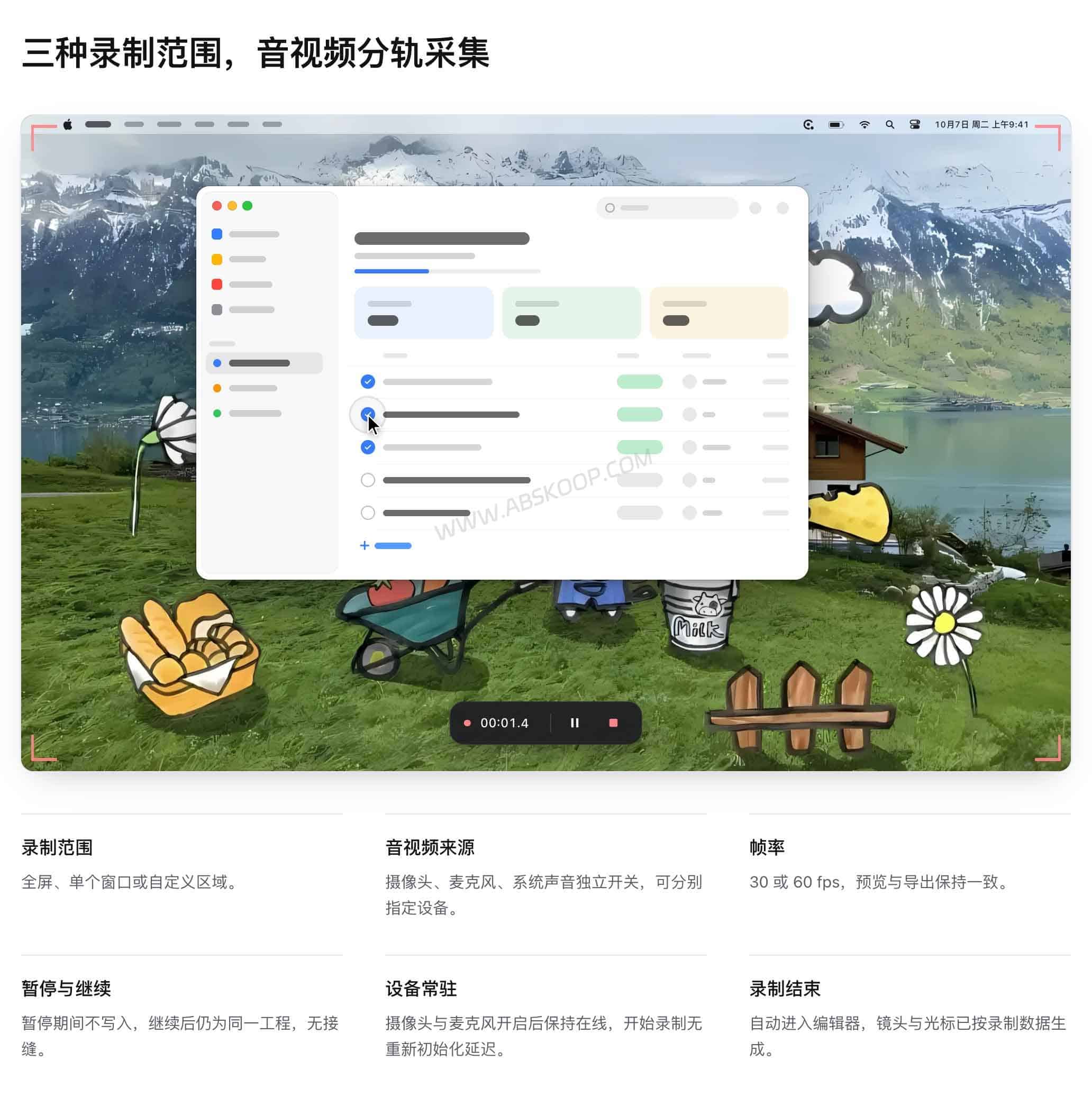
Caplo also sits in the same general category as Screen Studio. Both are designed to turn software recordings into more polished presentation videos with zooms, cursor treatment, and editing after the capture.
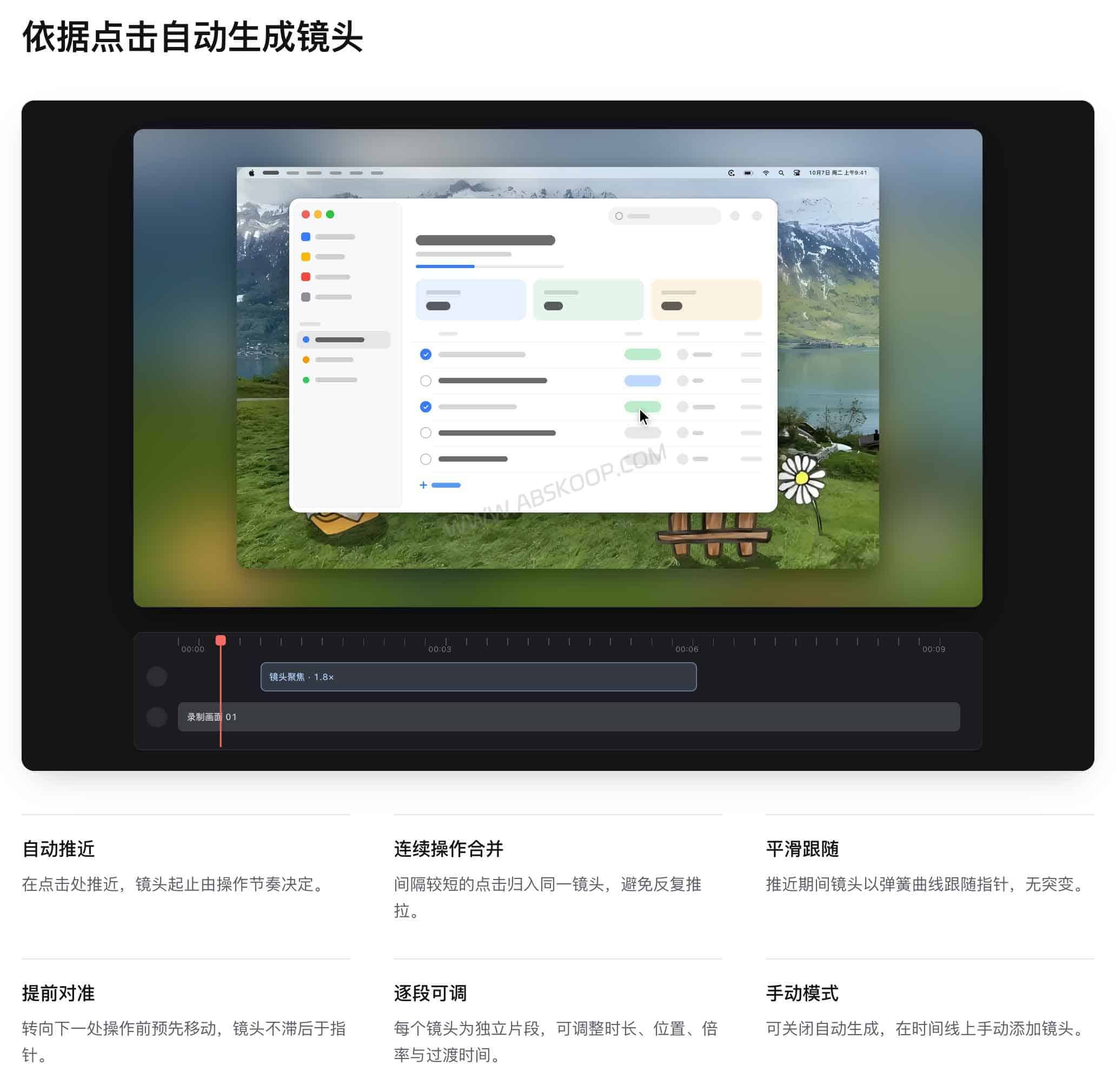
Screen Studio is the more established commercial product today. Caplo is newer and source-available, with local transcription and an editable auto-zoom workflow among its more interesting features.
That makes Caplo worth considering as a Screen Studio alternative for personal or non-commercial Mac workflows, but the non-commercial license is an important difference if the recording is being made for paid or company work.
What does Caplo require on a Mac?
Caplo requires macOS 15 or later and supports both Apple Silicon and Intel Macs.
The first time you record, macOS will ask for screen recording permission. Microphone and camera access also need to be granted if you plan to capture them.
Caplo fits best when the screen recording itself is part of the finished content: a software walkthrough, product demo, developer-tool tutorial, or similar presentation. For complex color work, multicam editing, or heavy compositing, it is not trying to replace Final Cut Pro or Premiere Pro.
Windows and Linux are not supported. Caplo is also still a young project with a fast release cycle, something to keep in mind if you are considering it for a long-term team workflow.
Does Caplo upload captions to the cloud?
Caplo uses macOS system speech recognition for caption transcription, and that transcription is processed locally rather than being sent to a third-party online transcription service.
The app can still connect to the internet for tasks such as update checks, so the accurate description is local caption processing, not a completely offline application.
Where to download Caplo
Caplo is available from its official website and GitHub repository.
- Official website: https://caplo.app/
- GitHub: https://github.com/icloudza/caplo
- Releases: https://github.com/icloudza/caplo/releases
Caplo FAQ
Is Caplo open source?
Caplo’s source code is publicly available on GitHub, but it uses the PolyForm Noncommercial 1.0.0 license rather than a standard open-source license such as MIT, Apache, or GPL. Commercial use is restricted, so “source-available” is the more accurate description.
Can Caplo be used for commercial work?
The standard non-commercial license does not cover company work, client projects, or other for-profit uses. Those cases require separate commercial licensing from the developer.
Can Caplo record system audio on macOS?
Yes. Caplo can record the screen together with system audio, microphone input, and a camera feed.
Does Caplo support Intel Macs?
Yes. Caplo supports both Apple Silicon and Intel Macs, as long as they are running macOS 15 or later.
Is Caplo a Screen Studio alternative?
It can be an option for users looking for a Screen Studio alternative on macOS, especially for auto zoom, cursor effects, local transcription, and built-in editing. Screen Studio is currently the more established commercial product, while Caplo is newer and uses a non-commercial license.


Comments (0)