



SSHYard is an open-source SSH client for Mac, Windows, and Linux. It combines an SSH terminal, an SFTP file manager, and an AI assistant in one native desktop app. You can connect to Linux servers, transfer and edit remote files, and let the assistant inspect terminal output or run commands over an existing SSH connection.
Unlike a conventional SSH client that only provides a terminal, SSHYard allows AI to perform remote operations after you grant permission. Its Ask, Review, and Full access modes control how those operations are approved. It also supports MCP and Agent Skills, allowing tools such as Claude Code and Codex to access configured SSH hosts.
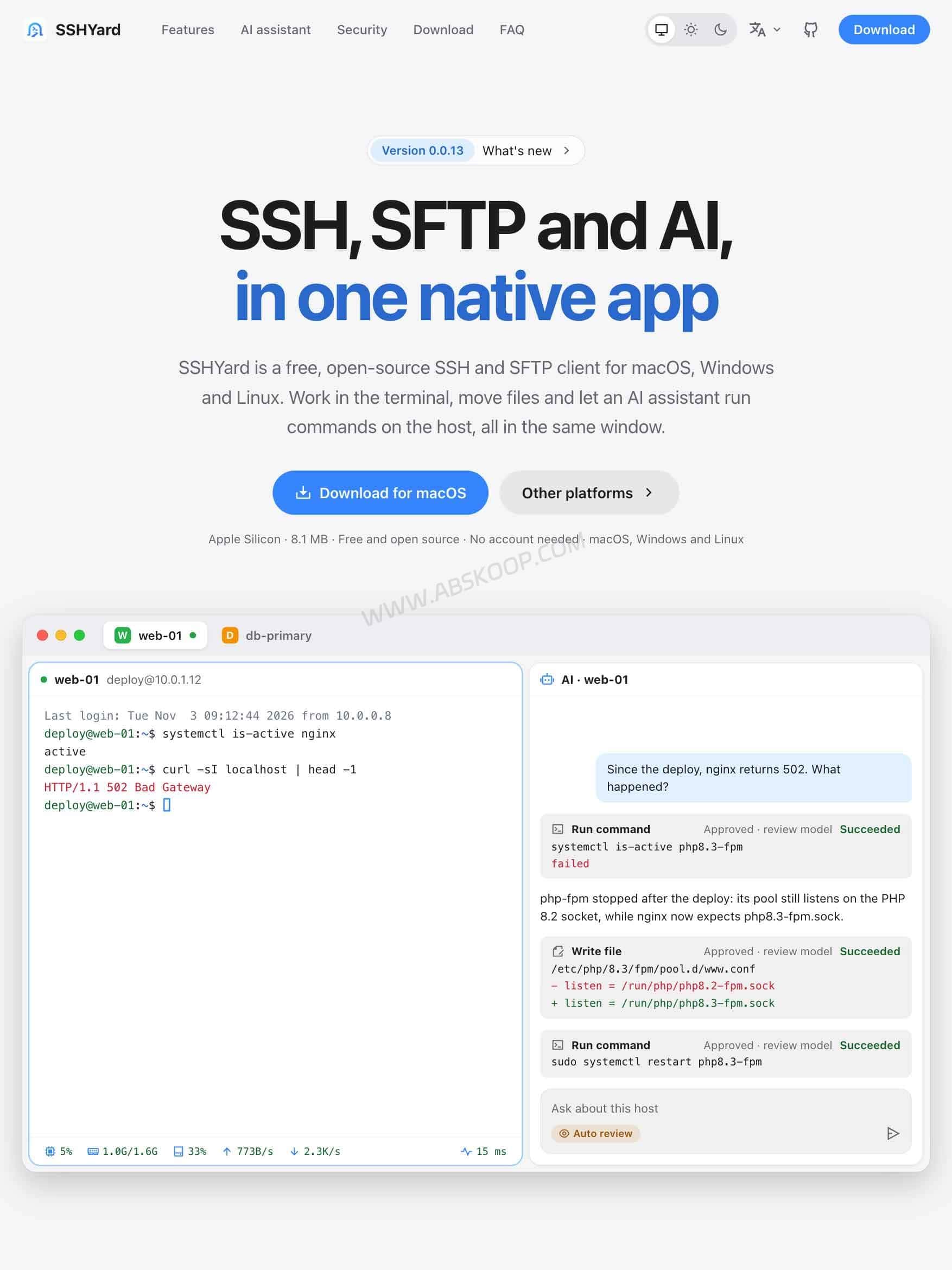
SSHYard is free to download, requires no account, and is licensed under GNU AGPL-3.0. Version 0.0.13 was released on November 5, 2026. The project is still in the 0.0.x series, so it makes sense to try it on a test server before moving production connections over.
What Is SSHYard? An Open-Source SSH Client for Mac, Windows, and Linux
SSHYard is a native desktop SSH and SFTP client. You install it on your computer, add your server connection, and manage remote sessions without deploying an additional management panel on the server.
| Feature | What it does |
|---|---|
| SSH terminal | Connects to Linux servers with tabs, split panes, terminal search, and automatic reconnection. |
| SFTP file manager | Browses, uploads, downloads, and edits remote files beside the terminal. |
| AI assistant | Reads terminal context, runs remote commands, and edits files with configurable permissions. |
| MCP and Agent Skills | Lets local AI agents access configured SSH hosts through an API, MCP, or Skill. |
| Credential management | Stores SSH passwords, private keys, and API credentials in an encrypted local store. |
| Server monitoring | Displays CPU, memory, disk, network, and latency information for connected hosts. |
The application is written in Go and uses MyGo for its native interface. It does not rely on a WebView or bundled browser. Official download packages are approximately 7–11 MB, although package size alone does not indicate memory usage or performance.
SSHYard supports macOS, Windows, and Linux, offers five interface languages, and does not require an account. The source code is available on GitHub under the GNU AGPL-3.0 license.
SSH Terminal and SFTP File Management in One App
Tabs, Split Panes, and SSH Config Import
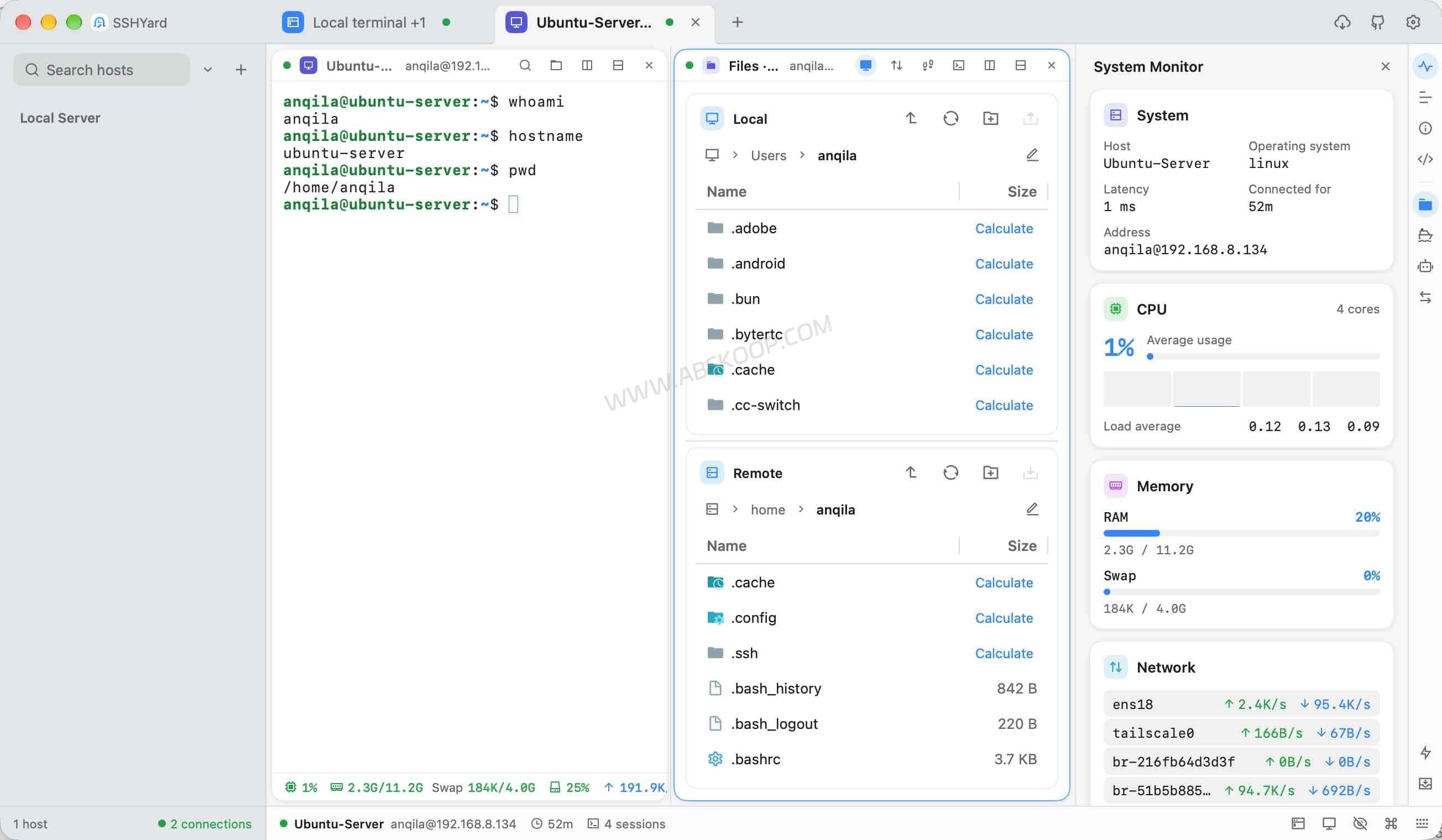
When managing several VPS instances, it is common to keep multiple terminal sessions open: one for checking logs, another for monitoring services, and another for changing configuration files. SSHYard supports tabs and split panes, so these sessions can share a single desktop window.
The terminal supports true colour, wide characters, input methods, and mouse interactions used by tools such as tmux, vim, and htop. Multiple panes connected to the same host can share an SSH connection, and the application can reconnect automatically after a connection drops.
SSHYard supports several SSH authentication methods:
- Password authentication.
- OpenSSH, PEM, and PuTTY private keys.
- SSH Agent authentication.
- Importing existing OpenSSH configuration files.
- Quick connections using
user@host:port.
If you already manage servers through ~/.ssh/config, you can import the existing configuration instead of entering every host manually.
Networking features include multi-hop jump hosts, HTTP and SOCKS5 proxies, and local, remote, and dynamic port forwarding. These are useful when connecting to servers behind a bastion host or through a restricted network.
After importing an SSH configuration, check the hostname, port, username, identity file, and jump-host settings. Keep your original SSH client until you have confirmed that all important connections work.
Edit Remote Files Beside the Terminal
The built-in SFTP file manager opens beside the SSH terminal. It can follow the terminal’s current working directory, making it easier to find files without switching to a separate SFTP application.
For example, when maintaining an Nginx server, you can locate a configuration file in the terminal, open it in the SFTP panel, make a change, and return to the terminal to check the configuration:
nginx -tFile management includes drag-and-drop transfers, folder transfers, a built-in remote editor, and a transfer queue with pause, resume, and retry options.
This setup is useful when working with Nginx configuration files, Docker Compose files, environment settings, and website directories. Whether it can replace a dedicated SFTP client for large transfers or more complex editing tasks still depends on your workflow.
AI Remote Commands: Ask, Review, and Full Access
SSHYard’s AI assistant can do more than explain shell commands. Each host has its own assistant, which can read the terminal context and execute commands or edit files through the existing SSH connection.
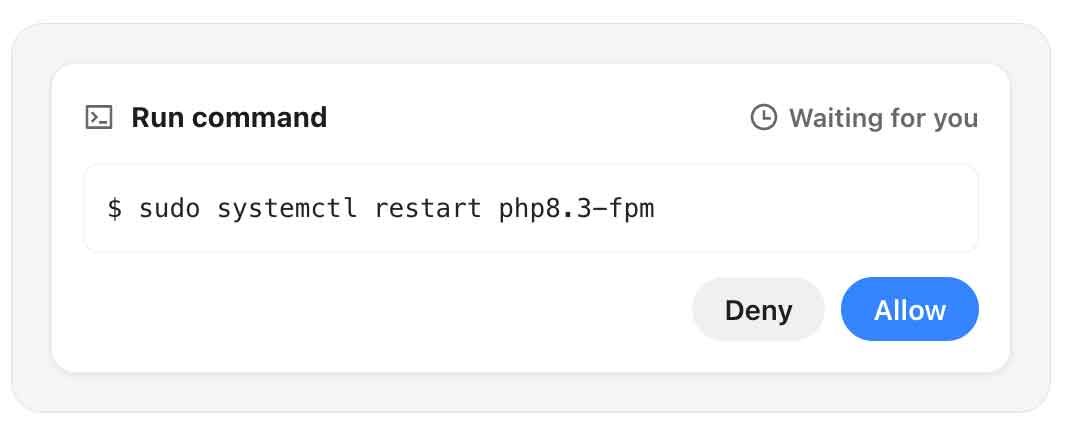
There are three permission modes:
| Mode | How it works | When to use it |
|---|---|---|
| Ask | Waits for your approval before running commands or changing files. | First-time use, routine administration, and production-sensitive tasks. |
| Review | Uses local action rules and a review model to evaluate proposed operations against your request. Actions requiring further approval are returned to you. | Tasks where you want AI-assisted checking without approving every routine operation manually. |
| Full access | Runs actions without asking for individual approval. Enabling it requires explicit confirmation. | Controlled environments where you understand the risks. |
Review mode is more than a simple confirmation dialog. In v0.0.13, the automatic review logic was adjusted to let actions needed for the user’s task proceed while focusing on potentially harmful or unrelated operations.
Read-only actions can run automatically. Other operations are evaluated using the current task, local risk rules, and the configured review model. If the reviewer cannot make a valid decision, times out, or flags an action, SSHYard returns the operation to the user for confirmation. Critical actions can also require user approval.
Full access removes the normal per-action approval step. Commands still run with the permissions of the SSH account, so an incorrect operation can affect the entire server if that account has broad privileges.
For a first installation, use Ask mode and a restricted SSH account. A review model is an additional check, not a security sandbox. Avoid giving an AI assistant unrestricted access to a production account with Root or broad sudo permissions.
Use the AI Assistant to Troubleshoot a Server
Consider a website returning an Nginx 502 Bad Gateway error after a deployment. Instead of copying terminal output into a separate AI chat, you can ask SSHYard to inspect the connected host.
A reasonable troubleshooting sequence might look like this:
- Check service status: Inspect Nginx and the upstream application service.
- Read recent logs: Look for failed services, unavailable sockets, or configuration errors.
- Review possible causes: Ask the assistant to explain the output and suggest the next diagnostic command.
- Approve the operation: Review the proposed command before allowing it to run.
- Check the result: Use the returned output to decide whether another diagnostic or configuration change is needed.
For example, these commands provide a starting point for checking an Nginx server:
systemctl status nginx --no-pager
journalctl -u nginx -n 50 --no-pager
nginx -t
Reading service status and logs is a sensible starting point. Restarting services, changing configuration files, deleting data, or modifying database settings should be reviewed separately. An AI-generated command is still a command with real consequences.
Which AI Models and Agents Can SSHYard Use?
The built-in AI assistant supports providers using the following API formats:
- OpenAI-compatible Chat Completions API.
- OpenAI Responses API.
- Anthropic Messages API.
You can connect compatible self-hosted model services as well as external providers.
SSHYard also supports local agents through the Agent Client Protocol (ACP). The current project documentation lists detected agents such as Claude Code, Codex, Grok, and Gemini CLI, with support for using multiple agents depending on what is installed on your computer.
ACP is different from MCP: ACP lets SSHYard use local coding agents, while MCP and the open API allow other local agents to use SSHYard’s configured hosts.
Connect Claude Code and Codex Through MCP and Agent Skills
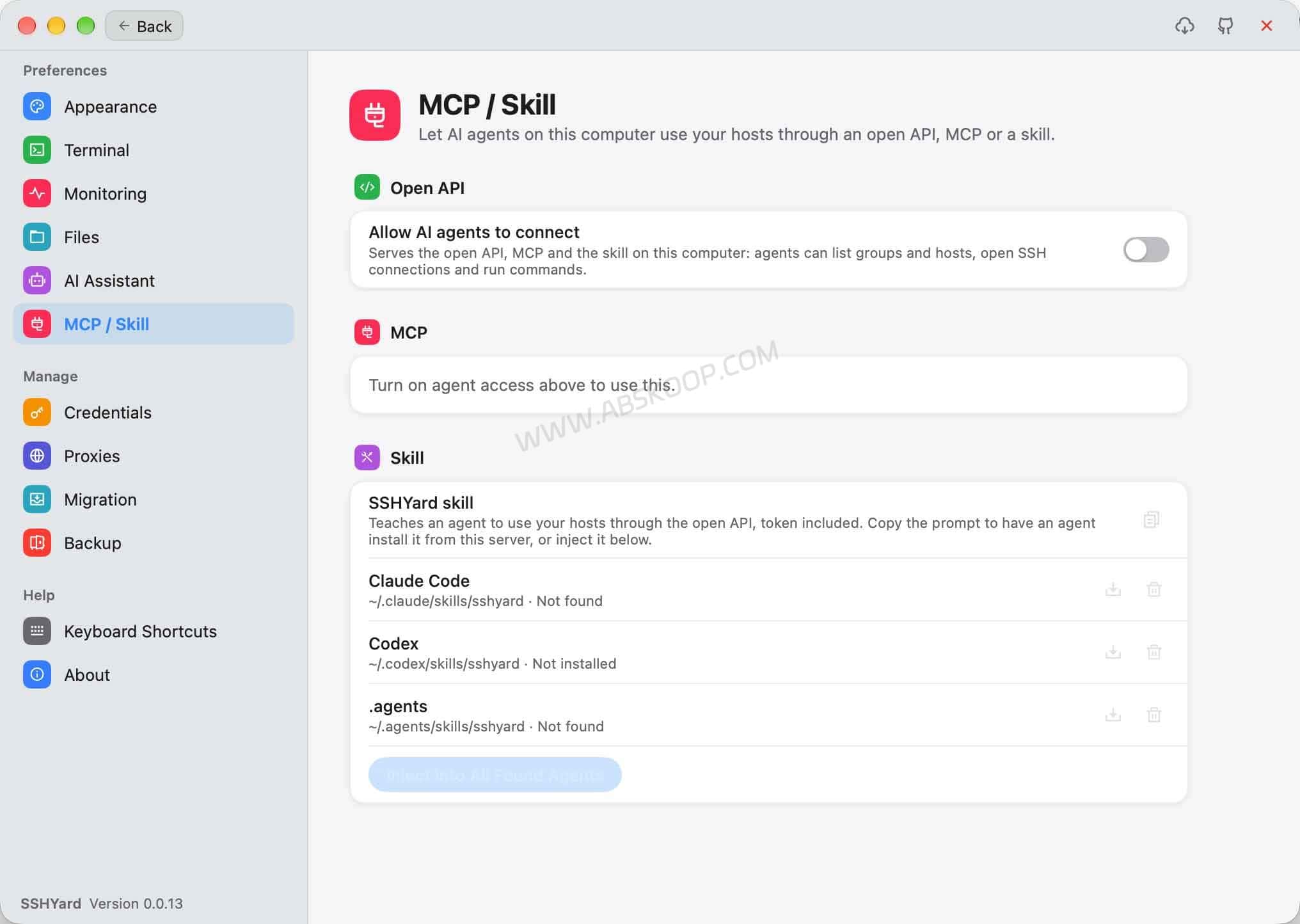
SSHYard can expose configured SSH hosts to local AI agents through its open API, MCP endpoint, or SSHYard Skill. This lets tools such as Claude Code and Codex connect to servers without maintaining a separate copy of every SSH private key.
The workflow is straightforward:
- Save SSH hosts and credentials in SSHYard.
- Enable agent access in the application.
- Authenticate the local agent with the access token.
- Let the agent list configured hosts and establish SSH connections.
- Use the available remote operations to inspect the server and execute commands.
SSHYard keeps the saved SSH passwords and private keys inside its credential store. Agents receive an access token rather than the underlying saved credentials.
What MCP Access Allows
Agent access is disabled by default. When enabled, local agents authenticate with a Bearer Token to use the available API and MCP operations.
The MCP service is designed for agents running on the same computer. Its default endpoint uses the local loopback address rather than exposing the service as a public remote management endpoint.
You can generate a new token to disconnect existing agents. The application also records agent operations in its AI audit log.
There is one important distinction: keeping SSH private keys away from an agent does not mean the agent has no server access. Once authorized, it can still use SSHYard to connect to configured hosts and execute commands within the permissions granted to that connection.
Use a trusted local environment, a dedicated SSH account with limited permissions, and disable agent access when you no longer need it.
Review AI Actions in the Local Audit Log
SSHYard keeps a local JSONL audit log of AI operations. You can use it to review which host an agent accessed, what command it requested, which permission mode was active, and whether the operation was approved or rejected.
Audit records can include:
- Timestamp, host, session, and agent information.
- Permission mode and execution location.
- Command category and risk level.
- Command text and file-change summary.
- Approval decision, reviewer, and review reason.
- Exit code and execution duration.
The default retention period is 90 days and can be configured. The audit record does not store file contents, command output, or credentials. However, it does record command text, so avoid placing passwords, API tokens, or other secrets directly in command arguments.
This log helps you reconstruct what an AI agent did, but it does not replace Linux system logs, SSH access controls, or server backups.
How to Install SSHYard and Connect to a Server
As of November 5, 2026, the latest published version is v0.0.13. Official downloads are available for macOS, Windows, and Linux through GitHub Releases.
| Platform | System requirements and packages |
|---|---|
| macOS | macOS 12 or later; Apple Silicon and Intel. Signed and notarized DMG packages. |
| Windows | x64 and Arm64. Installer and portable ZIP versions are available. |
| Linux | x64 and Arm64. DEB packages and tar.gz archives. |
1. Download and Install
Visit the SSHYard official website and choose the package for your operating system and CPU architecture.
On a Mac, select the Apple Silicon or Intel version. Windows users can choose the installer or portable ZIP. Linux users can download the appropriate DEB package or tar.gz archive.
Check the published SHA256 checksum if you want to verify the downloaded package.
2. Add an SSH Host
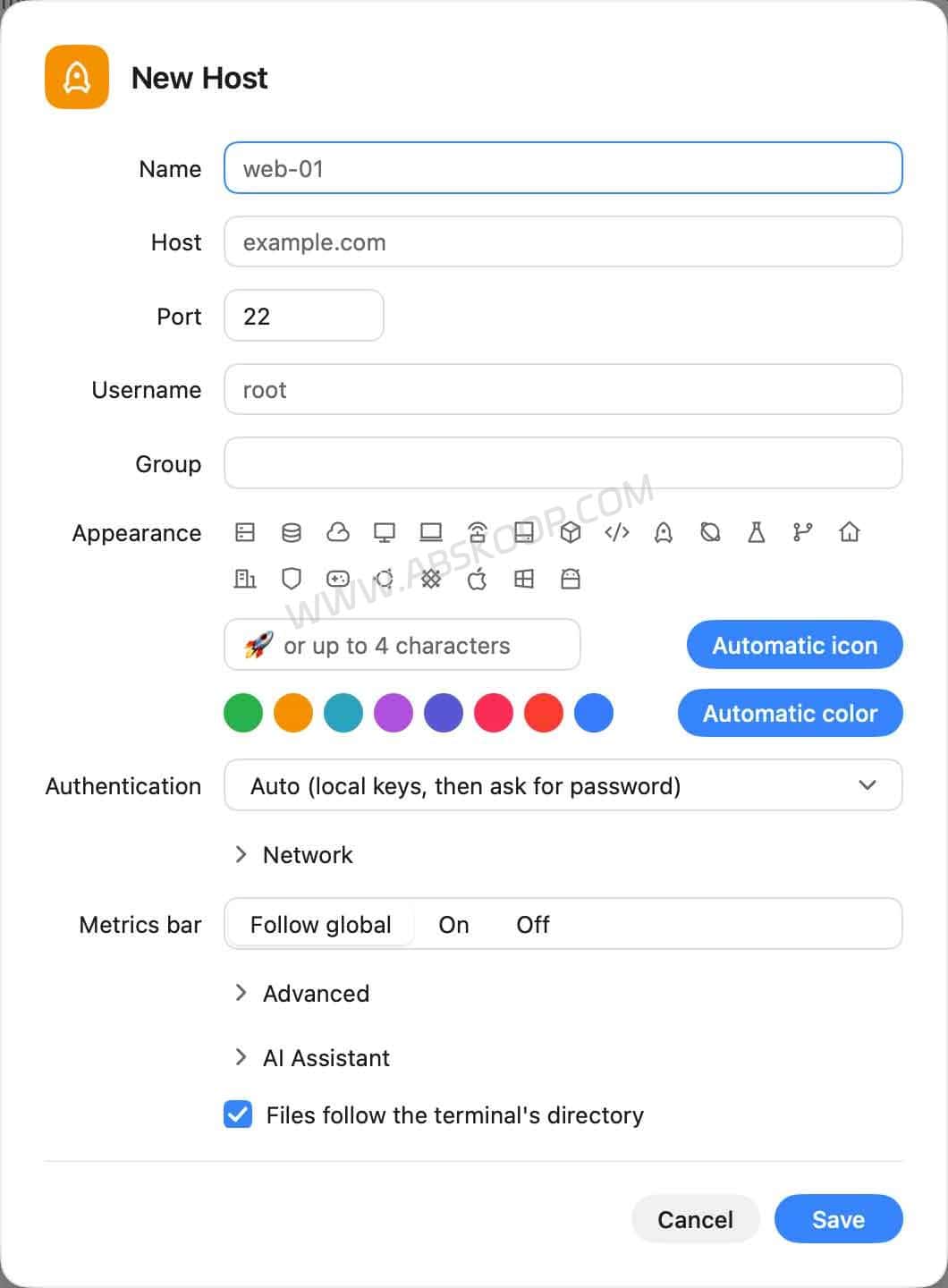
Open the host management interface and enter the server address, SSH port, username, and authentication method. If you already use OpenSSH Config, try importing ~/.ssh/config instead of entering every connection manually.
When connecting for the first time, check the SSH host key fingerprint against a trusted source. Do not automatically accept an unknown host key.
3. Check the SSH Connection and SFTP File Manager
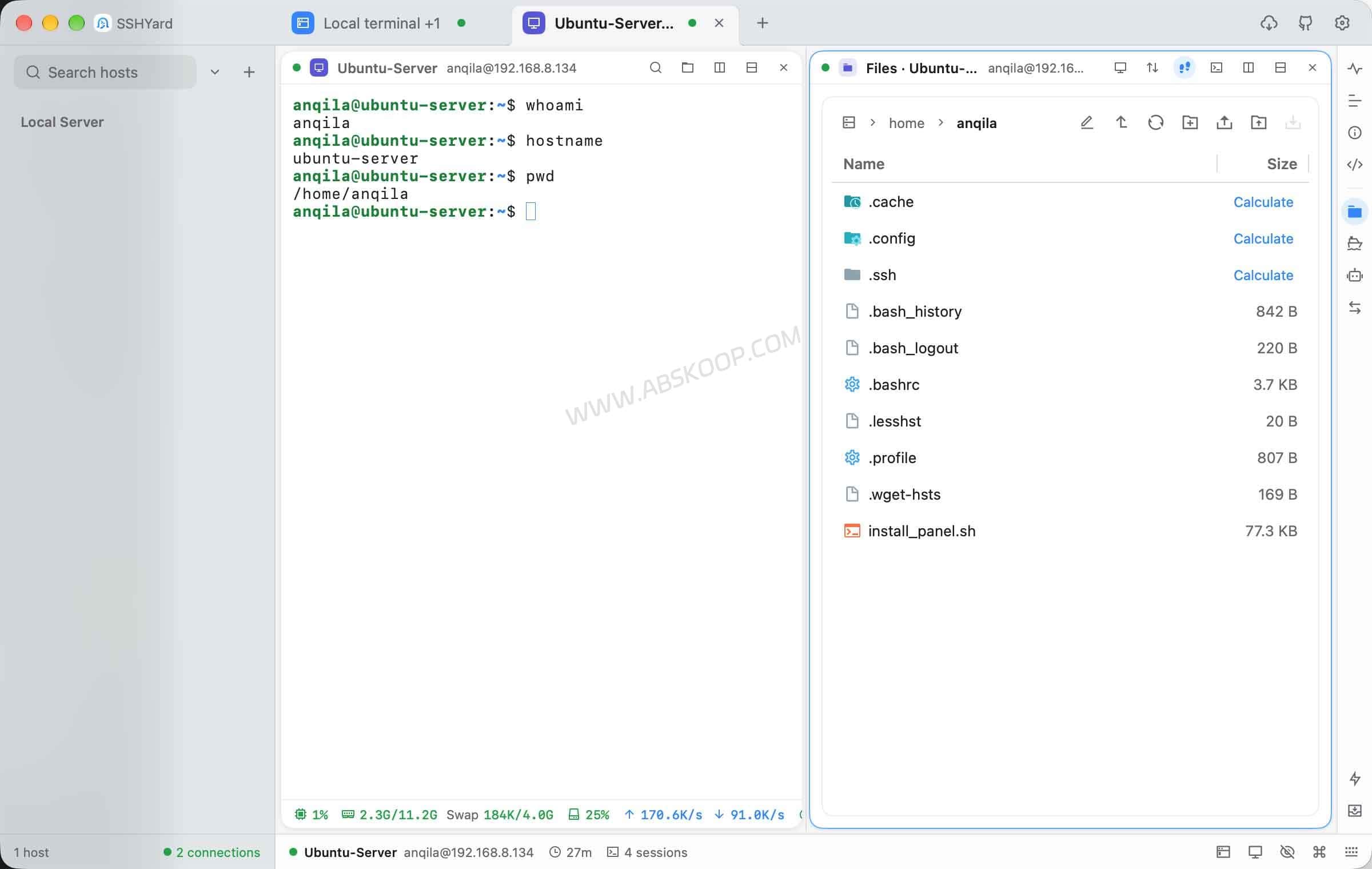
After connecting, run a few basic commands to confirm that the correct account and server are being used:
whoami
hostname
pwd
Open the SFTP panel and navigate to a non-critical test directory. Try uploading, downloading, and editing a plain text file before working with important configuration files.
4. Configure the AI Assistant
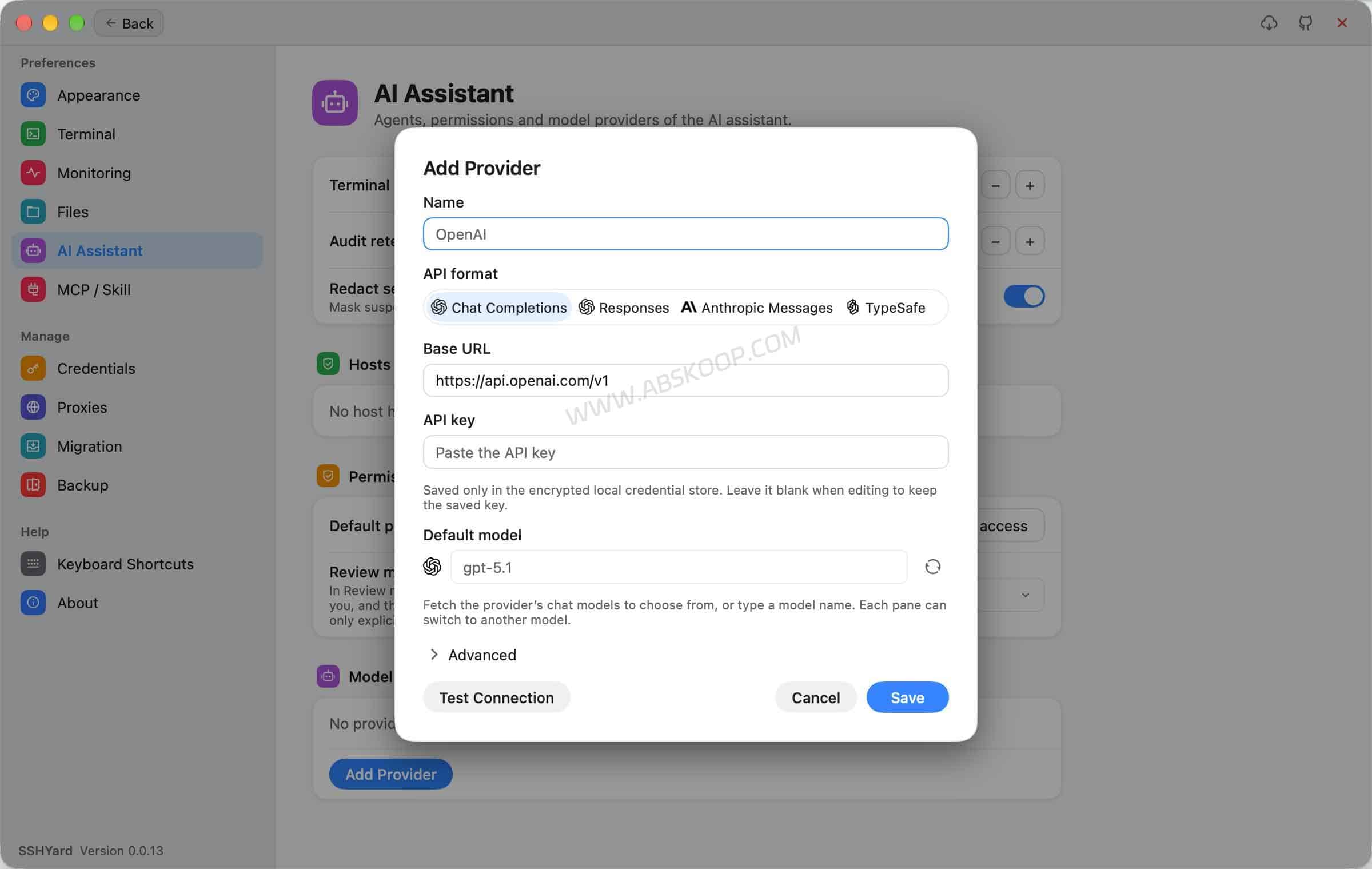
If you want to use AI features, open the model settings and configure your provider, API endpoint, model, and API credentials.
Start with Ask mode. Ask the assistant to run a simple command such as whoami or uname -s. Check the approval dialog and confirm that rejecting an operation prevents it from running.
Credential Storage, Backups, and AI Data Privacy
SSHYard uses local encryption for saved credentials and provides encrypted backups. However, SSH credentials, AI conversation data, and the permissions granted to local agents are separate security concerns.
How SSH Credentials Are Stored and Backed Up
According to the project’s security documentation, SSHYard stores a randomly generated 256-bit master key in the operating system’s keychain.
The master key is used to encrypt sensitive information in the local credential store, including:
- Server passwords.
- SSH private keys and passphrases.
- AI provider API keys.
- Other saved connection credentials and secrets.
Host configurations, credentials, snippets, and settings can also be backed up. The backup process compresses the data and encrypts it locally before it is uploaded or saved elsewhere.
The documented backup encryption uses:
- Argon2id: Derives an encryption key from the backup password.
- XChaCha20-Poly1305: Encrypts the backup and provides integrity protection.
Backup destinations include:
- Local files.
- WebDAV storage.
- S3-compatible storage.
- Private GitHub Gists.
Backups can be created manually or on a schedule, with configurable retention and restore support on another device.
Keep the backup password somewhere separate from the backup file. The encryption design is documented in the source code, but that should not be confused with an independent third-party security audit.
What Data Is Sent to the AI Provider?
Local credential encryption does not mean that all AI activity stays on your computer.
When you enable the AI assistant for a host and agree to its data notice, terminal output and file contents may be sent to the AI provider you selected. The model needs this context to understand server errors and generate useful commands or file changes.
Even if SSHYard keeps the private key out of the model request, logs and configuration files can contain database addresses, usernames, API tokens, and other sensitive information.
The application also includes a secret-redaction option, enabled by default in the current source settings, which masks suspected private keys and tokens before sending data to a model. This is a useful safeguard, not a guarantee that every sensitive value will be detected.
If you prefer to keep model processing within your own infrastructure, you can connect a compatible self-hosted model. However, a locally hosted model does not automatically make the entire workflow offline. Check where the model runs and which network requests the client actually makes.
SSHYard itself is free, but external AI API calls may still cost money. Those charges depend on the provider and model you choose.
SSHYard vs. Other SSH Clients: What to Check Before Switching
SSHYard, Termius, Tabby, WindTerm, and Xshell serve overlapping SSH workflows, but choosing between them depends on the features you actually use. A feature list alone is not enough to decide whether moving your existing server connections is worthwhile.
| What to compare | Questions to ask |
|---|---|
| Host management | Can the client import SSH Config, keys, SSH Agent settings, and jump hosts? |
| Terminal workflow | Does it support tabs, split panes, terminal search, and the command-line tools you rely on? |
| Remote files | Is SFTP built in? Can you edit remote files and manage interrupted transfers? |
| AI operations | Can AI read terminal context, execute commands, and modify files with approval controls? |
| Agent integration | Does it provide MCP, an API, or Skills for local AI agents? |
| Security | Where are credentials stored? Can agent access be disabled or revoked? |
| Long-term use | Are updates frequent enough? Is the license suitable for your intended use? |
SSHYard’s main distinction is its combination of an SSH terminal, SFTP file manager, AI command execution, and local agent integration. If you want AI to inspect server output and carry out approved operations, these are the features worth testing first.
If your current client already handles your daily connections reliably, there is no reason to migrate just because another application has an AI assistant. For users with established Termius, Tabby, WindTerm, or Xshell workflows, check session migration and the features you depend on before making a change.
Known Issues and Limits to Check Before Switching
SSHYard is still in the 0.0.x release series. The core SSH, SFTP, and AI features are available, but long-term stability and compatibility with different server environments still deserve attention.
Two public GitHub reports are worth checking:
- Issue #5: Self-hosted model compatibility. A user reported an HTTP 400 response when using a self-hosted Qwen3-compatible model. The maintainer identified a system-message ordering issue, committed a fix, and said it would be included in the next release. Since the report was filed after v0.0.13 had already been published, check subsequent release notes before assuming that version includes the fix.
- Issue #7: macOS background MCP connection. A user reported that closing the window with Command+W may stop the background process and prevent local agents from connecting to MCP. This issue was still open when checked on November 5, 2026.
These are individual reports, not proof that every installation will experience the same problems. Check the issue discussions and release notes for updates.
There are also a few migration limitations to keep in mind:
- Xshell sessions: SSHYard documents OpenSSH Config import, but direct import of Xshell
.xtssession files has not been confirmed. - Remote desktop: SSHYard is an SSH/SFTP client, not an RDP or VNC remote desktop application.
- Production access: AI operations inherit the permissions of the SSH account. Use a restricted account when testing command execution.
- Self-hosted models: API compatibility can vary between model servers. Test your exact provider and model combination.
If you manage important production servers, keep your existing SSH client available until you have tested host imports, SFTP operations, AI approval, and MCP connections on a non-production server.
Frequently Asked Questions
Is SSHYard a free SSH client?
Yes. SSHYard is free to download and use, does not require an account, and is released under the GNU AGPL-3.0 license. External AI provider usage may still incur API charges.
Can SSHYard import Xshell .xts session files?
The project explicitly documents importing OpenSSH Config files through ~/.ssh/config. Direct support for Xshell .xts session files has not been confirmed. If you have many saved Xshell sessions, test the migration process before replacing your existing client.
Can SSHYard’s AI assistant work completely offline?
SSHYard supports compatible self-hosted models, so you can run model services within your own infrastructure. Whether the entire workflow is offline depends on the model’s deployment location and the application’s actual network activity. Using a local desktop client alone does not guarantee offline AI processing.
Can Claude Code and Codex access SSHYard hosts?
Yes. Once agent access is enabled, local agents can use SSHYard through its open API, MCP endpoint, or Skill. The agents authenticate with a token rather than receiving your saved SSH passwords or private keys.
Can SSHYard be used commercially?
SSHYard uses the GNU AGPL-3.0 license, which does not prohibit commercial use. However, modifying and distributing the software, or offering a modified version as a network service, may create source-code and licensing obligations. Businesses should review the full license and their intended deployment model.
Should You Replace Your Current SSH Client with SSHYard?
SSHYard is more than a terminal with a chat panel. Its AI assistant can inspect a server’s terminal context, execute remote commands, and edit files through SSH. Ask, Review, and Full access provide different levels of control, while MCP and Agent Skills let local AI agents use configured server connections.
For developers and server administrators who want AI involved in routine Linux troubleshooting, configuration checks, and remote file maintenance, SSHYard is an interesting open-source SSH client to try.
It is not yet an automatic replacement for a mature SSH workflow. The project remains in the 0.0.x series, and AI command execution deserves more scrutiny than ordinary terminal access. Start with a test VPS, verify SFTP transfers and SSH Config imports, and check how the approval and audit systems behave before connecting production servers.
SSHYard Official Website, Downloads, and Source Code
- Official website: SSHYard
- GitHub repository: Licoy/sshyard
- Latest release: SSHYard v0.0.13
- Release history: GitHub Releases
- License: GNU AGPL-3.0
- Development documentation: AGENTS.md
- AI audit log implementation: GitHub source code
Version and project information checked on November 5, 2026. Feature descriptions are based on the official website, GitHub source code, release notes, and public issue reports. No independent security audit or performance benchmark is claimed.


Comments (0)