



OmniDiff is an open-source file compare tool that goes beyond source code and plain text. It can also compare images, PDFs, fonts, archives, and other project files, choosing a different diff strategy depending on what is inside the file.
For code, OmniDiff can parse 25 languages and structured text formats with Tree-sitter. It also integrates with Git, Jujutsu, VS Code, and Neovim. For supported binary formats such as PDFs, images, and fonts, it can keep inspecting the contents instead of stopping at Binary files differ.
Official demo: OmniDiff Showcase
GitHub: ivankovic/omnidiff
What kind of file compare tool is OmniDiff?
OmniDiff is built around content-aware diffing. Instead of treating every file as a sequence of text lines, it first looks at the type of content and then uses a comparison method that fits it.
One example in the project documentation shows a Python refactoring. GNU Diff marks the changed line as a deletion and an addition, while OmniDiff can narrow the change down further and distinguish edited expressions from code that was simply moved. That makes refactors and code movement easier to review without as much line-level noise.
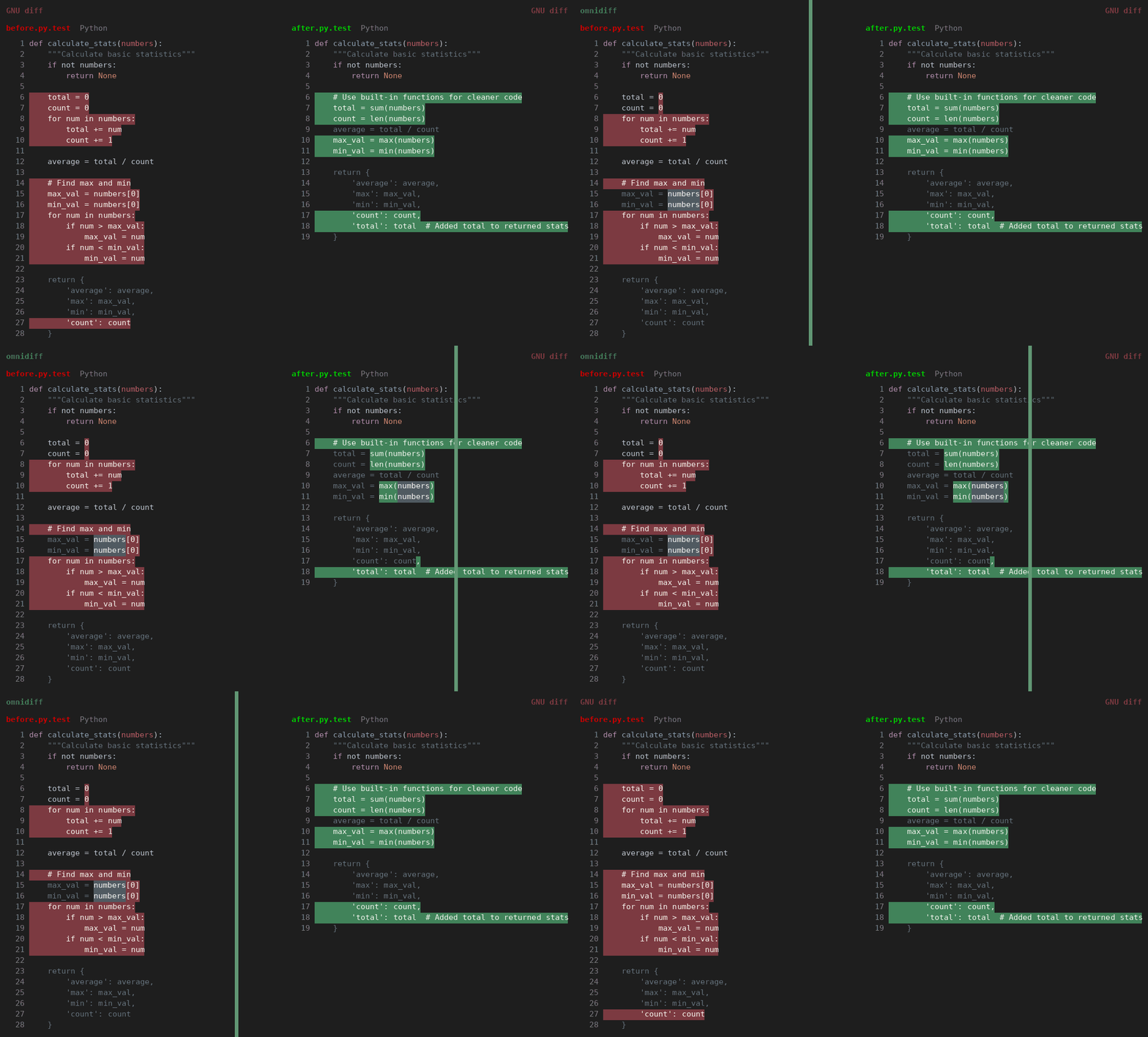
For code and structured text, OmniDiff currently uses Tree-sitter to parse 25 types. That includes common languages such as Python, JavaScript, TypeScript, Rust, Go, Java, PHP, Swift, and C/C++, along with structured formats such as JSON, YAML, and XML.
So “25 programming languages” is not quite the right description. JSON, YAML, and XML are data or configuration formats, and that broader coverage is useful in real repositories where configuration files often change alongside the source code.
Not every text format gets a structural diff
OmniDiff does not handle every text format at the same level.
Formats such as Python, Rust, JSON, and YAML have dedicated parsers and can be compared structurally. Markdown, SQL, Dart, and Protocol Buffers can still be recognized, but they currently fall back to a normal line-by-line text diff.
Other text files that are not part of the structural parsing list, such as TOML or INI files, can still be compared as plain text.
The same idea applies to binary files. Images, PDFs, fonts, and archives already have content-specific handlers. Unsupported binary formats fall back to a basic binary-difference result.
In other words, the useful question is not just whether OmniDiff can open a file extension, but how deeply it understands that format.
What file types does OmniDiff support?
| Content | How OmniDiff compares it | Typical use |
|---|---|---|
| Source code | Tree-sitter structural diff | Code review, refactoring, Git changes |
| JSON / YAML / XML | Structure-aware comparison | Configuration and project files |
| Images | Pixel-level comparison; animations frame by frame | UI assets, graphics, image revisions |
| Renders and compares changed pages | Documentation, diagrams, generated reports | |
| ZIP / TAR and other archives | Expands and compares individual members, including nested archives | Release packages and build artifacts |
| Office / JAR / EPUB | Inspects files inside ZIP-based containers | Checking internal package changes |
| Fonts | Compares glyphs, names, and metrics | Web fonts and icon fonts |
| Cursors | Compares sizes and animation frames | Windows and X cursor assets |
| .mo / .qm catalogs | Compares messages individually | Localization updates |
What can OmniDiff actually show?
The OmniDiff Showcase includes recorded diff results for PDFs, fonts, images, and OpenDocument files. The numbers below come from those project examples rather than independent testing by this site.
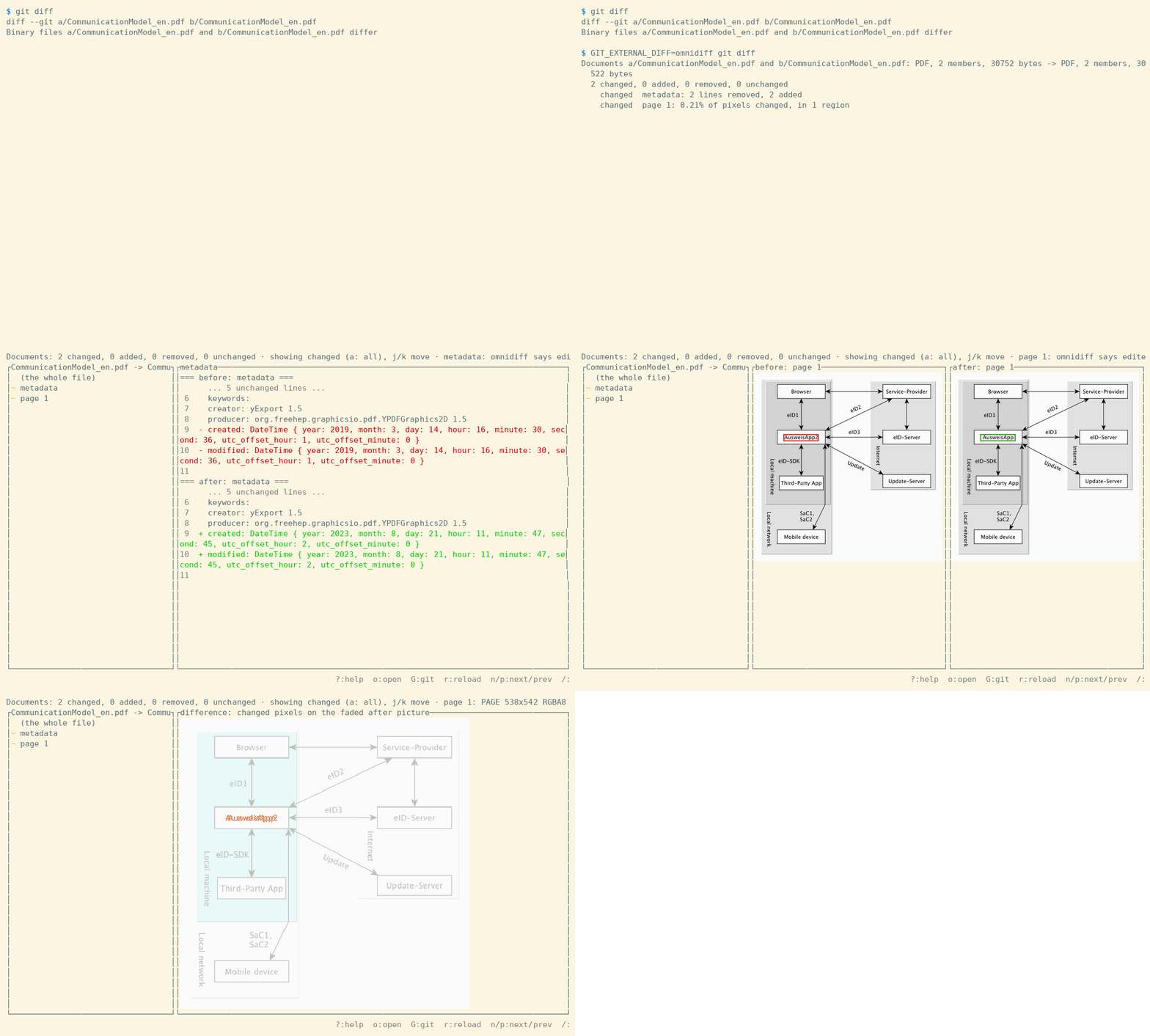
PDF: locate the changed page and region
In one PDF example, only a single label inside a diagram was renamed. OmniDiff reports both the metadata change and the affected page, with roughly 0.21% of the pixels on page 1 changed in one region.
That can be useful for generated documentation, reports, architecture diagrams, or PDFs included in a release where you want more detail than simply knowing the file changed.
It is still not a replacement for a dedicated PDF review application such as Adobe Acrobat. The project has also evaluated far fewer PDF samples than code samples, so PDF comparison is better treated as a useful addition to the developer workflow rather than a fully mature document-review system.
Fonts: see which glyphs changed
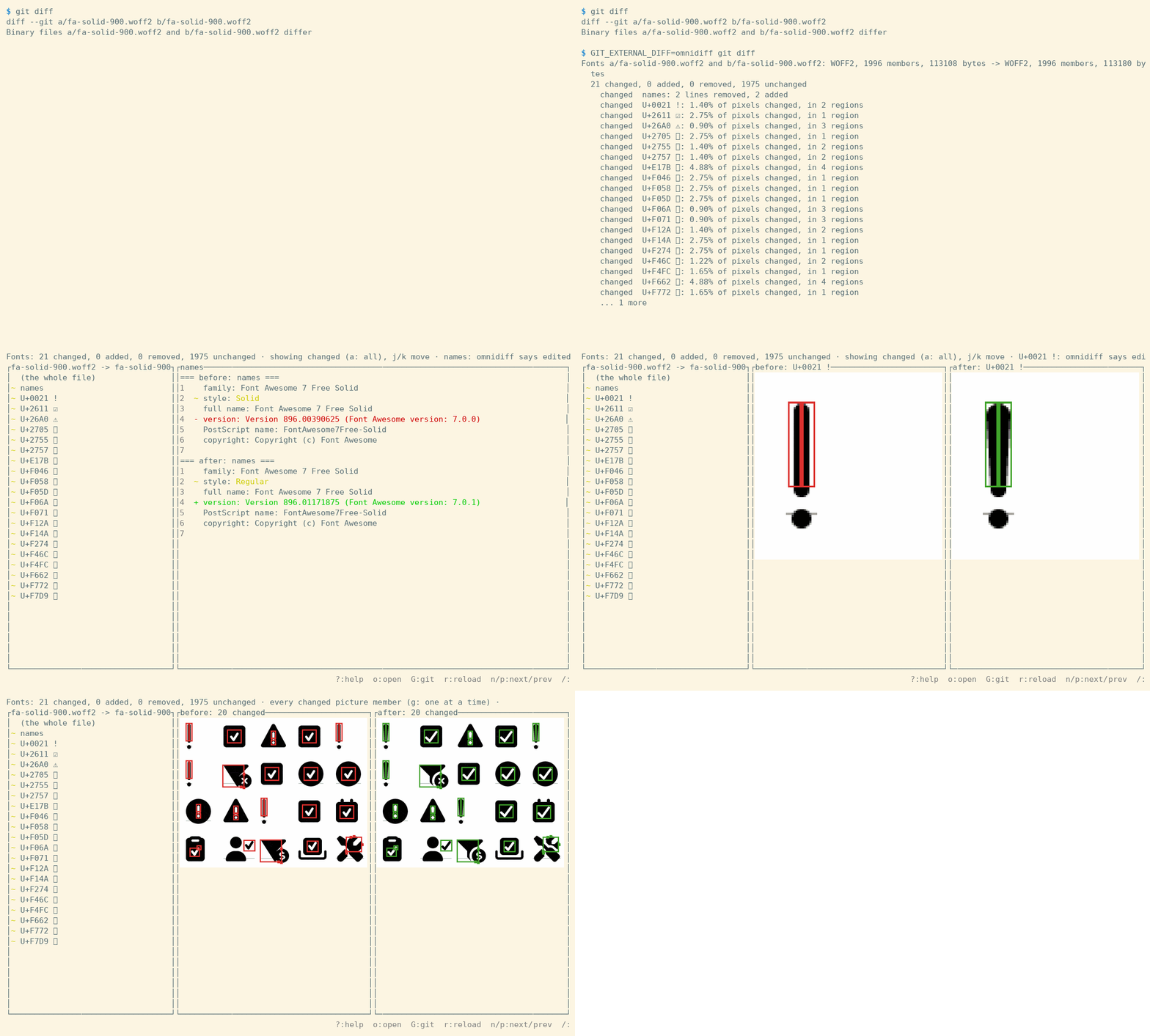
OmniDiff can inspect TrueType, OpenType, WOFF, WOFF2, and EOT fonts, including font names, metrics, and individual glyphs.
In a Font Awesome WOFF2 example, 21 out of 1,996 members changed. OmniDiff can list those glyphs directly and show how they differ.
That is much more useful for an icon font or web font than simply knowing that two font binaries have different hashes.
Images: find changed pixels and animation frames
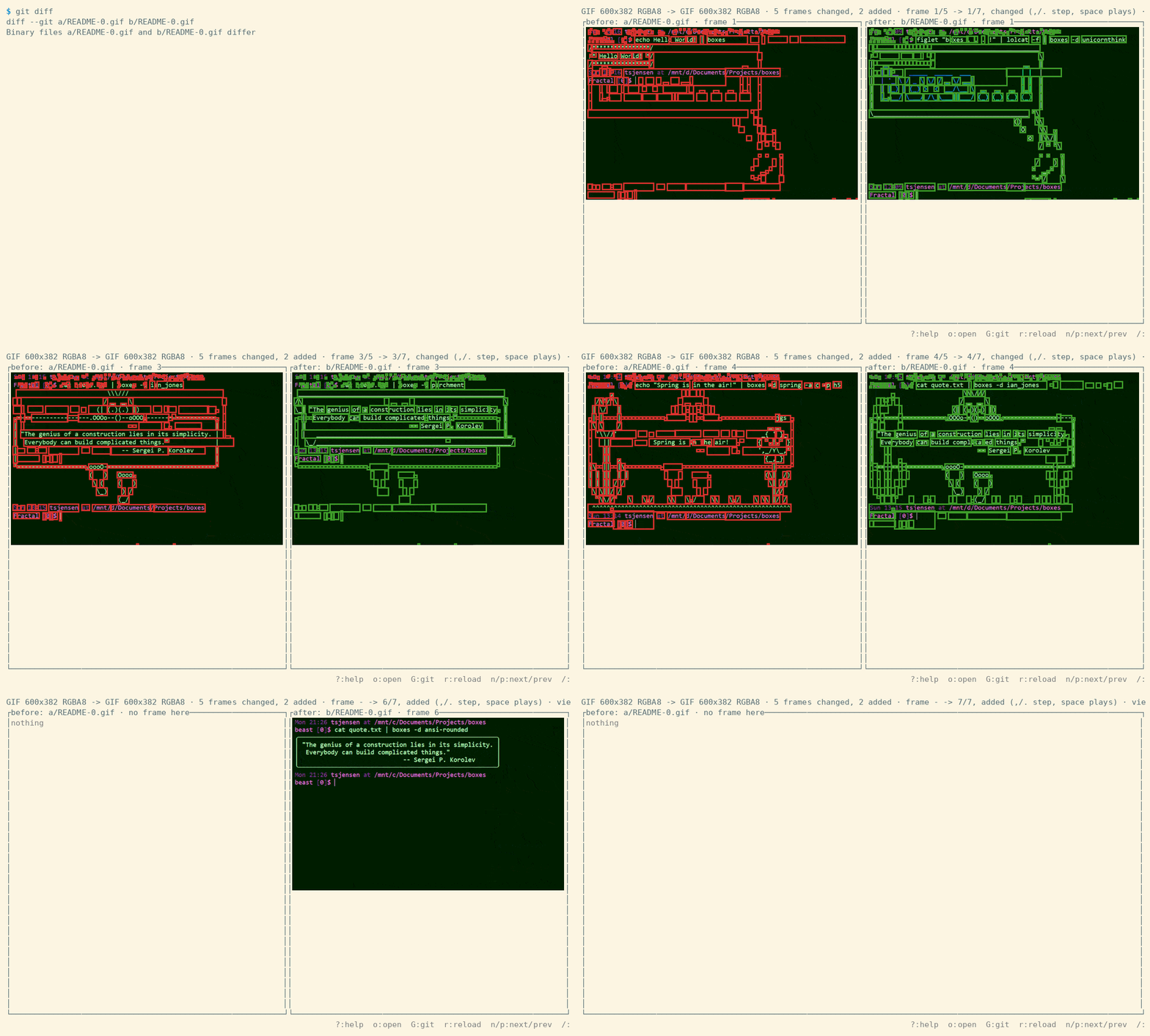
PNG, JPEG, GIF, WebP, BMP, ICO, and TIFF all have dedicated image comparison support. Static images can be checked at the pixel level, while animated files are compared frame by frame.
In one BMP example, only 73 of 178,176 pixels changed, and OmniDiff narrowed them down to a small region. An ICO file changing from 16×16 to 32×32 is reported as a resize, while a GIF changing from five frames to seven can show which two frames were added.
Archives: keep comparing files inside the package
ZIP, TAR, gzip, xz, and bzip2 archives can be expanded and compared member by member. If an archive contains another archive, OmniDiff can continue into the nested package.
This also makes ZIP-based formats such as JAR, EPUB, Office, and OpenDocument files more useful to inspect. In one ODT example, changes to content.xml, meta.xml, styles, and the document thumbnail are reported separately.
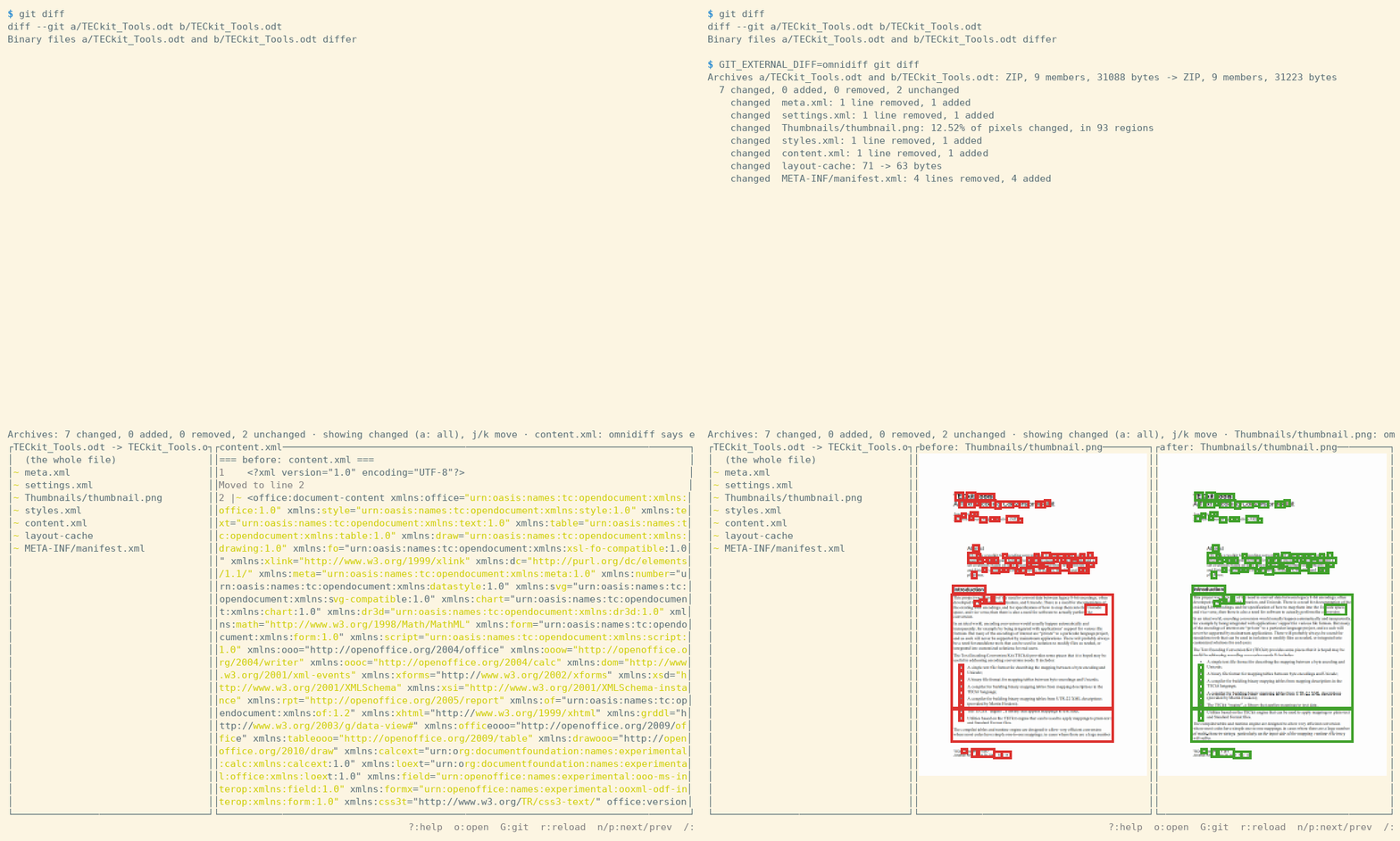
Can OmniDiff compare Word and Excel files?
It can inspect changes inside ZIP-based Office files, but that needs an important distinction:
OmniDiff is not the same as Word’s document comparison feature, and it is not a spreadsheet cell-level diff tool.
Its focus is the internal file structure and members inside the package. It does not try to understand Word revision semantics or highlight changed Excel cells in the way a dedicated spreadsheet comparison tool does.
If spreadsheet-level comparison is your main use case, a dedicated Excel diff tool is still the better choice. OmniDiff makes more sense in repositories where source code, configuration files, images, fonts, documents, and build artifacts all change together.
How to install OmniDiff
As of November 2026, the latest stable release is v0.3.0. Prebuilt binaries are available for Linux, Windows, Intel Macs, and Apple Silicon Macs.
Homebrew on macOS and Linux
brew install ivankovic/omnidiff/omnidiffInstall with Cargo
cargo install --locked omnidiffBuilding from source requires a C compiler and Rust 1.92 or later. The initial Cargo installation can take longer because it compiles the Tree-sitter grammars as part of the build.
Debian and Ubuntu
The project also provides a signed APT repository for amd64 and arm64, which is convenient if you want package-manager updates on a Debian or Ubuntu development machine.
Nix users can run:
nix run github:ivankovic/omnidiffHow to use OmniDiff
The basic command takes two files:
omnidiff BEFORE AFTERThis opens the side-by-side terminal interface.
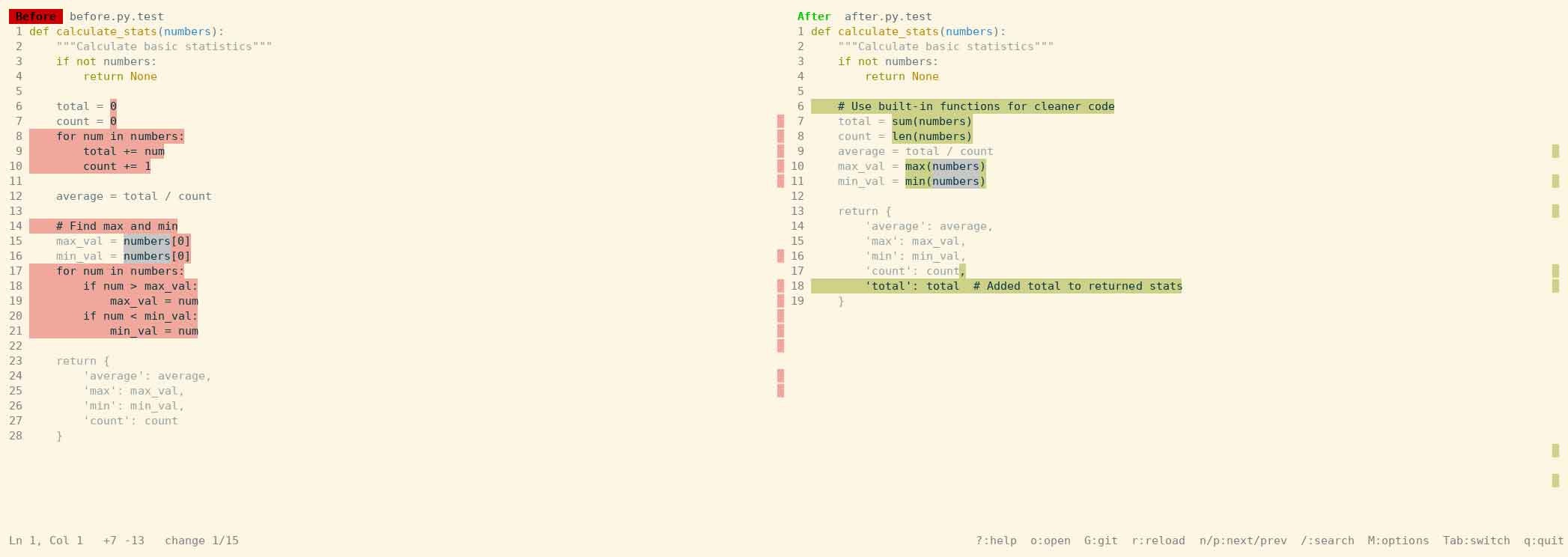
For scripts or CI jobs, use headless mode:
omnidiff --headless BEFORE AFTEROr return structured JSON:
omnidiff --mode json BEFORE AFTERYou can also add --exit-code when you want detected differences to affect the command’s exit status.
That makes OmniDiff useful not only as an interactive diff viewer, but also inside CI checks and automated workflows.
Using OmniDiff as a Git diff tool
OmniDiff can be configured as an external Git difftool.
omnidiff git configureThen launch it with:
git difftool --tool=omnidiffThis opens the full interactive TUI.
There is an important difference between git difftool and a normal git diff. Commands such as git diff and git log -p typically run through a pager rather than a full interactive terminal, so OmniDiff switches to non-interactive text output in that context.
If you run git diff and do not see the two-pane interface, that does not necessarily mean the configuration failed.
Using OmniDiff with Jujutsu
Jujutsu users can run:
omnidiff jj configureThere is one extra detail to be aware of. Jujutsu normally passes two directory trees to an external diff tool, while OmniDiff compares files in pairs. The integration therefore needs:
diff-invocation-mode = "file-by-file"A normal jj diff also runs through a pager, so it uses non-interactive output. For the full TUI, you still need to run omnidiff BEFORE AFTER directly.
Does OmniDiff work with VS Code, Cursor, and Windsurf?
Yes. OmniDiff has a VS Code extension, and the Open VSX version can also be installed in compatible editors such as VSCodium, Cursor, and Windsurf.
There is still an editor limitation, though: VS Code does not currently allow the extension to fully replace the built-in diff view.
The relevant API work exists upstream but has not yet been released, so Git difftool and the standalone terminal interface remain the most complete ways to use OmniDiff.
Can you compare files online with the OmniDiff demo?
No. The OmniDiff Showcase is a browser-based demo page containing prerecorded diff examples for code, PDFs, fonts, and images. It does not let you upload your own files for comparison.
To compare your own files, OmniDiff needs to run locally. That can be useful for source code or internal documents that you would rather not upload to a third-party online diff service.
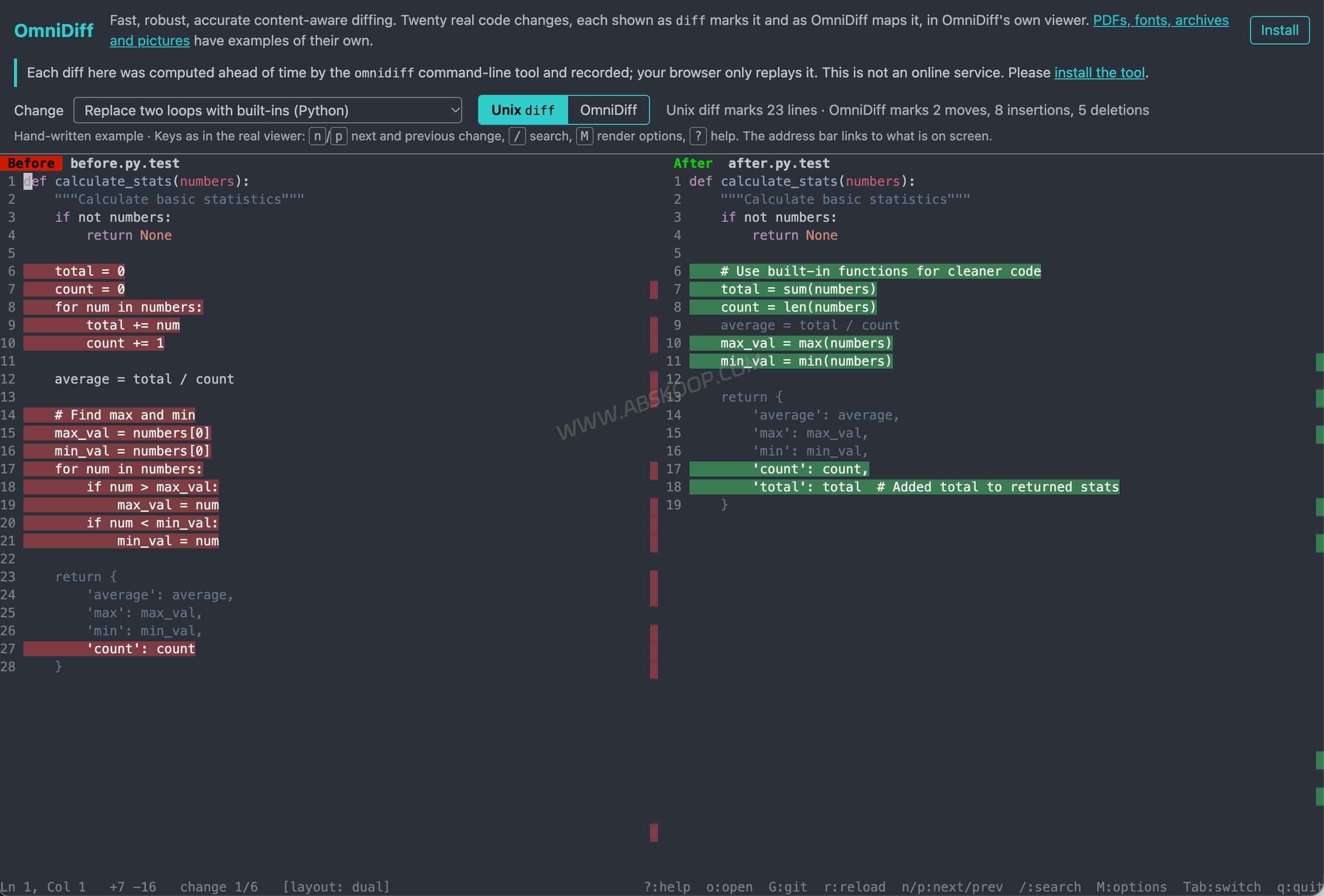
How fast is OmniDiff?
The project publishes its own performance and accuracy benchmarks. For code, the current benchmark includes 2,302 diff fixtures tested on a ThinkPad T14s with an Intel Core i7-1370P and 32GB of RAM. Median latency is about 4.2ms, p90 is 35.1ms, p99 is 177ms, and roughly 97.6% of samples finish within 100ms.
| Content | Finished under 100ms | Perfect | Near-perfect |
|---|---|---|---|
| Code | 98% | 70% | 92% |
| Images | 96% | 69% | 91% |
| Cursors | 100% | 85% | 100% |
| Fonts | 95% | 82% | 100% |
| Archives | 88% | 87% | 87% |
| Message catalogs | 100% | 83% | 83% |
| PDFs | 57% | 100% | 100% |
Code, image, and font comparisons are generally fast in the published tests. PDFs take noticeably longer because changed pages need to be rendered, and large archives can also take longer when many members need to be inspected.
The PDF accuracy result needs context as well. The project notes that fewer than 10 PDF samples have been manually judged, so the 100% figure should not be read as evidence that PDF comparison is already as thoroughly validated as code diffing.
These are the project’s own benchmark results, not independent tests performed by this site. Important code or release artifacts should still be reviewed by a human before relying on the result.
Where OmniDiff still falls short
OmniDiff is still clearly aimed at developers and terminal-based workflows. Its main interfaces are the CLI and TUI. It does not offer the mature desktop GUI, directory synchronization, three-way merge, or conflict-editing workflow you would expect from a tool such as Beyond Compare.
Format support is also uneven by design. Python, Rust, JSON, and YAML can get structural diffs, while Markdown, SQL, Dart, and Protocol Buffers currently use plain-text comparison. Office packages can be inspected internally, but that does not turn OmniDiff into a Word review tool or an Excel cell-diff application.
PDFs, fonts, and images already get content-aware comparisons, but the maturity of those handlers is not identical. The benchmark results above make some of those differences visible.
Editor integration also has limits. The VS Code extension cannot yet replace the built-in diff view, so the terminal TUI and Git difftool remain the best way to see the complete experience.
What to know about the OmniDiff license
OmniDiff is released under AGPL-3.0-only, which is not as permissive as licenses such as MIT or Apache-2.0.
For individual developers who are comfortable with the AGPL terms, the open-source version can be used under that license. Organizations that cannot use OmniDiff under AGPL can obtain a separate commercial license from the project author.
Teams planning to use it as part of an internal toolchain should check the license requirements first, especially if they expect to modify, deploy, or distribute the software.
When does OmniDiff make sense?
OmniDiff is most useful when your workflow already revolves around Git, Jujutsu, or the terminal and your repository contains more than source code. If images, fonts, PDFs, localization files, configuration files, and build artifacts regularly change alongside code, content-aware diffing can save a lot of manual inspection.
It is also a good fit for code review, larger refactors, release checks, and CI workflows that need machine-readable diff output.
If you only compare short text files occasionally, an online diff tool is simpler. If you mainly compare spreadsheets, use a dedicated Excel comparison tool. And if directory sync, three-way merge, and a polished desktop GUI are core requirements, a mature desktop application such as Beyond Compare is still a better fit.
Frequently Asked Questions
Does OmniDiff support Windows, macOS, and Linux?
Yes. Prebuilt binaries are available for Windows, Linux, Intel Macs, and Apple Silicon Macs. Homebrew is available on macOS and Linux, and Debian/Ubuntu users can install it from the project’s APT repository.
Can OmniDiff compare Word and Excel files?
It can inspect changes inside ZIP-based Office containers, but it is not a Word document-review tool or an Excel cell-level comparison application.
Can OmniDiff replace git diff?
It is better thought of as an external Git diff tool that complements the existing workflow. The full TUI is normally used through git difftool, while a regular git diff shows non-interactive text output through the pager.
Is OmniDiff free? What about commercial use?
The source code is available under AGPL-3.0-only. Organizations that cannot use the project under AGPL can look at the separate commercial licensing option provided by the author.
Is OmniDiff worth using?
If your work is limited to source code and plain text, the standard Git diff workflow may already be enough. OmniDiff becomes more interesting when a repository regularly mixes code with PDFs, images, fonts, configuration files, and packaged artifacts.
It is still a terminal-first tool, and GUI workflows, merge features, and professional Office review are not its strengths. But for code review, release checks, or figuring out what actually changed inside a supported binary file, it is a useful addition to a developer toolchain.
Official demo: OmniDiff Showcase
GitHub: ivankovic/omnidiff


Comments (0)