

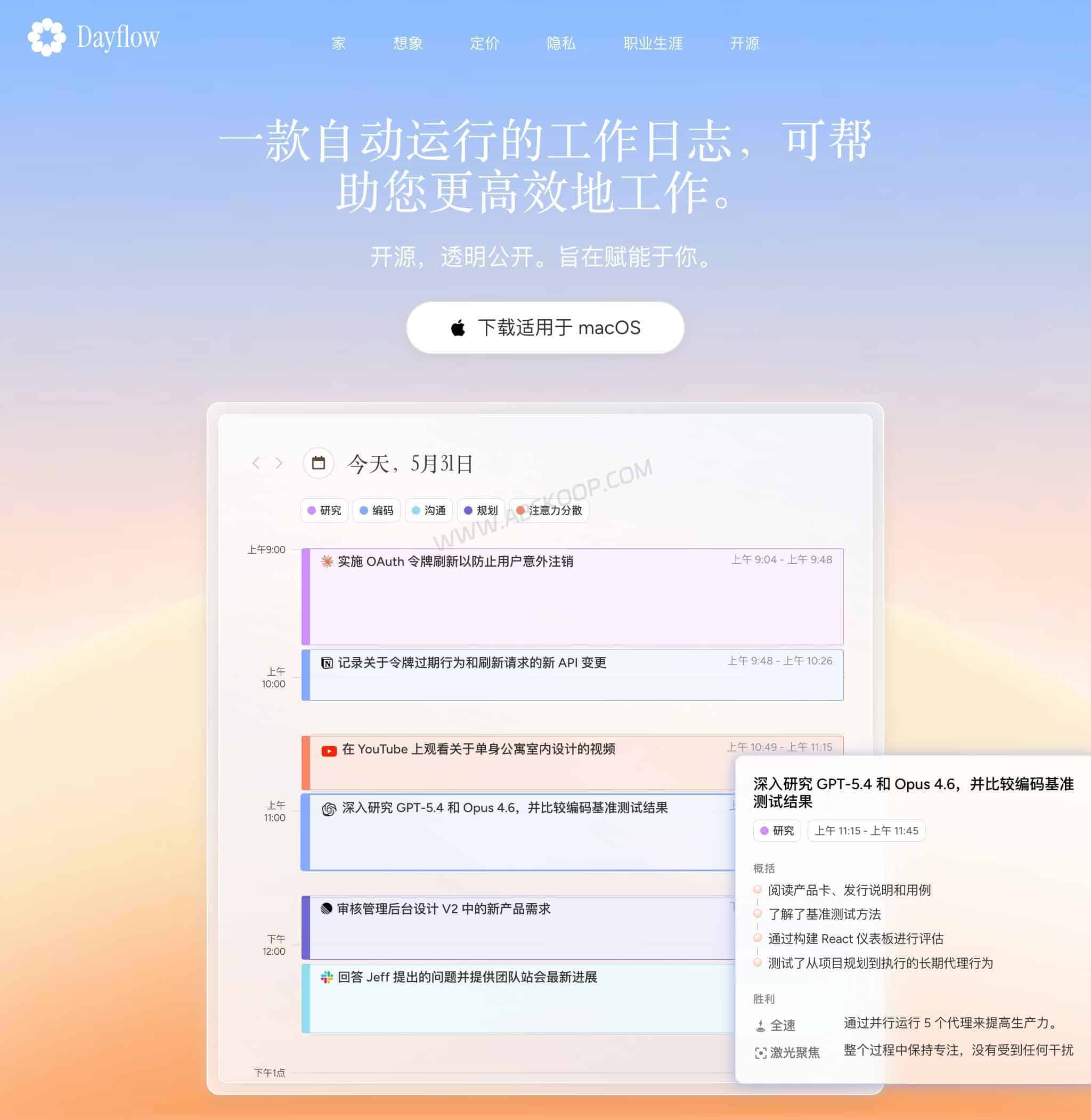
Dayflow AI Time Tracker is an open-source automatic time tracker and work journal for Mac. Instead of asking you to start and stop timers manually, Dayflow periodically captures screen context and uses AI to turn your activity into a readable work timeline, Daily Standup, and Weekly Review.
If Friday arrives and you can barely remember what you worked on earlier in the week, Dayflow is designed around that problem. Traditional time tracking apps are usually good at telling you how long an app or project was open. Dayflow focuses more on what you were actually doing during that time.
What Is Dayflow AI Time Tracker?
Dayflow is an automatic time tracker for Mac that puts more emphasis on work context than traditional project timers.
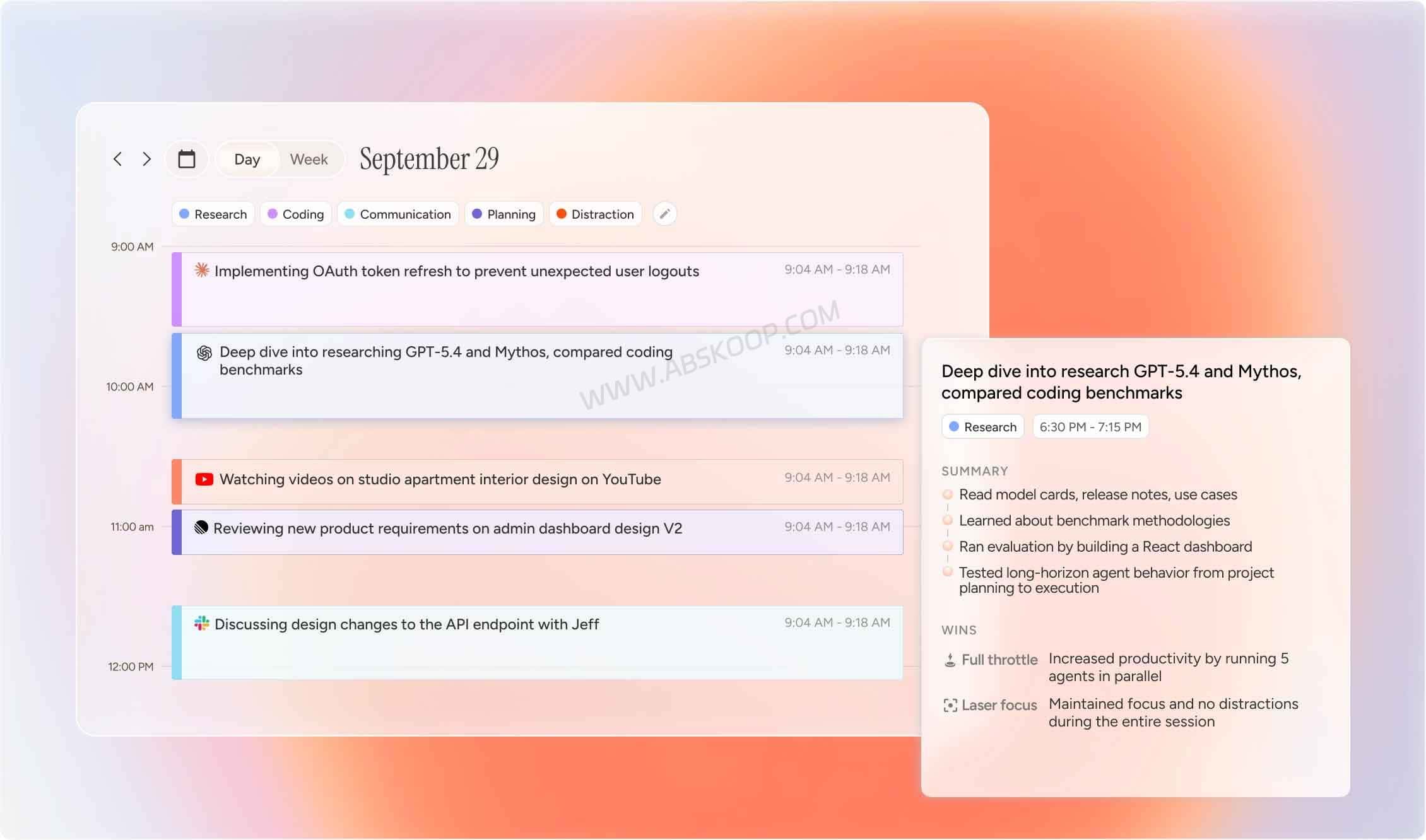
Instead of only recording that Chrome, VS Code, Slack, or another application was active for a certain amount of time, Dayflow uses captured screen context to build a more descriptive timeline of your day.
For example, a basic activity tracker might report that you spent two hours in a browser. Dayflow can use the surrounding context to distinguish between activities such as reading technical documentation, researching a problem, watching a development tutorial, or replying to project messages.
The app is built with Swift and released under the MIT license. Its design is local-first: recordings, generated timelines, and the local database are stored on your Mac by default. For AI processing, you can use local models through Ollama or LM Studio, or supported cloud-based options.
How Dayflow Turns Screen Activity Into an Automatic Work Journal
The main difference between Dayflow and a conventional time tracker is what happens after activity is captured.
Many time tracking tools are built around projects, clients, and billable hours. You create a task, start a timer, stop it when you are finished, and later use those records for timesheets or invoices.
Other automatic trackers mainly monitor applications, websites, or window titles to show where your time went.
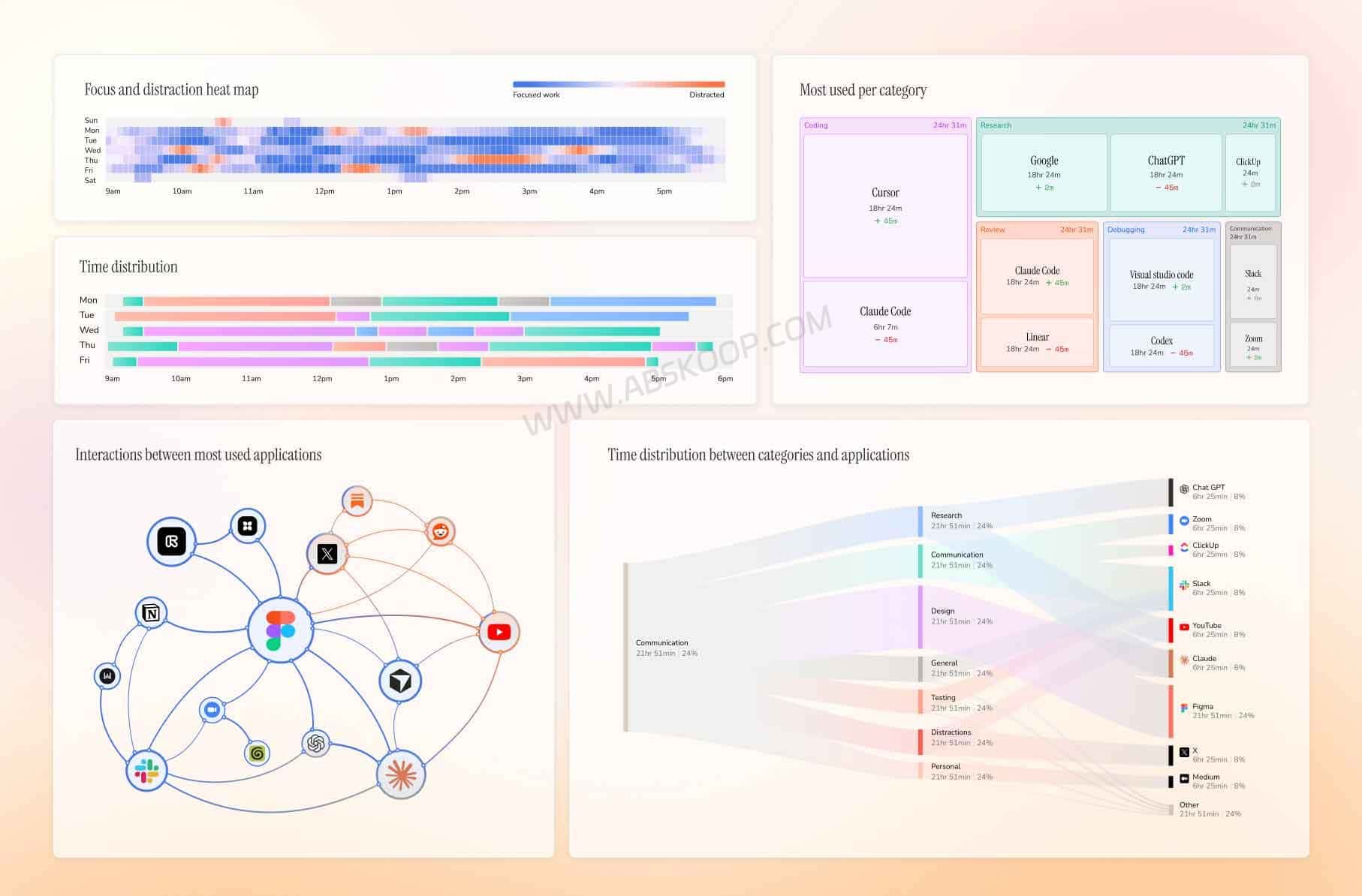
Dayflow takes a different approach. It periodically captures screen context and uses AI to determine what kind of work was taking place. Those activities are organized into a timeline that can later be summarized, searched, or reviewed.
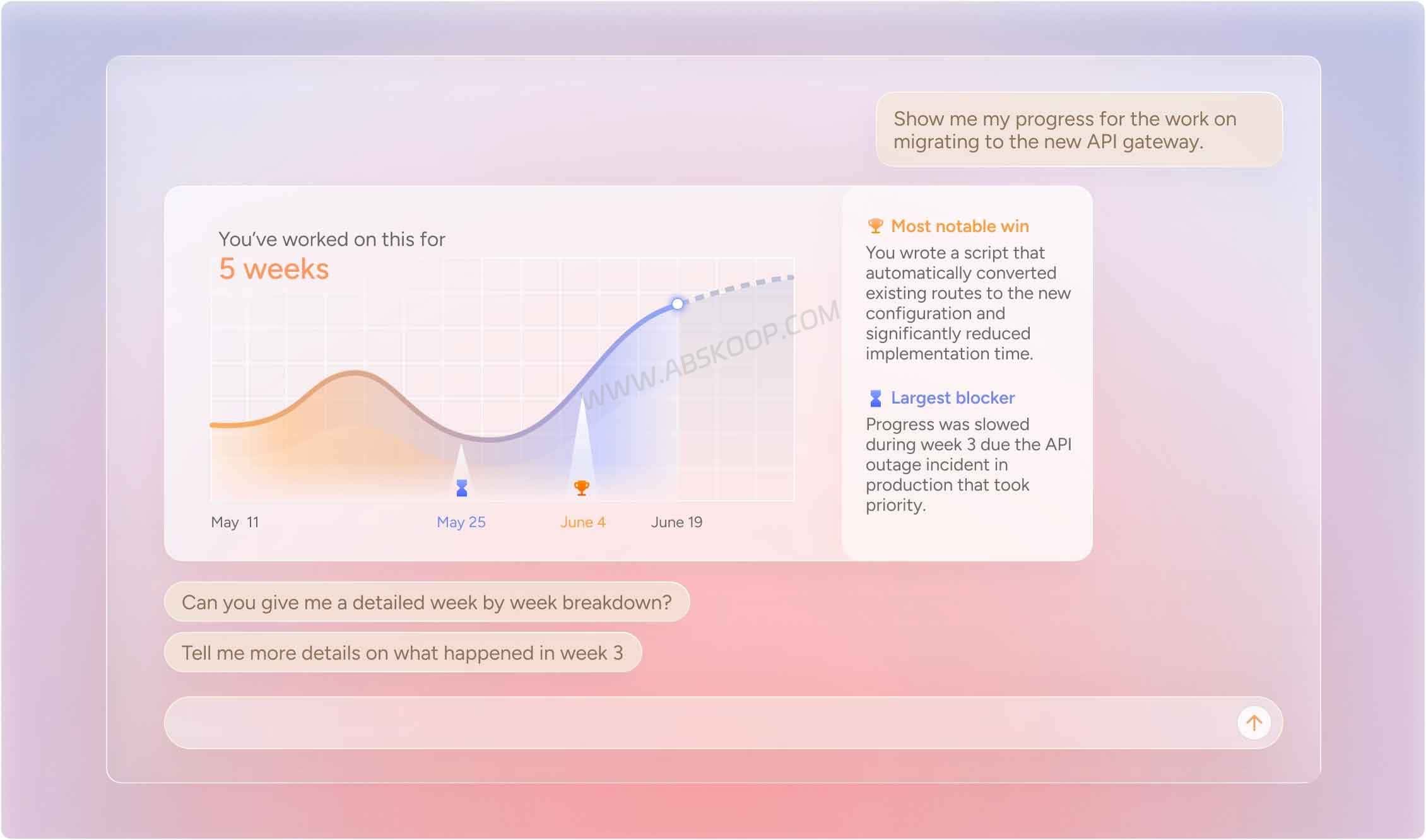
This makes Dayflow closer to an automatic work journal than a conventional timesheet app.
Its generated records can be used for several common workflows:
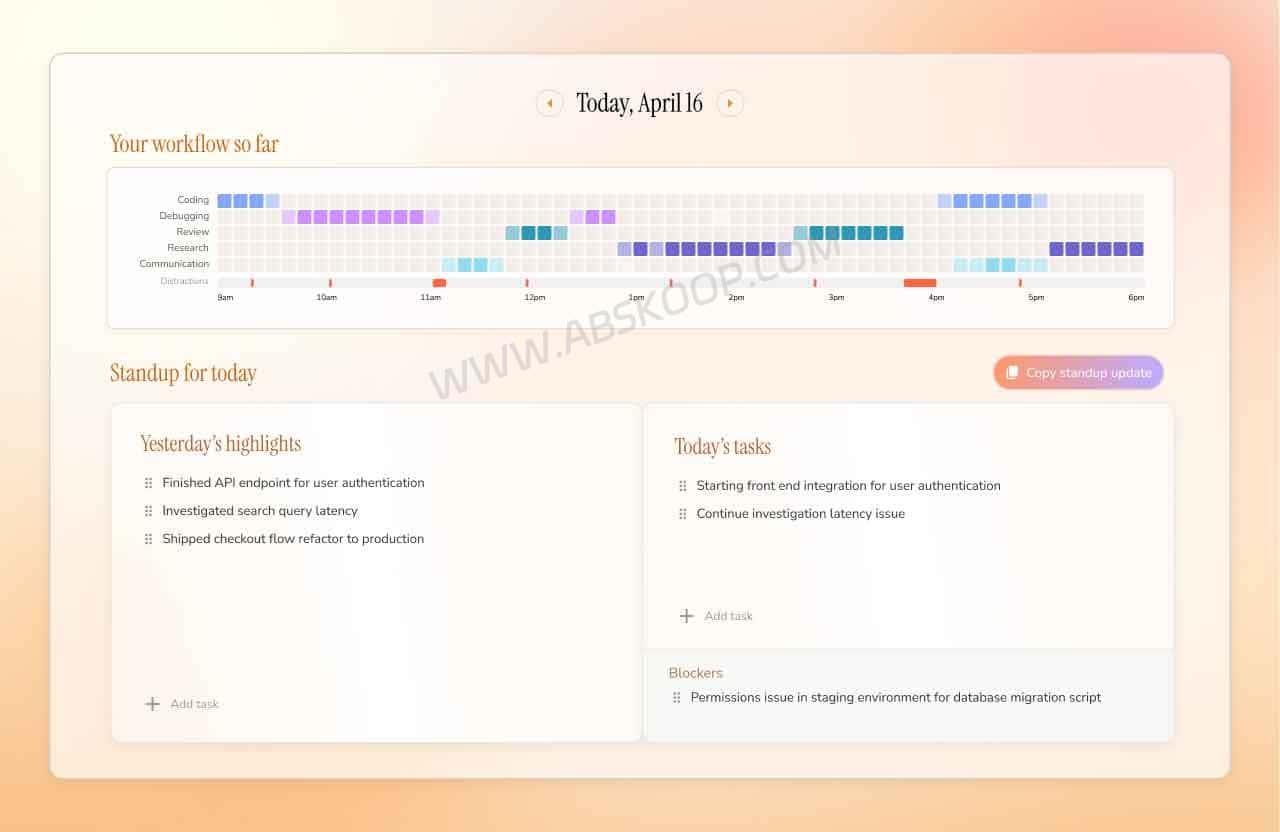
- Daily Standup: summarizes recent work, current priorities, and possible blockers.
- Weekly Review: provides a broader view of what you worked on during the week and how your time was distributed.
- Work history Q&A: lets you ask questions about previously generated records, such as what you were working on Tuesday afternoon.
- Markdown export: exports work records by date range for use in tools such as Obsidian, Notion, or other note-taking systems.
Dayflow vs Traditional Time Tracking Apps
Dayflow, Toggl, Clockify, RescueTime, and Timing all deal with time tracking in some form, but they are not trying to solve exactly the same problem.
| Tool Type | Main Focus | Best For |
|---|---|---|
| Dayflow | Automatic work journal and AI-generated activity timeline | Remembering what you actually worked on and generating work summaries |
| Toggl / Clockify | Projects, clients, timers, and billable hours | Timesheets, invoicing, and project-based time tracking |
| RescueTime / Timing | Automatic application, website, or activity tracking | Understanding where time is being spent |
If your main question is “How many billable hours did I spend on Client A?”, a project-based tracker such as Toggl or Clockify is usually the more direct choice.
If you mainly want to know where your computer time goes, an automatic activity tracker may be a better fit.
If your question is “What did I actually work on today?”, Dayflow is much closer to that use case.
Does Dayflow Upload Your Screenshots?
Dayflow stores its screenshots, timelines, and database locally on the Mac by default. Its application data is stored under:
~/Library/Application Support/Dayflow/Whether work context needs to be sent to an external service depends on which AI provider you choose.
- Ollama / LM Studio: AI processing can run locally on your Mac, so the related analysis does not need to rely on an external AI provider.
- Gemini: Dayflow can use your own API key. Information required for analysis is processed by Gemini, with usage limits and pricing depending on Google’s current API terms.
- ChatGPT / Claude: Dayflow can work with supported locally configured tools such as Codex CLI or Claude Code, subject to the corresponding account, subscription, and provider requirements.
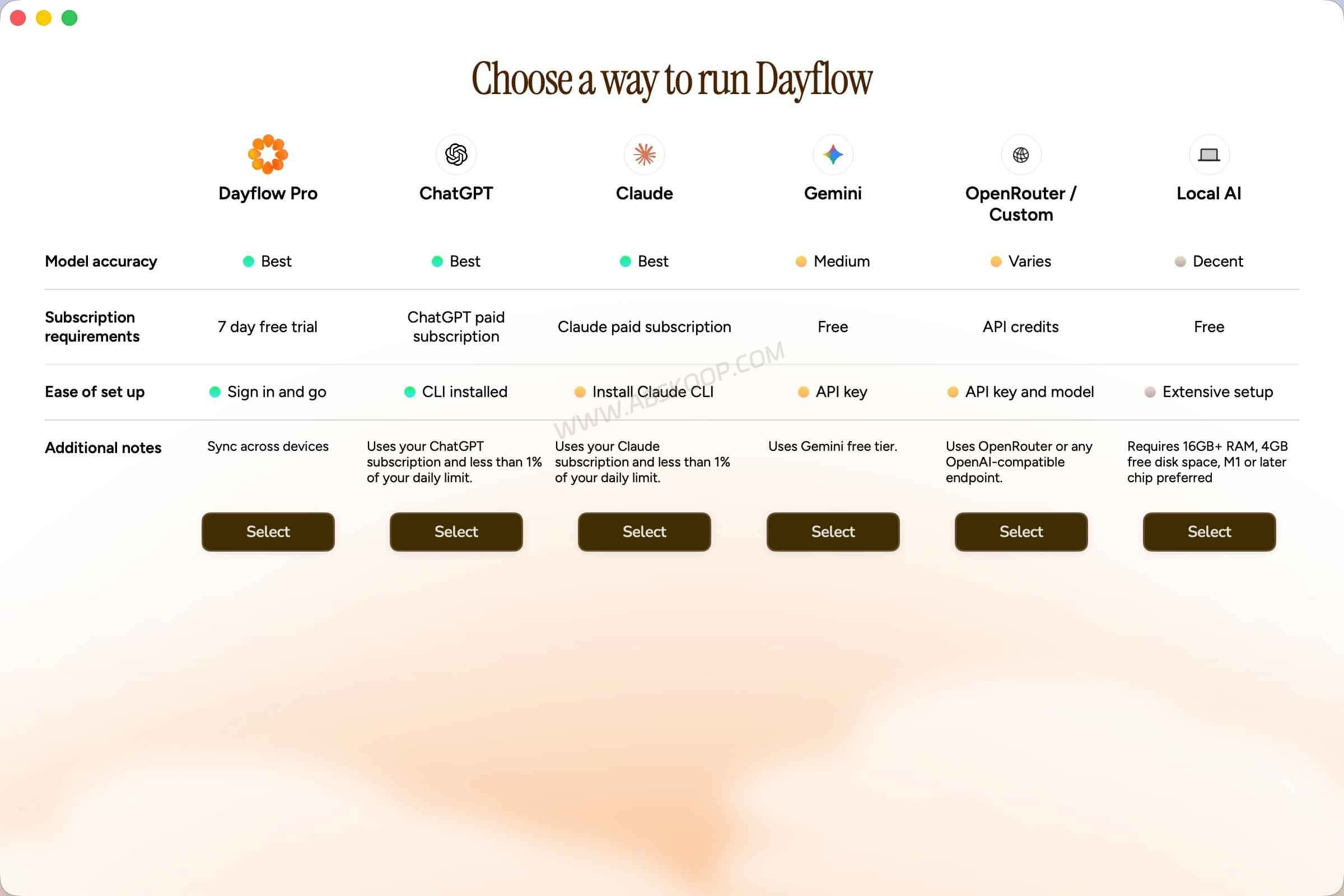
This distinction matters if your screen may contain source code, internal documents, private messages, customer information, or other sensitive material.
Using Ollama or LM Studio keeps AI inference on your own machine, but it also shifts the computing workload to your Mac. Using a cloud AI provider can reduce local inference requirements, although the information required for processing may be sent to that provider.
Local AI vs Gemini, ChatGPT and Claude in Dayflow
One of Dayflow’s more useful design choices is that it does not force every user into the same AI setup.
Using Ollama or LM Studio
Ollama and LM Studio are better suited to users who want AI processing to remain on their own Mac and already have enough hardware resources to run a local model.
The trade-off is resource usage. Larger models normally require more memory and processing power, while continuous local inference can also increase battery consumption on a MacBook.
Using Cloud AI Services
Cloud-based AI can reduce the amount of inference your Mac needs to handle locally. This may be more practical on machines with limited memory or when you want access to stronger hosted models.
The trade-off is that data required for analysis may need to leave the device, and API usage or subscription costs may apply depending on the service.
There is no single best option for everyone. A developer handling private source code may prefer local inference, while someone mainly tracking general productivity work may value lower local resource usage.
How Much CPU, Memory and Storage Does Dayflow Use?
Dayflow itself can run in the background, but long-term usage involves more than the core application. Local AI inference, stored screen captures, and macOS permissions can all affect the overall experience.
- Local models add hardware load: using Ollama or LM Studio for repeated screen analysis can consume additional RAM and GPU resources. Battery-powered MacBooks may also drain faster during local inference.
- Screen captures use disk space: screenshots and database records accumulate over time. Dayflow supports managing older records, but long-term users should still choose retention settings that match their available storage.
- Screen recording permission is required: macOS must allow Dayflow to capture the screen context used to build its timeline.
For users who want to inspect or modify the application, the source code is available on GitHub and can also be built through Xcode.
How to Install Dayflow on Mac
Dayflow currently targets macOS rather than Windows. The normal installation process is straightforward:
- Download the current macOS release from the project’s GitHub Releases page.
- Open the DMG and move Dayflow into the Applications folder.
- Launch Dayflow.
- Allow the required macOS screen recording permission when prompted.
- Choose an AI provider, such as Ollama, LM Studio, Gemini, ChatGPT, or Claude, depending on your preferred workflow.
If screen recording permission is disabled, Dayflow cannot capture the context it needs to generate the automatic timeline.
Dayflow vs Toggl, Clockify, RescueTime and Timing
The easiest way to choose between these tools is to start with the result you actually need.
Choose Dayflow if you want an automatic work log
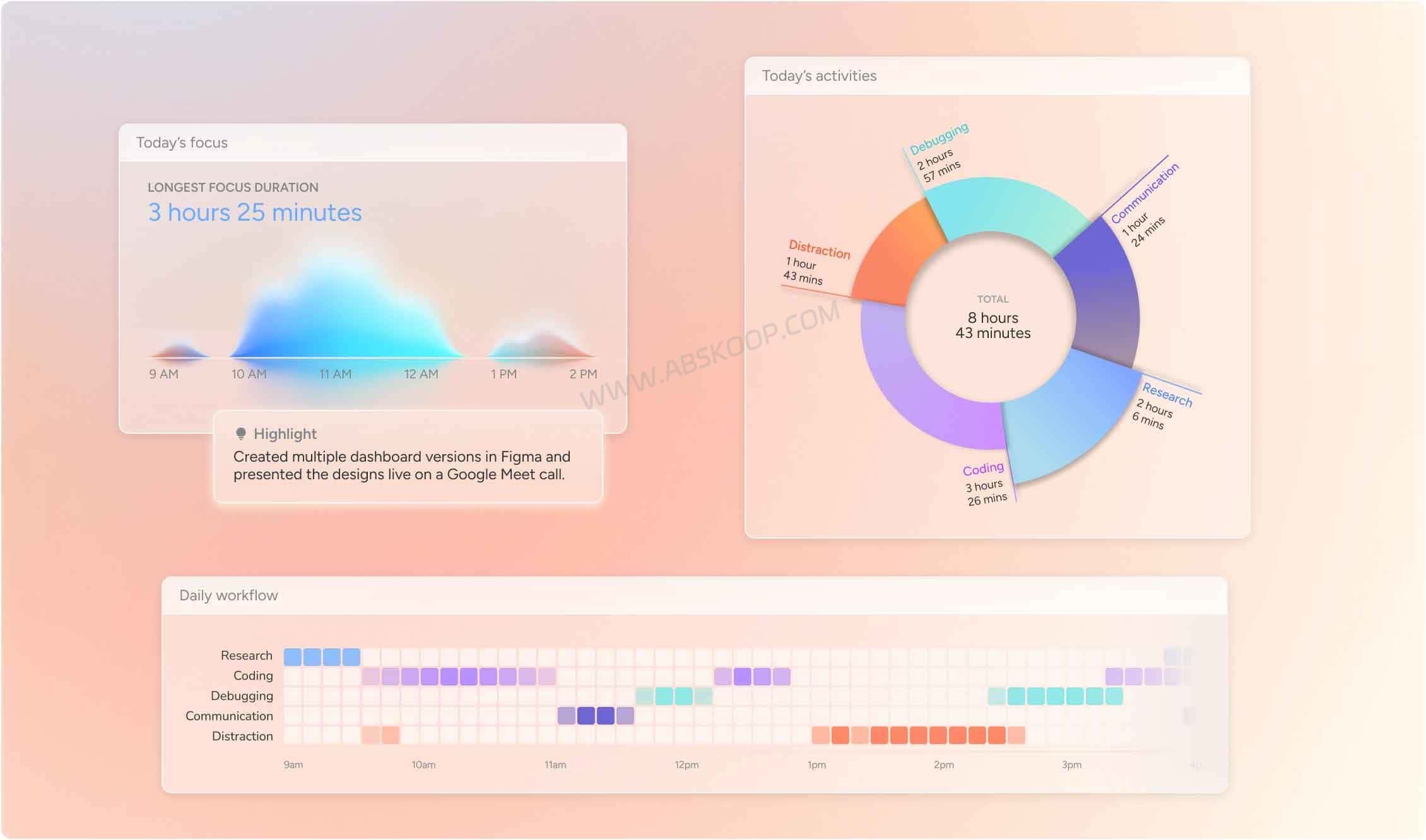
Dayflow is the most relevant option here when the goal is to reconstruct what happened during the workday and turn that information into a searchable journal, Daily Standup, or Weekly Review.
Choose Toggl or Clockify for billable hours
Toggl and Clockify are more directly aligned with project timers, clients, timesheets, and billable work. If accurate project-level billing is your priority, a conventional timer-based workflow is usually easier to manage.
Choose an activity tracker to analyze where your time goes
Tools such as RescueTime and Timing are generally more focused on automatic activity tracking across applications, websites, documents, or windows. Their exact tracking methods differ, but their core use case is closer to time analysis than AI-generated work journaling.
Dayflow overlaps with these products, but it should not be viewed as a direct replacement for every time tracking workflow.
Who Is Dayflow Best For?
Dayflow is most useful for people who regularly need to remember and summarize knowledge work but do not want to operate a timer throughout the day.
- Developers: useful for reconstructing coding, debugging, research, documentation, and communication work across a day.
- Remote workers: helpful when preparing daily updates, asynchronous status reports, or weekly reviews.
- Freelancers: useful for remembering what was done, although it should not automatically be treated as a replacement for precise billable-hour tracking.
- Local AI users: a relevant option for people already running Ollama or LM Studio and who prefer local processing where practical.
- People who forget work details: useful when you frequently reach the end of the week and struggle to reconstruct what happened several days earlier.
Who Should Probably Use Something Else?
Dayflow is not designed for every form of time tracking.
- Windows users: Dayflow is currently focused on macOS, so users looking for a Windows-first tracker should consider other options.
- Employee monitoring: Dayflow is positioned around personal work history and review rather than manager-controlled employee surveillance.
- Precise client billing: if your workflow depends on exact project timers, hourly billing, approvals, and timesheets, tools such as Toggl or Clockify may be a better fit.
- Low-resource Macs: local AI models can require significant memory and processing power depending on the model you choose.
In practical terms, Dayflow is better understood as an AI-powered automatic work journal than a traditional workforce time management system.
Dayflow AI Time Tracker FAQ
Is Dayflow open source?
Yes. Dayflow’s source code is publicly available on GitHub and the project uses the MIT license. This also makes it possible for developers to inspect the code or build the application themselves.
Can Dayflow work without sending data to a cloud AI service?
Yes, if you configure a supported local model through Ollama or LM Studio. In that setup, AI processing can run on your Mac rather than depending on a cloud model. Your exact privacy boundary still depends on your configuration and any other connected services.
Is Dayflow a replacement for Toggl or Clockify?
Not necessarily. Dayflow is better suited to automatic work journaling and reconstructing what you worked on. Toggl and Clockify are generally more suitable for project timers, timesheets, clients, and billable hours.
Can Dayflow generate standups and weekly reports?
Yes. Dayflow can use the activity timeline it builds from your workday to generate Daily Standup and Weekly Review-style summaries.
Does Dayflow work on Windows?
The current release is focused on macOS. Users who specifically need Windows support should check the project’s latest platform roadmap before choosing it as their main time tracking tool.
Does Dayflow record everything on my screen?
Dayflow relies on periodic screen context to build its work timeline, which is why macOS screen recording permission is required. Users handling confidential material should review capture, retention, and AI provider settings before leaving automatic tracking enabled throughout the day.


Comments (0)