



Need to turn a HEIC photo into JPG, a DOCX file into PDF, or a MOV clip into MP4? A browser-based converter is usually the quickest option.
The trade-off is that your file normally has to leave your computer first.
Filee is an open source file converter that takes a different approach. Conversions run locally on your machine, so the file you are converting does not need to be uploaded to a third-party service.
It currently covers 180 file formats across images, PDFs, Office documents, video, audio, e-books, archives, CAD files and fonts. You can use it from a drag-and-drop menu, the file manager, batch jobs, watch folders or the command line.
Filee is MIT licensed. Windows 10 and 11 are the main supported platforms, while macOS 14+ and Linux builds are currently marked as previews.

Why use an open source file converter instead of an upload site?
Online converters are convenient. If you only need to resize one image or convert a single document, opening a website and uploading the file is often faster than installing another app.
Filee makes more sense when you do not want the original file leaving your computer.
That can matter for work documents, contracts, internal presentations, private photos or recordings. The conversion happens locally, and the result is written back to your computer.
Filee is not completely disconnected from the internet. It may check for updates or download optional conversion engines such as FFmpeg or LibreOffice. The important distinction is that the files being converted do not need to be uploaded to a remote conversion server.
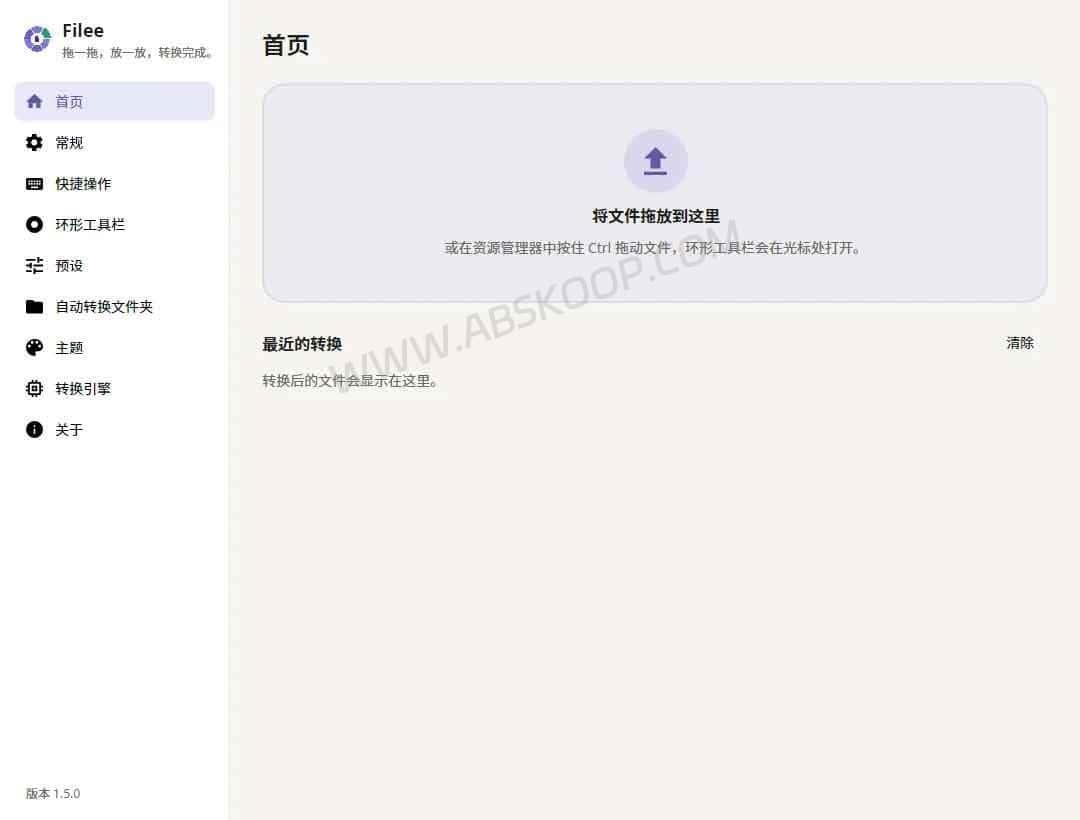
How Filee’s drag-and-drop converter works
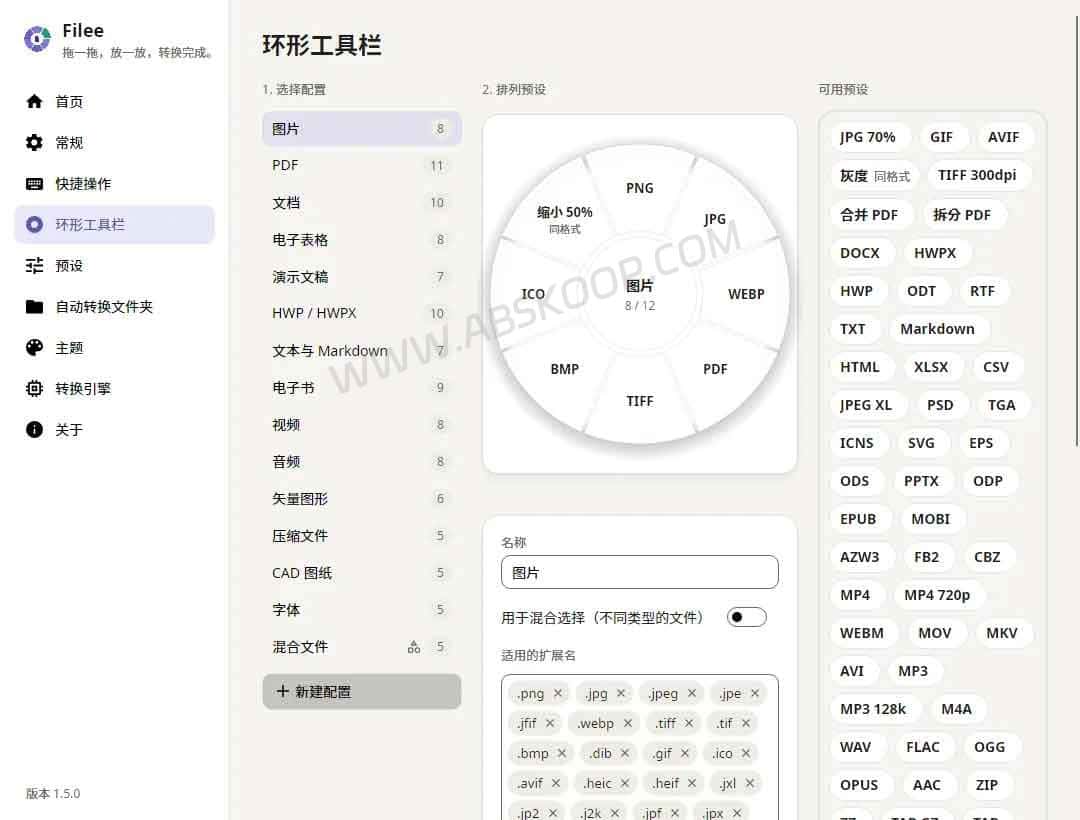
Filee’s most distinctive feature is the format menu that appears next to your cursor.
On Windows, select a file and start dragging while holding Ctrl. Filee opens a circular menu containing the output formats that make sense for that file. A HEIC image can be dropped onto JPG, a DOCX file onto PDF, or a MOV video onto MP4.
You do not have to use the gesture. Filee also works through the File Explorer context menu, Send To, keyboard shortcuts and the drop area inside the main window.
Batch conversion, watch folders and CLI
The workflow gets more useful when you have more than one file to process.
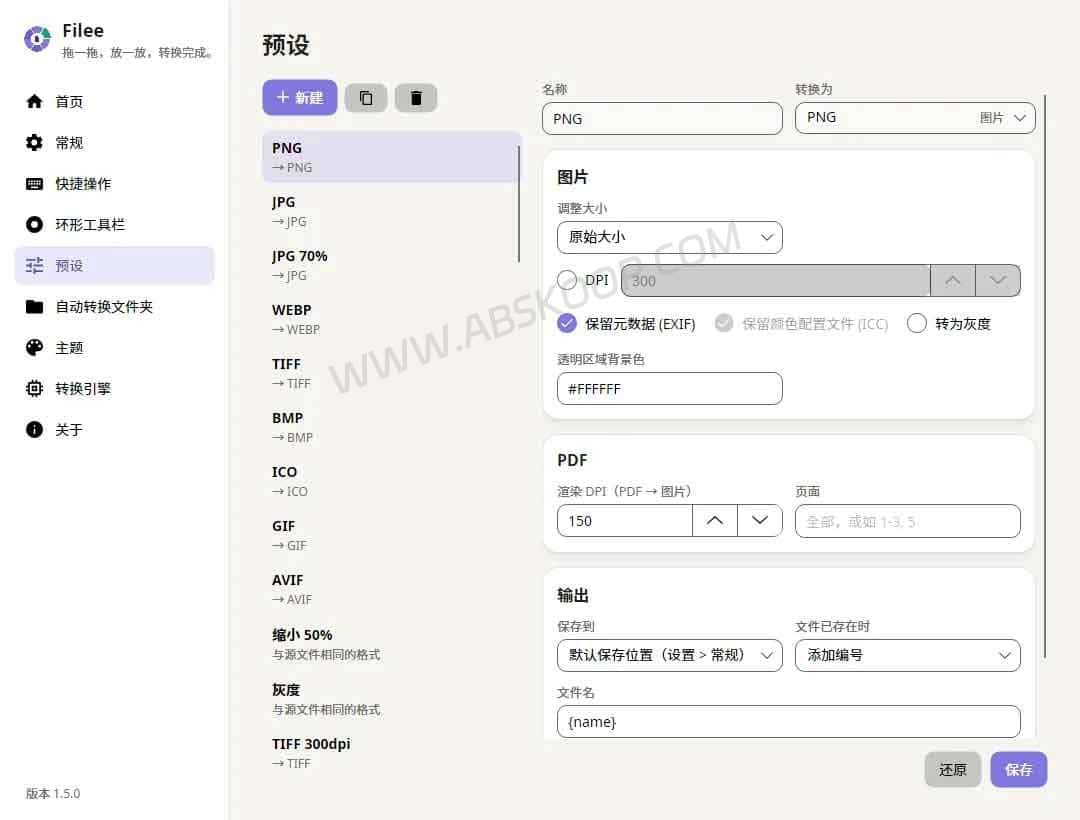
Presets can store image quality, dimensions, DPI, PDF page ranges, video resolution, audio bitrate, output folders and filename rules. That saves a lot of repetitive setup if you run the same conversion regularly.
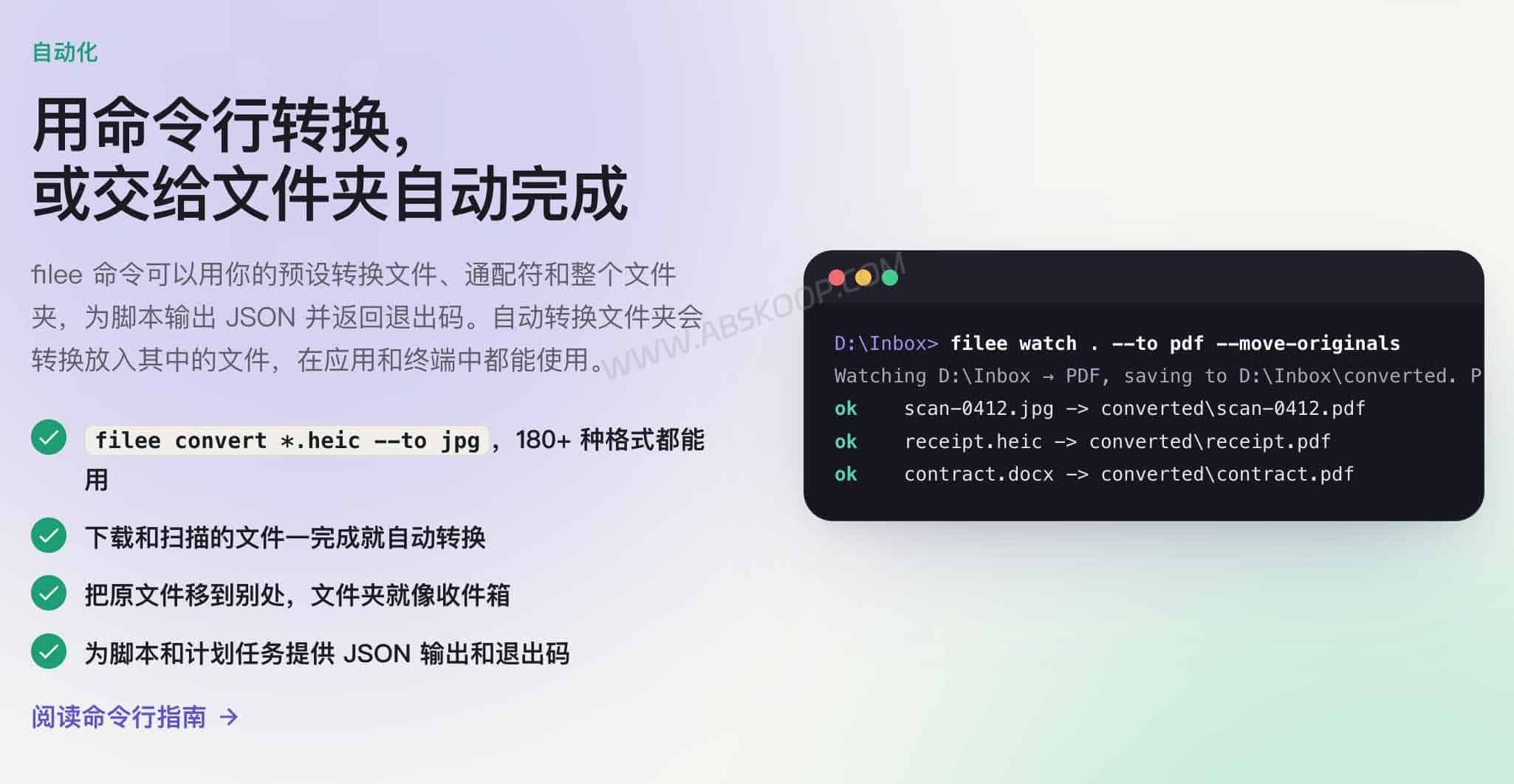
Watch folders can take this a step further. You can point Filee at a folder and have new files converted automatically as they arrive. A download folder could turn new HEIC images into JPGs, for example, or a scan folder could generate PDFs automatically.
There is also a command-line interface:
filee convert photo.heic --to jpgBatch-convert PNG files to WebP:
filee convert *.png --to webp --quality 80 -o convertedOr watch a folder from the terminal:
filee watch D:\Inbox --to pdf --move-originalsThe CLI can return JSON and exit codes, which makes it easier to use Filee in scripts, scheduled jobs or other local automation.
Filee supports 180 formats, but some need extra engines
Filee currently lists 180 supported formats. Of those, 111 work after installation without downloading one of the larger optional engines.
For common jobs, that covers a lot of ground: HEIC to JPG, DOCX to PDF, PDF to images, EPUB to PDF and many image, archive and font conversions.
Other jobs depend on external engines that Filee can install and manage for you.
FFmpeg handles video, audio and some HEIC output. LibreOffice is used for older or less common office formats such as DOC, PPT and ODT. Calibre fills in some of the less common e-book formats. Pandoc is used for formats such as LaTeX and reStructuredText, as well as conversions like Word to Markdown.
You do not have to install every engine up front. If you mostly work with images, PDFs and current Office formats, you may never need several of them.
What can you convert, and where are the limits?
The important question is not just whether a format appears in a compatibility list. Some conversions are straightforward, while documents and PDFs can lose layout information when moving between very different file formats.
HEIC to JPG, DOCX to PDF and other common jobs
HEIC to JPG is a normal image conversion in Filee.
DOCX to PDF is also supported without Microsoft Office. The result still depends on the source document, so files with unusual fonts, text boxes or complicated layouts are worth checking after conversion.
PDF to DOCX is supported as well, but this is a harder conversion by nature. A PDF is designed to preserve a finished page, not the original document structure, so a complicated PDF should not be expected to come back as a perfect editable Word file.
MOV to MP4 uses FFmpeg. If a compatible FFmpeg installation is already available on the computer, Filee can use it instead of downloading another copy.
EPUB to PDF is also supported. Some less common e-book formats or output formats such as MOBI and AZW3 may involve Calibre.
You do not need Microsoft Office for common Office conversions
One useful difference between Filee and many media-focused converters is its document support.
DOCX, XLSX, XLS, CSV and PPTX can be handled by built-in conversion routes without requiring Microsoft Office.
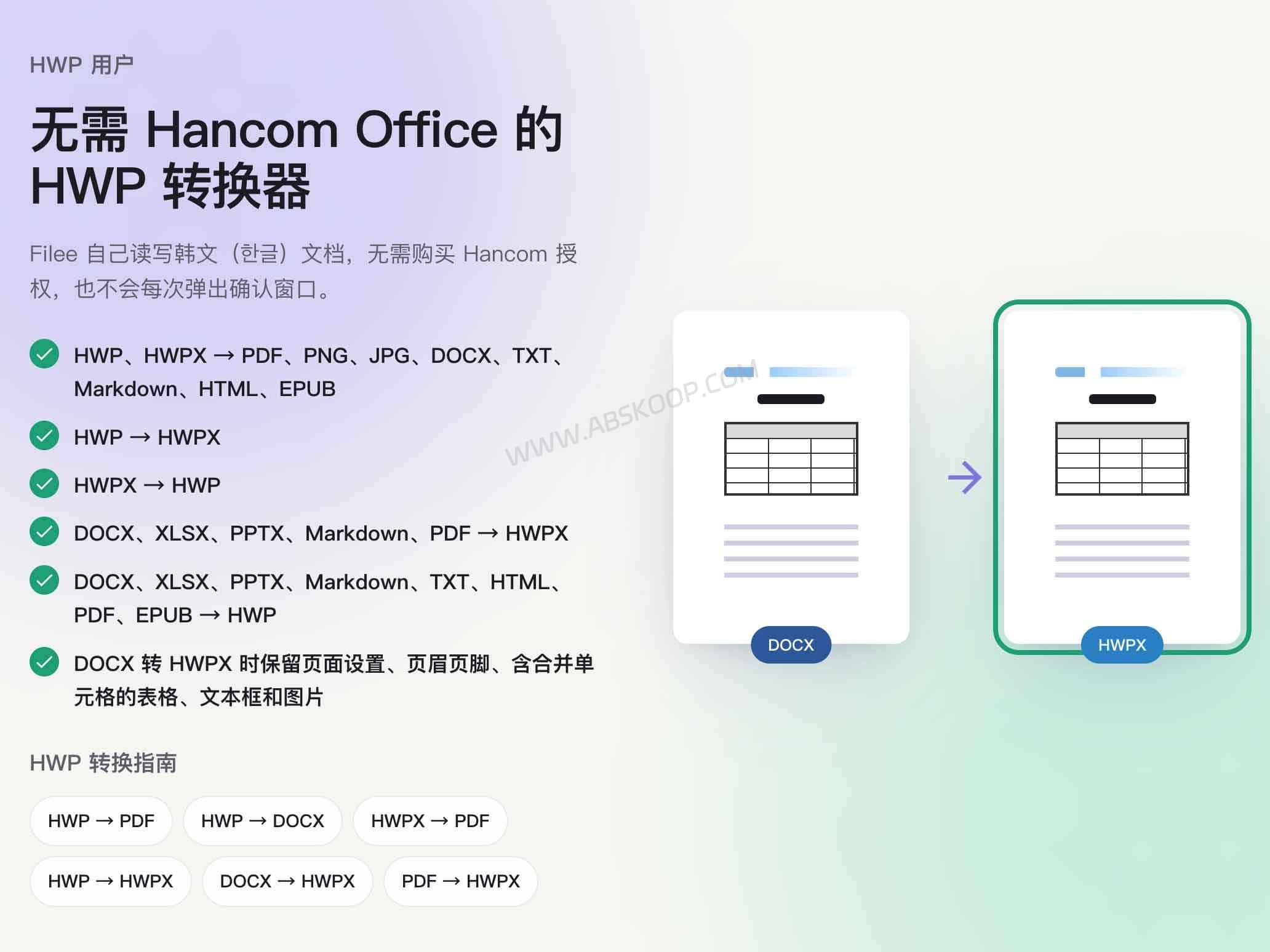
Filee also supports Korean HWP and HWPX files without requiring Hancom Office. That is a fairly niche feature for most English-speaking users, but it is useful if you regularly exchange documents with Korean companies, clients or colleagues.
Older formats are a different story. DOC, PPT, ODT, Keynote and Numbers files may require LibreOffice depending on the conversion path.
So “no Office required” does not mean every office format is handled entirely by Filee’s built-in components.
Complex documents may not come back exactly the same
A supported conversion does not automatically mean every layout detail survives.
Complex tables, charts, special fonts and heavily designed presentations are the kinds of files that deserve an extra check after conversion.
PDF to Word has another limitation: OCR.
Filee can extract text that already exists inside a normal text-based PDF. A scanned contract, receipt or book page is different because the page may contain only an image. A regular PDF-to-DOCX conversion does not turn Filee into a full OCR tool.
For important documents, test one or two real files before building the converter into a regular workflow.
Windows is stable; macOS and Linux are still preview builds
Windows 10 and 11 currently have the most complete Filee experience, including an installer and a portable ZIP.
macOS requires version 14 or newer and has builds for both Apple Silicon and Intel Macs. The current macOS build is not notarized, so the first launch may require allowing it manually under Privacy & Security. The Option-drag gesture also needs Accessibility permission.
Linux builds are available for x64 and ARM64. The global drag gesture depends on X11. Under Wayland, you can still use the drop zone and file-manager context menus, but the global gesture does not work the same way.
These are not deal-breakers, but they matter if macOS or Linux is your main system and you expect the same polish as the Windows version.
When Filee is a better fit
Filee makes the most sense if file conversion is something you do regularly rather than once or twice a year.
It is particularly useful when you want to keep work files local, convert batches instead of one file at a time, or automate repetitive conversions with presets, watch folders or the CLI.
If you only need to convert a random image every few months, a browser tool is probably easier.
It is also worth being cautious if you rely heavily on complex Office layouts or scanned PDFs. Filee can convert them, but the format name alone does not guarantee perfect layout recovery or OCR.
The real appeal of Filee is not the “180 formats” number by itself. It is having image, document, PDF, media and e-book conversion in one local tool without having to upload each file to a website.
Frequently asked questions
Is Filee free?
Yes. Filee is free and open source under the MIT License. The optional third-party conversion engines keep their own licenses, so organizations redistributing or deploying them at scale should review those separately.
Does Filee upload my files?
According to the project documentation, conversions run locally and the files being converted are not uploaded to a third-party conversion server. Filee may still use the internet for updates or to download optional engines.
Does Filee work on macOS and Linux?
Yes, but both are currently preview builds. Windows 10 and 11 are the main stable platforms.
Can Filee convert PDF to Word?
Yes, Filee can convert PDF to DOCX. Layout recovery depends on the source PDF, and scanned PDFs may require OCR that a normal PDF-to-DOCX conversion does not provide.
Official links:
Filee official site ·
Filee GitHub repository ·
Filee supported formats ·
Filee conversion engines


Comments (0)