



If you keep website files or static assets in Amazon S3 and serve them through CloudFront, uploading the files is usually the easy part. The annoying work comes after: checking Cache-Control and Content-Type, fixing a bad header, or jumping back into CloudFront because an old file is still cached.
Hoistbay is a free, open-source Amazon S3 client for macOS and Windows that puts those jobs in one desktop app. It handles everyday S3 file management, per-bucket header rules, metadata edits, and CloudFront invalidation. The project is released under the MIT License.
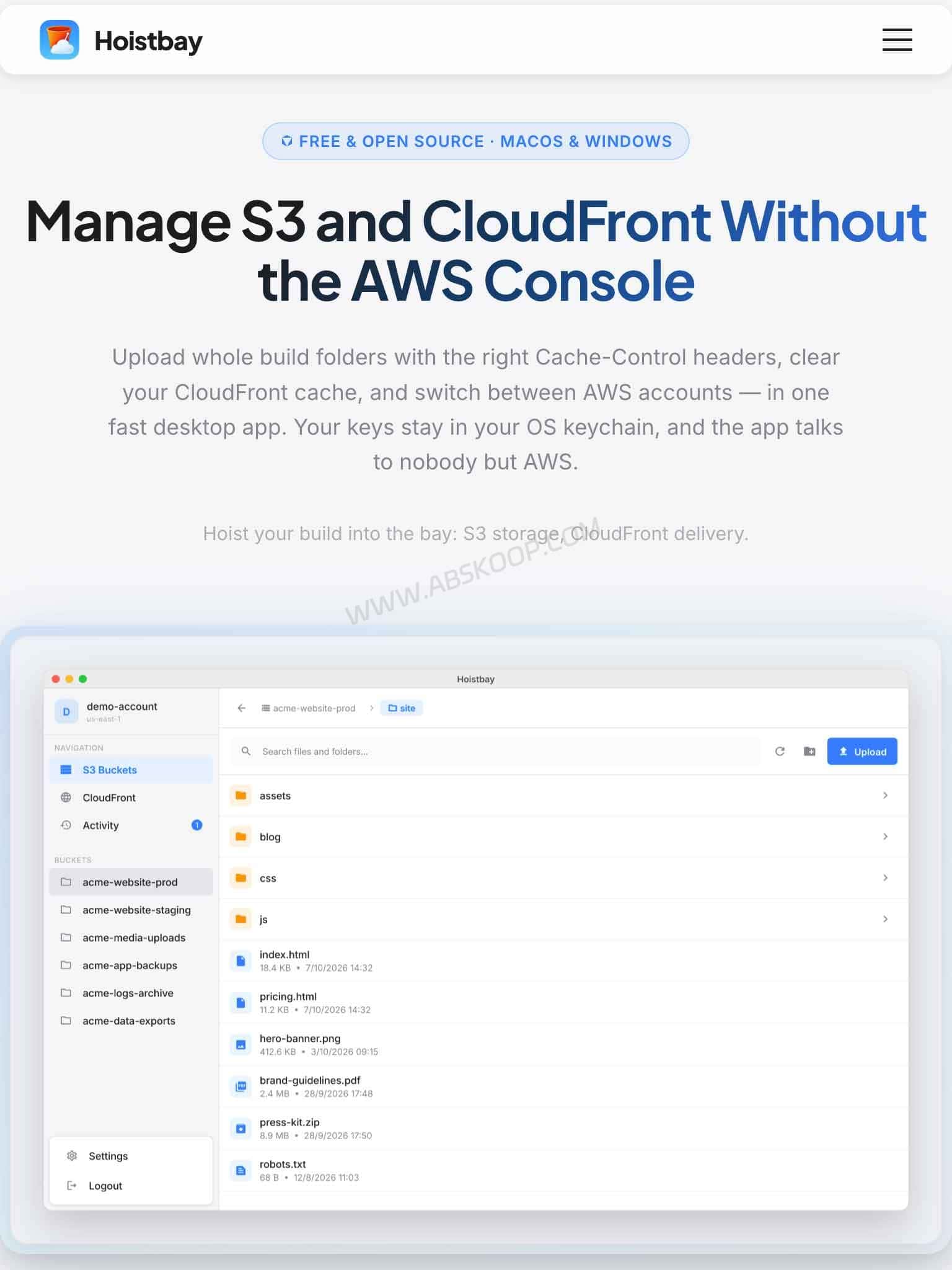
An Amazon S3 client built around deployment chores
Hoistbay’s maker explained on Product Hunt that the app grew out of a few repetitive S3 and CloudFront jobs: fixing Cache-Control, Content-Type, and Content-Encoding after uploads, downloading whole folders, and clearing CloudFront after a deployment.
Hoistbay brings those jobs together. You can upload folders with header rules applied automatically, manage objects without going back to the AWS Console, and create a CloudFront invalidation when updated files need to be pushed through the CDN.
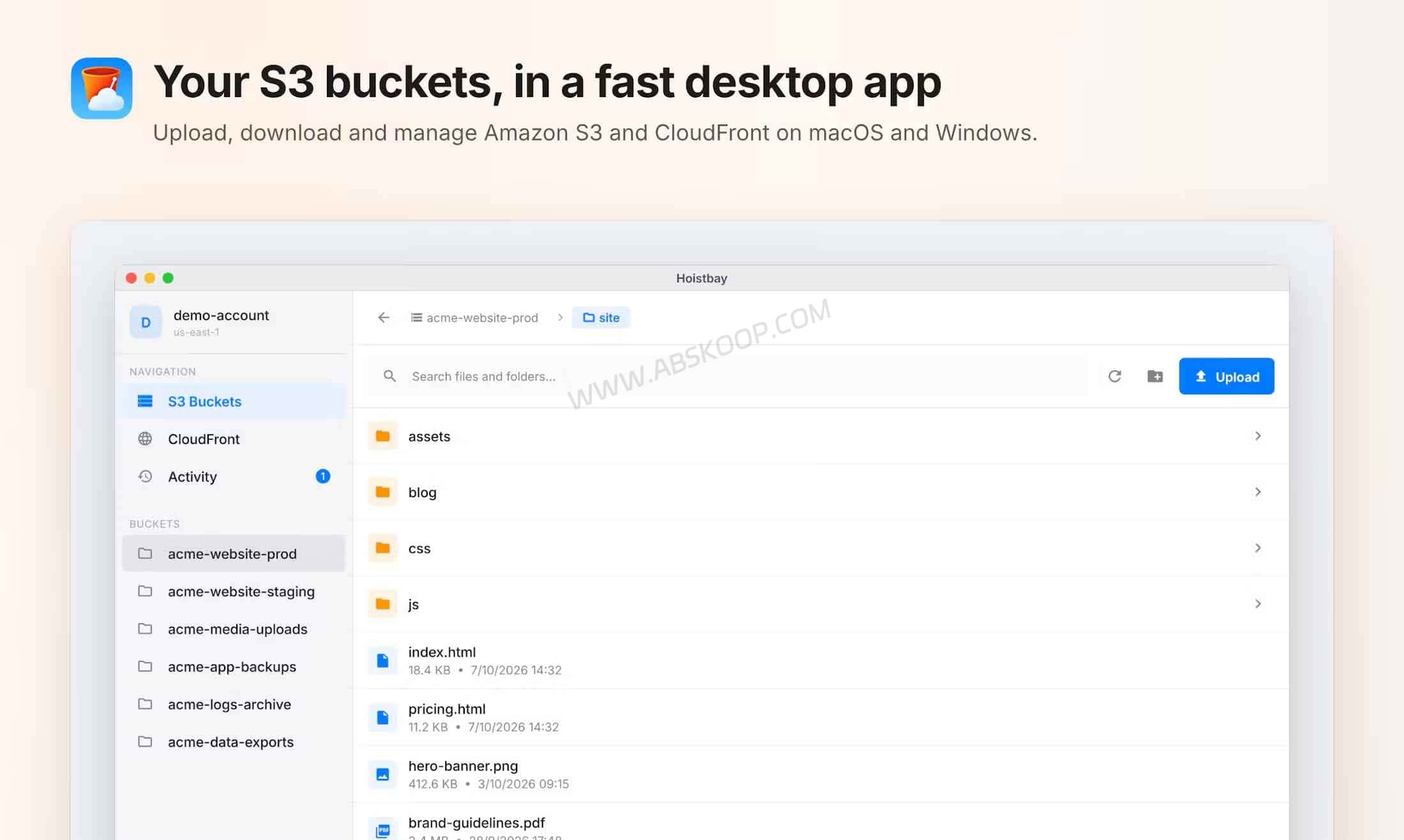
A typical workflow looks like this:
Upload site files → apply headers automatically → inspect objects → invalidate CloudFront when needed
That fits static sites, frontend projects, Unity WebGL builds, fonts, and other assets that already live behind S3 and CloudFront. If your deployment is fully automated through CI/CD, the desktop workflow is much less useful.
Header rules, CloudFront invalidation, and everyday file management
Apply Cache-Control and Content-Type rules during upload
Hoistbay lets you create Header Rules for individual buckets and match them by filename pattern.
For example, *.js and *.css files can receive a long Cache-Control value, while *.html can use no-cache. Rules can also set headers such as Content-Type and Content-Encoding for compressed assets like *.wasm.gz.
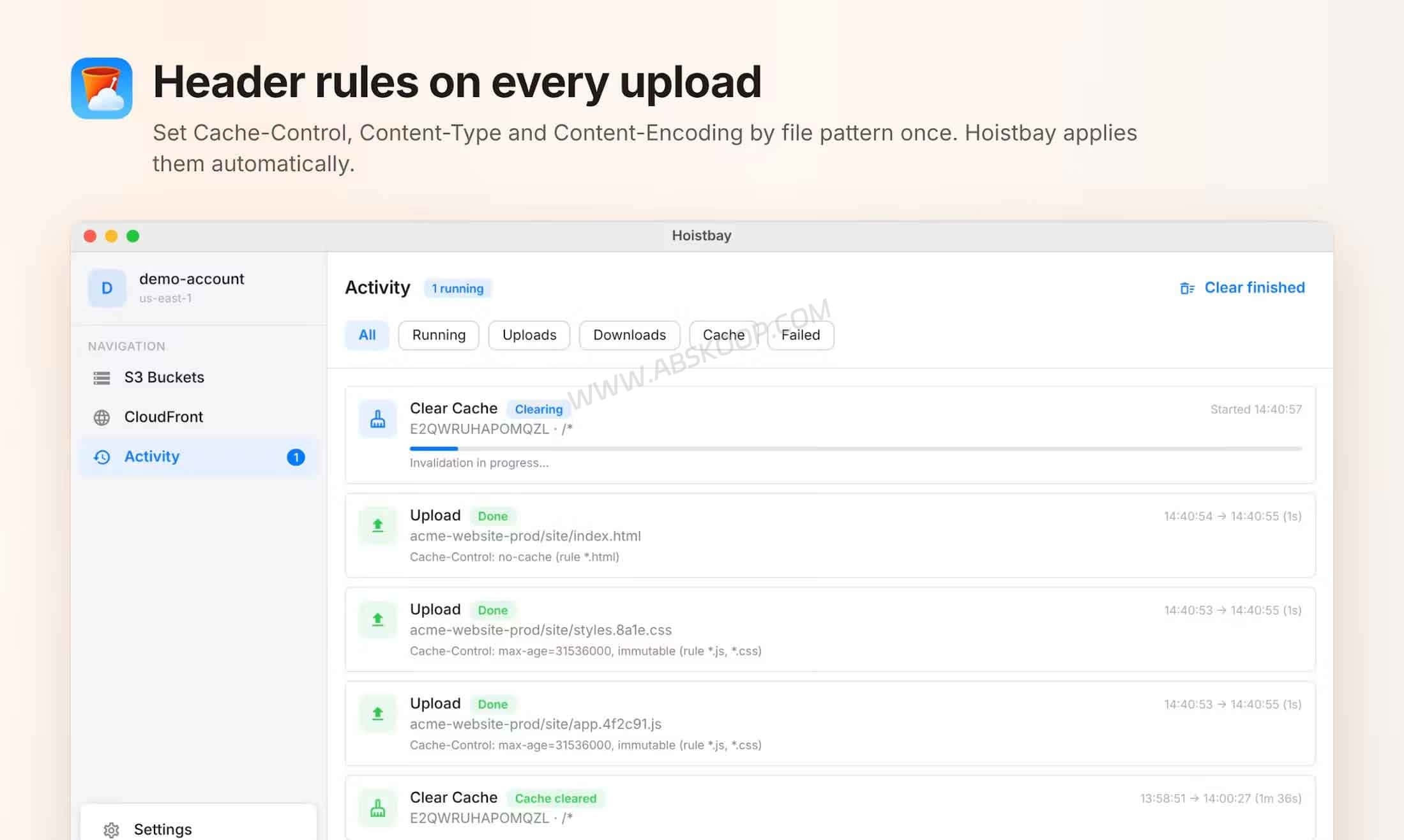
Once the rule is saved, matching files get the headers on upload instead of making you edit object properties every time.
This is especially useful for static sites. Hashed JavaScript and CSS files can usually be cached for much longer, while HTML often needs to refresh sooner. A wrong Content-Encoding or Content-Type on a compressed asset can also stop a browser from handling the file correctly.
Hoistbay applies the rules you give it; it does not decide the right caching policy for your site.
Create a CloudFront invalidation without opening the AWS Console
Replacing an object in S3 does not necessarily remove the older copy already sitting at a CloudFront edge location.
Hoistbay shows CloudFront distributions inside the app and can create an invalidation for /* or specific paths. It also tracks the request until the cache clear finishes.
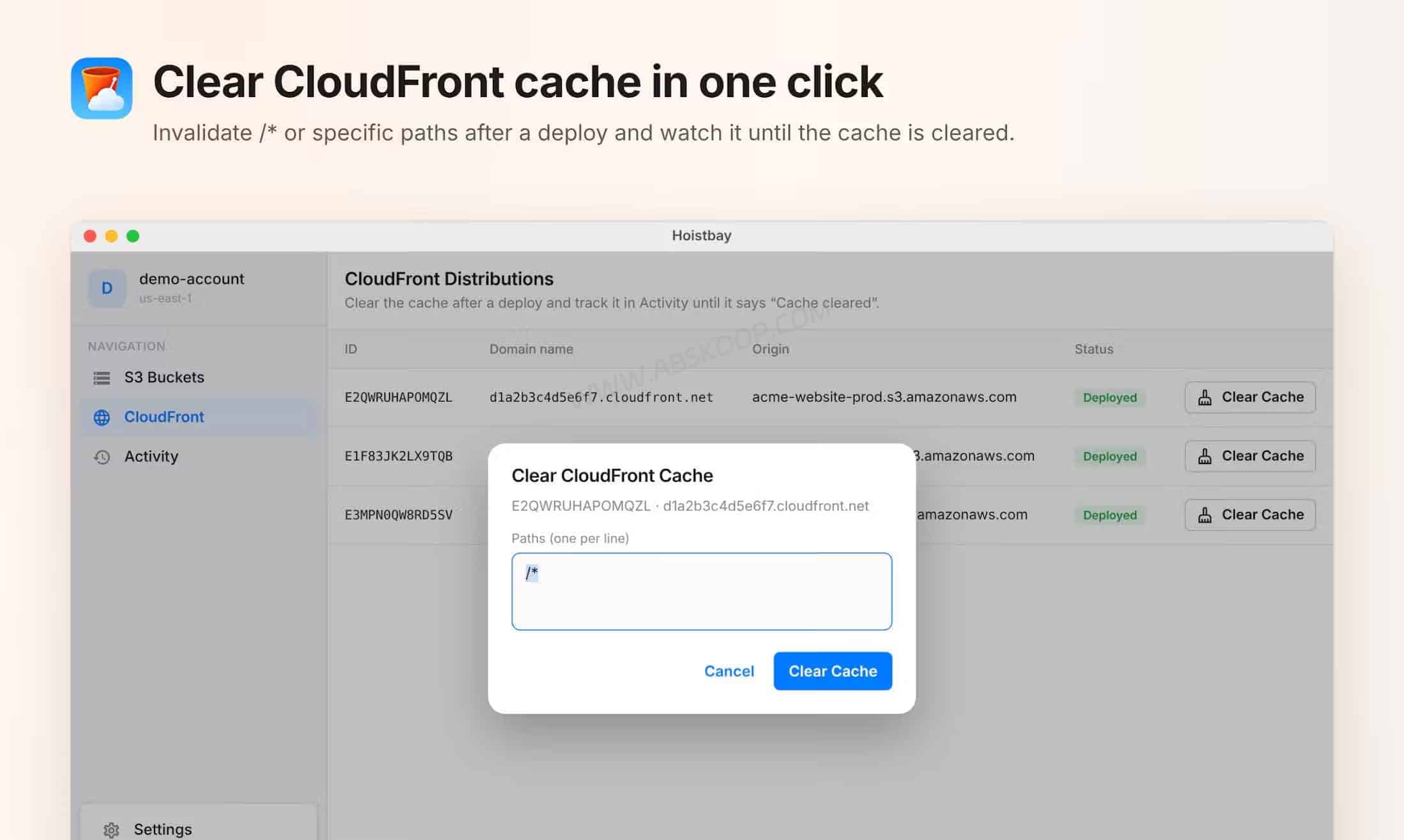
AWS currently includes the first 1,000 invalidation paths per account each month at no charge. A wildcard such as /* counts as one path even if it matches many files.
That does not mean every deployment should end with /*. Versioned or content-hashed filenames are usually a better fit for frequently changing static assets. Hoistbay is most useful when you genuinely need a manual invalidation and want it next to the S3 work you were already doing.
Upload whole folders, switch accounts, and edit metadata
Hoistbay accepts individual files or multiple folders and keeps the folder structure during upload. Whole folders can also be downloaded instead of pulling objects one by one.
Rename, move, delete, and copy operations are supported, including copies across buckets and AWS regions. Large listings are paginated rather than stopping at the first 1,000 objects.
You can save multiple AWS account profiles, switch between regions, use a Session Token for temporary credentials, and let the app detect a bucket’s region automatically.
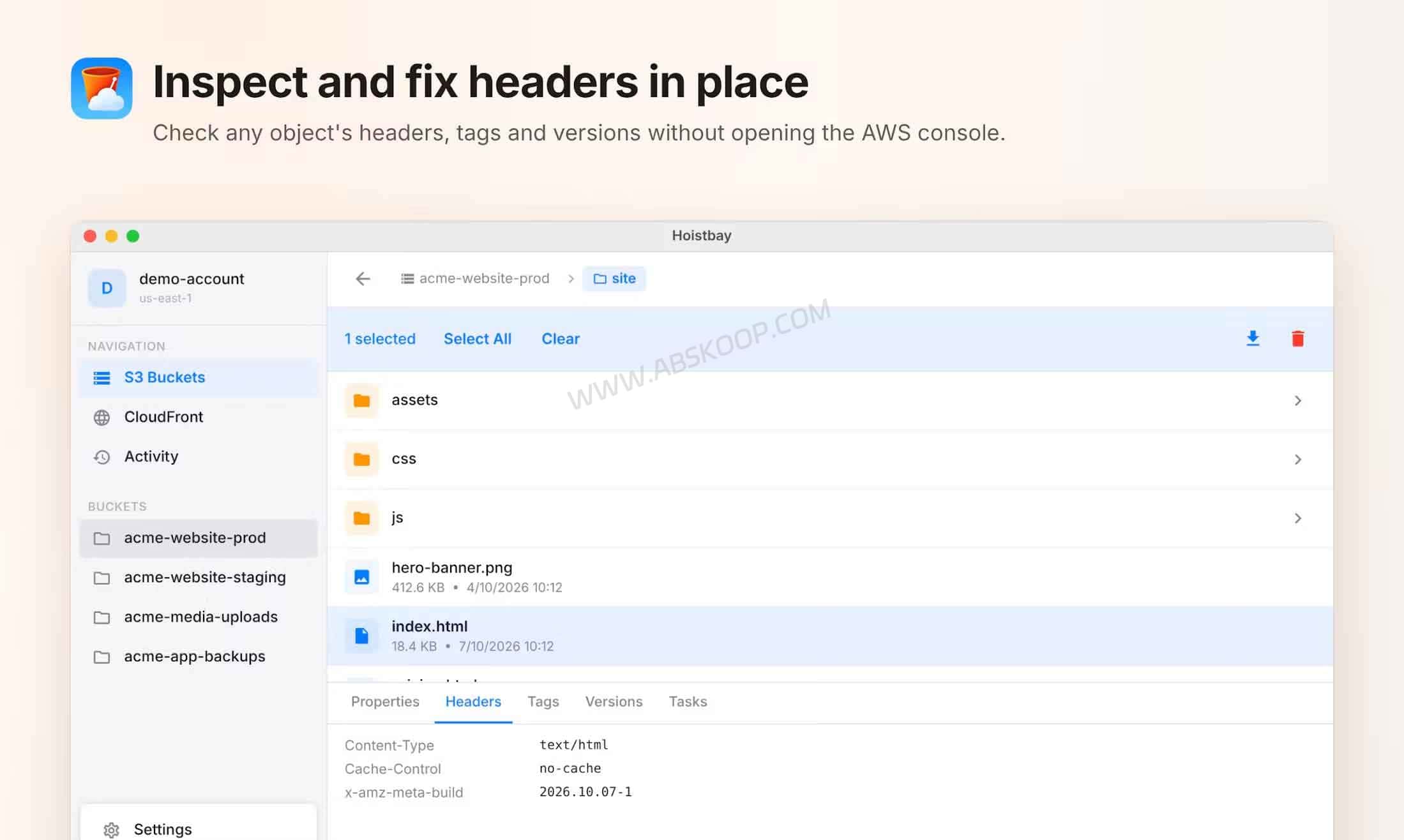
The Object Inspector exposes properties, HTTP headers, tags, versions, and x-amz-meta-* metadata. If something such as Content-Type is wrong, some metadata can be fixed in place instead of uploading the file again.
How Hoistbay compares with other S3 clients
There is no shortage of S3 GUI tools. The better choice depends on whether you want a general-purpose storage client, a mounted drive, a Windows-heavy management tool, or something focused on S3 and CloudFront deployment work.
| Tool | Best suited for | How it differs from Hoistbay |
|---|---|---|
| Hoistbay | Amazon S3 + CloudFront day-to-day work | Combines S3 file management, header rules, and CloudFront invalidation |
| CS Browser (formerly S3 Browser) | More advanced S3 management on Windows | Broader feature set, including S3-compatible storage, CloudFront management, and folder sync |
| Cyberduck | Managing several storage services and protocols | Supports S3 alongside FTP, SFTP, WebDAV, and other services |
| Brows3 | S3 and S3-compatible object storage | Works with services such as Amazon S3, MinIO, Cloudflare R2, and Wasabi |
| AWS Console | Full AWS configuration and administration | Much broader control, but heavier for quick file changes and cache clears |
| AWS CLI / CI | Automation and frequent deployments | Better for scripts and pipelines; a desktop GUI adds less once the workflow is automated |
Hoistbay is narrower than CS Browser or the AWS Console. Its appeal is that S3 file changes, upload headers, and CloudFront invalidation sit in the same workflow instead of being spread across several tools.
What IAM permissions does Hoistbay need?
Hoistbay needs AWS credentials to access your buckets, so the permissions you give it matter more than the interface.
The project provides a least-privilege reference rather than asking for AdministratorAccess.
| Task | Main IAM permissions |
|---|---|
| Browse buckets and objects | s3:ListAllMyBucketss3:GetBucketLocations3:ListBuckets3:GetObject |
| Upload files | s3:PutObject |
| Delete files | s3:DeleteObject |
| CloudFront invalidation | cloudfront:ListDistributionscloudfront:CreateInvalidationcloudfront:GetInvalidation |
For regular use, a dedicated IAM credential with access limited to the buckets and actions you actually need makes more sense than handing a desktop client broad account permissions.
If you only need to browse files, there is no reason to grant DeleteObject. If you are trying the app for the first time, a test bucket is also a better place to start than production.
Where are the AWS keys stored?
Hoistbay needs AWS credentials to work with S3. According to the project, those credentials are stored in the operating system’s native secure storage: macOS Keychain on a Mac and Windows Credential Manager on Windows.
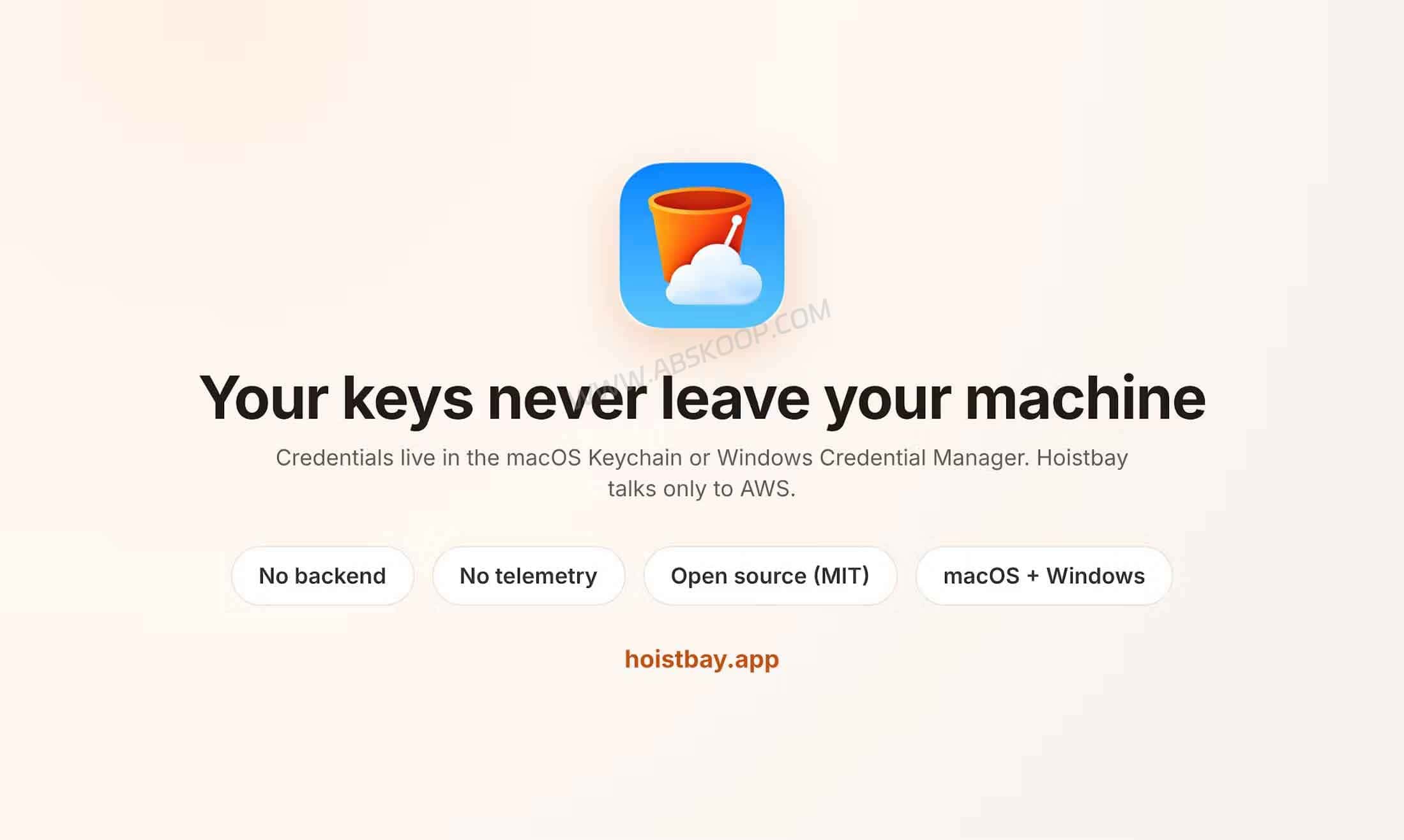
The project also says there is no Hoistbay backend or telemetry and that operations connect directly to AWS endpoints.
That still is not a reason to hand the app an unrestricted AWS account. Hoistbay acts with the credentials you give it, so a separate least-privilege IAM credential is the safer default.
This article has not independently audited every line of Hoistbay’s source code or all of its network traffic. For production use, test the app with limited permissions first.
Multiple accounts work, but AWS SSO support is still unclear
Hoistbay can save multiple AWS account configurations, switch between regions, and use Session Tokens.
What is not documented is automatic importing of local AWS CLI profiles from ~/.aws/credentials or ~/.aws/config. The profiles inside Hoistbay appear to be account configurations stored by the app itself rather than your existing CLI profiles being pulled in automatically.
There is also no clear official documentation for AWS IAM Identity Center / AWS SSO login. If your company relies on SSO for AWS access, check that authentication flow before making Hoistbay part of your normal workflow.
What about Cloudflare R2, MinIO, and Wasabi?
Hoistbay is currently built around Amazon S3 and Amazon CloudFront. Its website and project documentation do not list Cloudflare R2, MinIO, Wasabi, or other S3-compatible storage services as supported targets.
If you use AWS S3, that focus makes sense. If most of your object storage lives on R2, MinIO, or Wasabi, do not assume Hoistbay will work just because those services expose an S3-compatible API.
Brows3, Cyberduck, and CS Browser are better fits when broad S3-compatible storage support is a requirement.
Where Hoistbay still feels early
The current builds are not code-signed. On macOS, Gatekeeper may block the app on first launch, and Windows can show a SmartScreen warning. The macOS build is also not yet notarized by Apple, so opening it may require a manual approval in System Settings.
Linux is still listed as coming soon. Hoistbay is also a young project with limited public issue history and long-term user feedback, so there is not much evidence yet about how it holds up over time.
CloudFront support is focused on invalidation. If you need to change origins, cache behaviors, WAF settings, certificates, or other distribution configuration, you still need the AWS Console or another management tool.
Check GitHub before downloading
As of October 22, 2026, GitHub Releases lists v1.1.1 as the latest release. That version completed the rename from S3 Scout to Hoistbay.
The download section on the Hoistbay website still shows v1.1.0, so GitHub Releases is the better place to check the latest build and changelog.
Who is Hoistbay for?
Hoistbay makes the most sense for developers and site owners who still do some S3 work manually: replacing website files, checking Cache-Control headers, editing metadata, moving objects, and occasionally clearing CloudFront after a deployment.
It is a particularly natural fit if you want an S3 client for Mac or Windows and your storage is already built around Amazon S3 rather than a mix of S3-compatible providers.
If your main storage is Cloudflare R2, MinIO, or Wasabi, another client is likely a better fit. The same applies to companies that depend on IAM Identity Center or teams that already run every upload, header change, and CloudFront invalidation through GitHub Actions, GitLab CI, or another deployment pipeline.
If you want to try Hoistbay in a real AWS account, start with a test bucket and a limited IAM credential. Run through an upload, a header rule, a metadata edit, and a CloudFront invalidation before giving it access to production resources.
Hoistbay FAQ
Is Hoistbay free?
Yes. Hoistbay is free and released under the MIT License. The source code is available in the Hoistbay GitHub repository.
Does Hoistbay work on macOS and Windows?
Yes. It supports macOS 12 and later on both Apple Silicon and Intel Macs, plus Windows 10/11 x64. A Linux version is still listed as coming soon.
Does Hoistbay upload my AWS keys to its own server?
According to the project, no. Credentials are stored in macOS Keychain or Windows Credential Manager, and Hoistbay says it has no backend service or telemetry. This article has not independently audited all network behavior, so production accounts should still use least-privilege IAM credentials.
Does Hoistbay support AWS SSO?
There is no clear official support documented for AWS IAM Identity Center / AWS SSO. Hoistbay does support multiple account profiles and Session Tokens, but those are not the same as an SSO login flow.
Can Hoistbay manage Cloudflare R2 or MinIO?
They are not currently listed as supported services. Hoistbay is explicitly focused on Amazon S3 and CloudFront, so users who need R2, MinIO, Wasabi, or other S3-compatible providers should look at clients that document that support.
Can Hoistbay clear the CloudFront cache?
Yes. You can choose a CloudFront distribution, create an invalidation for /* or specific paths, and follow the request status from inside the app.
What AWS permissions does Hoistbay need?
It depends on what you want to do. Read-only browsing mainly needs ListAllMyBuckets, GetBucketLocation, ListBucket, and GetObject. Uploading and deleting add PutObject and DeleteObject. CloudFront invalidation requires ListDistributions, CreateInvalidation, and GetInvalidation.
Related links:
Hoistbay official website
Hoistbay on GitHub
Hoistbay releases and changelog


Comments (0)