



The Mac menu bar has a bad habit: every useful app wants a seat. On a notched MacBook, those seats can disappear surprisingly fast.
Status Trio is an open-source Mac menu bar app that squeezes three things you probably check all day — Wi-Fi, battery and volume — into a single status icon. You can keep it in the menu bar, move it to the Dock, or show it in both places.
The idea is inspired by iPhone Duo, which combines Wi-Fi, cellular data and battery into one compact status glyph. Status Trio adapts that idea for the Mac by replacing cellular data with volume. It is an independent project and is not affiliated with Apple.
It is also a different kind of tool from Bartender or Ice, which organize other menu bar icons, and from iStat Menus, which focuses on system monitoring. Status Trio has a much narrower job: make the everyday Mac status indicators take up less room without hiding them completely.

What does Status Trio actually do?
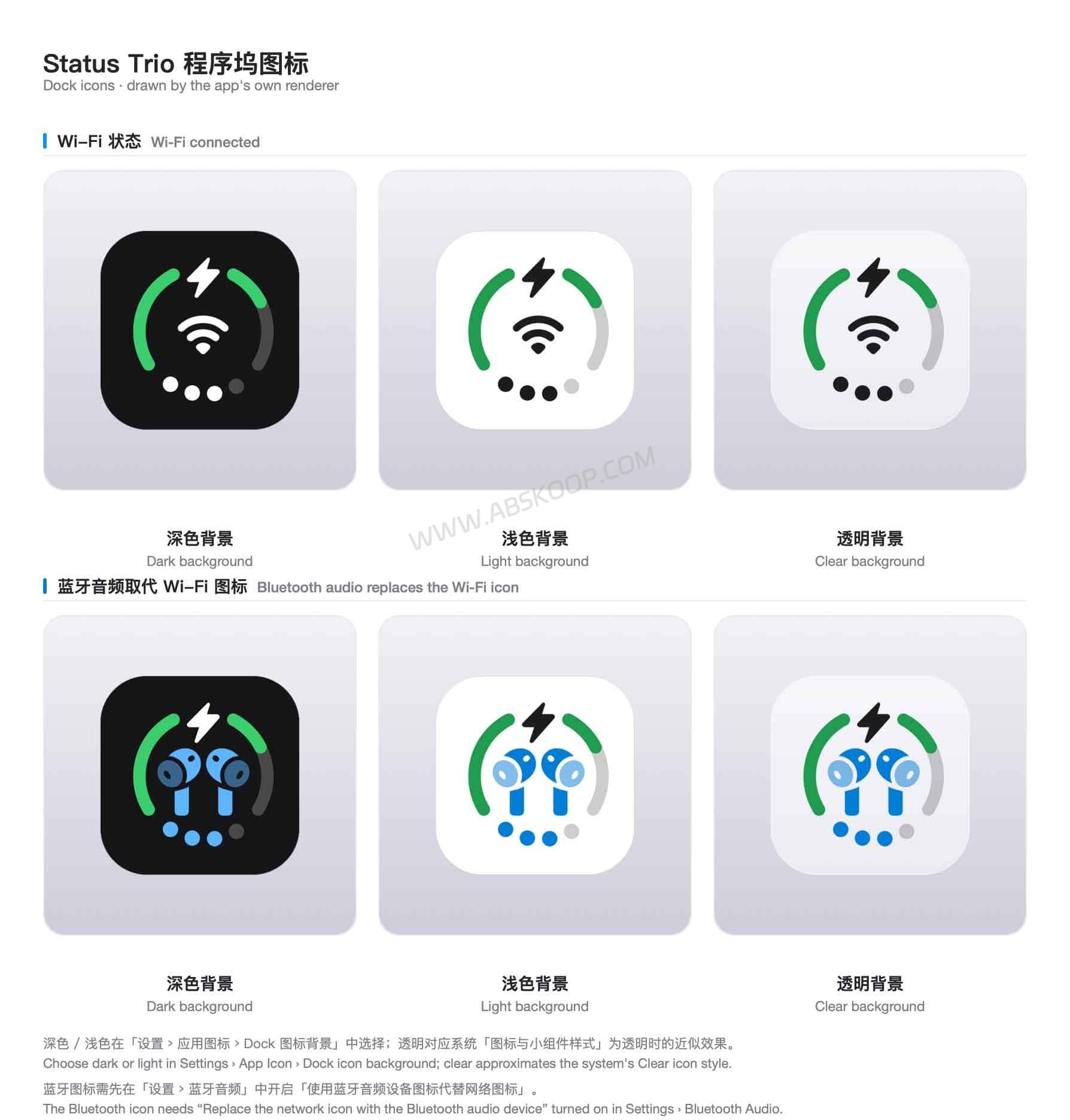
The combined icon is split into three areas. Battery sits at the top, Wi-Fi, Ethernet or a Bluetooth audio device takes the middle, and volume is represented by dots or an arc at the bottom.
At a glance, you get the basics without giving three separate icons permanent space in the menu bar. Click it and the popover opens up the details.
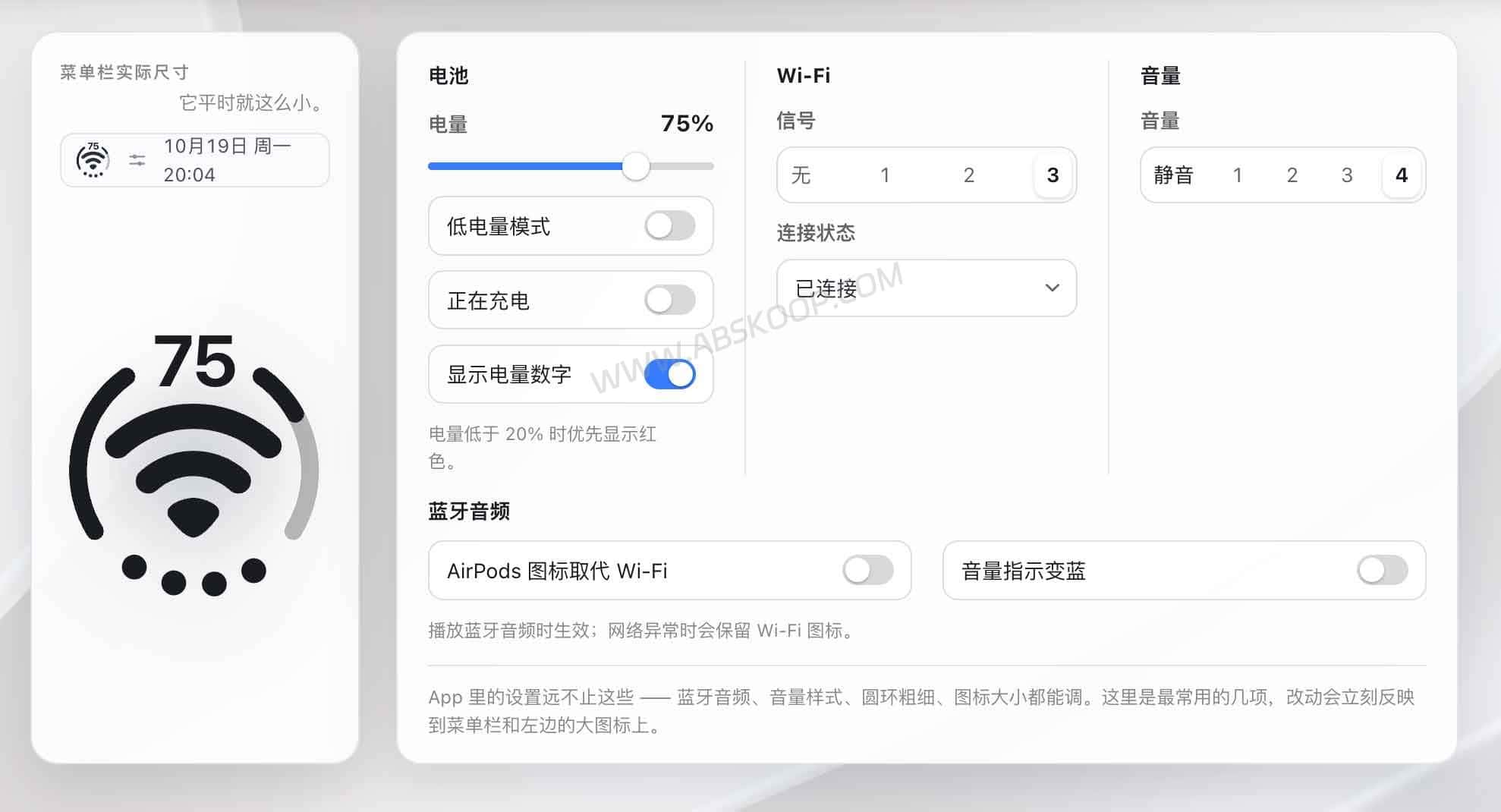
The source code and development activity are available on GitHub. There is also an interactive Status Trio demo where you can preview different icon states in a browser.
| Current release | v1.6.0, checked October 19, 2026 |
| Platform | macOS |
| Architecture | Apple Silicon + Intel Universal build |
| macOS target | macOS 13; Ventura runtime validation is still pending |
| Where it can appear | Menu bar / Dock / both |
| License | Apache License 2.0 |
| Telemetry | Optional and off by default |
How the three-part status icon works
Battery
The top of the icon handles battery status. It can show remaining charge, charging, plugged-in-but-not-charging states, low battery and Low Power Mode.
Open Battery Details and Status Trio goes a little deeper, with adapter wattage, voltage, current and cycle count. It can also toggle Low Power Mode directly. The first time you use that control, macOS asks you to approve its helper under Login Items and Extensions.
The battery ring has one nice detail for people who use a charge limit: you can choose what percentage counts as a “full” ring, anywhere from 50% to 100%. If your Mac normally stops at 80%, the icon no longer has to look permanently unfinished.

Wi-Fi and network status
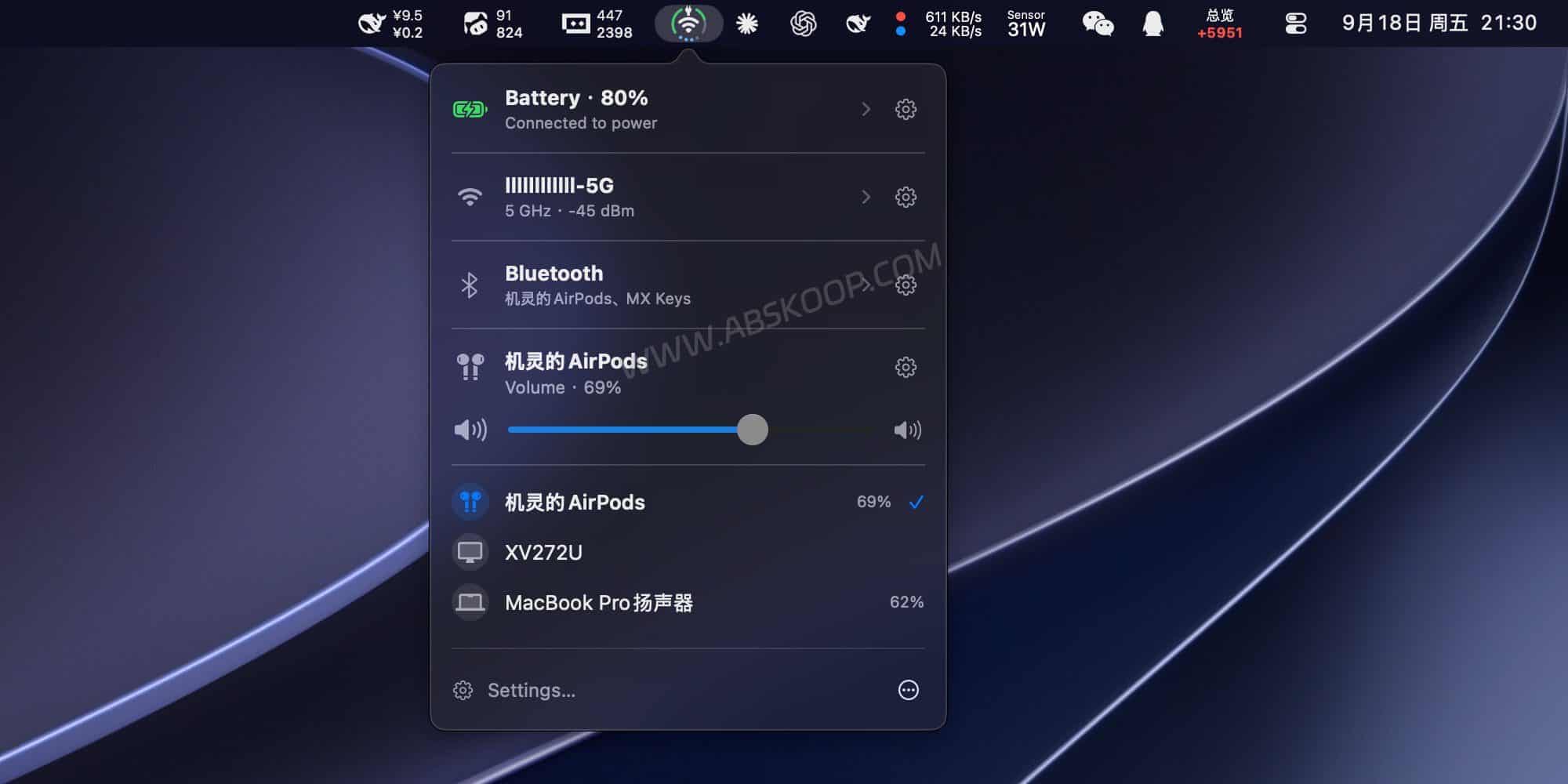
The middle section normally shows the current network state, including Wi-Fi signal strength, Ethernet and hotspot-related states.
Open the network panel and you can see the current network name, nearby networks and connection details. Status Trio can also show the Mac’s local IP address, which is handy if you regularly jump into a NAS, Home Assistant instance or local development server.
There is an Internet Sharing shortcut too, but it only opens the relevant macOS Settings page. Status Trio does not switch Internet Sharing on or off by itself.
One important limitation: Status Trio does not currently join another saved Wi-Fi network directly. Selecting a different network hands the job over to macOS Wi-Fi Settings. It also does not read saved Wi-Fi passwords from Keychain to automate the process.
Volume and audio output
The bottom part of the icon shows volume using either dots or an arc, including the muted state.
Inside the popover you can adjust volume and see the current audio output device. Mouse-wheel and trackpad scrolling can also control volume, and the scroll direction is configurable.
It does more than Wi-Fi, battery and volume
AirPods and Bluetooth devices
Status Trio has grown beyond the original three-status idea. Enable the Bluetooth panel and it can show paired devices, their connection state and, where macOS exposes the data, battery information.
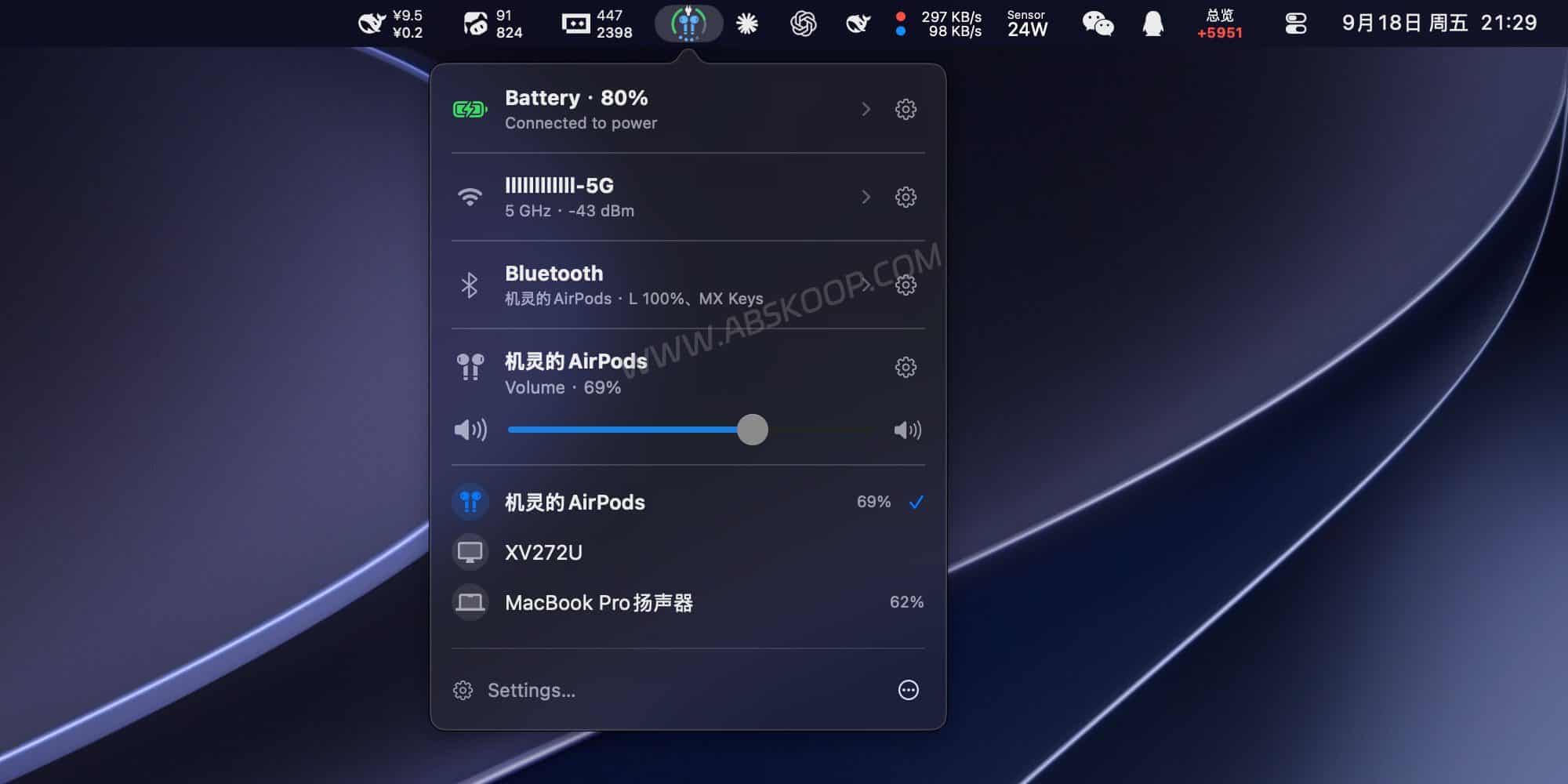
With AirPods, that can include the left earbud, right earbud and case battery. When Bluetooth audio is playing, the device’s own symbol can replace the network glyph in the middle of the Status Trio icon, while the volume indicator turns blue.
The Bluetooth panel is optional and stays out of the way until you enable it. macOS will ask for Bluetooth permission when the feature is first used.
The same live icon can sit in the Dock
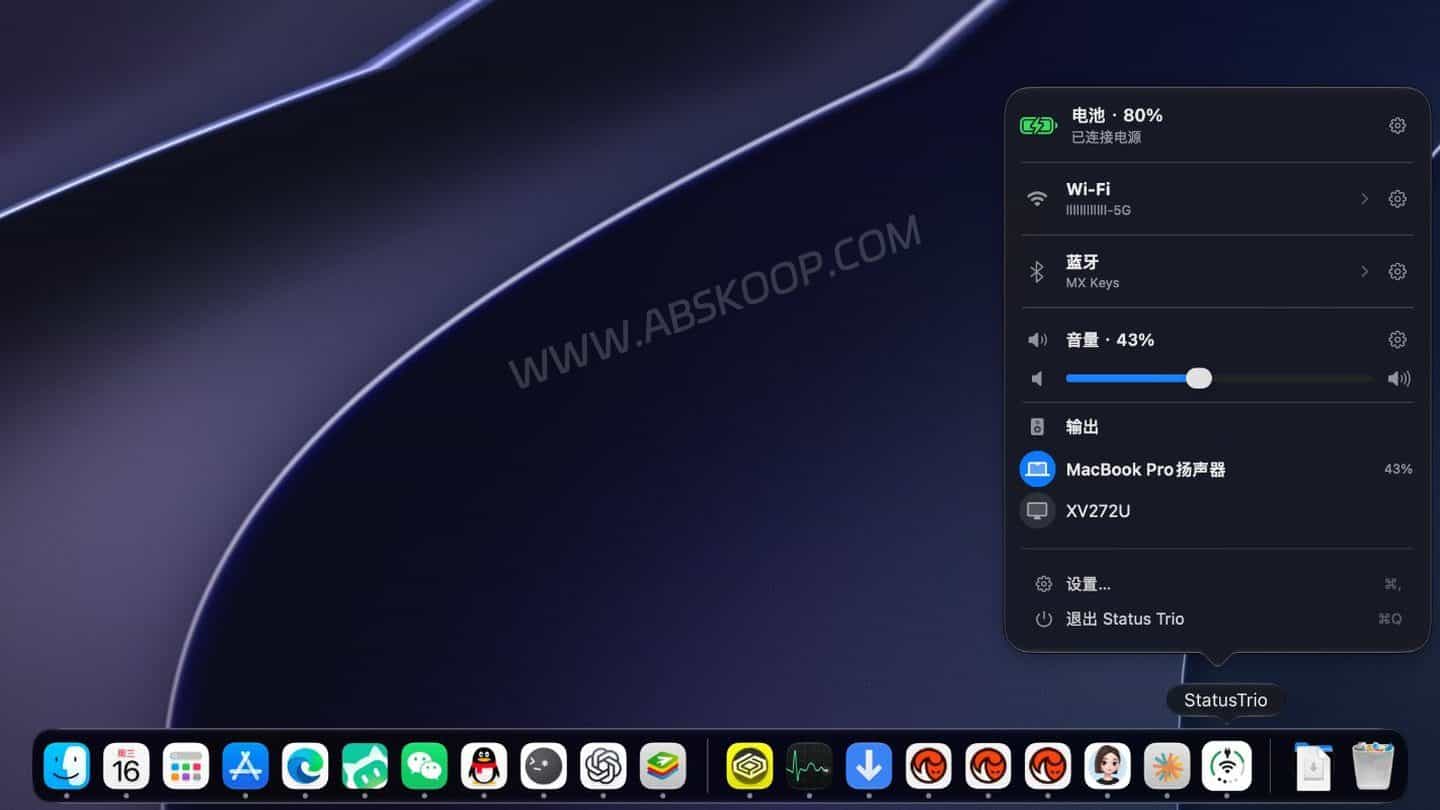
If adding even one more menu bar icon feels like missing the point, Status Trio can live only in the Dock. You can choose menu bar only, Dock only, or both.
The Dock version is not a static app icon. It changes with battery, network, volume and Bluetooth states in real time, and its background can follow the system appearance or stay fixed to a light or dark style.
This is one of the clearer differences between Status Trio and DuoBar.
There is plenty to tweak
You can change the icon size, symbol scale, battery ring thickness, status colors and volume style, as well as decide which sections appear in the popover. Battery, network, Bluetooth and volume sections can also be reordered.
The interface includes Simplified Chinese, Traditional Chinese, English, Japanese, Korean, German, French, Spanish, Italian, Portuguese, Russian and Arabic.
What’s new in Status Trio v1.6.0?
As of October 19, 2026, Status Trio v1.6.0 is the latest stable release. You can check the Status Trio Releases page for anything newer.
The release adds a few features that are genuinely useful in day-to-day use rather than just padding out a changelog: direct Low Power Mode control, a configurable battery-ring “full” level, and an option to show the Mac’s local IP address.
It also adds a shortcut to Internet Sharing settings and fixes intermittent Wi-Fi signal readings and icon alignment issues.
Installation and macOS support
Installing Status Trio
Most people do not need to build it from source. Download the latest DMG from GitHub Releases, open it and copy Status Trio.app to Applications.
There is one catch. The current public build is ad-hoc signed and not notarized by Apple. That means Gatekeeper may warn that macOS cannot verify the developer or confirm that the app is safe to open.
Make sure the DMG came from the project’s official GitHub Releases page, and check the published SHA-256 when needed. After trying to open the app once, you can use the “Open Anyway” option under System Settings → Privacy & Security.
The project also documents this command-line route:
xattr -dr com.apple.quarantine "/Applications/Status Trio.app"
open "/Applications/Status Trio.app"
There is no reason to disable Gatekeeper globally just to install one app. Future in-app updates use Sparkle and a signed update feed.
On a company-managed Mac, MDM or security policy may block manually approved, non-notarized apps. In that situation, the company policy wins; this is not something worth trying to work around.
Does Status Trio work on macOS 13?
Status Trio currently targets macOS 13, and the same Universal version works on both Apple Silicon and Intel Macs.
If you are still on macOS Ventura, there is one caveat: Ventura runtime validation is not yet complete. In other words, macOS 13 meets the app’s minimum version requirement, but that is not quite the same thing as saying every feature has been fully validated on Ventura.
If Ventura is still your daily driver, it is worth checking the latest Releases and Issues before installing.
Privacy, telemetry and permissions
Does Status Trio send usage data?
Status Trio includes optional usage telemetry, and it is off by default. New installs ask during onboarding, while upgrading an existing copy does not silently switch it on.
If you opt in, Status Trio can send basic runtime information such as a randomly generated installation ID, the app and macOS versions, CPU architecture, system and app language, and whether the icon is shown in the menu bar, Dock or both.
The telemetry payload does not include your name, email address, account information, Wi-Fi network name, Bluetooth device details, precise location or hardware identifiers.
Successful telemetry sends are spaced at least 20 hours apart, so normal use works out to roughly one heartbeat per day. Turning telemetry off stops future sends, but does not automatically erase data that has already reached the server.
If you want to dig into the exact fields and retention rules, the project publishes a full Privacy & Telemetry page.
Why does it ask for Location and Bluetooth access?
Location access is tied to the way macOS protects Wi-Fi information such as the current SSID. Denying it does not break the basic network indicator, but some network names or details may be unavailable.
Bluetooth access is used by the optional Bluetooth panel to show paired devices and their connection state.
Low Power Mode control uses a separate helper that requires one-time approval in macOS. Status Trio does not request Keychain access to pull saved Wi-Fi passwords for automatic network switching.
Where Status Trio still stops short
Status Trio has picked up quite a few controls, but it is still a status utility rather than a replacement for macOS Settings.
Wi-Fi switching is still handed off to macOS. You can see nearby networks and the current connection, but choosing another saved Wi-Fi network opens the system Wi-Fi settings instead of connecting directly.
It cannot force a battery past a charging limit. If macOS pauses charging because of Optimized Battery Charging or a charge limit, Status Trio can show the state but does not write to the SMC to override it.
Bluetooth battery data depends on what macOS exposes. AirPods can provide fairly detailed battery information, but other accessories may show less — or nothing at all.
Multi-display and Space transitions have a few visual edge cases. Colored status elements may not always retint as quickly as Apple’s monochrome template icons while dragging between Spaces or using an inactive display’s menu bar.
The project keeps a separate Known Limitations page if any of these details matter to your setup.
Status Trio vs DuoBar: which one fits better?
Status Trio and DuoBar start from a very similar idea: take the iPhone Duo-style combined status glyph and turn Wi-Fi, battery and volume into something much more compact on a Mac.
The more useful differences show up in installation, Wi-Fi control, Bluetooth support, the Dock and telemetry.
| Feature | Status Trio | DuoBar |
|---|---|---|
| macOS requirement | macOS 13 target; Ventura validation pending | macOS 13+ |
| Architecture | Apple Silicon + Intel | Apple Silicon + Intel |
| Apple notarization | Current public build is not notarized | v1.3.1 is Developer ID signed and Apple-notarized |
| Join Wi-Fi directly | Hands off to macOS Settings | Can join open and some personal secured networks directly |
| Bluetooth devices | Shows paired devices and supports some connect/disconnect actions | No general Bluetooth pairing or connection management |
| Accessory battery | Can show battery data for some Bluetooth devices and AirPods | Not currently implemented |
| Live Dock icon | Yes | No |
| Desktop Mac behavior | Keeps the same network / battery / volume status model | Adaptive Ring can surface CPU, memory and thermal pressure |
| Telemetry | Optional, off by default | Project states no analytics, tracking, telemetry or backend |
| License | Apache-2.0 | MIT |
Pick Status Trio if you want more device detail
Status Trio makes more sense if the live Dock icon, Bluetooth device panel, AirPods battery levels or deeper battery information sound useful to you.
It is especially appealing if AirPods or Bluetooth headphones are part of your normal Mac setup and you like the idea of keeping network, power and device status in one small popover.

Pick DuoBar if you want the easier install
DuoBar has the cleaner path if you care more about an Apple-notarized install and do not want to deal with a Gatekeeper exception. It also explicitly avoids telemetry.
DuoBar v1.3.1 can browse nearby Wi-Fi networks and use public CoreWLAN APIs to join open networks and some personal secured networks directly.
On a Mac mini, Mac Studio or iMac, its Adaptive Ring can also surface CPU, memory or thermal pressure when relevant, which gives it a different angle on Macs without a built-in battery.
What about Bartender, Ice and iStat Menus?
Bartender and Ice solve a different problem: they hide, organize and reveal other apps’ menu bar items. iStat Menus is closer to a dashboard for CPU, GPU, memory, temperatures, fans and network activity.
Status Trio and DuoBar do neither of those jobs. Their trick is much smaller — and arguably more charming: take a few status indicators that macOS already has and make them share one piece of real estate.
If third-party icons are the problem, Bartender or Ice is the better fit. If you want serious system monitoring, look at iStat Menus. If Wi-Fi, battery and volume simply feel like they are renting too much space, Status Trio and DuoBar are the more relevant comparison.
FAQ
Is Status Trio free?
The current GitHub release is available as a public DMG and the full source code is published. There is no subscription requirement for the current core features. That does not guarantee the project’s business model will never change, so “free forever” would be stronger than the available information supports.
Is Status Trio open source?
Yes. Status Trio is released under the Apache License 2.0 and includes public LICENSE and NOTICE files.
Does Status Trio support Intel Macs?
Yes. The current Universal build supports both Apple Silicon and Intel Macs.
Who will get the most out of Status Trio?
Notched MacBook owners are the obvious audience because menu bar space disappears faster there. People who regularly use AirPods or Bluetooth headphones also get more from the device panel and battery readouts.
If your main complaint is simply that Wi-Fi, battery and volume each occupy their own little patch of the menu bar, Status Trio’s three-in-one design is easy to understand. The Bluetooth panel, battery details, local IP display and live Dock icon make it more than a cosmetic icon swap.
The biggest compromise right now is installation: the public build is not Apple-notarized, and Ventura validation is still incomplete. That also makes it a poor fit for tightly managed company Macs that require notarized software.
If you can live with that and care about Bluetooth detail, AirPods battery information and the Dock, Status Trio is the more feature-rich choice. If you value a smoother notarized install, no telemetry and direct joining of some Wi-Fi networks, DuoBar currently has the cleaner story.
This article is based on the current Status Trio and DuoBar README files, release notes, known limitations and privacy documentation. Versions checked on October 19, 2026: Status Trio v1.6.0 and DuoBar v1.3.1. Features, compatibility and privacy behavior may change in later releases.


Comments (0)