



Aiseesoft Watermark Remover is an online AI image tool for removing watermarks, text, logos, date stamps, and other unwanted objects from photos. It runs in the browser, so there is no desktop software to install.
You mark the area you want to remove with a brush, lasso, or polygon tool, and the service fills the selected area using surrounding image content. It supports common formats including JPG, JPEG, PNG, BMP, and TIFF.
The online version currently offers limited free processing and shows a daily limit of up to 10 images. Some download options may also display upgrade prompts.

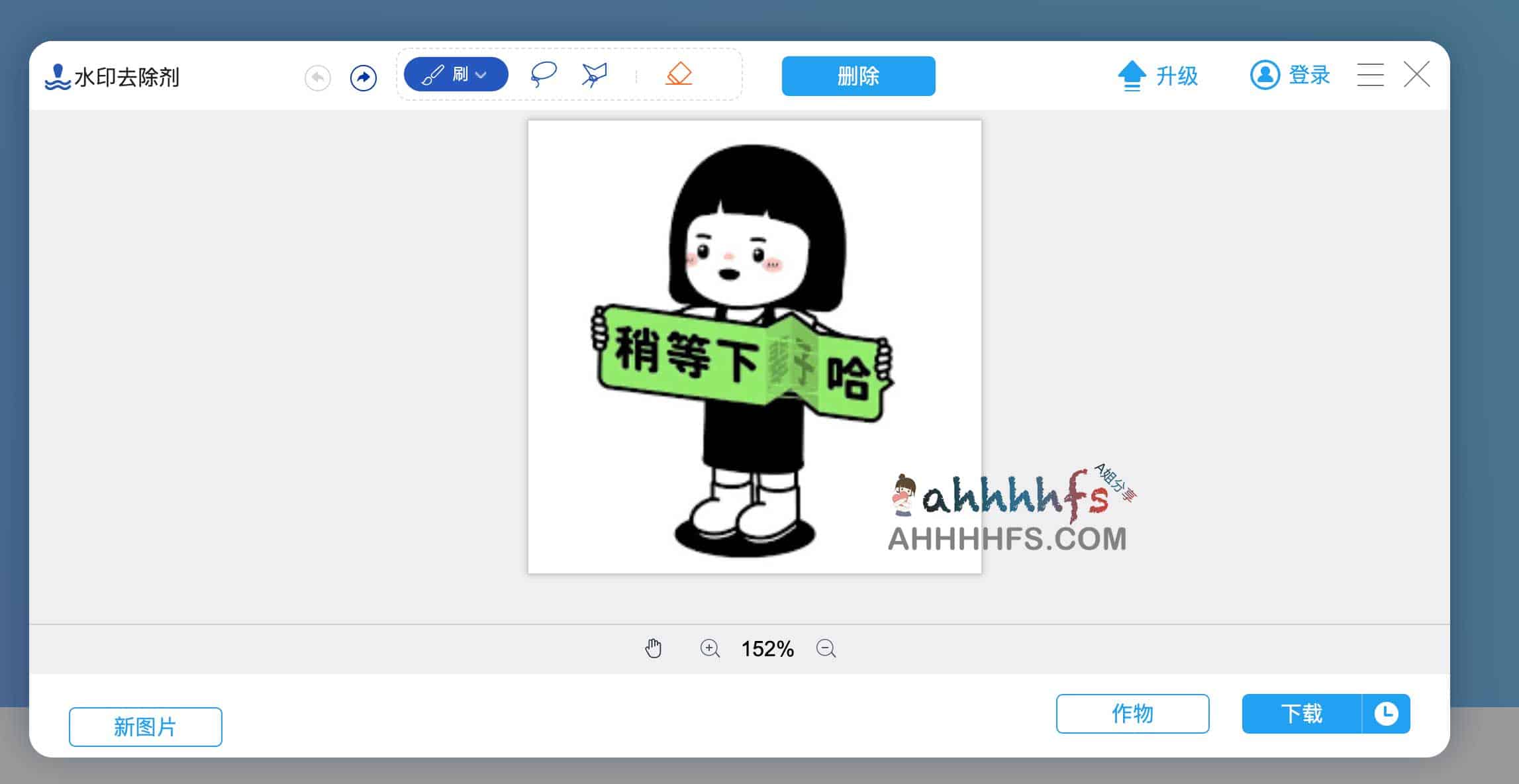
What Is Aiseesoft Watermark Remover?
Aiseesoft Watermark Remover is a browser-based image editing tool made by Aiseesoft. Its main purpose is to remove unwanted parts of an image, including watermarks, text, logos, date stamps, and small background objects.
Instead of simply erasing pixels, the tool analyzes the area around your selection and fills the removed section with matching visual information.
Aiseesoft currently describes the product as an AI watermark remover. The underlying workflow is similar to image inpainting: select an object, remove it, and reconstruct the missing area based on the surrounding image.
What Can Aiseesoft Watermark Remover Remove?
The tool is not limited to transparent watermarks. It can also be used for several common photo cleanup tasks.
- Text watermarks
- Logos
- Date and timestamp overlays
- Small unwanted objects
- Background people
- Labels or text added to an image
Results depend heavily on the image itself. A small watermark on a plain wall or sky is much easier to repair than a large logo covering a face, hair, detailed clothing, or complex patterns.
How to Use Aiseesoft Watermark Remover
The entire process takes place in the browser.
- Upload the image you want to edit.
- Choose the Brush, Lasso, or Polygon selection tool.
- Mark the watermark or object you want to remove.
- Adjust the selected area if necessary.
- Start the removal process.
- Preview the result and save the edited image.
If the first result looks rough, selecting a smaller area and removing the object in several passes often works better than covering a very large section at once.
Brush, Lasso, and Polygon Tools Explained
Aiseesoft Watermark Remover provides several ways to mark the area that needs to be removed.
| Tool | Best For |
|---|---|
| Brush | Irregular text, small watermarks, and small objects |
| Lasso | People, logos, and objects with uneven edges |
| Polygon | Objects with clear or straight boundaries |
| Eraser | Correcting parts of the current selection |
A tighter selection usually gives the tool less area to reconstruct, which can make the final result look more natural.
How Does AI Watermark Removal Work?
A basic eraser only removes pixels. That normally leaves an empty area or an obvious patch.
AI-assisted object removal works differently. It examines nearby colors, textures, edges, and patterns, then generates replacement pixels for the selected area.
This type of image repair is commonly referred to as inpainting.
Simple backgrounds such as sky, walls, grass, tables, and other low-detail areas are usually easier to reconstruct. Faces, hair, text-heavy areas, building lines, and repeating patterns are harder because more visual information has to be recreated.
Which Image Formats Are Supported?
Aiseesoft currently lists support for these image formats:
- JPG
- JPEG
- PNG
- BMP
- TIFF
That covers most photos, screenshots, product images, and graphics commonly used on the web.
Can Aiseesoft Watermark Remover Remove Video Watermarks?
No. The online Aiseesoft Watermark Remover is designed for images rather than video files.
Video watermark removal requires additional work such as frame-by-frame processing, object tracking, and maintaining consistency between frames. Uploading an MP4 or other video file is therefore a different workflow from editing a still image.
Is Aiseesoft Watermark Remover Free?
The browser tool includes free image processing, but the current page shows a daily limit of up to 10 images.
Aiseesoft also displays upgrade options, and some download situations may offer different output quality depending on the available plan.
For occasional photo cleanup, the free allowance may be enough. People processing larger batches are more likely to run into the daily limit.
Does Removing a Watermark Reduce Image Quality?
It can.
The tool cannot reveal the original pixels hidden underneath a watermark. It has to generate a replacement based on nearby parts of the image.
That means the larger the covered area, the more information the tool has to estimate.
Areas such as sky, walls, grass, and plain backgrounds are relatively forgiving. Fine details such as faces, hair, clothing textures, architecture, and repeating patterns are more likely to show visible repair marks.
If a watermark covers an important part of the main subject, no automatic removal tool can guarantee an exact reconstruction of the original image.
Can It Remove People From Photos?
Yes, it can be used to remove some unwanted people and other objects from a photo.
The result depends on the size of the person and what is behind them. A small person in the distance is usually easier to remove than someone covering a large part of the frame.
If the background is simple and predictable, the reconstructed area can look fairly natural. Complex scenes may still need manual retouching afterwards.
Online Watermark Removal and Image Privacy
Aiseesoft Watermark Remover is an online service, which means images are submitted through the website for processing.
That is worth considering before uploading identity documents, private contracts, customer information, internal screenshots, unreleased artwork, or other sensitive material.
For ordinary public images this may not be a major concern, but sensitive or confidential files are generally easier to control with local image editing software that runs directly on your own device.
Removing a Watermark Does Not Change Copyright
A watermark can identify the photographer, copyright holder, stock image provider, or original source of an image.
Being technically able to remove a watermark does not grant permission to reuse the underlying image.
Typical legitimate use cases include removing a watermark that you added yourself, cleaning up your own photos, removing an old date stamp, editing licensed material, or removing unwanted objects from a picture.
If an image belongs to a photographer, publisher, stock image service, or another copyright holder, its original license still applies after the watermark has been removed.
Who Is Aiseesoft Watermark Remover For?
The tool works well for occasional image cleanup when opening Photoshop or another full desktop editor would be unnecessary.
It can be useful for product photos, personal pictures, screenshots, old photo timestamps, small logos, and background objects.
For batch processing, detailed portrait retouching, layered design work, or images with difficult backgrounds, a full desktop editor gives you more control.
Aiseesoft Watermark Remover Website
https://zh-cn.aiseesoft.com/watermark-remover-online/
Aiseesoft Watermark Remover FAQ
Do I need to install Aiseesoft Watermark Remover?
No. The watermark remover runs in a web browser, so the online version does not require desktop software.
Do I need an account?
Basic image processing can be accessed from the online tool. The website also provides sign-in and upgrade options.
How many images can I process per day?
The current online tool shows a limit of up to 10 images per day.
Does Aiseesoft Watermark Remover support PNG files?
Yes. The supported formats currently include JPG, JPEG, PNG, BMP, and TIFF.
Can it remove text from an image?
Yes. Text can be selected with the Brush, Lasso, or Polygon tool and then removed using the same object removal process.
Can it remove logos?
Yes, although the result depends on the size of the logo and the complexity of the background underneath it.
Can it remove watermarks from videos?
No. The online version is for still images and does not process video files.
Will the result always look natural?
No. Simple backgrounds are easier to repair. Large covered areas, faces, hair, detailed textures, and complex patterns are more likely to show visible editing artifacts.


Comments (0)