



Easy Pick is an online image extractor for pulling reusable assets out of a finished poster, promotional graphic or screenshot. Instead of working from the original PSD or source files, you can upload a flat image and extract products, icons or illustrations as separate PNG assets.
This is useful when the design is all you have. For example, a product poster may contain several items you want to reuse in a new layout, but the original product images are no longer available.
Easy Pick is different from a typical background remover. A background remover usually isolates one foreground subject. Easy Pick is designed for a different job: taking several existing elements from one flat image and turning them into separate assets you can reuse.
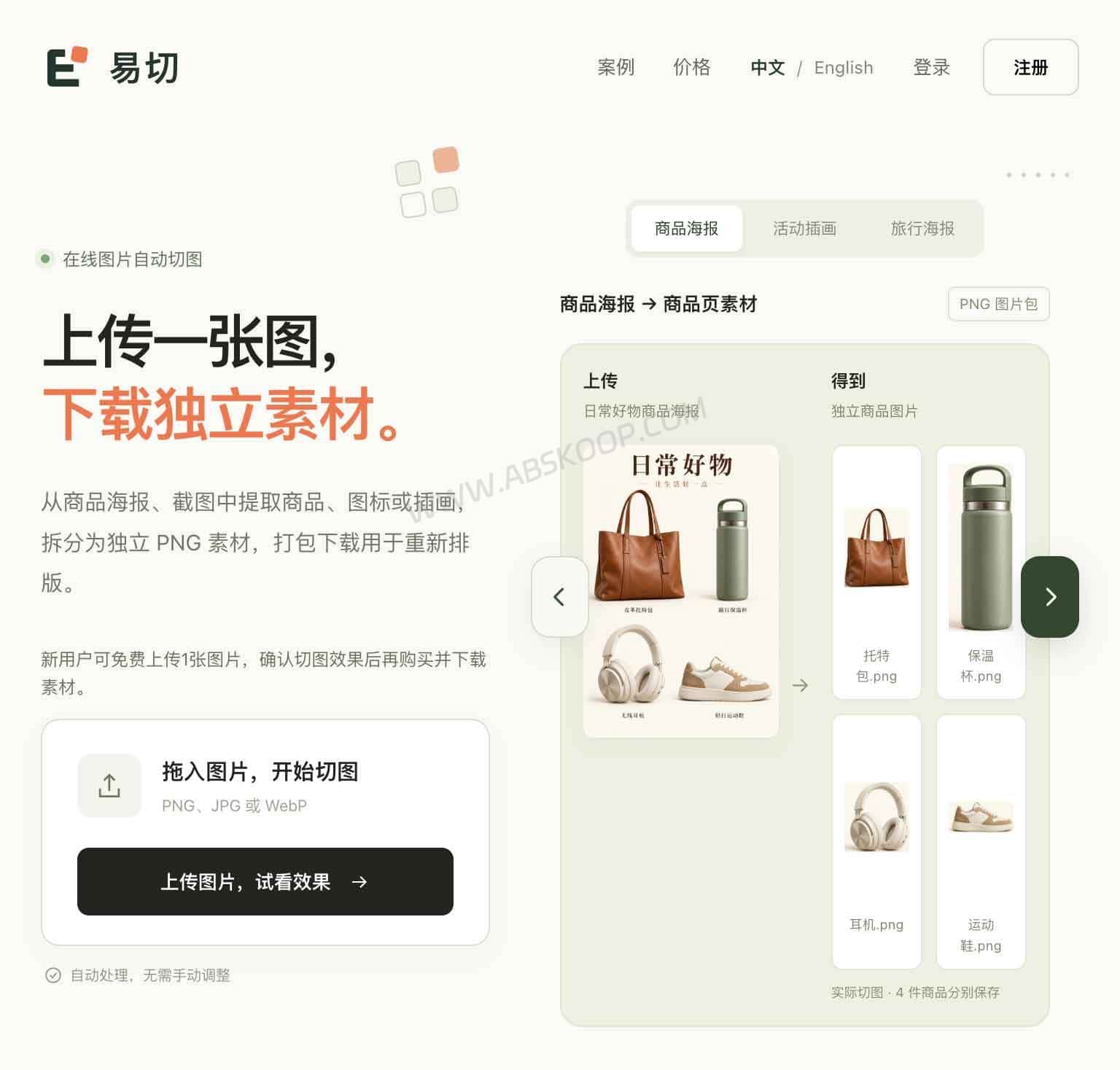
How does Easy Pick extract separate PNG assets from a poster?
Upload a finished image containing several products or visual elements, and Easy Pick automatically looks for items that can be extracted separately. Each detected item is returned as an individual PNG that can be reused in another design or layout.
One example starts with a product poster containing a tote bag, insulated bottle, headphones and sneakers. After processing, the four products are available as separate assets and can be rearranged into a new design.
The video below shows the full workflow, from the original poster to the extracted items and the new layout:
This kind of extraction makes the most sense when you only have the final JPG, PNG or screenshot rather than the original design files. Typical uses include:
- pulling individual products out of a product collage or ecommerce banner;
- extracting illustrations or icons from a promotional poster;
- recovering banners, photos or graphic assets from a webpage screenshot;
- reusing elements from an old design in a presentation, article or new layout.
How to use the Easy Pick image extractor
Easy Pick accepts PNG, JPG and WebP images. Processing is automatic, so you do not need to draw selection boxes, trace edges or crop every item by hand.
New users can preview one image for free. That makes it possible to check how your own source image is handled before paying to download the extracted files.
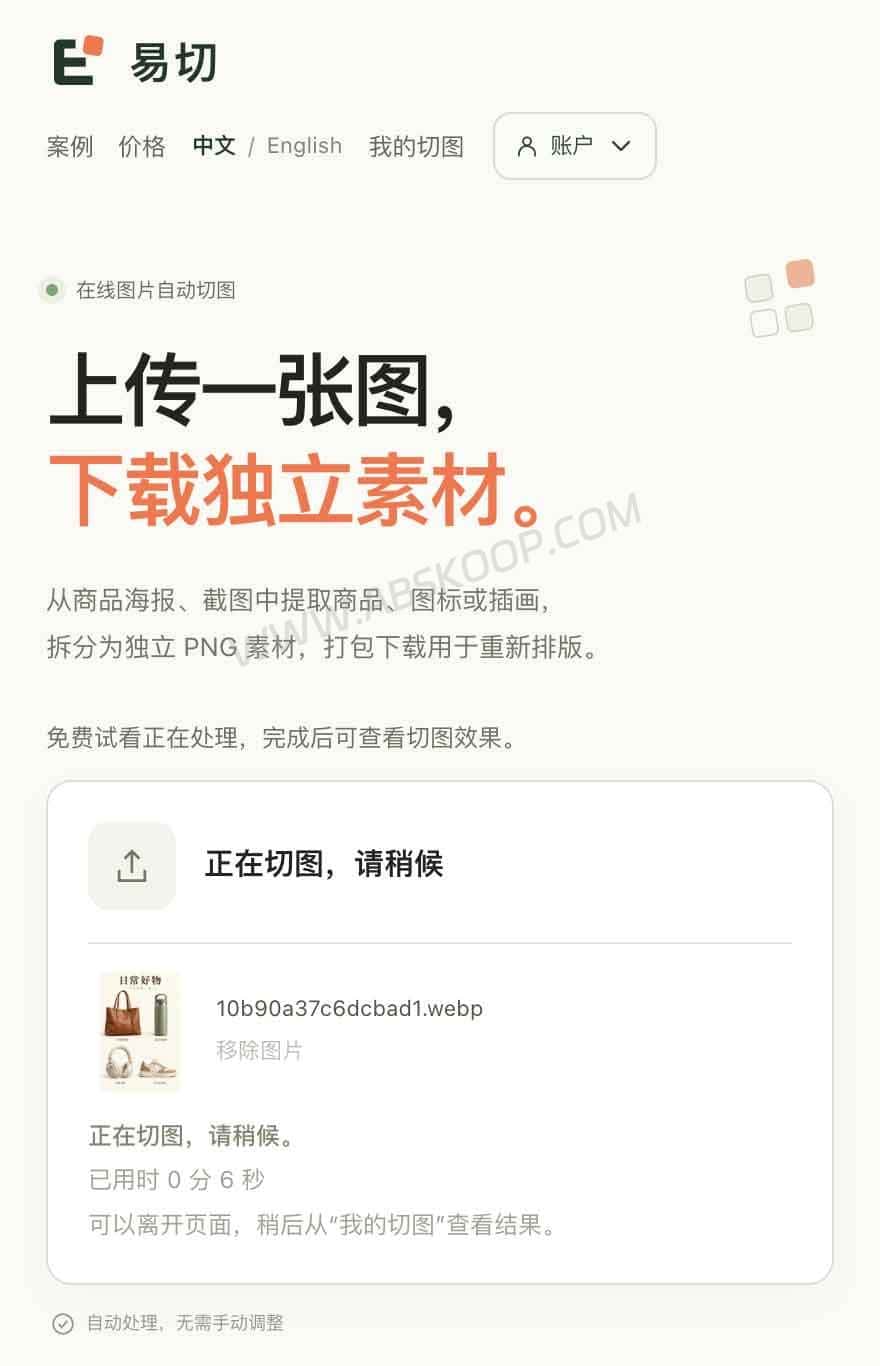
The workflow is straightforward:
- Upload the complete source image.
- Wait for Easy Pick to detect and extract products, icons, illustrations or other elements.
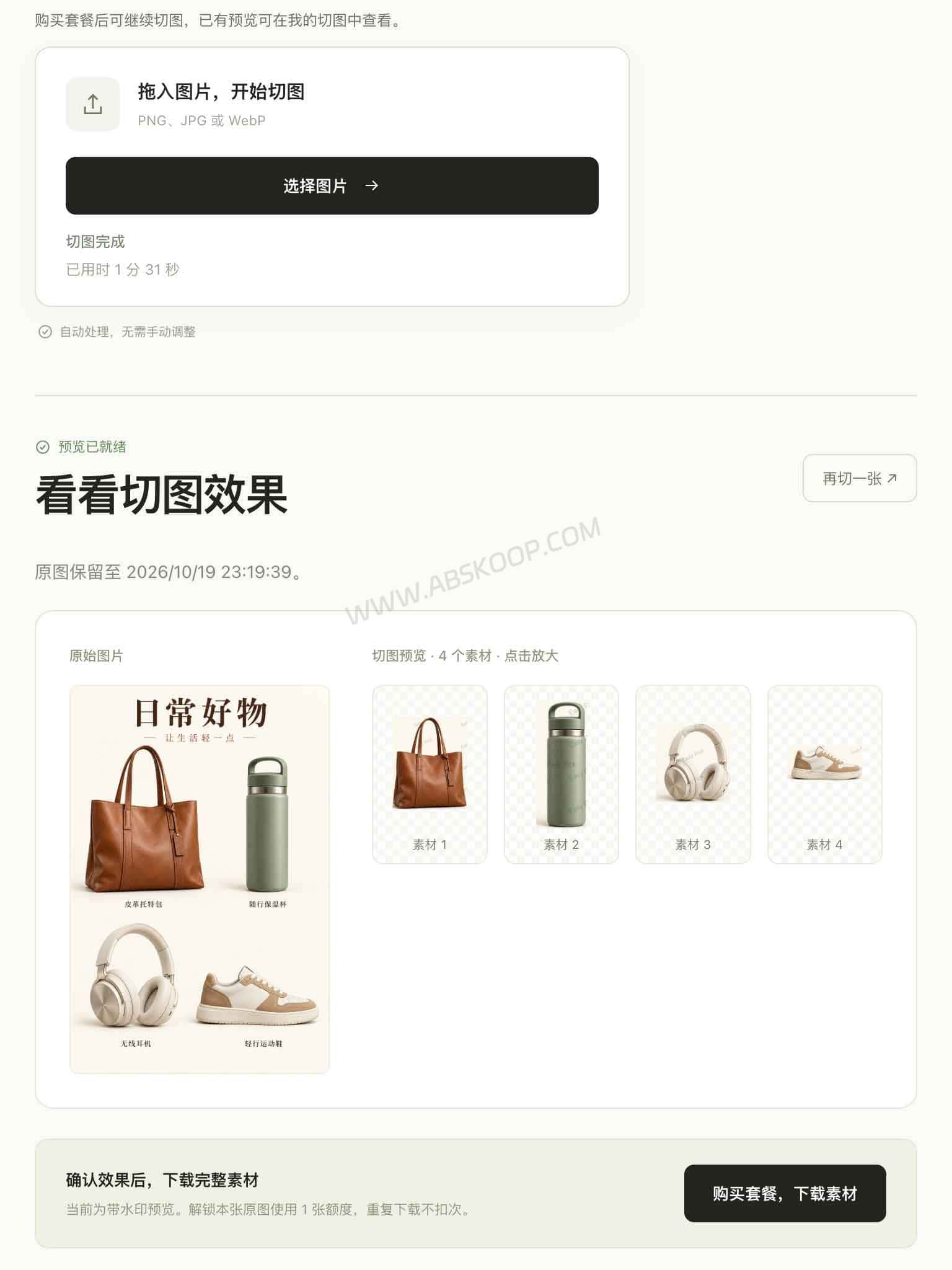
- Check the preview of each extracted asset.
- If the results are useful, purchase image credits.
- Download the extracted PNG assets together in a ZIP file.
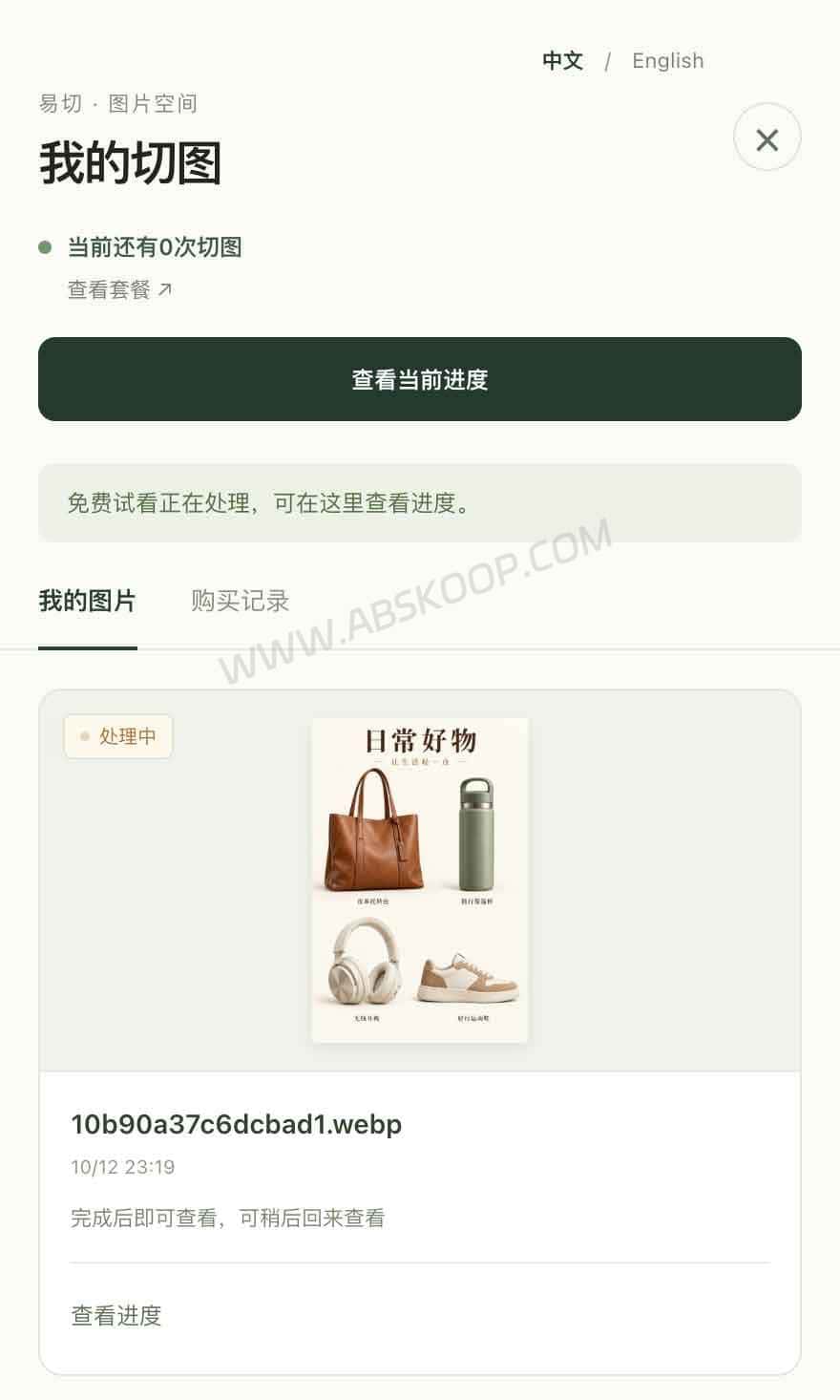
You do not need to keep the processing page open. Once you are signed in, completed jobs can also be checked later under My Images.
Easy Pick: https://easypick.cc
Tip: Images with clearly separated objects and less overlap tend to be easier to extract. Busy backgrounds, heavily overlapping elements or objects that blend into each other can produce less useful results, so use the free preview with the actual image you plan to work on.
How much does Easy Pick cost?
Easy Pick uses one-time image credits rather than a monthly subscription.
The entry package is currently ¥9.90 for 5 source images. The allowance is based on the number of complete images you submit for processing, not the number of PNG files produced afterward. If one source image contains several extractable items, it can return several separate assets.
This makes more sense for occasional jobs where you only need to pull assets from a few posters or screenshots and do not want another recurring subscription. Plans and prices can change, so check the purchase screen before paying.
How long does Easy Pick keep uploaded images?
Easy Pick stores original uploads for 7 days and processed results for 30 days.
- Original image: 7 days
- Processed results: 30 days
If you plan to reuse the extracted assets later, save a local copy after downloading instead of treating Easy Pick as long-term file storage.
Easy Pick vs background removers and image-to-layers tools
| Tool type | Main job | Typical output |
|---|---|---|
| Easy Pick | Extract several products, icons or illustrations from one flat image | Separate PNG assets |
| Background remover | Isolate one main subject and remove its background | Transparent PNG |
| Image splitter | Cut an image into fixed sections, tiles or grids | Multiple cropped images |
| Image-to-layers / PSD tool | Turn a flat image into editable visual layers | Layered PSD or separate layers |
Easy Pick is most useful when the problem is: “There are several assets already inside this finished image, and I want to reuse them separately.” It is not primarily a background-removal tool, and it does not reconstruct the original design layers.
What are the limitations of Easy Pick?
PNG output does not always mean a transparent background
Easy Pick exports extracted elements as PNG files, but the PNG output is not guaranteed to have a transparent background.
If the main goal is to remove the background from a person, product or logo, a dedicated background remover is usually a better fit. Easy Pick is more useful when several elements need to be pulled out of the same finished image.
It cannot turn a finished poster back into the original PSD
The extracted files are reusable image assets, not the original Photoshop layers.
You may be able to recover products, icons or illustrations from the finished design, but Easy Pick cannot rebuild the original text layers, background layers and object structure so the poster becomes fully editable again in Photoshop.
Some images are easier to separate than others
Clean posters with distinct objects are a better fit than images where elements overlap heavily, blend into a complicated background or appear at very small sizes.
The free preview is useful here: try the actual poster or screenshot you need to work with before paying for the download.
Who is Easy Pick for?
Easy Pick makes the most sense when you have a finished poster, product graphic or screenshot but no longer have the original assets.
An ecommerce operator might need to pull four products out of an old campaign banner. A content editor may want an illustration from a promotional graphic. Someone building a presentation may only need two reusable visual elements from a flat image instead of recreating the whole design.
If you only need to remove the background from one subject, use a background remover. If you need editable text, backgrounds and true design layers, an image-to-layers or PSD reconstruction tool is a better match.
Easy Pick sits between those two jobs: it extracts multiple reusable visual assets from an image that has already been flattened into a single file.


Comments (0)